Flexbox Mastery
Modern CSS Layout Techniques for Responsive Web Design
You'll gain the skills to build modern, responsive layouts with confidence and precision.
238 pages12 chaptersOct 30, 2025CSS
About this book
This comprehensive guide takes you beyond basic Flexbox syntax to develop a deep understanding of how flexible layouts actually work. You'll discover why certain properties behave the way they do, how to troubleshoot layout issues quickly, and when to choose Flexbox over other CSS layout methods. Through practical examples and real-world scenarios, you'll learn to create navigation systems, card grids, form layouts, and complex components that adapt seamlessly across devices. You'll master the relationship between containers and items, understand how space distribution really works, and develop an intuitive feel for alignment properties that once seemed mysterious. By the end, you'll approach layout challenges with a systematic methodology rather than trial-and-error. You'll write cleaner, more maintainable CSS that requires fewer media queries and less code overall. Whether you're building marketing sites, web applications, or design systems, you'll have the expertise to implement sophisticated layouts efficiently and elegantly.
Table of contents
- IntroductionThe Evolution of CSS Layout, Why Flexbox Changed Everything, How to Use This BookRead below
- Chapter 1: Flexbox FundamentalsThe Container and Item Relationship, Understanding Main and Cross Axes, Enabling Flexbox: The Display Property, Building Your Flexbox Mental Model
- Chapter 2: Controlling Direction and FlowThe Flex-Direction Property, Row vs Column Layouts, Reverse Directions and Use Cases, Wrapping with Flex-Wrap
- Chapter 3: Distributing SpaceFlex-Grow: Expanding to Fill Space, Flex-Shrink: Contracting When Necessary, Flex-Basis: Setting the Starting Point, The Flex Shorthand Property
- Chapter 4: Mastering AlignmentJustify-Content: Main Axis Alignment, Align-Items: Cross Axis Alignment, Align-Self: Individual Item Control, Align-Content: Multi-Line Alignment
- Chapter 5: Spacing and GapsThe Gap Property, Margins in Flexbox Contexts, Auto Margins for Precise Control
- Chapter 6: Common Layout PatternsNavigation Bars and Menus, Card Grids and Equal-Height Columns, Perfect Centering Techniques, The Holy Grail Layout
- Chapter 7: Responsive Flexbox DesignFlexbox with Media Queries, Creating Truly Flexible Components, Mobile-First Flexbox Strategies, Planning Breakpoints Effectively
- Chapter 8: Forms and Input LayoutsAligning Form Controls, Input Groups and Button Combinations, Search Bars and Filter Interfaces
- Chapter 9: Flexbox vs CSS GridOne-Dimensional vs Two-Dimensional Layouts, When to Use Each Method, Combining Flexbox and Grid
- Chapter 10: Advanced TechniquesNested Flexbox Containers, The Order Property and Visual Reordering, Dynamic Layouts with Flexbox, Accessibility Considerations
- Chapter 11: Troubleshooting and DebuggingCommon Flexbox Issues, Using Browser DevTools, Solving Overflow Problems, A Systematic Debugging Strategy
- Chapter 12: Real-World ProjectsBuilding a Dashboard Layout, Pricing Tables and Feature Comparisons, Image Galleries and Media Layouts
- ConclusionKey Takeaways, Your Next Steps
- Further Reading
Introduction
Web layout has always been one of the most challenging aspects of CSS development. For years, developers relied on techniques that were never intended for page layout—floats designed for wrapping text around images, tables meant for tabular data, and positioning properties that required precise calculations. These workarounds created fragile, difficult-to-maintain code that broke easily across different screen sizes. The frustration of centering a div vertically became a running joke in the development community, symbolizing the broader struggle with CSS layout limitations.
Flexbox emerged as a purpose-built solution to these layout challenges, fundamentally changing how developers approach interface design. Unlike previous methods that positioned elements individually, Flexbox introduces a relationship-based system where containers distribute space among their children. This shift in thinking—from absolute positioning to flexible space distribution—represents more than just new CSS properties. It's a different mental model that, once understood, makes complex layouts intuitive and responsive designs significantly easier to implement.
This book takes you beyond memorizing property names and values. You'll develop a deep understanding of how Flexbox actually works, why properties behave the way they do, and how to troubleshoot issues systematically rather than through trial and error. Whether you're building navigation systems, card grids, form layouts, or complete page structures, you'll gain the confidence to approach any layout challenge with a clear methodology. By understanding the underlying principles, you'll write cleaner code, solve problems faster, and create interfaces that adapt seamlessly across devices.
The Evolution of CSS Layout
The history of CSS layout is a story of creative problem-solving with inadequate tools. In the early days of web development, designers used HTML tables to create multi-column layouts, nesting tables within tables to achieve complex designs. While this approach provided control over positioning, it violated the separation of content and presentation that CSS was meant to establish. Tables created bloated HTML, made content difficult for screen readers to interpret, and required extensive markup changes for even minor layout adjustments.
The introduction of CSS floats offered an alternative, but floats were originally designed for magazine-style text wrapping around images. Developers repurposed this property to create column-based layouts by floating elements left or right and clearing subsequent content. This technique worked but introduced numerous complications. Floated elements removed themselves from normal document flow, causing parent containers to collapse. Developers needed clearfix hacks—non-semantic markup or pseudo-elements—just to make containers recognize their floated children. Responsive designs required complex calculations to determine widths, margins, and breakpoints.
Positioning properties—relative, absolute, and fixed—provided another approach but came with their own limitations. Absolute positioning removed elements from document flow entirely, requiring manual calculations for every placement. This made responsive design extremely difficult, as positioned elements didn't adapt to content changes or viewport sizes. Developers often combined positioning with JavaScript to calculate dimensions dynamically, adding complexity and performance overhead. Even simple tasks like vertically centering content required knowing the element's height in advance and using negative margins or transform properties.
The display: inline-block technique emerged as another workaround, allowing elements to sit side-by-side while respecting width and height properties. However, inline-block elements created mysterious whitespace issues caused by HTML formatting, forcing developers to remove line breaks in their markup or use font-size hacks. Vertical alignment remained problematic, and creating equal-height columns required JavaScript or visual tricks. Each of these methods required extensive browser-specific prefixes and fallbacks to ensure cross-browser compatibility.
These legacy techniques shared common problems that made CSS layout frustrating:
- No relationship between elements: Each element was positioned independently without awareness of siblings or available space
- Fragile responsive behavior: Layouts required extensive media queries and manual calculations for different screen sizes
- Vertical alignment challenges: Centering content vertically required knowing dimensions in advance or using complex workarounds
- Equal-height columns: Creating columns of equal height regardless of content required JavaScript or visual tricks with backgrounds
- Source order dependency: HTML structure dictated visual presentation, limiting design flexibility
- Spacing inconsistencies: Margins collapsed unpredictably, and creating consistent gaps between elements required careful calculation
The CSS Working Group recognized these limitations and began developing layout modules specifically designed for modern interface design. Flexbox, officially called the CSS Flexible Box Layout Module, was introduced to address one-dimensional layout challenges—arranging elements in a single row or column with intelligent space distribution. CSS Grid followed to handle two-dimensional layouts with rows and columns simultaneously. Together, these specifications represent the first time CSS included layout systems designed from the ground up for the task, rather than repurposed properties meant for other purposes.
Flexbox gained widespread browser support around 2015, though earlier implementations existed with different syntax[1]. Modern browsers now support the current specification consistently, making Flexbox a reliable foundation for production websites. The transition from legacy techniques to Flexbox represents more than adopting new properties—it requires rethinking how layout works at a fundamental level. Understanding this evolution helps explain why Flexbox properties behave the way they do and why certain patterns have become standard practice.
The shift to Flexbox has measurably improved development efficiency and code maintainability. Layouts that previously required dozens of lines of CSS with multiple media queries can now be accomplished with just a few properties. The relationship-based model means containers automatically adapt to content changes without manual recalculation. Responsive designs require fewer breakpoints because Flexbox properties inherently respond to available space. This efficiency translates to faster development, easier maintenance, and more robust interfaces that handle edge cases gracefully.
Why Flexbox Changed Everything
Flexbox introduced a fundamentally different approach to layout by establishing relationships between containers and their children. Instead of positioning each element individually, you define how a container should distribute available space among its items. This relationship-based model means elements automatically adjust to content changes, viewport sizes, and sibling elements without requiring manual calculations. The container becomes responsible for space distribution, while items communicate their flexibility preferences through properties like flex-grow and flex-shrink.
The concept of main and cross axes provides a consistent mental model for understanding how all Flexbox properties function. Every flex container has a main axis (the primary direction of item flow) and a cross axis (perpendicular to the main axis). Properties like justify-content always work along the main axis, while align-items always works along the cross axis. This consistency means once you understand the axis concept, you can predict how properties will behave regardless of whether you're working with rows or columns. The mental model remains the same even as the visual presentation changes.
Flexbox solved the vertical centering problem that plagued CSS developers for years. With just three lines of code, you can center content both horizontally and vertically:
.container {
	display: flex;
	justify-content: center;
	align-items: center;
}Space distribution capabilities give developers unprecedented control over how elements respond to available space. The flex-grow property determines how items expand to fill extra space, while flex-shrink controls how they contract when space is limited. The flex-basis property sets the starting point before growth or shrinkage occurs. These three properties work together to create truly flexible layouts that adapt intelligently to any container size. You can create equal-width columns, proportional distributions, or hybrid approaches where some items remain fixed while others flex.
Consider a practical example: a navigation bar with a logo on the left, navigation links in the center, and a user menu on the right. With Flexbox, this layout requires minimal code:
.navbar {
	display: flex;
	justify-content: space-between;
	align-items: center;
}

.nav-links {
	display: flex;
	gap: 1rem;
}space-between value automatically positions the logo and user menu at opposite ends while centering the navigation links. The layout adapts to different screen sizes without media queries for basic responsiveness. Adding or removing navigation items doesn't break the layout—the container redistributes space automatically.
Alignment properties in Flexbox provide solutions that previously required complex workarounds or JavaScript. The align-items property creates equal-height columns effortlessly by stretching items to match the tallest sibling. The align-self property allows individual items to override container alignment, enabling exceptions without additional markup. The align-content property controls spacing between wrapped lines, solving multi-row layout challenges that were nearly impossible with floats. These properties work consistently across browsers and handle edge cases gracefully.
The gap property (originally called grid-gap but now supported in Flexbox) revolutionized spacing between items. Previously, creating consistent gaps required applying margins to items and then removing margins from first or last children using pseudo-selectors. This approach broke when items wrapped to new lines or when the number of items changed dynamically. The gap property applies spacing only between items, never at container edges, eliminating these issues entirely. You can specify different values for row and column gaps, providing precise control over spacing in both dimensions.
Flexbox excels at component-level design patterns that appear throughout modern interfaces:
- Navigation bars: Horizontal or vertical menus with flexible spacing and alignment options
- Card layouts: Equal-height cards that adapt to content while maintaining visual consistency
- Form controls: Input groups with labels, fields, and buttons that align properly across different sizes
- Media objects: Image-text combinations where text wraps around fixed-width images
- Toolbars and button groups: Action buttons with consistent spacing and alignment
- Footer layouts: Multi-column footers that stack responsively on smaller screens
The responsive capabilities of Flexbox reduce the need for extensive media queries. Properties like flex-wrap allow items to wrap to new lines automatically when space becomes limited. The flex shorthand enables items to grow and shrink proportionally, adapting to any container size. This intrinsic responsiveness means layouts work across a wide range of viewport sizes with minimal breakpoint-specific code. When media queries are necessary, they typically adjust flex-direction or modify flex values rather than completely restructuring the layout.
Browser support for Flexbox is now excellent, with all modern browsers supporting the current specification consistently[2]. Legacy browsers like Internet Explorer 11 support an older syntax with some limitations, but these browsers represent a diminishing portion of web traffic. For most projects, Flexbox can be used confidently without fallbacks. The consistency across browsers means code written for one browser works identically in others, eliminating the browser-specific hacks that plagued earlier layout techniques.
The impact of Flexbox extends beyond technical capabilities to influence how developers think about layout. Instead of asking "how do I position this element at these coordinates," you ask "how should this container distribute space among its children." This shift from absolute positioning to relative relationships produces more maintainable code that adapts to change. When content updates, items are added or removed, or designs evolve, Flexbox layouts continue working without requiring manual adjustments. This resilience makes interfaces more robust and reduces long-term maintenance costs.
How to Use This Book
This book is structured to build your understanding progressively, starting with fundamental concepts and advancing to complex real-world applications. Each chapter focuses on specific aspects of Flexbox, but the concepts interconnect throughout. The early chapters establish the mental model you'll use for everything that follows—the container-item relationship, the axis concept, and how space distribution works. These foundations are essential for intuitive understanding rather than memorization. Later chapters apply these principles to practical scenarios, showing how fundamental concepts combine to solve real layout challenges.
You should have intermediate CSS knowledge before starting this book. Familiarity with basic CSS syntax, selectors, the box model, and how to apply styles to HTML elements is assumed. You don't need prior Flexbox experience—the book starts from first principles—but understanding CSS fundamentals will help you focus on Flexbox-specific concepts rather than general CSS mechanics. If you've struggled with layout using floats or positioning, you'll appreciate how Flexbox simplifies these challenges. If you've used Flexbox occasionally but don't fully understand why properties behave certain ways, this book will clarify the underlying principles.
The book emphasizes understanding over memorization. Rather than listing all possible property values, each chapter explains the reasoning behind property behavior. You'll learn why flex-basis interacts with width properties in specific ways, not just that it does. You'll understand why justify-content doesn't affect single-line layouts the same way it affects multi-line layouts. This conceptual approach means you'll be able to solve novel problems rather than just reproducing examples. When you encounter unexpected behavior, you'll have the mental model to diagnose issues systematically.
Code examples throughout the book demonstrate both HTML structure and CSS implementation. Examples start simple and increase in complexity, showing how basic patterns extend to sophisticated layouts. Each example includes explanation of why specific properties were chosen and how they interact. You'll see not just what works, but why it works and what alternatives exist. Many examples include common mistakes and how to avoid them, helping you recognize and fix issues in your own code.
The recommended approach for working through this book:
- Read chapters sequentially: Early chapters establish concepts that later chapters build upon, so skipping ahead may create gaps in understanding
- Experiment with examples: Type out code examples rather than copying them, and modify values to see how behavior changes
- Build practice projects: After each chapter, create small projects applying the concepts before moving forward
- Reference back frequently: Later chapters assume understanding of earlier concepts, so review previous material when needed
- Use browser DevTools: Inspect examples in your browser's developer tools to visualize how properties affect layout
- Compare with legacy techniques: If you've used floats or positioning, consider how you would have solved the same problems previously
Chapter 1 establishes Flexbox fundamentals—the container-item relationship, axis concept, and mental model for understanding all subsequent properties. This foundation is crucial; spend time ensuring you understand these concepts thoroughly. Chapter 2 covers direction and flow, explaining how flex-direction and flex-wrap control item arrangement. Chapter 3 dives deep into space distribution with flex-grow, flex-shrink, and flex-basis. These three chapters form the core of Flexbox understanding.
Chapter 4 explores alignment properties—justify-content, align-items, align-self, and align-content. Understanding how these properties work along different axes is essential for precise layout control. Chapter 5 covers spacing with the gap property and margin techniques. Chapter 6 presents common layout patterns you'll use repeatedly—navigation bars, card grids, centering techniques, and classic layouts. These patterns demonstrate how fundamental properties combine to solve real design challenges.
Chapter 7 focuses on responsive design, showing how Flexbox properties interact with media queries and viewport changes. You'll learn strategies for creating layouts that adapt gracefully across device sizes with minimal breakpoint-specific code. Chapter 8 applies Flexbox to forms and input layouts, addressing the unique challenges of form controls. Chapter 9 compares Flexbox with CSS Grid, helping you understand when to use each layout method and how to combine them effectively.
Chapter 10 covers advanced techniques including nested containers, the order property, dynamic layouts, and accessibility considerations. Chapter 11 provides troubleshooting strategies and debugging techniques for common Flexbox issues. Chapter 12 presents complete real-world projects that integrate concepts from throughout the book, showing how to approach complex layouts systematically. The conclusion synthesizes key takeaways and suggests next steps for continued learning.
Throughout the book, you'll find several types of supplementary content:
- Code examples: Practical demonstrations of concepts with both HTML and CSS
- Visual explanations: Descriptions of how layouts appear and behave across different scenarios
- Common mistakes: Pitfalls to avoid and how to recognize them in your code
- Best practices: Recommended approaches based on real-world experience and community standards
- Browser considerations: Notes on browser support and compatibility where relevant
- Performance tips: Guidance on writing efficient CSS that renders quickly
The book assumes you're working in a modern development environment with access to current browsers. Chrome, Firefox, Safari, and Edge all provide excellent DevTools for inspecting Flexbox layouts. The Flexbox inspector in these tools visualizes container and item properties, making it easier to understand how properties affect layout. Using these tools alongside the book will deepen your understanding significantly. You'll see exactly how the browser interprets your CSS and how properties interact in real-time.
After completing this book, you'll approach layout challenges with confidence and systematic methodology. You'll understand not just how to use Flexbox properties, but why they work the way they do. This understanding enables you to solve novel problems, debug issues efficiently, and write maintainable code that adapts to change. You'll recognize when Flexbox is the right tool and when alternatives like CSS Grid might be more appropriate. Most importantly, you'll have internalized the mental model that makes Flexbox intuitive rather than mysterious.
The goal isn't to memorize every property value or create a reference manual you consult constantly. The goal is to develop intuition—to look at a design and immediately recognize the Flexbox patterns that will implement it efficiently. This intuition comes from understanding principles rather than memorizing syntax. By the end of the book, you'll think in terms of containers and items, axes and alignment, growth and shrinkage. These concepts will become second nature, allowing you to focus on design challenges rather than CSS mechanics.
This is the end of the free sample. The full book has 12 chapters.
Want this book written for you?
Tell us your goals and background, and get your own version of this book, tailored by AI to you.






Benefits of AI-tailored books
- Read one book, not ten:
- all the CSS knowledge you need, gathered into a single book.
- Save days of learning:
- tell us your goals, choose your topics, and the whole book is built around them.
- Learn effortlessly:
- CSS book written for your specific background and expertise.
- Understand at a glance:
- includes charts, tables, timelines, checklists, decision trees, and more.
- Stay current:
- written the day you order it, not years ago.
- Trust what you read:
- every book is checked for accuracy, with real research when your subject needs it.
Create your unique book in 3 steps
- 1. Select your focus
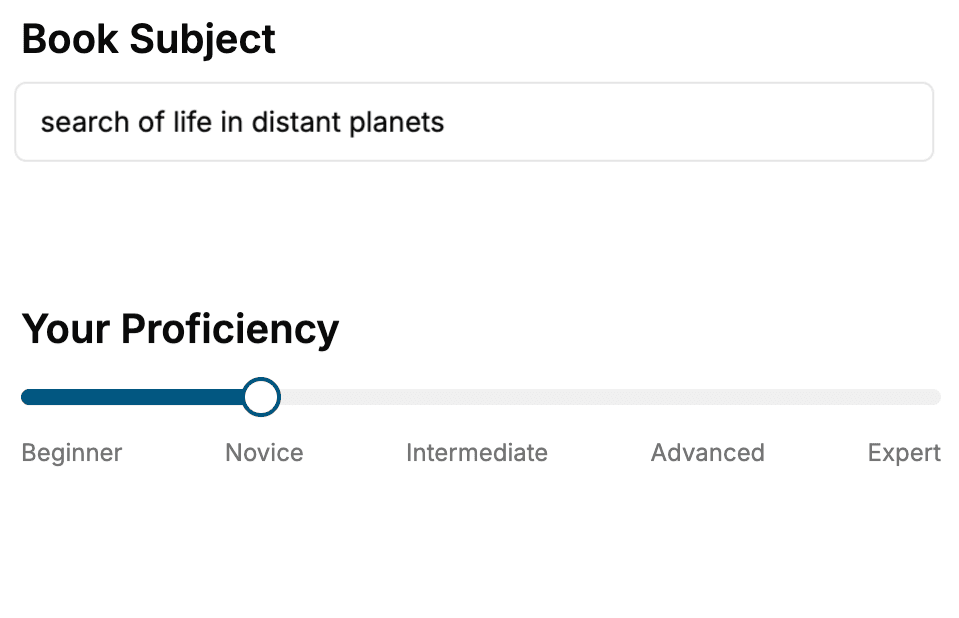
Select the focus of your CSS book and share your background
- 2. Personalize your book
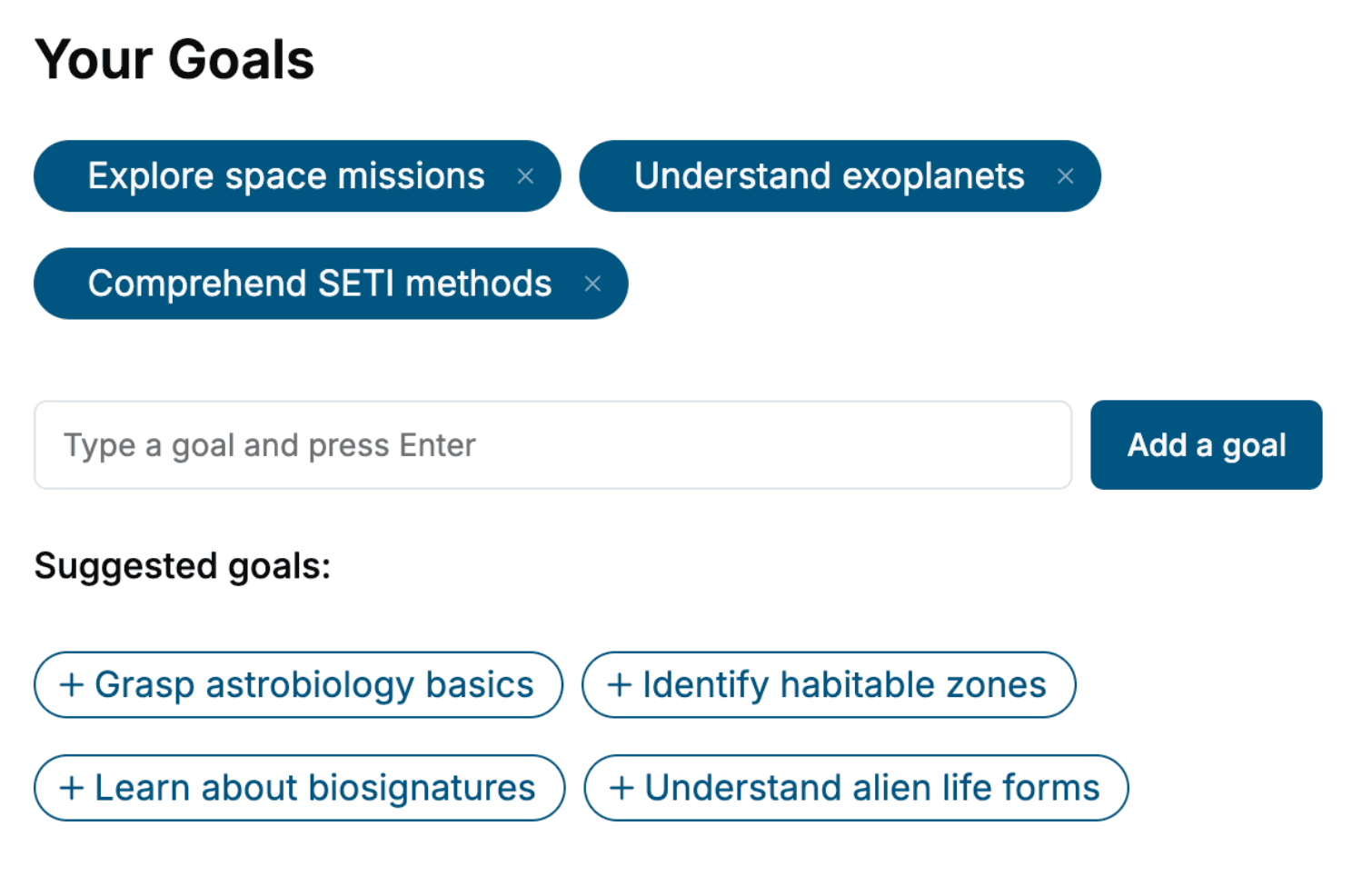
Specify your goals and choose sub-topics to include
- 3. Get your tailored book
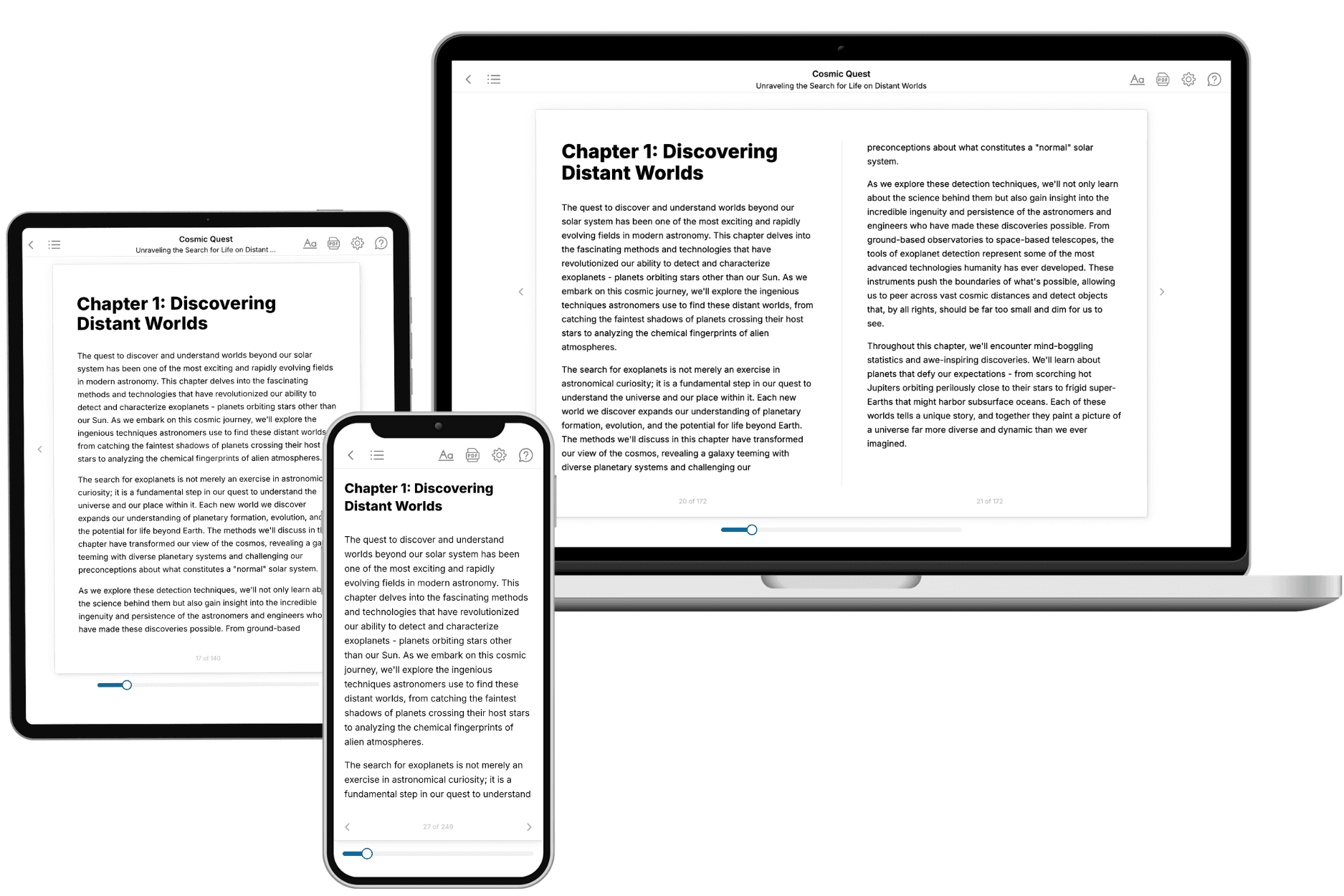
Your book is ready in 10 minutes. Read it online, download as EPUB or PDF, or send to Kindle.
Frequently asked questions
- What is TailoredRead?
TailoredRead creates complete, full-length nonfiction ebooks, written specifically for you. Tell us what you want to learn and why, and TailoredRead writes you a complete ebook on it, with charts, tables, and diagrams throughout. Read it online, on Kindle, or on any e-reader, or download it as a PDF or EPUB. Every book is written fresh the day you order it.
- How is the book tailored to me?
Before anything is written, you answer a few short questions about your goals, your background, and the topics you care about. Your book is then planned around your answers: written at your level, focused on your goals, and covering the topics you chose, instead of the one-size-fits-all book a store sells everyone.
- Will it read like generic AI content?
No. Your book isn't a chat transcript: it's planned chapter by chapter before a single word is written, told in a clear book voice, and explains ideas visually with charts, tables, and diagrams. After writing, every book goes through an editorial pass that polishes chapters so the book reads consistent from start to finish. Judge for yourself: browse thousands of sample books on our Explore Books page.
- How accurate is the content?
Our AI first checks whether your subject needs live research. Niche and fast-moving subjects are researched before writing, and the book plan and chapters are grounded in what it finds. After writing, every book goes through a quality pass that checks its facts and consistency, and researched books list their sources in a Notes section at the back.
- How long is the book?
You choose the length: Comprehensive (250-300 pages), Detailed (150-200 pages), Essential (70-100 pages), or Short (30-50 pages).
- Does the book include visuals?
Yes. Every book includes charts, tables, and diagrams: timelines, checklists, step-by-step guides, decision trees, comparison tables, matrices, and bar charts. A typical book includes dozens of these visual elements.
- Can I read it on Kindle? What formats can I download?
Yes. Every book can be read in our online reader or downloaded as a PDF or EPUB. The EPUB can be opened with Kindle, Apple Books, Kobo, and any e-reader. The Commercial and Author licenses also include an editable Word (DOCX) and Markdown download.
- How much does it cost?
About the price of a regular ebook. The exact price depends on your book's length and complexity, from $2 for the shortest books to $35 for the most comprehensive, and it's shown when you review your book, before you commit to anything. Each book is a one-time purchase, yours to keep, no subscription. Licenses that let you share, teach, or publish your book range from $35.99 to $49.99.
- Can I preview the book before purchasing?
Before you pay, you'll see what your book will cover: the title, a detailed description, the estimated length, and the complete chapter-by-chapter table of contents, so you know what you're getting before you decide. The full text itself is written after you purchase.
- How long does it take to create a book?
About 10 minutes. You can start reading the opening chapters while the rest is still being written.