iPhone Accessibility Mastery
Complete Guide to Using Built-In Features for Independence and Productivity
Many iPhone users don't realize their device already contains a comprehensive suite of accessibility tools—no apps needed, no extra cost.
238 pages10 chaptersNov 25, 2025iPhone
About this book
Whether you're managing a visual impairment, hearing loss, motor limitations, or simply want to use your iPhone more efficiently, these built-in features can transform how you interact with technology. This guide walks you through every major accessibility feature available on modern iPhones, explaining what each tool does, who benefits most from it, and exactly how to set it up. You'll discover features you didn't know existed, learn how to combine them for maximum effectiveness, and gain the confidence to customize your iPhone to match your unique needs. From VoiceOver for complete screen reading to Voice Control for hands-free operation, from Live Captions for hearing accessibility to Magnifier for low vision support, this book covers the full spectrum of tools Apple provides. Whether you're setting up accessibility for yourself, helping a family member, or supporting users professionally, you'll find practical, step-by-step guidance that makes your iPhone work better for you.
Table of contents
- IntroductionWhy Accessibility Matters for Everyone, What You'll Learn in This Book, How to Use This Guide, Where to Find Accessibility SettingsRead below
- Chapter 1: Understanding iPhone AccessibilityApple's Accessibility Philosophy, How Universal Design Benefits All Users, The Four Categories of Accessibility Features, Getting Started: The Right Mindset
- Chapter 2: Vision Accessibility: Tools for Low Vision and BlindnessVoiceOver: Complete Screen Reading, Magnification and Zoom Features, Display Accommodations and Color Adjustments, Combining Vision Features for Maximum Clarity
- Chapter 3: Hearing Accessibility: Audio and Communication SupportLive Captions: Real-Time Speech Recognition, Sound Recognition and Alerts, Hearing Aid Integration and Compatibility, Mono Audio, Balance, and Other Audio Adjustments
- Chapter 4: Motor Accessibility: Hands-Free and Alternative ControlVoice Control: Complete Hands-Free Operation, Switch Control for Alternative Input Methods, Touch Accommodations and Gesture Modifications, Building Your Motor Accessibility Workflow
- Chapter 5: Cognitive and Learning AccessibilityGuided Access: Focus and Distraction Reduction, Reduce Motion and Animation Settings, Reading Tools and Focus Features, Strategies for ADHD, Dyslexia, and Learning Differences
- Chapter 6: Customizing Your Accessibility SettingsCreating Accessibility Shortcuts for Quick Access, Combining Features for Personalized Solutions, Testing, Refining, and Adjusting Your Setup, Creating Multiple Profiles for Different Situations
- Chapter 7: Accessibility Across iPhone Apps and ServicesAccessibility in Apple's Built-In Apps, Evaluating Third-Party App Accessibility, Accessibility Features in iCloud, Apple ID, and Services, Reporting Accessibility Problems to Developers
- Chapter 8: Advanced Accessibility TechniquesUsing Shortcuts App for Accessibility Automation, Advanced VoiceOver Gestures and Navigation, Leveraging Siri for Accessibility Tasks, Troubleshooting Common Accessibility Issues
- Chapter 9: Accessibility for Caregivers and ProfessionalsSetting Up Accessibility for Family Members, Parental Controls and Accessibility Together, Accessibility in Educational and Professional Settings, Best Practices for Supporting Accessibility Users
- Chapter 10: Staying Current with iOS Updates and New FeaturesWhat's New in Recent iOS Versions, How to Discover New Accessibility Features, Participating in Beta Testing for Accessibility, The Future of iPhone Accessibility
- ConclusionYour Accessibility Journey Starts Now, Resources and Additional Support
- Glossary of Accessibility Terms
- Frequently Asked Questions
- Further Reading and Resources
Introduction
Your iPhone contains a hidden superpower that most people never discover. Buried within the Settings app lies a comprehensive suite of accessibility features designed to make your device work better for you—regardless of whether you have a disability, temporary limitation, or simply want a more comfortable way to interact with technology. These aren't experimental add-ons or expensive upgrades. They're built directly into iOS, ready to use the moment you need them, and they're far more powerful than most people realize.
The word accessibility often carries misconceptions. Many people assume these features are only for individuals with significant disabilities, or that enabling them will somehow diminish their iPhone experience. Nothing could be further from the truth. Accessibility features represent some of Apple's most innovative engineering work, and they benefit everyone. The parent who needs to check their phone while holding a baby uses the same hands-free controls designed for someone with motor limitations. The person working in a noisy coffee shop relies on the same Live Captions created for deaf users. The individual experiencing eye strain at the end of a long workday benefits from display accommodations originally designed for low vision support.
This book exists because accessibility features remain dramatically underutilized, not because they lack value, but because people don't know they exist or how to configure them effectively. You might have intermediate iPhone skills—you know how to download apps, send messages, and navigate basic settings—but the Accessibility section of Settings might as well be a foreign country. That changes now. Whether you're exploring these features for yourself, setting them up for a family member, or supporting users professionally, this guide will transform your understanding of what your iPhone can do.
The journey ahead isn't about memorizing every setting or becoming an accessibility expert overnight. It's about discovering which features address your specific needs, learning how to configure them properly, and understanding how to combine them for maximum effectiveness. Some features you'll use daily. Others you'll enable temporarily when circumstances demand them. A few might not apply to you at all—and that's perfectly fine. The goal is empowerment through knowledge, giving you the confidence to customize your iPhone until it works exactly the way you need it to work.
Why Accessibility Matters for Everyone
Accessibility isn't a niche concern—it's a universal design principle that improves technology for everyone. Consider this: approximately one in four adults in the United States lives with some form of disability, according to the Centers for Disease Control and Prevention[1]. That statistic alone represents millions of iPhone users. But the real number of people who benefit from accessibility features is far higher, because disability exists on a spectrum and circumstances create temporary limitations every single day.
Think about the situations you encounter regularly. You're cooking dinner and your hands are covered in flour, but you need to set a timer. You're in a loud environment where you can't hear audio clearly. You're experiencing a migraine and bright screens cause pain. You're holding grocery bags and need to unlock your phone. You're driving and need to send a message safely. You've injured your dominant hand and need to navigate with your non-dominant hand. Each of these scenarios represents a temporary limitation that accessibility features address beautifully. The person using Voice Control because of a spinal cord injury and the person using it because they're holding a sleeping baby are using the exact same feature for different reasons—and it works perfectly for both.
The concept of universal design recognizes that features created for specific accessibility needs often benefit the broader population in unexpected ways. Curb cuts—the sloped transitions from sidewalks to streets—were originally mandated for wheelchair users, but they also help people pushing strollers, pulling luggage, riding bicycles, and making deliveries. iPhone accessibility features follow the same pattern. Live Captions help deaf users, but they also help anyone watching videos in quiet environments, learning a new language, or processing information better through reading than listening. Display accommodations help users with color blindness, but they also reduce eye strain for anyone working long hours on their device.
Accessibility features also address the reality that ability changes over time. Vision naturally declines with age. Hearing loss affects millions of older adults. Arthritis makes precise touch gestures more difficult. Cognitive processing can be affected by stress, fatigue, medication, or neurological conditions. Rather than viewing these changes as failures requiring you to abandon technology you love, accessibility features let you adapt your iPhone to match your evolving needs. The device that worked perfectly for you at age 25 can continue working perfectly at age 65—you just need to know which settings to adjust.
Perhaps most importantly, accessibility features provide independence and dignity. When your iPhone works the way you need it to work, you don't need to ask others for help with basic tasks. You can communicate, access information, manage your life, and stay connected on your own terms. For someone with a disability, this independence isn't a luxury—it's fundamental to participating fully in modern life. For someone without a disability, these same features provide convenience, efficiency, and comfort. Everyone wins when technology becomes more flexible and adaptable.
The business case for accessibility is equally compelling. Companies that prioritize accessibility reach larger markets, demonstrate social responsibility, and often discover innovations that benefit all users. Apple has made accessibility a core value, not an afterthought, investing significant resources into features that might serve relatively small user populations. This commitment means you're not working with half-baked experimental features—you're accessing mature, well-designed tools that receive regular updates and improvements. When you enable accessibility features, you're using some of the most thoughtfully engineered aspects of iOS.
Understanding why accessibility matters helps you approach these features with the right mindset. This isn't about accommodating limitations—it's about maximizing capability. It's not about settling for a diminished experience—it's about customizing a better one. Whether you have a permanent disability, a temporary limitation, or simply want your iPhone to work more efficiently, accessibility features exist to serve you. The only question is which ones will make the biggest difference in your daily life, and that's exactly what this book will help you discover.
What You'll Learn in This Book
This book provides comprehensive coverage of iPhone accessibility features organized by the type of need they address. You'll learn not just what each feature does, but when to use it, how to configure it properly, and how to combine multiple features for personalized solutions. The content assumes you have intermediate iPhone knowledge—you're comfortable navigating Settings, downloading apps, and performing basic tasks—but no prior accessibility experience is required. Every feature is explained from the ground up with step-by-step guidance.
The book is structured around four major categories of accessibility features that align with how Apple organizes them in iOS:
- Vision accessibility covers tools for users who are blind, have low vision, or experience color blindness, including VoiceOver screen reading, Magnifier, Zoom, Display Accommodations, and various visual modifications
- Hearing accessibility addresses features for deaf and hard-of-hearing users, including Live Captions, Sound Recognition, hearing aid compatibility, visual alerts, and audio adjustments
- Motor accessibility explores hands-free and alternative control methods like Voice Control, Switch Control, Touch Accommodations, and gesture modifications for users with limited mobility or dexterity
- Cognitive and learning accessibility examines features that support users with ADHD, dyslexia, autism, and other cognitive differences, including Guided Access, Reduce Motion, reading tools, and focus features
Each category receives dedicated chapter coverage with detailed explanations of individual features. You'll learn the specific steps to enable and configure each tool, understand the settings that affect its behavior, and discover practical use cases that illustrate real-world applications. The book doesn't just tell you that VoiceOver exists—it walks you through enabling it, explains the gesture system, demonstrates navigation techniques, and helps you understand when VoiceOver is the right solution versus when other features might work better.
Beyond individual features, you'll learn how to combine accessibility tools for maximum effectiveness. Many users benefit most from using multiple features together rather than relying on a single solution. For example, someone with low vision might combine Zoom with Display Accommodations and Larger Text to create a comprehensive visual accessibility setup. Someone with motor limitations might use Voice Control for navigation combined with Touch Accommodations for the occasional physical interaction. The book provides guidance on these combinations, helping you understand which features work well together and which might conflict.
You'll also learn practical skills that extend beyond individual features:
- How to create Accessibility Shortcuts that let you toggle features on and off quickly with a triple-click of the side button
- How to test and refine your accessibility setup to ensure it actually improves your experience rather than creating new frustrations
- How to evaluate third-party apps for accessibility support and report problems to developers
- How to use the Shortcuts app to automate accessibility-related tasks
- How to troubleshoot common problems when accessibility features don't work as expected
- How to stay current with new accessibility features as Apple releases iOS updates
For caregivers, family members, and professionals supporting others, dedicated chapters address the unique challenges of setting up accessibility for someone else. You'll learn how to assess another person's needs, configure features appropriately, balance accessibility with parental controls or device management, and provide ongoing support without creating dependency. These chapters recognize that supporting accessibility users requires both technical knowledge and interpersonal skills—understanding not just how features work, but how to teach them effectively and respectfully.
The book also covers advanced techniques for power users who want to maximize their accessibility setup. You'll learn advanced VoiceOver gestures, discover how to leverage Siri for accessibility tasks, explore automation possibilities with the Shortcuts app, and understand how to participate in beta testing to access new features early. These advanced chapters are optional—you don't need them to benefit from accessibility features—but they're available for readers who want to push their iPhone to its limits.
Throughout the book, you'll find concrete examples and real-world scenarios that illustrate how people actually use these features. Rather than abstract descriptions, you'll see specific situations: how a teacher uses Guided Access to help students focus on educational apps, how a photographer with low vision uses Magnifier to examine details, how a person with arthritis configures Touch Accommodations to make gestures more forgiving, how a parent uses Sound Recognition to monitor a baby while working in another room. These examples help you understand not just the technical capabilities, but the practical applications that make accessibility features valuable.
How to Use This Guide
This book is designed to work both as a comprehensive guide you read cover-to-cover and as a reference you consult when you need specific information. Your approach depends on your goals, timeline, and learning style. If you're new to accessibility features and want to understand the full landscape of what's available, reading sequentially from beginning to end provides the most complete education. If you have a specific need—you've just been diagnosed with macular degeneration, or you've injured your hand and need alternative control methods—you can jump directly to the relevant chapter and start implementing solutions immediately.
Each chapter is structured to be self-contained while building on concepts introduced earlier. This means you can read Chapter 3 on hearing accessibility without having read Chapter 2 on vision accessibility, though you'll benefit from reading Chapter 1 first since it establishes foundational concepts that apply across all accessibility categories. Within each chapter, features are presented in order of complexity and common usage, starting with the most widely applicable tools and progressing to more specialized options. This structure helps you prioritize which features to explore first based on your needs.
As you read, consider keeping your iPhone nearby so you can follow along with the instructions in real-time. Accessibility features make much more sense when you actually interact with them rather than just reading descriptions. When a chapter explains how to enable VoiceOver, open your Settings app and enable it. When it describes specific gestures, try them. When it suggests configuration options, experiment with different settings to see how they affect your experience. This hands-on approach accelerates learning and helps you discover which features genuinely improve your workflow versus which sound good in theory but don't match your needs in practice.
The book uses several conventions to help you navigate content efficiently:
- Bold text highlights key terms, important concepts, and feature names you'll need to remember
- Italic text introduces new concepts or provides subtle emphasis on important points
Code formattingindicates specific settings paths, likeSettings > Accessibility > VoiceOver, making it easy to follow navigation instructions- Blockquotes present examples, scenarios, or important statements that deserve special attention
- Lists break down complex processes into manageable steps or organize related information for easy scanning
When you encounter a feature that interests you, don't just read about it—test it thoroughly before committing to it. Enable the feature and use your iPhone normally for at least a few hours, ideally a full day. Pay attention to how it affects your most common tasks: sending messages, browsing the web, using social media, checking email, making calls. Some features that seem perfect initially reveal limitations during extended use. Others that seem confusing at first become intuitive with practice. Give yourself time to adjust before deciding whether a feature works for you.
Take notes as you explore, either digitally or on paper. Record which features you've tried, what settings you've configured, and how they affected your experience. This documentation becomes invaluable when you're combining multiple features or troubleshooting problems. It's easy to forget which specific settings you changed when you're experimenting with dozens of options across multiple accessibility categories. Notes help you track your journey and make it easier to refine your setup over time.
Don't feel pressured to implement everything at once. Accessibility customization is a gradual process, not a one-time setup. Start with the one or two features that address your most pressing needs. Master those before adding more. This incremental approach prevents overwhelm and helps you understand how each feature contributes to your overall experience. Someone with low vision might start with Larger Text and Display Accommodations, use those for a week, then add Zoom once they're comfortable with the initial changes. This progression is more sustainable than enabling ten features simultaneously and feeling lost.
The book includes a glossary of accessibility terms, a FAQ section addressing common questions, and a resources section with links to additional support. Use these supplementary materials whenever you encounter unfamiliar terminology or need clarification beyond what the main chapters provide. The FAQ section specifically addresses questions that arise frequently when people first explore accessibility features, like whether enabling certain features affects battery life, whether accessibility features work with all apps, and how to disable features if they're not working as expected.
Finally, remember that this book reflects iOS as it exists at the time of publication, but Apple regularly updates accessibility features with new iOS releases. The core concepts and most features remain stable across versions, but specific settings locations or feature names occasionally change. If you can't find a setting exactly where the book describes it, check the broader Accessibility section—it's likely nearby. The chapter on staying current with iOS updates provides strategies for discovering new features and adapting to changes as they occur.
Where to Find Accessibility Settings
Before diving into specific features, you need to know where accessibility settings live within iOS. Apple consolidates virtually all accessibility features in a single location: Settings > Accessibility. This centralization makes features easier to discover and manage compared to scattering them throughout different settings categories. To access this section, open the Settings app (the gray icon with gears), then scroll down and tap Accessibility. You'll typically find it between Privacy & Security and Passwords, though the exact position varies slightly depending on your iOS version.
The Accessibility settings screen organizes features into several major categories that correspond to the types of needs they address. At the top, you'll see Vision, which expands to reveal features like VoiceOver, Zoom, Display & Text Size, and Motion settings. Below that, Physical and Motor contains features like Touch, Face ID & Attention, Switch Control, and Voice Control. The Hearing section includes Audio Descriptions, Subtitles & Captioning, and Live Captions. Further down, you'll find General settings that apply across categories, including Guided Access, Siri, and Accessibility Shortcut.
Understanding this organizational structure helps you navigate efficiently when you're looking for specific features. If you're experiencing vision-related challenges, you know to explore the Vision section first. If you need hands-free control, you'll find relevant features under Physical and Motor. This logical grouping reflects how people actually think about their needs rather than organizing features alphabetically or by technical implementation. Apple's user research clearly influenced this structure, making it more intuitive than many settings organizations.
Within each category, features are generally ordered by how commonly they're used, with the most popular or broadly applicable features appearing first. For example, in the Vision section, VoiceOver appears at the top because it's the most comprehensive vision accessibility feature, followed by Zoom, then more specialized options like Display Accommodations. This ordering helps you prioritize which features to explore first when you're new to accessibility settings. The features at the top of each category typically benefit the most users or address the most significant needs.
Many accessibility features include extensive sub-settings that control their behavior in detail. When you tap on a feature like VoiceOver, you don't just see an on/off toggle—you see an entire screen of configuration options. These sub-settings let you customize features to match your specific preferences and needs. For example, VoiceOver includes settings for speech rate, verbosity, typing feedback, navigation style, and dozens of other parameters. Don't feel intimidated by this complexity. You can enable most features with default settings and adjust them gradually as you understand how they work.
The Accessibility Shortcut setting, found at the bottom of the main Accessibility screen, deserves special attention because it provides quick access to your most-used features. When you configure this shortcut, you can triple-click the side button (or home button on older iPhones) to instantly toggle specific accessibility features on or off. This shortcut is invaluable for features you use situationally rather than constantly. For example, you might enable Magnifier only when you need to read small print, or activate Voice Control only when your hands are occupied. The shortcut makes these temporary activations effortless.
Some accessibility features also appear in Control Center, the panel you access by swiping down from the top-right corner of your screen (or swiping up from the bottom on older iPhones). You can add accessibility controls to Control Center by going to Settings > Control Center and tapping the plus icon next to accessibility features like Magnifier, Hearing, or Text Size. This provides another quick access method that's sometimes more convenient than the triple-click shortcut, especially if you're already using Control Center for other functions like adjusting brightness or controlling music.
As you explore accessibility settings, you'll notice that some features include tutorial or demo modes that help you learn how they work. VoiceOver, for example, includes a practice mode where you can experiment with gestures without affecting your actual iPhone usage. Switch Control includes a setup assistant that walks you through configuration step-by-step. Take advantage of these learning tools when they're available. They're designed specifically to help new users overcome the initial learning curve that sometimes makes accessibility features seem more complicated than they actually are.
One important technical note: some accessibility features, particularly VoiceOver and Switch Control, fundamentally change how you interact with your iPhone. When these features are active, standard gestures work differently. A single tap might speak an item's name instead of activating it. This can be disorienting if you're not expecting it. The book will explain these interaction changes in detail when covering specific features, but be aware that if your iPhone suddenly seems to be responding strangely to touches, you may have accidentally enabled an accessibility feature. The triple-click shortcut provides a quick way to disable features if you need to return to standard operation.
Finally, remember that accessibility settings sync across your Apple devices if you use the same Apple ID and have iCloud enabled. This means settings you configure on your iPhone can automatically apply to your iPad, and vice versa. This synchronization is convenient when you use multiple devices, but it can also be surprising if you're not expecting it. If you need different accessibility configurations on different devices—perhaps you use VoiceOver on your iPhone but not your iPad—you can disable accessibility syncing in Settings > [Your Name] > iCloud by turning off the toggle for Accessibility. This gives you independent control over each device's accessibility configuration.
Notes
Introduction
- 1. Centers for Disease Control and Prevention, Disability Impacts All of Us, CDC.gov, 2023
This is the end of the free sample. The full book has 10 chapters.
Want this book written for you?
Tell us your goals and background, and get your own version of this book, tailored by AI to you.


Benefits of AI-tailored books
- Read one book, not ten:
- all the iPhone knowledge you need, gathered into a single book.
- Save days of learning:
- tell us your goals, choose your topics, and the whole book is built around them.
- Learn effortlessly:
- iPhone book written for your specific background and expertise.
- Understand at a glance:
- includes charts, tables, timelines, checklists, decision trees, and more.
- Stay current:
- written the day you order it, not years ago.
- Trust what you read:
- every book is checked for accuracy, with real research when your subject needs it.
Create your unique book in 3 steps
- 1. Select your focus
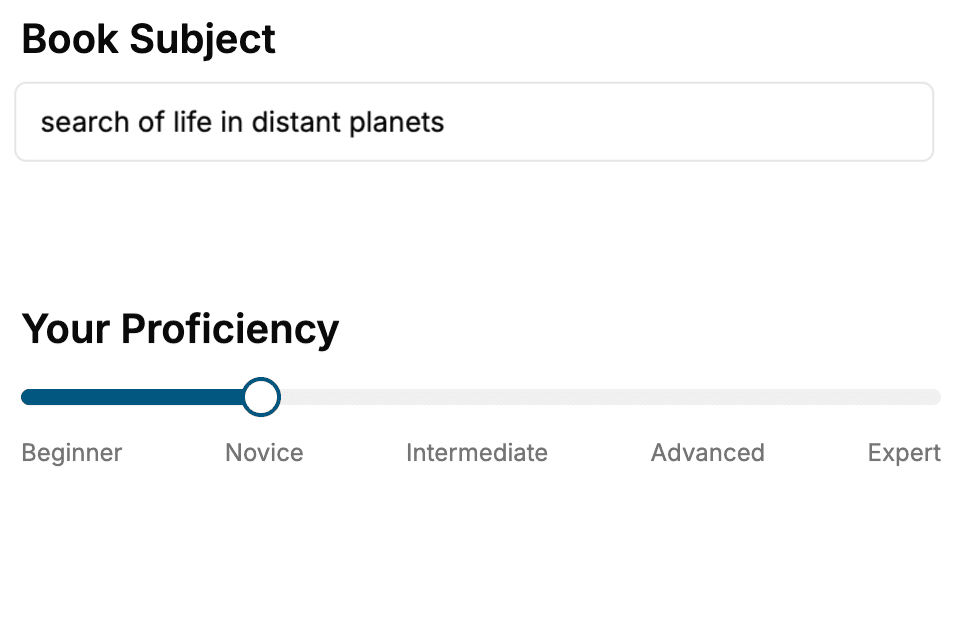
Select the focus of your iPhone book and share your background
- 2. Personalize your book
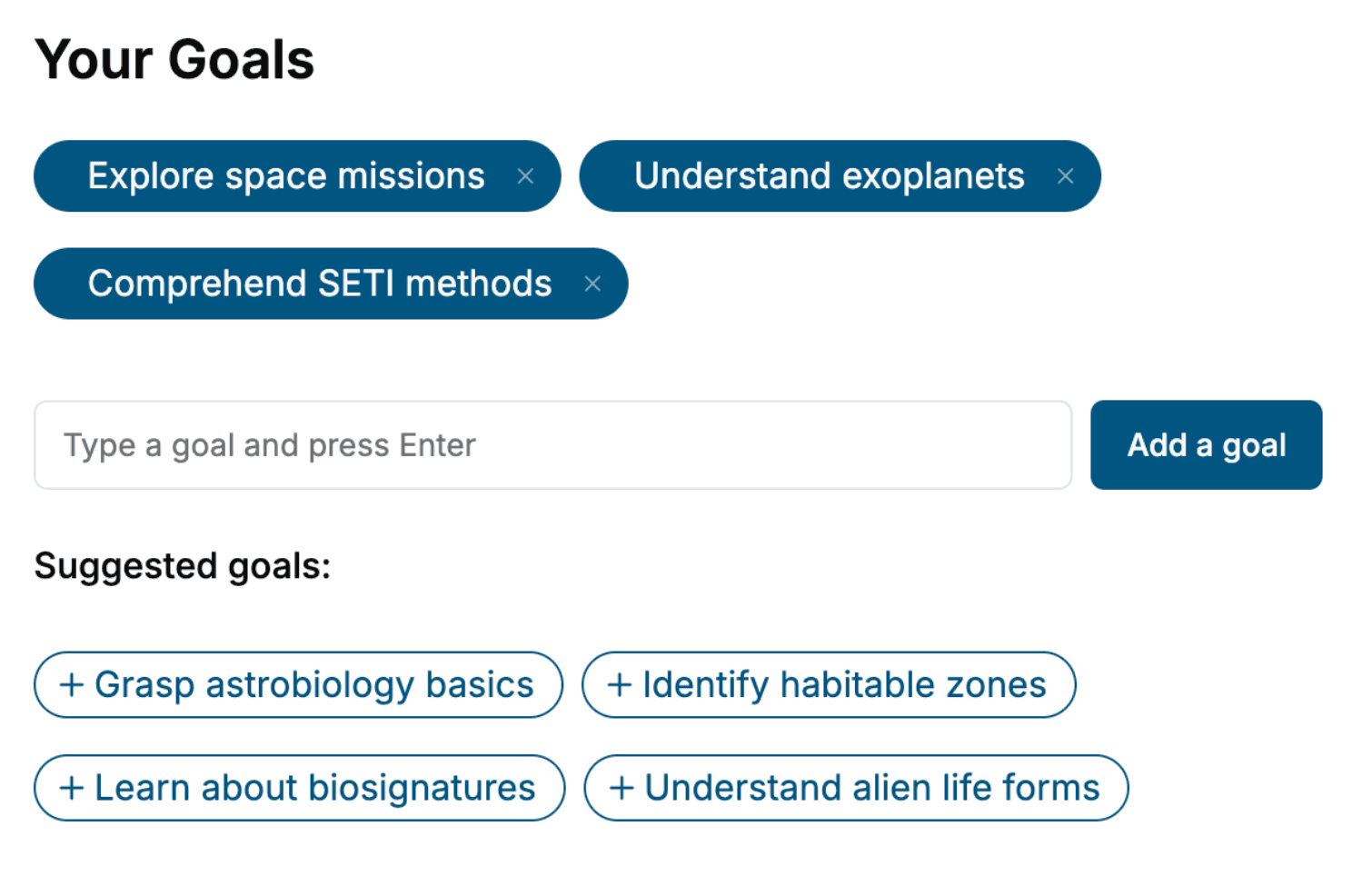
Specify your goals and choose sub-topics to include
- 3. Get your tailored book
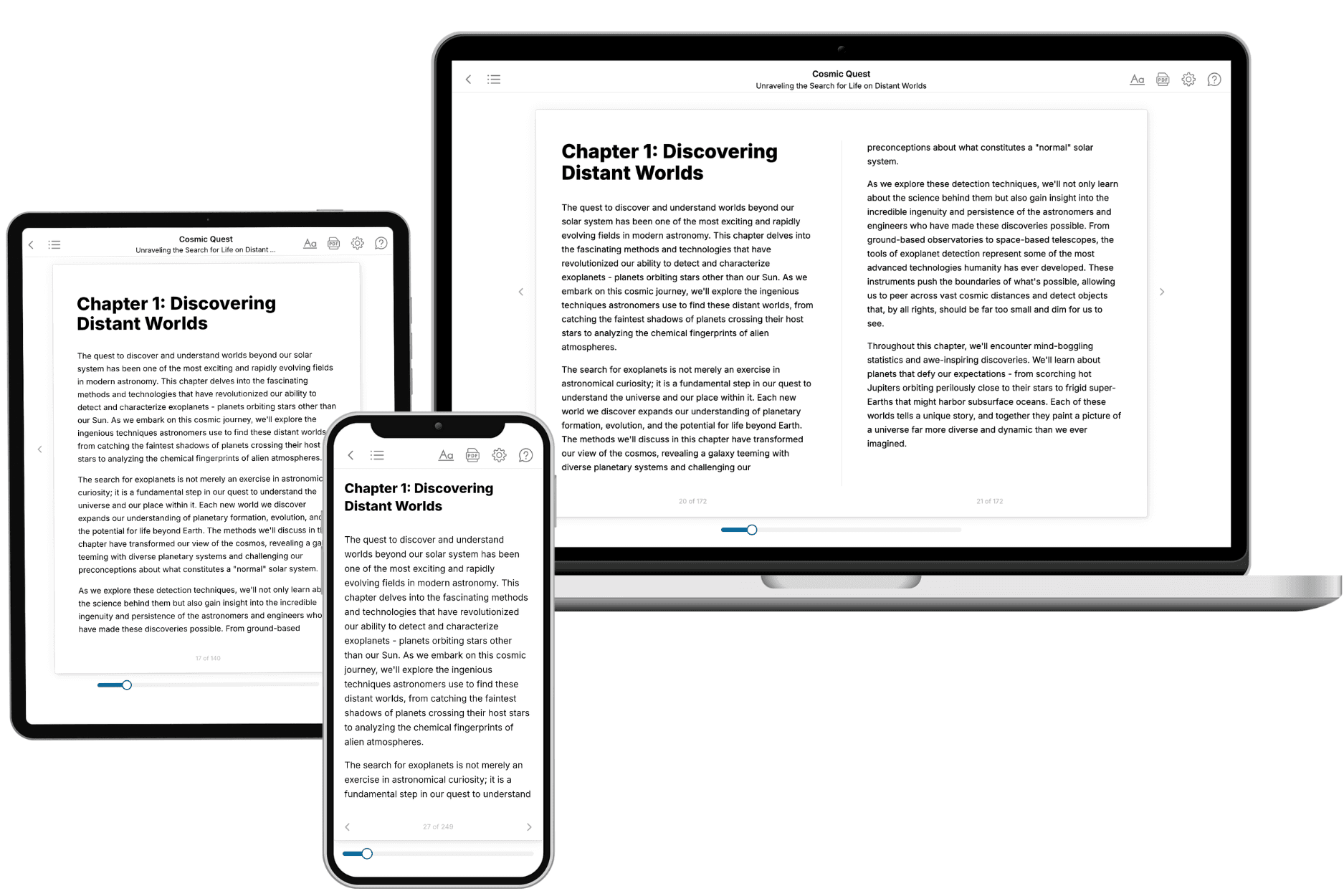
Your book is ready in 10 minutes. Read it online, download as EPUB or PDF, or send to Kindle.
Frequently asked questions
- What is TailoredRead?
TailoredRead creates complete, full-length nonfiction ebooks, written specifically for you. Tell us what you want to learn and why, and TailoredRead writes you a complete ebook on it, with charts, tables, and diagrams throughout. Read it online, on Kindle, or on any e-reader, or download it as a PDF or EPUB. Every book is written fresh the day you order it.
- How is the book tailored to me?
Before anything is written, you answer a few short questions about your goals, your background, and the topics you care about. Your book is then planned around your answers: written at your level, focused on your goals, and covering the topics you chose, instead of the one-size-fits-all book a store sells everyone.
- Will it read like generic AI content?
No. Your book isn't a chat transcript: it's planned chapter by chapter before a single word is written, told in a clear book voice, and explains ideas visually with charts, tables, and diagrams. After writing, every book goes through an editorial pass that polishes chapters so the book reads consistent from start to finish. Judge for yourself: browse thousands of sample books on our Explore Books page.
- How accurate is the content?
Our AI first checks whether your subject needs live research. Niche and fast-moving subjects are researched before writing, and the book plan and chapters are grounded in what it finds. After writing, every book goes through a quality pass that checks its facts and consistency, and researched books list their sources in a Notes section at the back.
- How long is the book?
You choose the length: Comprehensive (250-300 pages), Detailed (150-200 pages), Essential (70-100 pages), or Short (30-50 pages).
- Does the book include visuals?
Yes. Every book includes charts, tables, and diagrams: timelines, checklists, step-by-step guides, decision trees, comparison tables, matrices, and bar charts. A typical book includes dozens of these visual elements.
- Can I read it on Kindle? What formats can I download?
Yes. Every book can be read in our online reader or downloaded as a PDF or EPUB. The EPUB can be opened with Kindle, Apple Books, Kobo, and any e-reader. The Commercial and Author licenses also include an editable Word (DOCX) and Markdown download.
- How much does it cost?
About the price of a regular ebook. The exact price depends on your book's length and complexity, from $2 for the shortest books to $35 for the most comprehensive, and it's shown when you review your book, before you commit to anything. Each book is a one-time purchase, yours to keep, no subscription. Licenses that let you share, teach, or publish your book range from $35.99 to $49.99.
- Can I preview the book before purchasing?
Before you pay, you'll see what your book will cover: the title, a detailed description, the estimated length, and the complete chapter-by-chapter table of contents, so you know what you're getting before you decide. The full text itself is written after you purchase.
- How long does it take to create a book?
About 10 minutes. You can start reading the opening chapters while the rest is still being written.