The Keyboard Shortcut Mastery Guide
Work Faster, Think Smarter, and Reclaim Hours Every Week with Essential PC Shortcuts
How much time do you waste every day reaching for your mouse, navigating menus, and waiting for your fingers to catch up with your thoughts?
222 pages10 chaptersNov 3, 2025Productivity
About this book
Most computer users operate at a fraction of their potential speed, losing hours weekly to inefficient workflows. This guide reveals the keyboard shortcuts that separate power users from average ones—not through overwhelming memorization, but through strategic, practical application. You'll discover which shortcuts deliver the biggest time savings, how to build lasting muscle memory, and why the transition to keyboard-centric work transforms not just your speed, but your entire relationship with your computer. Whether you're managing documents, coding, designing, or simply working through emails, these techniques work across Windows, Mac, and popular applications. By the end, you'll reclaim significant time each week while reducing fatigue and frustration.
Table of contents
- IntroductionWhy Keyboard Shortcuts Matter More Than You Think, The Difference Between Speed and True Efficiency, How to Use This Book for Maximum Results, Building Muscle Memory: The Science Behind Lasting ChangeRead below
- Chapter 1: The Foundation: Understanding Your Operating SystemWindows vs. Mac: Key Differences and Similarities, Modifier Keys Explained: Ctrl, Alt, Shift, and Command, Optimizing Your Keyboard Layout for Shortcuts
- Chapter 2: Essential Windows Shortcuts That Save HoursWindow Management: Snap, Switch, and Organize, File Operations: Copy, Paste, Delete, and More, System Shortcuts: Lock, Sleep, and Task Manager, Productivity Shortcuts: Search, Settings, and Clipboard
- Chapter 3: Mac Shortcuts for Maximum EfficiencyWindow Management: Mission Control and Spaces, File Operations: Finder Navigation and Organization, System Shortcuts: Spotlight, Control Center, and More, Productivity Shortcuts: Quick Actions and Efficiency Tools
- Chapter 4: Universal Shortcuts Across All ApplicationsText Editing: Selection, Navigation, and Formatting, Document Management: Save, Print, and Export, Browser Shortcuts: Tabs, History, and Navigation, Application Control: Undo, Redo, Find, and Replace
- Chapter 5: Microsoft Office Shortcuts: Word, Excel, and PowerPointWord Shortcuts: Formatting, Navigation, and Editing, Excel Shortcuts: Navigation, Formulas, and Data Entry, PowerPoint Shortcuts: Slide Management and Presentation
- Chapter 6: Google Workspace and Cloud Application ShortcutsGoogle Docs and Sheets: Collaboration and Editing, Gmail Shortcuts: Email Management and Organization, Other Cloud Applications: Dropbox, OneDrive, and More
- Chapter 7: Advanced Text and Code Editing ShortcutsText Editor Shortcuts: VS Code, Sublime, and Notepad++, Code Navigation: Jumping, Searching, and Refactoring, Developer Productivity: Build, Debug, and Deploy
- Chapter 8: Building Your Personal Shortcut StrategyAudit Your Workflow: Identifying Your Most-Used Tasks, Prioritize Shortcuts: The 80/20 Rule for Maximum Impact, Create Custom Shortcuts: Personalizing Your Setup, Track Your Progress: Measuring Speed and Efficiency Gains
- Chapter 9: Developing Lasting Muscle MemoryPractice Techniques: Deliberate Repetition and Habit Stacking, Overcoming Resistance: Breaking Old Mouse Habits, Maintaining Momentum: Staying Consistent Over Time
- Chapter 10: Troubleshooting and OptimizationResolving Conflicting Shortcuts Across Applications, Accessibility Considerations: Shortcuts for All Users, Performance Optimization: Keyboard Settings and Tools
- ConclusionYour Next Steps: Creating Your Action Plan, Final Thoughts: The Compound Effect of Efficiency
- Quick Reference Guide
- Further Reading and Resources
Introduction
Every day, millions of computer users perform the same actions hundreds of times: reaching for the mouse, moving the cursor across the screen, clicking through menus, and waiting for their hands to catch up with their thoughts. These small interruptions seem insignificant in isolation, but they accumulate into hours of lost productivity each week. The difference between an average computer user and a power user isn't intelligence or technical expertise—it's the mastery of keyboard shortcuts that eliminate these constant micro-interruptions. This book exists to bridge that gap and transform how you interact with your computer.
The promise of keyboard shortcuts isn't just about working faster, though speed is certainly part of the equation. It's about achieving a state of flow where your thoughts translate directly into action without the constant context-switching that mouse navigation demands. When you master the right shortcuts, your computer becomes an extension of your thinking rather than an obstacle to it. You'll find yourself completing tasks before you've consciously thought through each step, your fingers executing commands automatically while your mind focuses on higher-level problem-solving and creative work.
This introduction sets the foundation for your journey toward keyboard mastery. You'll discover why shortcuts matter beyond simple time savings, understand the crucial difference between speed and efficiency, learn how to approach this book for maximum benefit, and explore the science behind building lasting muscle memory. These concepts form the bedrock upon which all subsequent chapters build. Whether you're a Windows user, Mac enthusiast, or someone who switches between platforms, the principles you'll learn here apply universally and will serve you throughout your computing life.
Why Keyboard Shortcuts Matter More Than You Think
The average office worker performs approximately 8,000 mouse clicks per day and moves their hand between keyboard and mouse roughly 4,000 times during an eight-hour workday[1]. Each transition takes between one and three seconds—time spent not thinking, not creating, but simply navigating. If you could eliminate just half of these transitions through keyboard shortcuts, you'd reclaim between 30 and 90 minutes daily. Over a year, that's between 125 and 375 hours—the equivalent of three to nine full work weeks. These aren't theoretical numbers; they represent real time you could redirect toward meaningful work, learning, or simply leaving the office earlier.
Beyond raw time savings, keyboard shortcuts reduce cognitive load in ways that aren't immediately obvious. When you reach for your mouse, your brain must shift from the task at hand to the mechanical process of navigation. You must visually locate the cursor, guide it to the correct target, ensure precision, and click—all while maintaining awareness of what you were trying to accomplish. This constant task-switching creates mental fatigue that accumulates throughout the day. Keyboard shortcuts eliminate this switching cost, allowing you to maintain focus on your actual work rather than the mechanics of computer operation.
The physical benefits of keyboard-centric work extend beyond productivity into health and ergonomics. Repetitive strain injuries, particularly carpal tunnel syndrome and mouse shoulder, affect millions of computer users annually. These conditions develop from the repetitive motions and awkward postures associated with extended mouse use. By reducing mouse dependency, you distribute physical stress more evenly across both hands and minimize the repetitive reaching motions that contribute to injury. Many users report reduced hand, wrist, and shoulder pain within weeks of adopting a keyboard-first workflow.
Keyboard shortcuts also create a professional advantage that compounds over time. In collaborative environments, the ability to execute tasks quickly and confidently signals competence and expertise. When you can navigate complex documents, manipulate data, or switch between applications without hesitation, colleagues and clients perceive you as more capable and knowledgeable. This perception isn't superficial—it reflects genuine mastery that translates into better work output, faster problem-solving, and increased capacity to take on challenging projects.
The learning curve for keyboard shortcuts is steeper than many productivity techniques, but the returns are permanent. Unlike software-specific skills that become obsolete with new versions or platform changes, keyboard shortcut patterns remain remarkably consistent across decades of computing evolution. The shortcuts you learn today will likely serve you for your entire career. This permanence makes shortcut mastery one of the highest-return investments you can make in your professional development.
Consider the multiplier effect of shortcuts across different contexts. A shortcut that saves you five seconds becomes exponentially more valuable when you perform that action fifty times daily. The Ctrl+C and Ctrl+V combination for copy and paste might seem trivial, but if you use it a hundred times per day and it saves three seconds per use compared to right-clicking through menus, you've saved five minutes daily—over twenty hours annually from just two shortcuts. Now multiply that across the dozens of high-frequency actions you perform, and the cumulative impact becomes transformative.
The psychological impact of mastery shouldn't be underestimated either. There's genuine satisfaction in executing complex workflows with fluid precision, in knowing that your tools respond instantly to your intentions. This sense of control and competence reduces frustration, increases job satisfaction, and makes computer work feel less like a struggle against your tools and more like a collaboration with them. Users who master keyboard shortcuts consistently report feeling more confident and less stressed during their workday, even when handling demanding tasks under tight deadlines.
The Difference Between Speed and True Efficiency
Speed and efficiency are often used interchangeably, but they represent fundamentally different concepts in the context of computer work. Speed refers to how quickly you can execute individual actions—how fast you can type, how rapidly you can click, how swiftly you can move between tasks. Efficiency, by contrast, measures how much you accomplish relative to the effort expended. You can be fast but inefficient, racing through tasks while expending enormous energy and making frequent errors. True mastery comes from efficiency: accomplishing more while expending less effort, maintaining quality, and preserving your mental and physical resources.
Keyboard shortcuts contribute to efficiency rather than just speed because they reduce the number of actions required to accomplish a goal. Consider the task of closing all open browser tabs except the current one. Using a mouse, you might click the X on each tab individually—perhaps twenty clicks for twenty tabs. Using the keyboard shortcut Ctrl+Shift+W (or Cmd+Shift+W on Mac) in most browsers, you accomplish the same result with a single action. The time saved is significant, but more importantly, you've reduced twenty decision points to one, eliminated twenty opportunities for error, and preserved your mental energy for more important decisions.
Efficiency also encompasses error reduction and recovery. Mouse-based navigation introduces multiple failure points: misclicks, cursor drift, accidental selections, and menu navigation errors. Each mistake requires correction, which consumes time and breaks concentration. Keyboard shortcuts, once mastered, execute with near-perfect reliability. Your fingers develop precise muscle memory for specific key combinations, and the tactile feedback of physical keys provides confirmation that commands executed correctly. This reliability means fewer interruptions, less frustration, and more consistent output quality.
The concept of flow state—that optimal psychological condition where you're fully immersed in an activity—depends heavily on efficiency rather than speed. Flow requires uninterrupted focus, immediate feedback, and a balance between challenge and skill. Mouse navigation constantly disrupts flow by forcing attention shifts between your work and your tools. Keyboard shortcuts, once internalized, become invisible—your hands execute commands without conscious thought, allowing your mind to remain fully engaged with the task itself. This is why experienced programmers, writers, and designers often appear to work effortlessly; they've achieved efficiency that enables sustained flow.
True efficiency also considers sustainability over time. You might be able to maintain frantic mouse-clicking speed for an hour, but can you sustain it for eight hours daily, five days weekly, for years? The physical and mental toll of inefficient workflows accumulates into chronic fatigue, repetitive strain injuries, and burnout. Efficient workflows, built on keyboard shortcuts and optimized processes, remain sustainable indefinitely. You can maintain high productivity throughout the day without exhausting yourself, and you can continue this pace throughout your career without physical breakdown.
Another dimension of efficiency involves cognitive automation. When you first learn a shortcut, executing it requires conscious thought and deliberate action. With practice, the shortcut becomes automatic—your fingers execute the command before your conscious mind fully processes the decision. This automation frees cognitive resources for higher-level thinking. Instead of thinking I need to save this document, so I'll move my hand to the mouse, locate the File menu, click it, find Save, and click again,
you simply think save
and your fingers automatically press Ctrl+S. This cognitive efficiency is perhaps the most valuable benefit of shortcut mastery.
Understanding this distinction between speed and efficiency helps you approach shortcut learning strategically. The goal isn't to memorize every possible shortcut or to execute commands as rapidly as possible. The goal is to identify the actions you perform most frequently, learn the shortcuts that eliminate the most steps, and practice until those shortcuts become automatic. This targeted approach delivers maximum efficiency gains with minimal learning investment, which is precisely the strategy this book employs.
How to Use This Book for Maximum Results
This book is structured as a progressive learning system rather than a reference manual to be read once and shelved. The most effective approach involves three phases: initial learning, deliberate practice, and ongoing refinement. During the initial learning phase, read through chapters relevant to your operating system and primary applications, focusing on understanding the logic behind shortcut patterns rather than memorizing every combination. Take notes on shortcuts that apply to your most frequent tasks, and create a personalized reference list of your top ten to fifteen shortcuts to master first.
The chapters are organized to build upon each other logically, but you don't need to read them sequentially. Start with the foundation chapter on operating systems to understand modifier keys and basic concepts, then jump directly to chapters covering your primary applications. If you work primarily in Microsoft Office on Windows, focus on Chapter 2 (Windows shortcuts) and Chapter 5 (Office shortcuts) before exploring other sections. Mac users should prioritize Chapter 3, while those working extensively in cloud applications should emphasize Chapter 6. This targeted approach delivers faster results than attempting to absorb everything at once.
Each chapter includes practical examples and real-world scenarios that demonstrate shortcuts in context. Don't just read these examples—actively practice them as you encounter them. Keep the applications mentioned open while reading, and execute each shortcut as it's introduced. This immediate practice reinforces learning far more effectively than passive reading. If a shortcut doesn't work as described, check whether you're using the correct modifier keys for your operating system and whether any custom software might be intercepting the key combination.
Create a practice schedule that emphasizes consistency over intensity. Rather than attempting to learn twenty shortcuts in a single marathon session, commit to mastering two or three shortcuts per week through daily use. The chapter on building muscle memory (later in this introduction) provides specific techniques, but the fundamental principle is regular, spaced repetition. Set a daily reminder to consciously use your target shortcuts, and track your progress in a simple spreadsheet or notebook. After two weeks of consistent use, a shortcut typically becomes automatic, and you can add new ones to your practice rotation.
Use the quick reference guide at the end of this book as a daily resource during your learning phase. Print it or keep it open on a second monitor, and consult it whenever you're about to reach for your mouse. This just-in-time learning approach—looking up the shortcut at the moment you need it—creates stronger memory associations than studying shortcuts in isolation. Over time, you'll consult the reference less frequently as shortcuts become internalized, but having it readily available reduces the friction of adopting new habits.
The book includes specific recommendations for different user profiles and workflows. Pay special attention to sections marked with your use case:
- Document-heavy users: Focus on text editing, formatting, and navigation shortcuts that accelerate writing and editing
- Data workers: Prioritize spreadsheet navigation, formula entry, and data manipulation shortcuts
- Developers: Emphasize code editor shortcuts, debugging commands, and terminal navigation
- Creative professionals: Learn application-switching, window management, and tool-selection shortcuts
- Communication-focused roles: Master email management, calendar navigation, and messaging shortcuts
Don't skip the chapters on strategy and muscle memory development (Chapters 8 and 9). These sections provide the framework for sustainable learning and help you avoid common pitfalls that cause many people to abandon shortcut learning after initial enthusiasm fades. The strategies for auditing your workflow, prioritizing high-impact shortcuts, and maintaining momentum are just as important as the shortcuts themselves. Many users know dozens of shortcuts but use only a handful regularly because they never developed a systematic approach to integration.
Finally, treat this book as a living resource that evolves with your needs. Return to it periodically as your role changes, as you adopt new applications, or as you identify new efficiency bottlenecks in your workflow. The principles and patterns you learn here transfer across applications and platforms, so even as specific software changes, your foundational knowledge remains valuable. Consider reviewing one chapter monthly as a refresher and to discover shortcuts you might have overlooked during your initial reading.
Building Muscle Memory: The Science Behind Lasting Change
Muscle memory—more accurately called motor learning or procedural memory—is the neurological process by which repeated physical actions become automatic and require minimal conscious thought. When you first learn a keyboard shortcut, executing it requires deliberate attention: you must consciously recall which keys to press, locate them on the keyboard, and coordinate your fingers to press them simultaneously or in sequence. This process engages your prefrontal cortex, the brain region responsible for conscious decision-making and working memory. With repetition, the neural pathways involved in executing the shortcut strengthen and shift from conscious to automatic processing, eventually residing primarily in the cerebellum and basal ganglia—brain regions that handle automatic motor control[2].
The transition from conscious to automatic execution typically requires between 200 and 500 repetitions of an action, depending on its complexity and your existing motor skills[3]. For simple two-key shortcuts like Ctrl+C, you might achieve automaticity within a week of regular use. More complex three- or four-key combinations might require two to three weeks of consistent practice. This timeline explains why many people abandon shortcut learning prematurely—they expect immediate mastery but give up during the awkward intermediate phase when shortcuts still require conscious effort and actually slow them down compared to familiar mouse-based methods.
Effective muscle memory development requires deliberate practice rather than mere repetition. Deliberate practice involves focused attention on correct execution, immediate feedback on errors, and gradual increase in difficulty. When learning a new shortcut, don't just use it passively—consciously focus on the physical sensation of pressing the keys, the finger positions required, and the result produced. This focused attention accelerates neural pathway formation. If you execute a shortcut incorrectly, immediately correct it rather than continuing with the error, as practicing mistakes reinforces incorrect motor patterns that become difficult to unlearn.
The spacing effect—the phenomenon where learning is more effective when practice sessions are distributed over time rather than massed together—applies powerfully to shortcut learning. Practicing a shortcut five times daily for two weeks produces far better retention than practicing it fifty times in a single day. This spacing allows time for memory consolidation, the process by which short-term memories transfer to long-term storage during rest periods, particularly during sleep. Structure your learning to practice new shortcuts multiple times throughout your workday rather than in dedicated practice sessions, as this distributed practice creates stronger, more durable motor memories.
Context-dependent learning means you'll develop stronger muscle memory when practicing shortcuts in realistic work situations rather than in isolation. Instead of drilling shortcuts in a practice document, use them during actual work tasks. The contextual cues present during real work—the specific applications, document types, and task goals—become associated with the shortcuts, making them easier to recall when those contexts recur. This is why the most effective learning happens when you commit to using a new shortcut every time the relevant situation arises, even if it initially slows you down.
Interference occurs when similar motor patterns compete with each other, potentially causing confusion and errors. This is particularly relevant when learning shortcuts across different operating systems or applications that use different key combinations for similar functions. For example, Ctrl+Q quits applications on many Linux systems but closes tabs in some Windows browsers, while Cmd+Q quits applications on Mac. To minimize interference, focus on mastering shortcuts for your primary platform and applications before expanding to others. If you must work across multiple platforms regularly, practice platform-specific shortcuts in dedicated time blocks rather than switching frequently, allowing each set of motor patterns to consolidate before introducing competing patterns.
Physical keyboard characteristics influence muscle memory development. The tactile feedback, key travel distance, and layout of your keyboard all contribute to the motor patterns you develop. If possible, maintain consistency in your keyboard hardware during the learning phase. Switching between dramatically different keyboards—such as between a mechanical keyboard with high key travel and a laptop's shallow keys—can disrupt developing motor patterns. Once shortcuts are fully automatic, you'll adapt more easily to different keyboards, but during initial learning, consistency accelerates mastery.
The plateau effect—periods where improvement seems to stall despite continued practice—is normal and expected in motor learning. After initial rapid progress, you'll likely experience phases where new shortcuts feel awkward and your overall productivity might temporarily decrease. These plateaus don't indicate failure; they represent consolidation periods where your brain is reorganizing neural pathways for more efficient processing. Push through these plateaus with consistent practice rather than abandoning shortcuts that feel difficult. Most users report breakthrough moments where multiple shortcuts suddenly "click" and become fluid, typically after two to three weeks of consistent use.
Understanding these neurological principles helps you approach shortcut learning with realistic expectations and effective strategies. You're not simply memorizing key combinations—you're physically rewiring your brain to create new automatic motor programs. This process takes time and deliberate effort, but the results are permanent and transferable. The muscle memory you build for keyboard shortcuts will serve you throughout your career, making the investment in proper learning techniques worthwhile. The following chapters provide the specific shortcuts to learn; this foundation ensures you learn them in ways that create lasting, automatic mastery rather than temporary, fragile knowledge.
Notes
Introduction
- 1. L. E. Sibert and R. J. Jacob, "Evaluation of eye gaze interaction," Proceedings of the SIGCHI conference on Human Factors in Computing Systems, 2000
- 2. J. Doyon and H. Benali, "Reorganization and plasticity in the adult brain during learning of motor skills," Current Opinion in Neurobiology, 2005
- 3. K. A. Ericsson and others, "The role of deliberate practice in the acquisition of expert performance," Psychological Review, 1993
This is the end of the free sample. The full book has 10 chapters.
Want this book written for you?
Tell us your goals and background, and get your own version of this book, tailored by AI to you.


Benefits of AI-tailored books
- Read one book, not ten:
- all the Productivity knowledge you need, gathered into a single book.
- Save days of learning:
- tell us your goals, choose your topics, and the whole book is built around them.
- Learn effortlessly:
- Productivity book written for your specific background and expertise.
- Understand at a glance:
- includes charts, tables, timelines, checklists, decision trees, and more.
- Stay current:
- written the day you order it, not years ago.
- Trust what you read:
- every book is checked for accuracy, with real research when your subject needs it.
Create your unique book in 3 steps
- 1. Select your focus
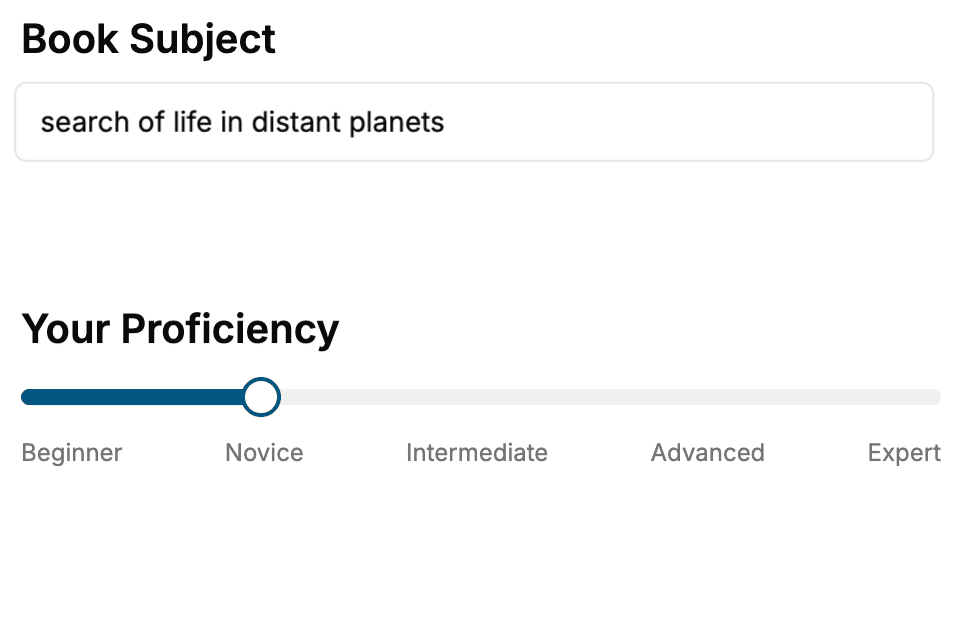
Select the focus of your Productivity book and share your background
- 2. Personalize your book
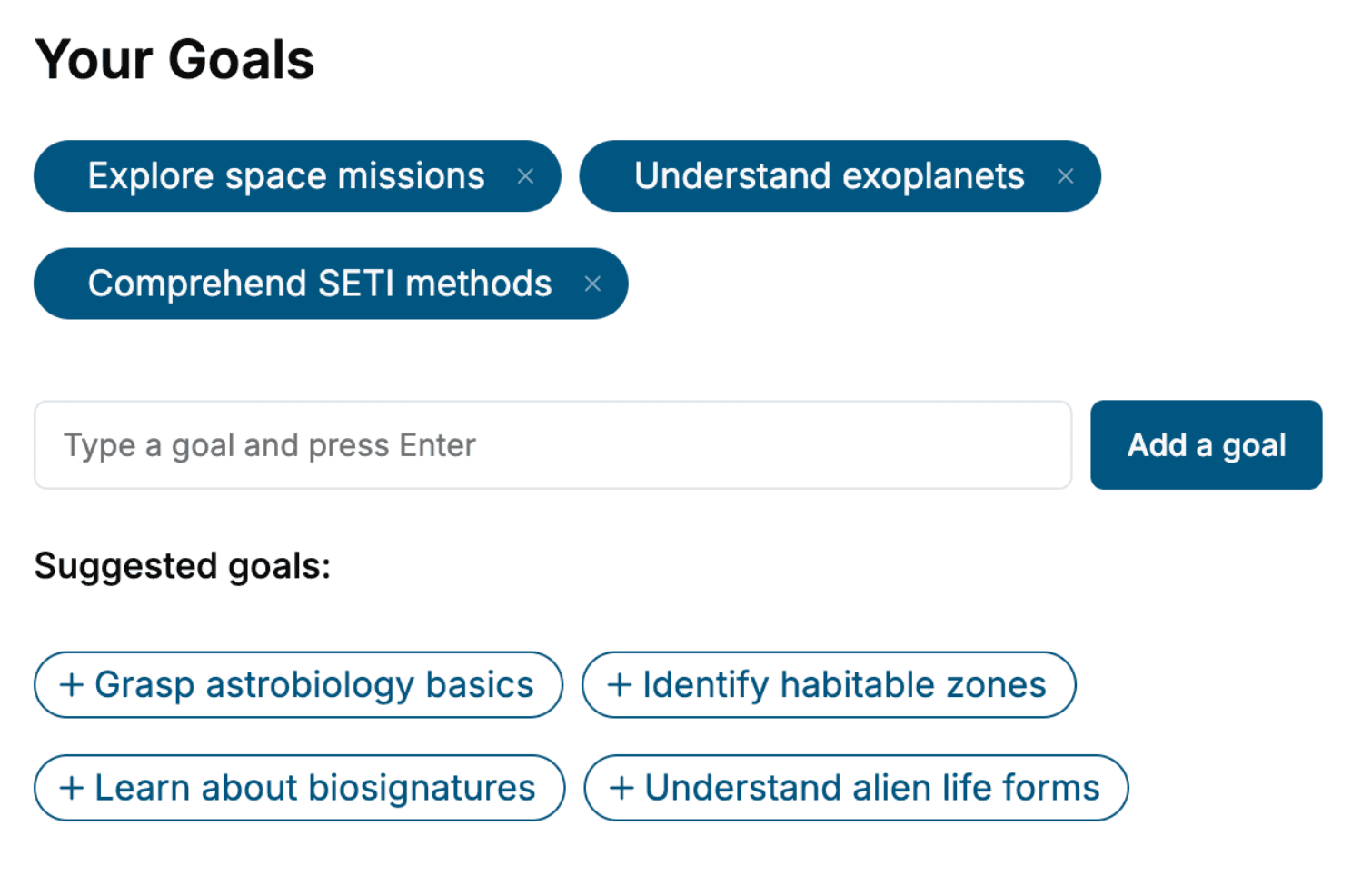
Specify your goals and choose sub-topics to include
- 3. Get your tailored book
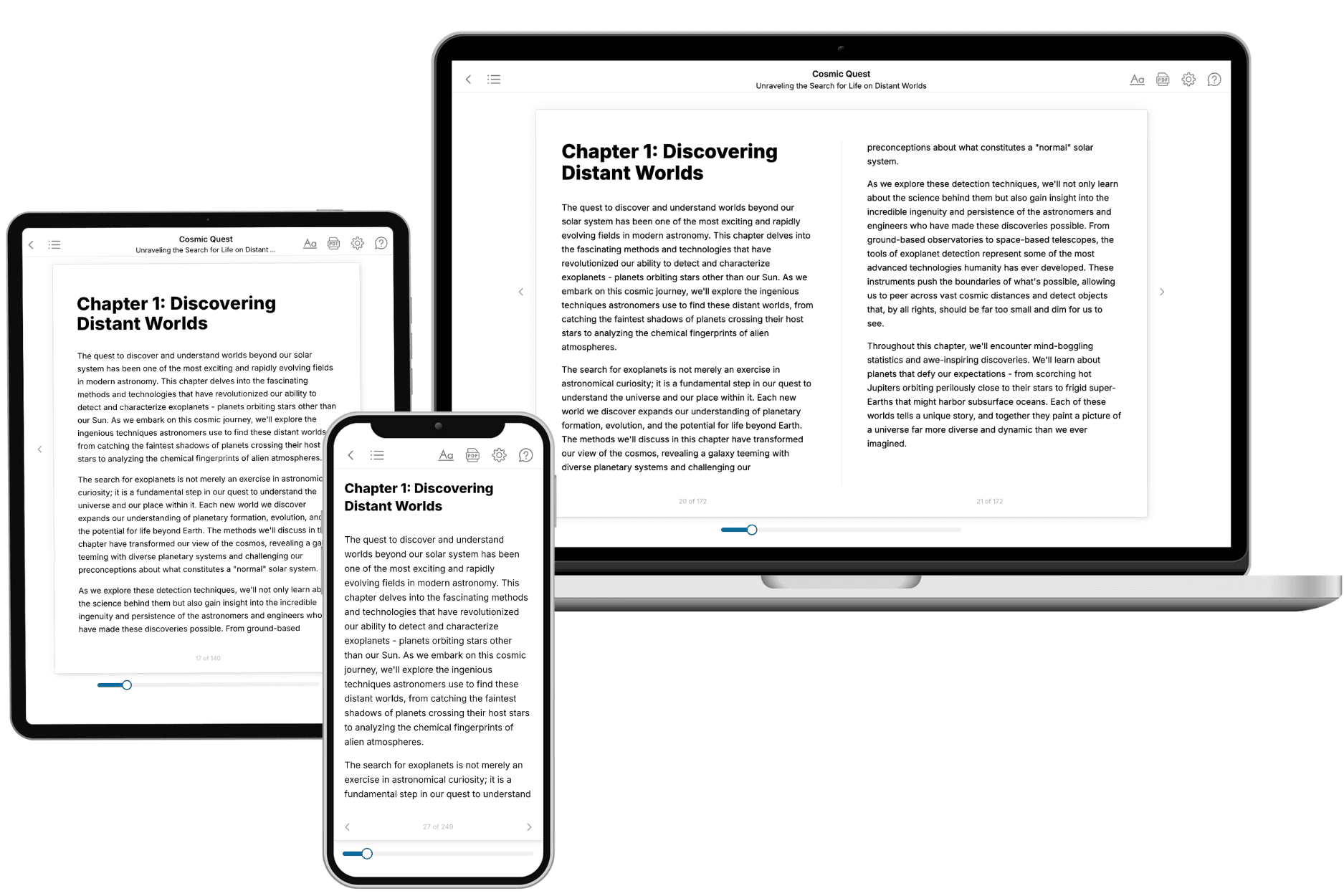
Your book is ready in 10 minutes. Read it online, download as EPUB or PDF, or send to Kindle.
Frequently asked questions
- What is TailoredRead?
TailoredRead creates complete, full-length nonfiction ebooks, written specifically for you. Tell us what you want to learn and why, and TailoredRead writes you a complete ebook on it, with charts, tables, and diagrams throughout. Read it online, on Kindle, or on any e-reader, or download it as a PDF or EPUB. Every book is written fresh the day you order it.
- How is the book tailored to me?
Before anything is written, you answer a few short questions about your goals, your background, and the topics you care about. Your book is then planned around your answers: written at your level, focused on your goals, and covering the topics you chose, instead of the one-size-fits-all book a store sells everyone.
- Will it read like generic AI content?
No. Your book isn't a chat transcript: it's planned chapter by chapter before a single word is written, told in a clear book voice, and explains ideas visually with charts, tables, and diagrams. After writing, every book goes through an editorial pass that polishes chapters so the book reads consistent from start to finish. Judge for yourself: browse thousands of sample books on our Explore Books page.
- How accurate is the content?
Our AI first checks whether your subject needs live research. Niche and fast-moving subjects are researched before writing, and the book plan and chapters are grounded in what it finds. After writing, every book goes through a quality pass that checks its facts and consistency, and researched books list their sources in a Notes section at the back.
- How long is the book?
You choose the length: Comprehensive (250-300 pages), Detailed (150-200 pages), Essential (70-100 pages), or Short (30-50 pages).
- Does the book include visuals?
Yes. Every book includes charts, tables, and diagrams: timelines, checklists, step-by-step guides, decision trees, comparison tables, matrices, and bar charts. A typical book includes dozens of these visual elements.
- Can I read it on Kindle? What formats can I download?
Yes. Every book can be read in our online reader or downloaded as a PDF or EPUB. The EPUB can be opened with Kindle, Apple Books, Kobo, and any e-reader. The Commercial and Author licenses also include an editable Word (DOCX) and Markdown download.
- How much does it cost?
About the price of a regular ebook. The exact price depends on your book's length and complexity, from $2 for the shortest books to $35 for the most comprehensive, and it's shown when you review your book, before you commit to anything. Each book is a one-time purchase, yours to keep, no subscription. Licenses that let you share, teach, or publish your book range from $35.99 to $49.99.
- Can I preview the book before purchasing?
Before you pay, you'll see what your book will cover: the title, a detailed description, the estimated length, and the complete chapter-by-chapter table of contents, so you know what you're getting before you decide. The full text itself is written after you purchase.
- How long does it take to create a book?
About 10 minutes. You can start reading the opening chapters while the rest is still being written.