Master Chrome Developer Tools
Debug, Optimize, and Build Better Web Applications with Professional-Grade Tools
Many developers treat Chrome Developer Tools as a last resort—something to open only when code breaks.
191 pages9 chaptersJan 14, 2026Chrome Developer Tools
About this book
This approach wastes hours of debugging time and leaves performance problems undetected. Chrome Developer Tools is actually a comprehensive suite of professional-grade utilities that can cut your development time in half and help you build faster, more reliable applications. This book teaches you how to use DevTools like a professional, covering everything from inspecting HTML and CSS to profiling JavaScript performance and auditing accessibility. You'll learn systematic debugging techniques, discover hidden performance bottlenecks, and understand exactly how your application behaves in the browser. Whether you're tracking down a stubborn bug, optimizing a slow page, or ensuring your site works across devices, these tools provide the answers. By the end, you'll have the skills to diagnose problems quickly, optimize effectively, and build applications with confidence.
Table of contents
- IntroductionWhy Chrome Developer Tools Matter, What You'll Learn in This Book, How to Use This Guide, Getting Started with DevToolsRead below
- Chapter 1: The Elements Panel: Inspecting and Modifying the DOMUnderstanding the DOM Structure, Inspecting Elements and Attributes, Editing HTML and CSS in Real-Time, Debugging Layout with the Box Model
- Chapter 2: Console Mastery: Logging and JavaScript ExecutionConsole Methods Beyond console.log(), Debugging Strategies Using the Console, Executing and Testing Code Interactively, Filtering and Managing Console Output
- Chapter 3: Network Analysis: Understanding CommunicationUnderstanding Network Requests and Responses, Analyzing Request Headers and Payloads, Interpreting Performance Metrics, Testing with Network Throttling
- Chapter 4: Performance Profiling: Finding BottlenecksUsing the Performance Panel, CPU Profiling and Flame Charts, Detecting and Fixing Memory Leaks, Optimizing Rendering Performance
- Chapter 5: Sources Panel: Advanced Debugging TechniquesSetting and Managing Breakpoints, Step-Through Execution and Call Stacks, Using Watch Expressions and Conditional Breakpoints, Working with Source Maps for Minified Code
- Chapter 6: Responsive Design Mode: Testing Across DevicesEmulating Different Devices and Screen Sizes, Simulating Touch Events and Gestures, Effective Testing Strategies for Responsive Design
- Chapter 7: Lighthouse: Automated Performance and Quality AuditsRunning and Interpreting Lighthouse Audits, Understanding Core Web Vitals and Metrics, Auditing Accessibility and SEO, Implementing Audit Recommendations
- Chapter 8: Storage Inspection: Managing Application DataInspecting Cookies and Local Storage, Understanding Session Storage and IndexedDB, Debugging Data-Related Issues
- Chapter 9: Advanced Workflows: Professional Debugging PatternsDebugging React, Vue, and Angular Applications, Debugging API Calls and Asynchronous Code, Remote Debugging and Mobile Testing, Building Custom Debugging Workflows
- Conclusion: From Debugging to MasteryKey Takeaways and Best Practices, Continuing Your DevTools Journey
- Quick Reference Guide
Introduction
Every web developer has experienced that sinking feeling when code doesn't work as expected. You refresh the page, check your syntax, and stare at the screen hoping the problem will reveal itself. Hours pass as you add console.log() statements throughout your code, trying to understand what's happening. This approach is frustrating, time-consuming, and ultimately inefficient. There's a better way to develop web applications, and it's already installed in your browser.
Chrome Developer Tools represents one of the most powerful debugging and optimization suites available to web developers, yet most people use only a fraction of its capabilities. These tools transform the browser from a simple rendering engine into a comprehensive development environment. You can inspect every aspect of your application, from the structure of your HTML to the performance of your JavaScript, all without leaving the browser. Understanding how to use these tools effectively separates developers who struggle with bugs from those who solve them systematically.
This book will teach you how to leverage Chrome Developer Tools to build better web applications faster. You'll learn techniques that professional developers use daily to diagnose problems, optimize performance, and ensure quality. Whether you're tracking down a CSS layout issue, investigating why your page loads slowly, or debugging complex JavaScript logic, DevTools provides the answers. By the end of this guide, you'll approach development challenges with confidence, knowing you have the skills and tools to solve them efficiently.
The journey from basic web development to professional-grade debugging requires more than just knowing where buttons are located. It demands understanding how browsers work, how to interpret the data DevTools provides, and how to apply that knowledge to real-world problems. This introduction will establish why these tools matter, what you'll learn throughout the book, and how to get started with a solid foundation. Let's begin by examining why Chrome Developer Tools should be an essential part of your development workflow.
Why Chrome Developer Tools Matter
The difference between guessing and knowing is the difference between hours of frustration and minutes of focused problem-solving. When you develop without proper debugging tools, you're essentially working blind. You make changes, refresh the page, and hope for the best. This trial-and-error approach wastes time and often leads to incomplete solutions that mask symptoms rather than fixing root causes. Chrome Developer Tools eliminates this guesswork by providing direct visibility into exactly what your browser is doing at every moment.
Modern web applications are complex systems with multiple layers of interaction. Your HTML structure defines content, CSS controls presentation, JavaScript adds behavior, and network requests fetch data from servers. When something goes wrong, the problem could exist in any of these layers or in the interactions between them. DevTools provides specialized panels for each layer, allowing you to isolate issues quickly. For example, if a button doesn't respond to clicks, you can inspect the DOM to verify the element exists, check the Console for JavaScript errors, examine the Sources panel to debug event handlers, and review the Network tab to ensure required scripts loaded correctly.
Performance optimization represents another critical area where DevTools proves invaluable. Users expect web applications to load quickly and respond instantly to interactions. A delay of just a few seconds can cause visitors to abandon your site entirely. Research shows that 53% of mobile users leave sites that take longer than three seconds to load[1]. Without proper tools, identifying performance bottlenecks is nearly impossible. DevTools provides detailed performance profiles, network waterfall charts, and automated audits that pinpoint exactly where your application is slow and why.
The tools also serve as an educational platform that deepens your understanding of web technologies. When you inspect an element and see the computed styles, you learn how CSS specificity and inheritance work in practice. When you profile JavaScript execution, you discover which operations are expensive and why. When you examine network requests, you understand how browsers communicate with servers. This hands-on learning accelerates your growth as a developer far more effectively than reading documentation alone.
Professional development workflows depend heavily on DevTools capabilities. Consider these common scenarios where DevTools becomes essential:
- Responsive Design Testing: Verify your application works correctly across different screen sizes and devices without maintaining a physical device lab
- API Debugging: Inspect request and response data to understand why server communication fails or returns unexpected results
- Memory Leak Detection: Identify objects that aren't being garbage collected, causing your application to consume increasing amounts of memory over time
- Accessibility Auditing: Ensure your application works for users with disabilities by checking contrast ratios, ARIA labels, and keyboard navigation
- Security Analysis: Review cookies, storage mechanisms, and network security to identify potential vulnerabilities
The return on investment for learning DevTools is immediate and substantial. A developer who masters these tools can diagnose and fix bugs in minutes that might take hours using primitive debugging methods. They can optimize performance systematically rather than making random changes and hoping for improvement. They can ensure quality through automated audits rather than relying solely on manual testing. These efficiency gains compound over time, making you significantly more productive throughout your career.
Chrome Developer Tools also keeps pace with evolving web standards and best practices. Google continuously updates DevTools with new features that support modern development techniques. Recent additions include support for CSS Grid and Flexbox visualization, WebAssembly debugging, and Core Web Vitals monitoring. By mastering DevTools, you're not just learning a static tool—you're investing in a platform that will continue to support your development needs as web technologies evolve.
Perhaps most importantly, DevTools changes your relationship with problems. Instead of feeling frustrated when bugs appear, you'll feel curious and confident. You'll know that the tools exist to help you understand what's happening and why. This mindset shift transforms debugging from a dreaded chore into an interesting puzzle-solving exercise. You'll approach challenges systematically, gathering data and testing hypotheses rather than making random changes and hoping something works.
What You'll Learn in This Book
This book provides comprehensive coverage of Chrome Developer Tools, organized around the panels and workflows you'll use most frequently. Each chapter focuses on a specific aspect of DevTools, building from fundamental concepts to advanced techniques. You'll learn not just what buttons to click, but why certain approaches work and how to apply them to real development challenges. The goal is to make you proficient enough that using DevTools becomes second nature—an automatic part of your development process rather than something you think about consciously.
The Elements panel chapter teaches you how to inspect and modify the DOM and CSS in real-time. You'll learn how to select elements efficiently, understand the box model, debug layout issues, and experiment with styles without editing source files. This knowledge is fundamental because almost every visual problem in web development involves HTML structure or CSS styling. You'll discover techniques for identifying why elements don't appear where you expect, why styles aren't being applied, and how inheritance and specificity affect your designs.
Console mastery goes far beyond simple console.log() statements. You'll learn about the full range of console methods, including console.table() for displaying structured data, console.time() for measuring execution duration, and console.assert() for conditional logging. The chapter covers how to execute JavaScript interactively, test functions without modifying source code, and use the console as a powerful debugging tool. You'll also learn filtering techniques that help you find relevant messages in applications that generate extensive console output.
Network analysis reveals exactly how your application communicates with servers. You'll learn to interpret request and response headers, analyze payload data, identify slow requests, and understand the waterfall chart that shows request timing. The chapter covers practical scenarios like debugging failed API calls, optimizing resource loading, and testing how your application performs under different network conditions. You'll discover why some requests are slow, how caching affects performance, and how to verify that security headers are configured correctly.
Performance profiling teaches you to identify and fix bottlenecks that make applications slow. You'll learn how to record performance profiles, interpret flame charts that show where CPU time is spent, detect memory leaks that cause applications to crash, and optimize rendering performance. The chapter includes specific techniques for common problems:
- Identifying JavaScript functions that execute too slowly or too frequently
- Finding DOM operations that trigger expensive layout recalculations
- Detecting memory leaks caused by event listeners or closures that prevent garbage collection
- Optimizing animations to achieve smooth 60 frames per second performance
- Understanding how browser rendering works and where optimization opportunities exist
The Sources panel chapter covers advanced debugging techniques that go far beyond adding log statements. You'll learn how to set breakpoints that pause execution at specific lines, step through code to understand control flow, inspect variable values at any point during execution, and use watch expressions to monitor how values change. The chapter also covers conditional breakpoints that only pause when specific conditions are met, exception breakpoints that catch errors automatically, and source maps that let you debug minified production code as if it were your original source.
Responsive design mode enables you to test how your application works across different devices and screen sizes. You'll learn how to emulate specific devices, test custom viewport dimensions, simulate touch events, and verify that your responsive designs work correctly. The chapter covers strategies for efficient testing, including how to identify breakpoint issues, test orientation changes, and ensure that touch targets are appropriately sized for mobile users.
Lighthouse audits provide automated analysis of your application's performance, accessibility, SEO, and adherence to best practices. You'll learn how to run audits, interpret the results, understand Core Web Vitals metrics that Google uses for search ranking, and implement the recommended improvements. The chapter explains what each metric measures, why it matters, and how to optimize it. You'll discover common issues that affect scores and learn systematic approaches to improving them.
Storage inspection covers how to examine and debug cookies, local storage, session storage, and IndexedDB. You'll learn how to view stored data, modify values for testing, clear storage to reset application state, and debug issues related to data persistence. The chapter includes practical scenarios like debugging authentication problems caused by cookie issues, understanding why data isn't persisting correctly, and managing storage quotas.
Advanced workflows bring everything together with professional debugging patterns. You'll learn techniques specific to popular frameworks like React, Vue, and Angular, including how to use framework-specific DevTools extensions. The chapter covers debugging asynchronous code, working with promises and async/await, remote debugging for mobile devices, and building custom workflows that match your development process. You'll see complete examples of debugging complex real-world problems from initial symptoms to final solutions.
How to Use This Guide
This book is designed for intermediate web developers who already understand HTML, CSS, and JavaScript fundamentals. You should be comfortable reading code, understand basic programming concepts like variables and functions, and have experience building web applications. The book assumes you know what the DOM is, how CSS selectors work, and how to write JavaScript, but it doesn't assume any prior experience with Chrome Developer Tools beyond perhaps opening the console to check for errors.
Each chapter builds on concepts introduced in previous chapters, so reading sequentially provides the most coherent learning experience. However, the book is also structured to serve as a reference guide. If you're facing a specific problem—like a slow page load or a layout issue—you can jump directly to the relevant chapter. Cross-references throughout the text point you to related concepts in other chapters when deeper understanding would be helpful. The Quick Reference Guide at the end provides a condensed summary of keyboard shortcuts and common workflows for quick lookup.
The most effective way to learn DevTools is through hands-on practice. As you read each chapter, open Chrome Developer Tools and follow along with the examples. Try the techniques on your own projects or on websites you visit regularly. Experiment with different approaches and observe what happens. The book includes specific exercises and scenarios, but you'll learn fastest by applying concepts to real problems you encounter in your daily development work. Consider keeping DevTools open continuously while you develop, making it a natural part of your workflow rather than something you open only when problems occur.
Pay special attention to the practical examples and case studies throughout the book. These aren't abstract demonstrations—they're based on real debugging scenarios that developers encounter regularly. When you see an example, think about similar situations you've faced. Consider how the demonstrated technique could have helped you solve problems faster. Try to anticipate what the example will reveal before reading the explanation. This active engagement deepens learning far more effectively than passive reading.
The book uses several conventions to help you navigate content effectively:
- Bold text highlights important terms and concepts you should remember
- Italic text introduces new terminology or emphasizes subtle but important points
Monospace textindicates code, commands, or specific UI elements in DevTools- Blockquotes present important examples or key takeaways worth special attention
- Footnotes provide sources for research claims and additional context for interested readers
Don't rush through the material trying to memorize every feature and keyboard shortcut. DevTools contains hundreds of capabilities, and even experienced developers don't use all of them regularly. Instead, focus on understanding the core workflows and building mental models of how the tools work. Once you understand the underlying concepts, you can explore additional features as needed. The goal is to develop intuition about which tool to reach for when facing different types of problems.
Consider creating a practice project specifically for learning DevTools. Build a simple web application that includes common elements: a responsive layout, API calls, interactive JavaScript, and some performance challenges. Use this project as a sandbox for trying techniques from each chapter. Intentionally introduce bugs and performance problems, then practice diagnosing and fixing them. This deliberate practice in a controlled environment builds skills you can apply confidently to production applications.
Join the developer community to accelerate your learning. Online forums, social media groups, and local meetups provide opportunities to learn from others' experiences and share your own discoveries. When you encounter interesting debugging scenarios, write about them. Teaching others reinforces your own understanding and often reveals gaps in your knowledge. The Chrome DevTools team also maintains active channels where they announce new features and gather feedback—following these keeps you current with the latest capabilities.
Remember that mastering DevTools is a journey, not a destination. Google continuously adds new features and improves existing ones. Web technologies evolve, introducing new debugging challenges and opportunities. Your own projects will present unique scenarios that require creative application of DevTools capabilities. Embrace this ongoing learning process. Each problem you solve teaches you something new about how browsers work and how to use the tools more effectively. Over time, you'll develop an intuitive sense of how to approach any debugging challenge systematically and efficiently.
Getting Started with DevTools
Before diving into specific panels and features, you need to understand how to open DevTools, navigate its interface, and configure basic settings. Chrome Developer Tools can be accessed in several ways, and knowing all of them helps you work efficiently. The most common method is right-clicking any element on a web page and selecting "Inspect" from the context menu. This opens DevTools with the Elements panel active and the clicked element already selected—perfect for investigating specific elements quickly.
Keyboard shortcuts provide faster access once you develop muscle memory. On Windows and Linux, press F12 or Ctrl+Shift+I to open DevTools. On Mac, use Cmd+Option+I. To open directly to the Console panel, use Ctrl+Shift+J on Windows/Linux or Cmd+Option+J on Mac. These shortcuts work from anywhere in Chrome, making DevTools instantly accessible regardless of what you're doing. Learning these keyboard shortcuts saves seconds each time you open DevTools, and those seconds add up to significant time savings over a career.
The DevTools interface consists of several key areas you'll use constantly. The main toolbar at the top contains tabs for different panels: Elements, Console, Sources, Network, Performance, Memory, Application, Security, and others. The panel area below displays the content for whichever tab is active. Many panels include additional sub-panels or sidebars that provide related information. For example, the Elements panel shows the DOM tree in the main area and CSS styles in a sidebar. Understanding this layout helps you navigate efficiently between different types of information.
DevTools can be docked in different positions relative to your browser window, and choosing the right position improves your workflow. By default, DevTools docks to the bottom of the window, but you can also dock it to the right side or left side, or undock it into a separate window entirely. Click the three-dot menu icon in the top-right corner of DevTools and select your preferred dock position. Many developers prefer docking to the right on wide monitors, as this preserves more vertical space for viewing page content while still providing ample room for DevTools panels.
Several settings deserve attention when you first start using DevTools:
- Disable cache while DevTools is open: Found in Network panel settings, this prevents cached resources from hiding problems during development
- Enable source maps: Located in Settings > Preferences, this allows debugging of minified production code
- Dark theme: Available in Settings > Preferences > Appearance, this reduces eye strain during extended debugging sessions
- Auto-open DevTools for popups: Helps debug popup windows that would otherwise be difficult to inspect
- Preserve log: Keeps console and network logs across page navigations, essential for debugging redirects
The Command Menu provides quick access to DevTools features without memorizing where everything is located. Press Ctrl+Shift+P on Windows/Linux or Cmd+Shift+P on Mac to open it. Start typing to search for commands, settings, or files. For example, typing "screenshot" shows options to capture screenshots of the full page, visible area, or specific elements. Typing "coverage" opens the Coverage panel that shows which CSS and JavaScript code is actually used. The Command Menu is particularly valuable when you're learning DevTools because it helps you discover features you didn't know existed.
Understanding how to search within DevTools saves enormous amounts of time. Most panels support searching with Ctrl+F or Cmd+F, but the search behavior varies by panel. In the Elements panel, search finds matching text in the DOM. In the Sources panel, search looks through file contents. The Network panel search examines request and response data. Learning these search capabilities helps you locate specific information quickly in applications with extensive code or network activity.
DevTools includes extensive documentation accessible directly from the interface. Click the three-dot menu and select "Help" to access documentation, keyboard shortcuts, and release notes. The "What's New" section highlights recent additions and improvements. Google also maintains comprehensive documentation at developers.google.com/web/tools/chrome-devtools that includes tutorials, reference guides, and best practices. Bookmarking this resource provides quick access when you need detailed information about specific features.
Before proceeding to the detailed chapters, spend time familiarizing yourself with the DevTools interface. Open it on a few different websites and explore the various panels. Click around, try different features, and observe what happens. You can't break anything—DevTools operates in a sandbox that doesn't affect the actual website unless you explicitly modify and save files. This exploratory learning builds comfort with the interface and helps you develop intuition about where to find different types of information.
Quick Start Exercise: Open Chrome and navigate to any website. Press
F12to open DevTools. Click through each panel tab to see what information it displays. Right-click an element on the page and select "Inspect" to see how DevTools highlights the corresponding code. Open the Console and typedocument.titlethen press Enter to execute JavaScript. Try docking DevTools in different positions. This five-minute exploration establishes the foundation for everything that follows.
With DevTools open and a basic understanding of its interface, you're ready to begin learning specific panels and techniques. The following chapters will transform these tools from an unfamiliar interface into an indispensable part of your development workflow. Each chapter builds practical skills you can apply immediately to your projects. Let's begin with the Elements panel, where you'll learn to inspect and modify the DOM and CSS that define your application's structure and appearance.
Notes
Introduction
- 1. Google/SOASTA Research, 2017. 'The State of Online Retail Performance'
This is the end of the free sample. The full book has 9 chapters.
Want this book written for you?
Tell us your goals and background, and get your own version of this book, tailored by AI to you.






Benefits of AI-tailored books
- Read one book, not ten:
- all the Chrome Developer Tools knowledge you need, gathered into a single book.
- Save days of learning:
- tell us your goals, choose your topics, and the whole book is built around them.
- Learn effortlessly:
- Chrome Developer Tools book written for your specific background and expertise.
- Understand at a glance:
- includes charts, tables, timelines, checklists, decision trees, and more.
- Stay current:
- written the day you order it, not years ago.
- Trust what you read:
- every book is checked for accuracy, with real research when your subject needs it.
Create your unique book in 3 steps
- 1. Select your focus
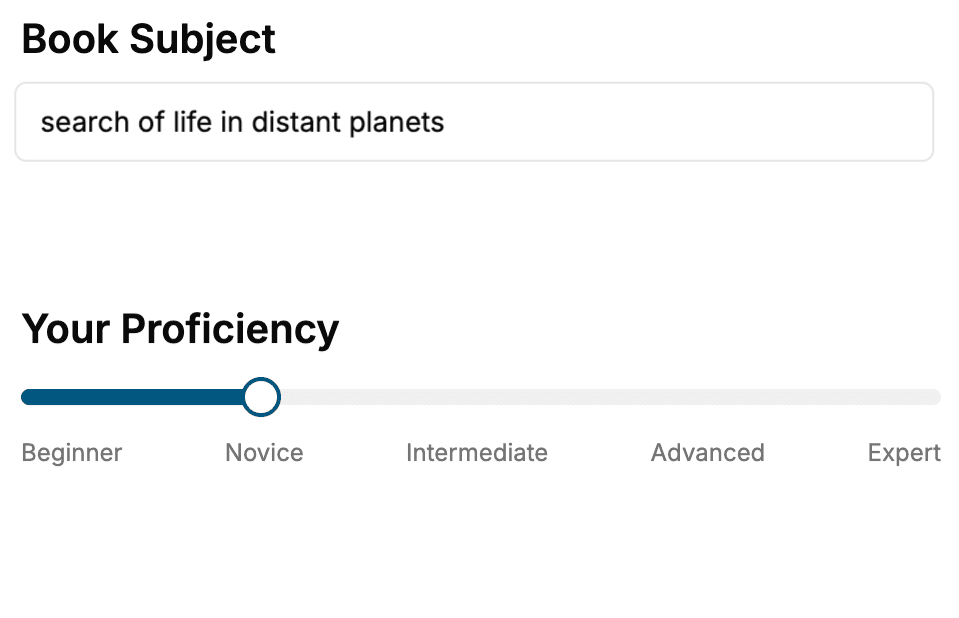
Select the focus of your Chrome Developer Tools book and share your background
- 2. Personalize your book
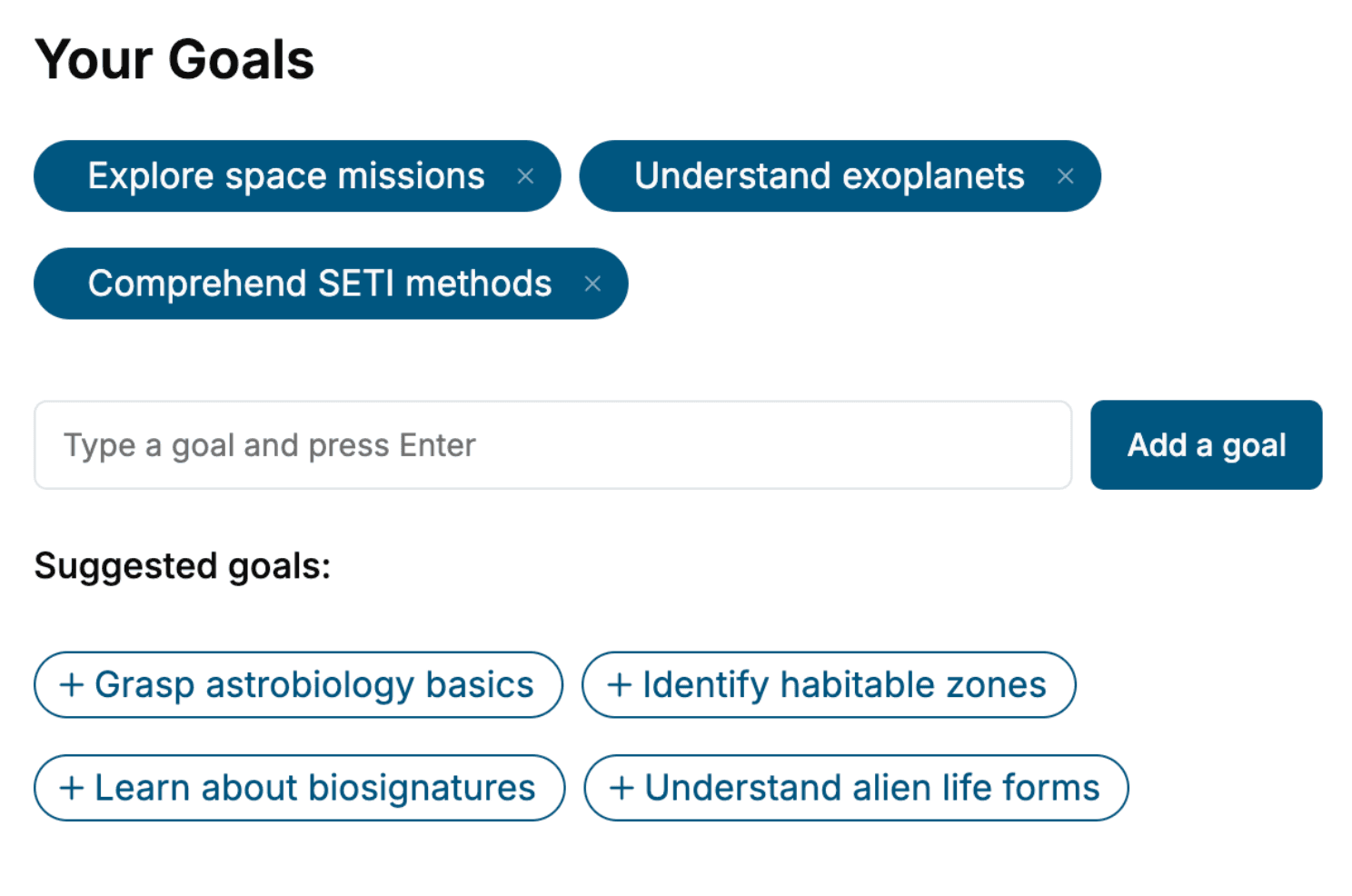
Specify your goals and choose sub-topics to include
- 3. Get your tailored book
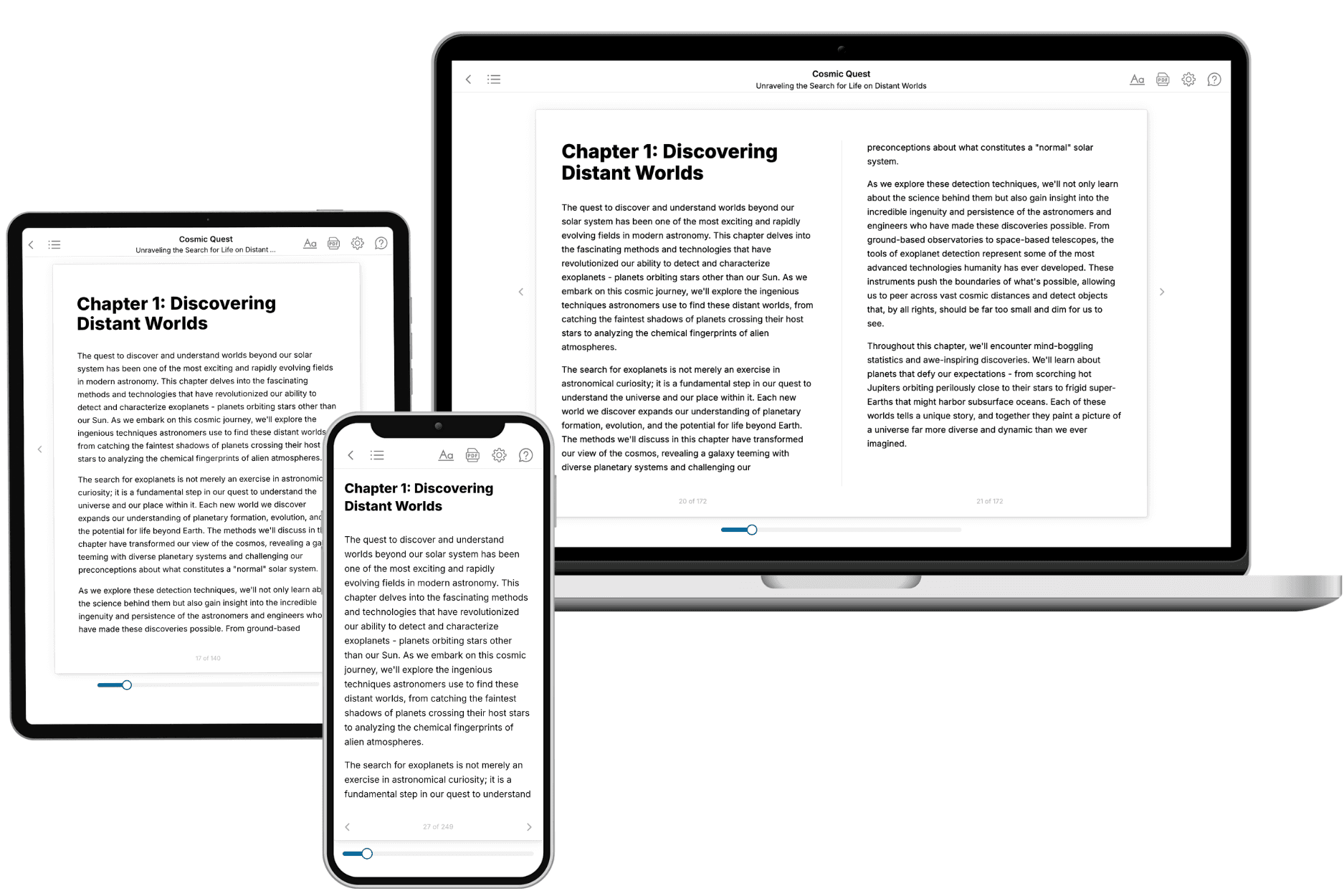
Your book is ready in 10 minutes. Read it online, download as EPUB or PDF, or send to Kindle.
Frequently asked questions
- What is TailoredRead?
TailoredRead creates complete, full-length nonfiction ebooks, written specifically for you. Tell us what you want to learn and why, and TailoredRead writes you a complete ebook on it, with charts, tables, and diagrams throughout. Read it online, on Kindle, or on any e-reader, or download it as a PDF or EPUB. Every book is written fresh the day you order it.
- How is the book tailored to me?
Before anything is written, you answer a few short questions about your goals, your background, and the topics you care about. Your book is then planned around your answers: written at your level, focused on your goals, and covering the topics you chose, instead of the one-size-fits-all book a store sells everyone.
- Will it read like generic AI content?
No. Your book isn't a chat transcript: it's planned chapter by chapter before a single word is written, told in a clear book voice, and explains ideas visually with charts, tables, and diagrams. After writing, every book goes through an editorial pass that polishes chapters so the book reads consistent from start to finish. Judge for yourself: browse thousands of sample books on our Explore Books page.
- How accurate is the content?
Our AI first checks whether your subject needs live research. Niche and fast-moving subjects are researched before writing, and the book plan and chapters are grounded in what it finds. After writing, every book goes through a quality pass that checks its facts and consistency, and researched books list their sources in a Notes section at the back.
- How long is the book?
You choose the length: Comprehensive (250-300 pages), Detailed (150-200 pages), Essential (70-100 pages), or Short (30-50 pages).
- Does the book include visuals?
Yes. Every book includes charts, tables, and diagrams: timelines, checklists, step-by-step guides, decision trees, comparison tables, matrices, and bar charts. A typical book includes dozens of these visual elements.
- Can I read it on Kindle? What formats can I download?
Yes. Every book can be read in our online reader or downloaded as a PDF or EPUB. The EPUB can be opened with Kindle, Apple Books, Kobo, and any e-reader. The Commercial and Author licenses also include an editable Word (DOCX) and Markdown download.
- How much does it cost?
About the price of a regular ebook. The exact price depends on your book's length and complexity, from $2 for the shortest books to $35 for the most comprehensive, and it's shown when you review your book, before you commit to anything. Each book is a one-time purchase, yours to keep, no subscription. Licenses that let you share, teach, or publish your book range from $35.99 to $49.99.
- Can I preview the book before purchasing?
Before you pay, you'll see what your book will cover: the title, a detailed description, the estimated length, and the complete chapter-by-chapter table of contents, so you know what you're getting before you decide. The full text itself is written after you purchase.
- How long does it take to create a book?
About 10 minutes. You can start reading the opening chapters while the rest is still being written.