Master the Command Line
Essential CLI Skills for Modern JavaScript Development
You're about to discover that the command line isn't a relic of the past—it's the fastest path to becoming a more efficient developer.
222 pages11 chaptersJan 4, 2026Software Development
About this book
This book walks you through everything you need to know about command line interfaces in the context of ES5 JavaScript development, starting with the fundamentals and building toward real-world mastery. You'll learn how to navigate your file system with confidence, harness the power of pipes and redirection, manage your development environment, and automate the tasks that eat up your time. Whether you're struggling with basic navigation or ready to write sophisticated shell scripts, you'll find practical examples and clear explanations that make sense. By the end, you'll understand why experienced developers spend so much time at the command line—and you'll have the skills to join them. This isn't theory; it's the practical knowledge that makes you more productive every single day.
Table of contents
- IntroductionWhy the Command Line Matters for Developers, What You'll Learn in This Book, How to Use This Book Effectively, Prerequisites and SetupRead below
- Chapter 1: Getting Started with the Command LineUnderstanding Shells and Terminals, Your First Commands: pwd, ls, and echo, Command Syntax and Structure
- Chapter 2: Navigating and Managing FilesMoving Through Directories with cd, Creating, Copying, and Moving Files, Understanding File Permissions and Ownership
- Chapter 3: Working with Text and DataViewing File Contents: cat, less, and head, Text Processing with grep, sed, and awk, Sorting and Filtering Data
- Chapter 4: Pipes, Redirection, and Command ChainingInput and Output Redirection, Pipes: Connecting Commands Together, Advanced Command Chaining Techniques
- Chapter 5: Package Managers and Dependenciesnpm Fundamentals and Package Installation, Managing Package Versions and Dependencies, Creating and Running npm Scripts
- Chapter 6: Version Control with GitGit Basics: Repositories and Commits, Branching, Merging, and Conflict Resolution, Working with Remote Repositories
- Chapter 7: Build Tools and Task AutomationUnderstanding Build Tools and Task Runners, Bundling with Webpack from the CLI, Automating Development Workflows
- Chapter 8: Environment Variables and ConfigurationUnderstanding Environment Variables, Setting and Using Variables in Your Shell, Managing Configuration Files and .env
- Chapter 9: Shell Scripting FundamentalsCreating and Running Shell Scripts, Variables, Loops, and Conditional Logic, Functions and Code Reusability
- Chapter 10: Debugging and TroubleshootingEssential Diagnostic and Debugging Tools, Reading and Interpreting Error Messages, Systematic Debugging Strategies
- Chapter 11: Real-World Development WorkflowsSetting Up Local Development Environments, Running Tests and Preparing for Deployment, Productivity Tips and Best Practices
- ConclusionYour Ongoing Journey to CLI Mastery, Next Steps and Continued Learning
- Appendix: Quick Reference GuideCommon Commands Cheat Sheet, Useful Keyboard Shortcuts, Additional Resources and Learning Materials
Introduction
The command line sits at the heart of modern software development, yet many JavaScript developers treat it like an intimidating black box they'd rather avoid. You might copy and paste commands from Stack Overflow without understanding what they do, or feel anxious every time you need to venture beyond your code editor's graphical interface. This hesitation is understandable—the command line doesn't offer the visual feedback and intuitive buttons that modern applications provide. But here's the truth: mastering the command line isn't about memorizing arcane commands or becoming a terminal wizard overnight. It's about understanding a few fundamental concepts that unlock extraordinary productivity gains in your daily development work.
Every experienced developer you admire spends significant time at the command line, and there's a compelling reason for this pattern. The CLI provides direct, unfiltered access to your development tools, operating system, and project files. When you understand how to navigate directories efficiently, chain commands together with pipes, automate repetitive tasks with scripts, and manage your development environment through configuration, you eliminate countless small friction points that slow you down. These efficiency gains compound over time. What takes thirty seconds of clicking through menus becomes a two-second command. What requires ten manual steps becomes a single script you run whenever needed. The command line transforms you from someone who uses tools into someone who orchestrates them.
This book focuses specifically on command line skills that matter for JavaScript development, particularly in ES5 environments. You won't find exhaustive coverage of every possible Unix command or obscure shell features you'll never use. Instead, you'll learn the practical, actionable skills that make you more productive when building, testing, debugging, and deploying JavaScript applications. Each chapter builds on the previous one, starting with fundamental navigation and file operations, then progressing through pipes and redirection, package management, version control, build tools, scripting, and real-world workflows. By the end, you'll have the confidence and competence to work efficiently at the command line, automate your development tasks, and understand what's happening under the hood when you run commands.
The approach throughout this book emphasizes understanding over memorization. Rather than presenting commands as magic incantations, you'll learn the mental models that make the command line intuitive. You'll see concrete examples drawn from real JavaScript development scenarios, complete with explanations of what each command does and why you'd use it. You'll also learn what can go wrong and how to troubleshoot problems when they arise. This isn't a reference manual you'll consult occasionally—it's a practical guide designed to transform how you work, making the command line feel like a natural extension of your development toolkit rather than an obstacle to overcome.
Why the Command Line Matters for Developers
The command line represents the most direct interface between you and your computer's capabilities. While graphical user interfaces abstract away complexity to make computers accessible, they also introduce limitations. Every GUI application makes decisions about which features to expose, how to organize them, and what workflows to support. The command line removes these intermediaries, giving you unfiltered access to your operating system, development tools, and project files. This directness translates into power and flexibility that no graphical interface can match. When you need to perform a task that the GUI designers didn't anticipate, the command line provides a solution. When you need to combine tools in novel ways, the command line makes it possible.
Speed and efficiency constitute another compelling reason to embrace the command line. Consider a common development task: finding all JavaScript files in your project that contain a specific function name, then opening them for editing. In a graphical environment, you might open your file browser, navigate through directories, use a search feature, wait for results, then manually open each file. At the command line, this becomes a single operation: grep -r "functionName" *.js shows you exactly what you need in under a second. This pattern repeats throughout your development work. Tasks that require multiple clicks, menu navigation, and waiting for GUI applications to load become instant command executions. Over the course of a day, these micro-efficiencies accumulate into hours of saved time.
Automation represents perhaps the most transformative benefit of command line proficiency. Every repetitive task you perform manually—running tests, building your project, deploying to staging, checking code quality, updating dependencies—can be automated through shell scripts or npm scripts. Once you've automated a task, it becomes perfectly consistent and infinitely repeatable. You eliminate the possibility of forgetting a step or making a manual error. You can share your automation with teammates, ensuring everyone follows the same process. You can trigger automated tasks from continuous integration systems, creating reliable deployment pipelines. This automation capability fundamentally changes how you work, shifting your focus from executing repetitive procedures to designing efficient workflows.
The JavaScript ecosystem itself demands command line competence. Modern JavaScript development relies heavily on CLI-based tools that have no graphical alternatives. Package managers like npm and yarn operate primarily through command line interfaces. Build tools like Webpack, Rollup, and Browserify are configured and executed from the terminal. Testing frameworks like Mocha and Jest run as command line applications. Version control with Git, while it has GUI clients, exposes its full power only through the command line. Deployment tools, continuous integration systems, and cloud platforms all expect you to interact with them through terminal commands. Avoiding the command line in JavaScript development isn't just limiting—it's increasingly impractical as the ecosystem evolves toward CLI-first tooling.
Understanding what happens beneath the surface of your development tools provides another crucial advantage. When you click a button in your code editor to run tests, what actually happens? When you use a GUI Git client to commit changes, what commands execute behind the scenes? When your build process fails, what went wrong and where? Command line knowledge answers these questions, transforming mysterious processes into transparent, understandable operations. This understanding makes you more effective at troubleshooting problems, optimizing your workflow, and making informed decisions about your development environment. You stop being dependent on tools working perfectly and gain the ability to diagnose and fix issues when they arise.
Collaboration and communication improve dramatically when you understand the command line. When a colleague asks for help with a Git problem, you can provide precise commands rather than vague descriptions of menu clicks. When you encounter an issue and need to ask for help, you can share the exact commands you ran and the error messages you received, making it much easier for others to assist you. Documentation, tutorials, and Stack Overflow answers overwhelmingly use command line examples because they're precise, unambiguous, and platform-independent. Being fluent in this lingua franca of development makes you a more effective team member and gives you access to the vast knowledge base that the development community has created.
Remote work and server management represent practical scenarios where command line skills become essential. When you need to debug an issue on a remote server, deploy an application to a cloud platform, or manage a continuous integration pipeline, you'll work exclusively through command line interfaces. SSH connections don't provide graphical interfaces—they give you a terminal prompt. Cloud platforms like AWS, Google Cloud, and Azure offer CLI tools as their primary automation interface. DevOps practices that have become standard in modern development teams assume command line competence. Even if you primarily develop on your local machine with graphical tools, you'll eventually need to work in environments where the command line is your only option. Building these skills proactively prepares you for these inevitable situations.
The learning investment you make in command line skills pays dividends across your entire career. Unlike specific frameworks or libraries that rise and fall in popularity, command line fundamentals remain remarkably stable. The core Unix commands you learn today have existed for decades and will continue working for decades more. The concepts of pipes, redirection, and shell scripting transfer across different shells and operating systems. The mental models you develop for thinking about file systems, processes, and text processing apply universally. This stability makes command line skills one of the highest-return investments you can make in your professional development. You're not learning something that will be obsolete in two years—you're building foundational knowledge that will serve you throughout your career, regardless of which specific technologies you work with.
What You'll Learn in This Book
This book takes you on a carefully structured journey from command line basics to advanced automation and workflow optimization. You'll start with fundamental concepts that might seem simple but form the foundation for everything that follows. Understanding shells and terminals, executing your first commands, and learning command syntax might not sound exciting, but these basics eliminate confusion and build confidence. You'll learn the difference between a shell and a terminal, understand how commands are structured with options and arguments, and develop mental models for how the command line interprets what you type. These foundational concepts prevent the confusion that causes many developers to give up on the command line before they've really started.
File system navigation and management form the next critical skill set you'll master. You'll learn to move through directories with confidence using cd, understand absolute versus relative paths, and use commands like ls to explore your file system. Creating, copying, moving, and deleting files and directories will become second nature. You'll understand file permissions and ownership, learning how to read permission strings like -rw-r--r-- and modify them when necessary. These skills might seem mundane, but they're the building blocks for everything else. You can't effectively work with Git, run build tools, or write scripts if you're uncertain about navigating your file system or managing files from the command line.
Text processing and data manipulation represent powerful capabilities that distinguish command line experts from beginners. You'll learn to view file contents using commands like cat, less, and head, then progress to more sophisticated text processing with grep, sed, and awk. These tools let you search through thousands of files instantly, extract specific information from logs, transform data formats, and perform complex text manipulations that would take hours manually. You'll see concrete examples like finding all console.log statements in your codebase, extracting error messages from log files, and reformatting data for analysis. These aren't theoretical exercises—they're practical skills you'll use regularly in real development work.
Pipes and redirection unlock the true power of the command line by letting you combine simple commands into sophisticated workflows. You'll understand how to redirect command output to files, use pipes to send one command's output as input to another, and chain multiple commands together to solve complex problems elegantly. This chapter transforms your understanding of the command line from a collection of individual tools into an integrated system where commands work together. You'll learn patterns like grep "error" app.log | sort | uniq -c to find and count unique error messages, or cat package.json | grep "version" to extract specific information from JSON files. These techniques become the foundation for building more complex automation.
Package management with npm receives focused attention because it's central to JavaScript development. You'll learn not just how to install packages with npm install, but how to understand and manage your dependency tree, handle version conflicts, and use semantic versioning effectively. Creating and running npm scripts will transform how you automate common tasks, letting you define commands like npm run build or npm test that execute complex workflows with a single command. You'll understand the difference between dependencies and devDependencies, learn to audit your packages for security vulnerabilities, and discover how to troubleshoot common npm problems. This knowledge makes you more effective at managing JavaScript projects and collaborating with teams.
Version control with Git forms another essential skill set covered in depth. While many developers use Git through graphical clients, understanding the command line interface gives you access to Git's full power and helps you understand what's actually happening when you commit, branch, merge, and push. You'll learn the fundamental Git workflow from initialization through committing changes, understand branching and merging strategies, and master working with remote repositories. Conflict resolution, which often confuses developers using GUI clients, becomes clearer when you understand the underlying commands. You'll also learn advanced techniques like interactive rebasing, cherry-picking commits, and using Git hooks to automate quality checks.
Build tools and task automation bring together many of the skills you've learned to create efficient development workflows. You'll understand how build tools like Webpack work from the command line, learn to configure them through command line options and configuration files, and discover how to integrate them into your development process. Task automation extends beyond build tools to encompass any repetitive work you do regularly. You'll learn to identify automation opportunities, create scripts that handle complex workflows, and build reliable, repeatable processes that save time and reduce errors. This chapter shows you how to think like an automation engineer, constantly asking yourself whether manual tasks could be automated.
Environment variables and configuration management might seem like advanced topics, but they're essential for professional development work. You'll learn what environment variables are, how to set and use them in your shell, and why they matter for managing different environments like development, staging, and production. Understanding how to use .env files, manage configuration across different environments, and keep sensitive information like API keys out of your source code makes you more effective at building real-world applications. You'll see practical examples of using environment variables to configure database connections, API endpoints, and feature flags, along with best practices for managing configuration in team environments.
Shell scripting fundamentals teach you to create your own command line tools and automation scripts. You'll learn to write executable shell scripts, use variables and control flow structures like loops and conditionals, and create reusable functions. This knowledge lets you automate complex workflows that involve multiple steps, conditional logic, and error handling. You'll see examples like scripts that set up new projects with all necessary dependencies and configuration, automate deployment processes with safety checks, and perform batch operations on multiple files. Shell scripting transforms you from a command line user into a command line programmer, capable of creating custom tools tailored to your specific needs.
Debugging and troubleshooting skills ensure you can solve problems when they arise. You'll learn to use diagnostic tools to understand what's happening on your system, interpret error messages effectively, and apply systematic debugging strategies to isolate and fix issues. This chapter covers common problems JavaScript developers encounter—permission errors, path issues, version conflicts, and mysterious build failures—along with the techniques for diagnosing and resolving them. You'll learn to read stack traces, use debugging flags to get more information from commands, and search effectively for solutions when you encounter unfamiliar errors. These skills build confidence and reduce the frustration that often accompanies command line work.
Real-world development workflows bring everything together by showing you how experienced developers use the command line in their daily work. You'll see complete examples of setting up local development environments, running tests and preparing for deployment, and optimizing your productivity with aliases, functions, and custom configurations. This chapter includes concrete workflows like starting work on a new feature
, debugging a production issue
, and preparing a release
, showing exactly which commands you'd run and why. You'll also learn productivity tips that experienced developers use, like keyboard shortcuts, command history navigation, and shell customization. These practical examples help you understand not just individual commands, but how they fit together into efficient workflows.
How to Use This Book Effectively
This book is designed for active learning, not passive reading. The most effective way to use it is to have your terminal open while you read, typing and executing the commands as they're introduced. Reading about commands without executing them is like reading about swimming without getting in the water—you'll understand the concepts intellectually, but you won't develop the muscle memory and intuition that comes from hands-on practice. When you encounter a new command or technique, pause and try it yourself. Experiment with variations. Make mistakes and see what error messages you get. This active engagement transforms abstract knowledge into practical skill that you'll retain and be able to apply in real situations.
The chapters are sequenced deliberately to build on each other, so working through them in order provides the most coherent learning experience. Early chapters establish fundamental concepts and vocabulary that later chapters assume you understand. For example, the chapter on pipes and redirection builds directly on your understanding of basic commands from earlier chapters. The chapter on shell scripting assumes you're comfortable with file operations, text processing, and command chaining. If you skip ahead to advanced topics without mastering the fundamentals, you'll likely find yourself confused and frustrated. That said, if you already have some command line experience, you might skim through early chapters more quickly, focusing on sections that cover unfamiliar territory or fill gaps in your knowledge.
Each chapter includes concrete examples drawn from real JavaScript development scenarios. These examples aren't just illustrations—they're templates you can adapt to your own work. When you see an example of using grep to find specific patterns in log files, think about the log files in your own projects and what patterns you might want to search for. When you see a shell script that automates project setup, consider what setup tasks you perform repeatedly and how you might automate them. The goal isn't to memorize the specific examples, but to understand the patterns and techniques they demonstrate so you can apply them to your own unique situations. Keep a notes file where you record useful commands and patterns you want to remember.
Mistakes and errors are valuable learning opportunities, not failures. When a command doesn't work as expected, resist the urge to immediately copy a corrected version. Instead, read the error message carefully and try to understand what went wrong. Did you misspell a command? Use the wrong option? Reference a file that doesn't exist? Understanding why something failed teaches you more than getting it right the first time. This book includes common errors and how to interpret them, but you'll encounter additional errors as you experiment. Developing the ability to read error messages, form hypotheses about what went wrong, and test those hypotheses is one of the most valuable skills you can build. This troubleshooting ability transfers to all aspects of development work.
Create a practice environment where you can experiment safely without fear of breaking anything important. Set up a dedicated directory for working through the book's examples, separate from your real projects. This gives you freedom to create and delete files, experiment with commands, and make mistakes without consequences. You might structure it like this:
~/cli-practice/as your main practice directory~/cli-practice/chapter-01/,~/cli-practice/chapter-02/, etc. for chapter-specific work~/cli-practice/sandbox/for general experimentation~/cli-practice/scripts/for shell scripts you create
The command line rewards regular practice more than intensive cramming. Spending thirty minutes daily working through examples and experimenting with commands will build stronger skills than spending four hours once a week. This is because command line proficiency depends heavily on muscle memory and pattern recognition, which develop through repetition over time. Try to incorporate command line practice into your daily routine. When you need to perform a task you'd normally do graphically, challenge yourself to do it from the command line instead. When you find yourself repeating the same sequence of commands, write a script to automate it. This consistent practice transforms command line skills from something you're learning into something you naturally use.
Use the book's structure to guide your learning, but don't feel constrained by it. If a particular topic fascinates you, explore it more deeply using the additional resources mentioned throughout the book. If a section covers something you already know well, skim it quickly and move on. The goal is to build practical skills that make you more productive, not to complete the book as quickly as possible. Some readers might spend weeks on the early chapters, really solidifying their understanding of fundamentals. Others might move more quickly through familiar territory and slow down when they reach new concepts. Both approaches are valid—what matters is that you're building genuine understanding and practical ability, not just checking off chapters.
Keep a command journal or cheat sheet where you record useful commands, patterns, and techniques you want to remember. This personal reference becomes increasingly valuable as you learn more. When you discover a particularly useful command or solve a tricky problem, write it down with enough context that you'll understand it later. Your journal might include entries like:
This practice reinforces your learning and creates a personalized reference that's more useful than generic cheat sheets because it reflects your actual work and the problems you encounter.Finding large files:
find . -type f -size +10M- Useful when disk space is running low and I need to identify what's taking up space.
Connect what you're learning to your existing JavaScript development work. After learning about file operations, think about how you currently manage your project files and whether command line tools could make that more efficient. After learning about npm scripts, review your current projects and identify opportunities to add useful scripts. After learning about Git commands, reflect on your version control workflow and whether understanding the underlying commands could improve it. This constant connection between new command line skills and your existing development work ensures that what you're learning is immediately practical and relevant. It also helps you retain the knowledge because you're using it in meaningful contexts rather than just completing exercises.
Don't hesitate to consult the manual pages for commands you're learning. Every Unix command includes built-in documentation accessible through man commandname (for example, man grep). While manual pages can be dense and technical, they're authoritative and comprehensive. When this book introduces a command, try reading its manual page to see what additional options and capabilities it offers. You don't need to understand everything in the manual page—just browsing it gives you a sense of what's possible and helps you discover features that might be useful for your specific needs. Over time, reading manual pages becomes easier as you become familiar with their structure and conventions.
Prerequisites and Setup
This book assumes you're an intermediate JavaScript developer with foundational programming knowledge. You should be comfortable writing JavaScript code, understand basic programming concepts like variables, functions, loops, and conditionals, and have experience working on JavaScript projects. You don't need to be an expert, but you should have moved beyond tutorial-level work and dealt with real development challenges. The book focuses on command line skills rather than JavaScript fundamentals, so it won't explain what a function is or how promises work. If you're still learning JavaScript basics, you might want to solidify that foundation before diving deeply into command line work, though you can certainly start learning basic command line skills in parallel with your JavaScript studies.
You'll need access to a Unix-like command line environment to follow along with the examples. If you're using macOS or Linux, you already have this—just open your Terminal application. If you're using Windows, you have several options. Windows Subsystem for Linux (WSL) provides a genuine Linux environment within Windows and is the recommended option for Windows users. It gives you access to a full Linux distribution with all the standard Unix commands. Alternatively, Git Bash (which comes with Git for Windows) provides many Unix commands in a Windows environment, though it's less complete than WSL. PowerShell is Windows' native shell and while it's powerful, it uses different commands and syntax than the Unix-based approach this book teaches. For the best learning experience on Windows, install WSL following Microsoft's official documentation.
Your development environment should include Node.js and npm, which you likely already have installed if you're doing JavaScript development. This book focuses on ES5 JavaScript development, so you don't need the latest Node.js version—any reasonably recent version will work fine for the examples. You can verify your installation by running node --version and npm --version in your terminal. If these commands return version numbers, you're set. If not, download and install Node.js from the official Node.js website, which includes npm. The book's examples use npm rather than alternative package managers like Yarn, but the concepts transfer directly if you prefer a different package manager.
Git should be installed on your system for the version control chapters. Most macOS and Linux systems include Git by default, and you can verify this by running git --version. If Git isn't installed, you can install it through your system's package manager (like apt on Ubuntu or brew on macOS) or download it from the official Git website. You don't need a GitHub or GitLab account to work through the Git chapters—you'll learn to use Git locally first, then explore remote repositories later. If you already use Git through a graphical client, that's fine, but be prepared to learn the command line interface, which will deepen your understanding of what your GUI client is doing behind the scenes.
A text editor that you're comfortable with is essential, though you don't need to learn a terminal-based editor like Vim or Emacs unless you want to. You can use any editor you prefer—VS Code, Sublime Text, Atom, or whatever you normally use for JavaScript development. The book occasionally shows examples of opening files from the command line using commands like code filename.js (for VS Code) or open filename.js (which uses your system's default editor), but you can always open files through your editor's graphical interface if you prefer. That said, learning to launch your editor from the command line is convenient and worth the small effort to set up.
Familiarity with your terminal application's basic features will make your learning experience smoother. You should know how to open a new terminal window or tab, adjust the font size so text is comfortably readable, and copy and paste text (which often uses different keyboard shortcuts than other applications). Spend a few minutes exploring your terminal's preferences. You might want to increase the scrollback buffer so you can review more command history, adjust the color scheme for better readability, or configure the terminal to open in a specific directory. These small customizations make the terminal more comfortable to use, which encourages you to spend more time practicing.
No special hardware or powerful computer is required. The command line is remarkably lightweight—it will run smoothly on any computer capable of running a modern operating system and web browser. You don't need multiple monitors, though having your terminal and this book visible simultaneously is convenient. You don't need a mechanical keyboard or any special peripherals. The command line predates modern computing hardware by decades and was designed to work efficiently even on limited systems. This accessibility is one of its strengths—the skills you learn work identically whether you're on a high-end workstation or a modest laptop.
Create a backup of any important work before you start experimenting with command line operations, especially file operations and shell scripts. While this book emphasizes safe practices and warns you about potentially destructive commands, mistakes happen when you're learning. Having backups ensures that an accidental rm command or mistyped path doesn't cause real problems. If you use version control for your projects (which you should), your code is already backed up. For other important files, consider using your operating system's built-in backup features or a cloud storage service. This safety net lets you experiment freely without anxiety about breaking something important.
Set realistic expectations about the learning process. Command line proficiency develops gradually through consistent practice, not overnight through intensive study. You'll likely feel awkward and slow at first, constantly referring back to examples and documentation. This is completely normal. Every experienced developer went through the same learning curve. The key is persistence—keep practicing, even when it feels slower than using graphical tools. After a few weeks of regular use, you'll notice commands becoming automatic. After a few months, you'll find yourself reaching for the terminal naturally because it's faster than the alternatives. The initial investment of time and effort pays dividends throughout your career, making this one of the most valuable skills you can develop as a developer.
Finally, approach this learning journey with curiosity and patience. The command line has depth—there's always more to learn, more efficient ways to accomplish tasks, and new tools to discover. Don't feel pressured to master everything immediately. Focus on building solid fundamentals first, then gradually expanding your knowledge as you encounter new challenges and opportunities. Celebrate small victories, like the first time you successfully pipe commands together or write a script that automates a tedious task. These moments of accomplishment fuel your motivation and mark real progress in your development as a more capable, efficient developer. The command line is a powerful tool, and you're about to learn how to wield it effectively.
This is the end of the free sample. The full book has 11 chapters.
Want this book written for you?
Tell us your goals and background, and get your own version of this book, tailored by AI to you.


Benefits of AI-tailored books
- Read one book, not ten:
- all the Software Development knowledge you need, gathered into a single book.
- Save days of learning:
- tell us your goals, choose your topics, and the whole book is built around them.
- Learn effortlessly:
- Software Development book written for your specific background and expertise.
- Understand at a glance:
- includes charts, tables, timelines, checklists, decision trees, and more.
- Stay current:
- written the day you order it, not years ago.
- Trust what you read:
- every book is checked for accuracy, with real research when your subject needs it.
Create your unique book in 3 steps
- 1. Select your focus
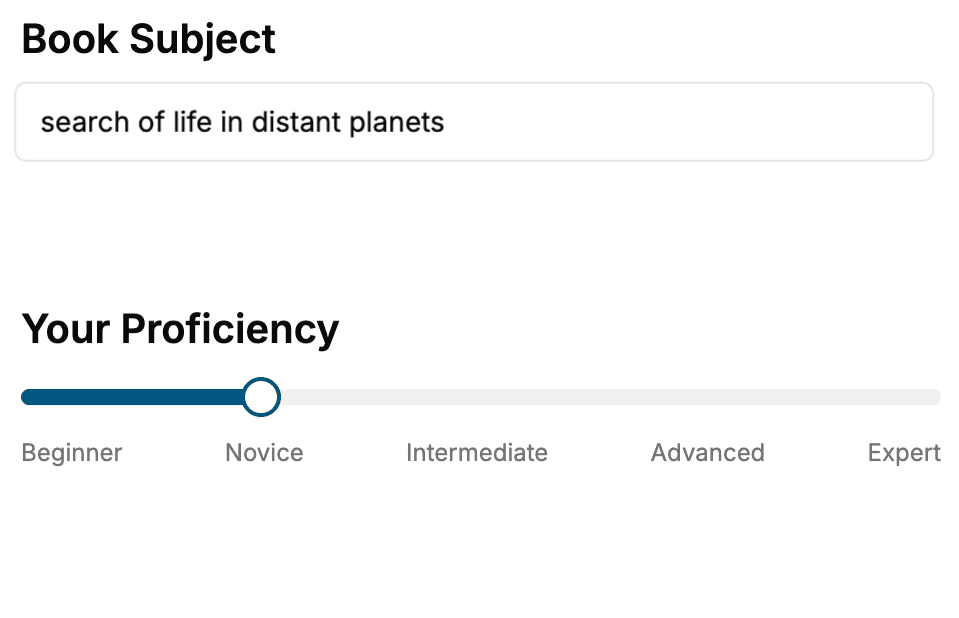
Select the focus of your Software Development book and share your background
- 2. Personalize your book
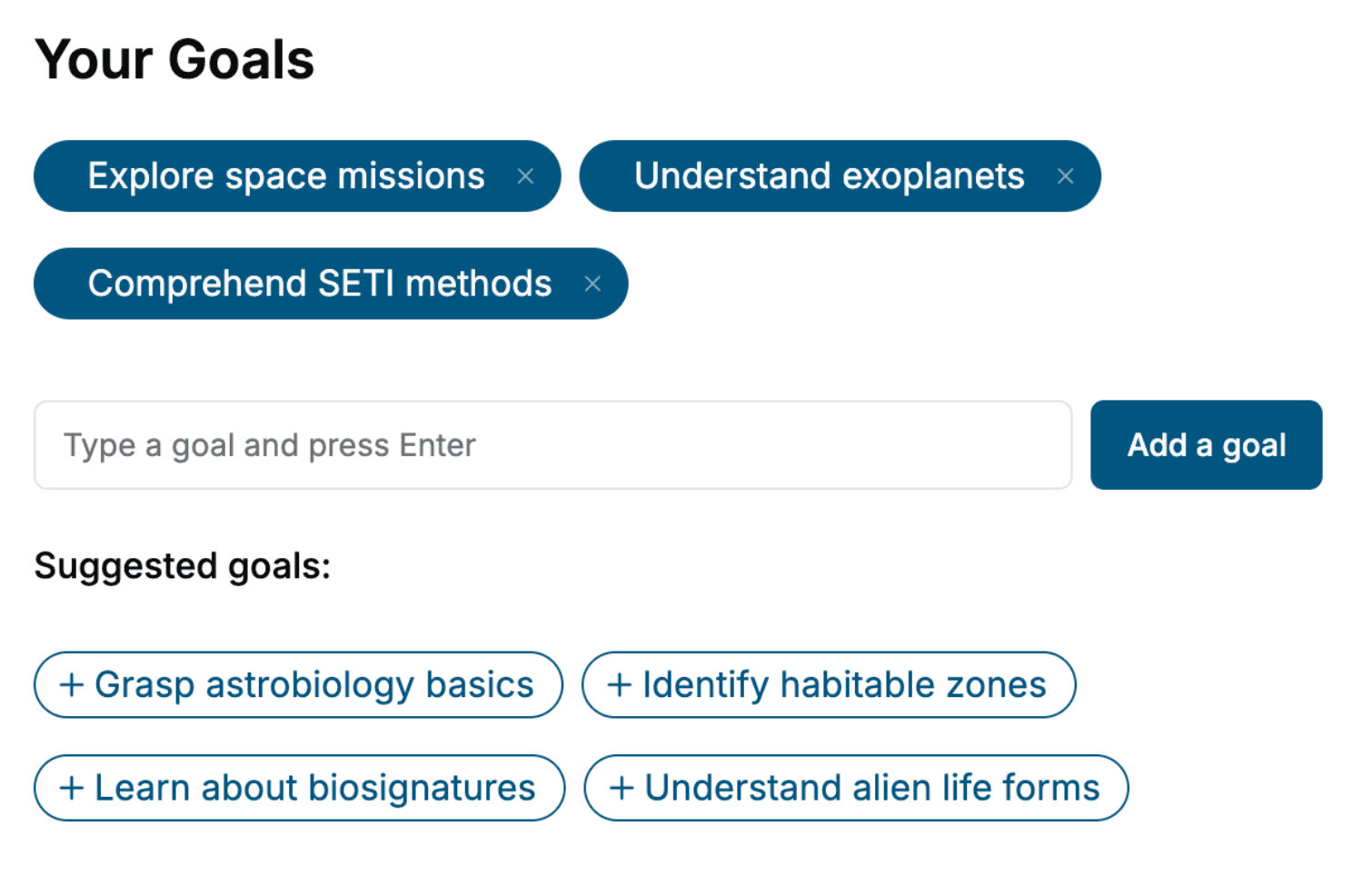
Specify your goals and choose sub-topics to include
- 3. Get your tailored book
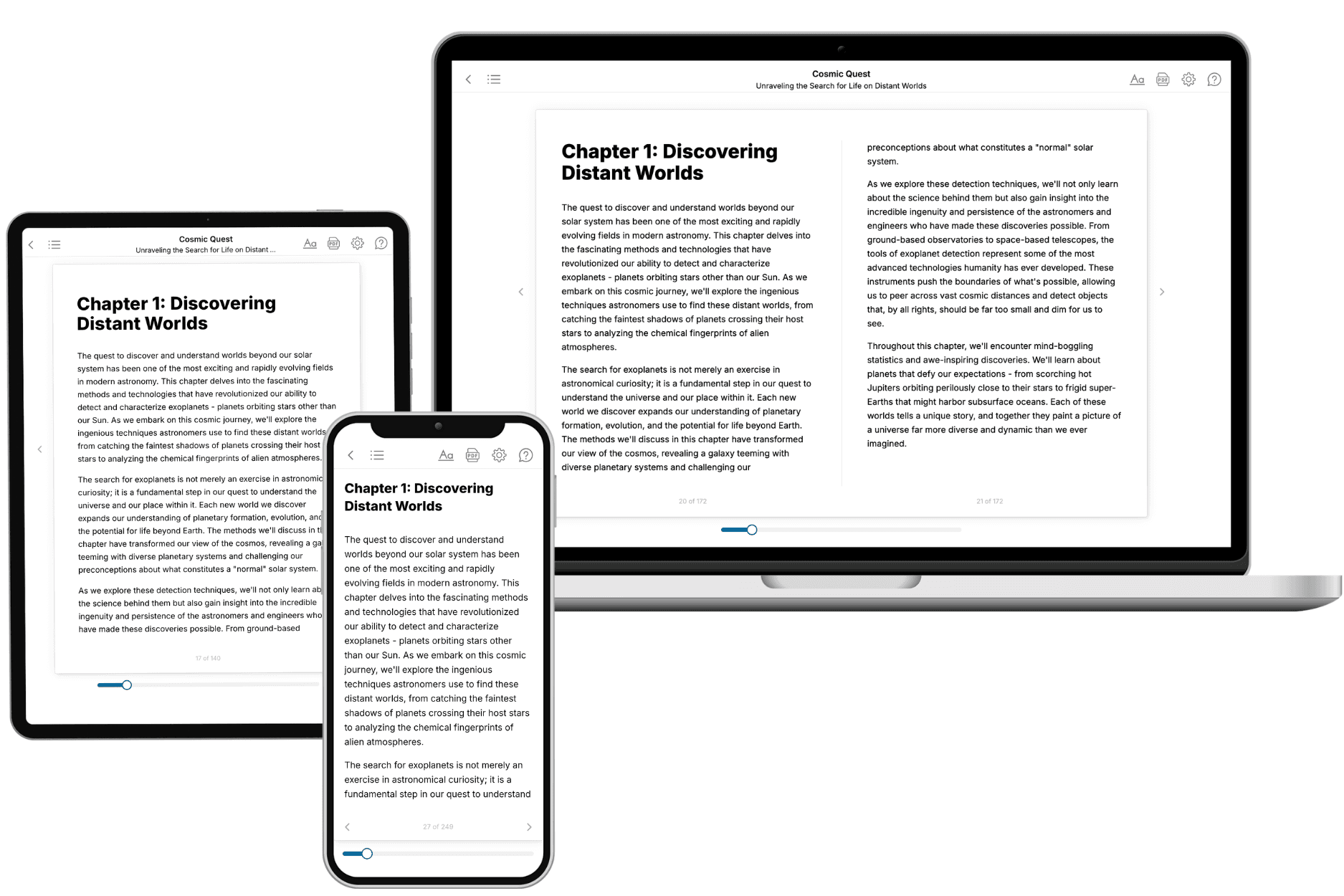
Your book is ready in 10 minutes. Read it online, download as EPUB or PDF, or send to Kindle.
Frequently asked questions
- What is TailoredRead?
TailoredRead creates complete, full-length nonfiction ebooks, written specifically for you. Tell us what you want to learn and why, and TailoredRead writes you a complete ebook on it, with charts, tables, and diagrams throughout. Read it online, on Kindle, or on any e-reader, or download it as a PDF or EPUB. Every book is written fresh the day you order it.
- How is the book tailored to me?
Before anything is written, you answer a few short questions about your goals, your background, and the topics you care about. Your book is then planned around your answers: written at your level, focused on your goals, and covering the topics you chose, instead of the one-size-fits-all book a store sells everyone.
- Will it read like generic AI content?
No. Your book isn't a chat transcript: it's planned chapter by chapter before a single word is written, told in a clear book voice, and explains ideas visually with charts, tables, and diagrams. After writing, every book goes through an editorial pass that polishes chapters so the book reads consistent from start to finish. Judge for yourself: browse thousands of sample books on our Explore Books page.
- How accurate is the content?
Our AI first checks whether your subject needs live research. Niche and fast-moving subjects are researched before writing, and the book plan and chapters are grounded in what it finds. After writing, every book goes through a quality pass that checks its facts and consistency, and researched books list their sources in a Notes section at the back.
- How long is the book?
You choose the length: Comprehensive (250-300 pages), Detailed (150-200 pages), Essential (70-100 pages), or Short (30-50 pages).
- Does the book include visuals?
Yes. Every book includes charts, tables, and diagrams: timelines, checklists, step-by-step guides, decision trees, comparison tables, matrices, and bar charts. A typical book includes dozens of these visual elements.
- Can I read it on Kindle? What formats can I download?
Yes. Every book can be read in our online reader or downloaded as a PDF or EPUB. The EPUB can be opened with Kindle, Apple Books, Kobo, and any e-reader. The Commercial and Author licenses also include an editable Word (DOCX) and Markdown download.
- How much does it cost?
About the price of a regular ebook. The exact price depends on your book's length and complexity, from $2 for the shortest books to $35 for the most comprehensive, and it's shown when you review your book, before you commit to anything. Each book is a one-time purchase, yours to keep, no subscription. Licenses that let you share, teach, or publish your book range from $35.99 to $49.99.
- Can I preview the book before purchasing?
Before you pay, you'll see what your book will cover: the title, a detailed description, the estimated length, and the complete chapter-by-chapter table of contents, so you know what you're getting before you decide. The full text itself is written after you purchase.
- How long does it take to create a book?
About 10 minutes. You can start reading the opening chapters while the rest is still being written.