Master Excel Advanced Formulas
From Intermediate Skills to Professional-Level Data Analysis and Automation
Most Excel users plateau at basic formulas, unaware that advanced functions can transform how they work with data.
207 pages10 chaptersMar 10, 2026Microsoft Excel
About this book
You might think mastering Excel requires programming skills or years of experience—but the truth is that intermediate users can quickly learn the advanced formulas that professionals rely on daily. This book bridges that gap, taking you from competent to confident with the formulas that matter most in real business environments. You'll discover how to retrieve data with precision, manipulate text effortlessly, perform complex calculations, and automate analysis that would otherwise consume hours of manual work. Each chapter builds on practical scenarios you'll actually encounter, with step-by-step guidance and real-world examples. Whether you're analyzing sales data, managing financial reports, or cleaning messy datasets, these advanced formulas become your competitive advantage. Stop struggling with spreadsheets and start building solutions that impress colleagues and accelerate your career.
Table of contents
- IntroductionWhy Advanced Formulas Matter, How to Use This Book, Excel Versions and Compatibility, Formula Fundamentals ReviewRead below
- Chapter 1: Understanding Formula Logic and StructureThe Anatomy of a Formula, Nesting Functions and Building Complexity, Operator Precedence and Evaluation Order
- Chapter 2: Lookup Functions: Finding and Retrieving DataVLOOKUP: The Foundation of Data Retrieval, INDEX-MATCH: The More Flexible Alternative, XLOOKUP: The Modern Solution, HLOOKUP and Horizontal Lookups
- Chapter 3: Conditional Logic and Decision MakingAdvanced IF Statements and Nested Conditions, IFS Function: Simplifying Multiple Conditions, SWITCH Function: Elegant Multi-Way Logic, Combining AND, OR, and NOT for Complex Logic
- Chapter 4: Text Manipulation and Data CleaningExtracting Text with LEFT, RIGHT, and MID, Finding and Replacing Text with FIND and SUBSTITUTE, Concatenating and Combining Text Strings, Cleaning Messy Data with TRIM, CLEAN, and PROPER
- Chapter 5: Array Formulas and Dynamic RangesUnderstanding Array Formulas, Dynamic Arrays and Spilling, FILTER, SORT, and UNIQUE Functions, Performing Operations Across Arrays
- Chapter 6: Financial and Statistical AnalysisSUMIF, COUNTIF, and Conditional Aggregation, Advanced Statistical Functions, Financial Functions for Business Analysis, Forecasting and Trend Analysis
- Chapter 7: Date and Time FormulasDate Arithmetic and Calculations, Extracting Year, Month, Day, and Time Components, Working with Time Values and Durations
- Chapter 8: Named Ranges and Formula OrganizationCreating and Managing Named Ranges, Using Named Ranges in Formulas, Dynamic Named Ranges with OFFSET and INDIRECT
- Chapter 9: Error Handling and Formula AuditingIFERROR and IFNA: Handling Formula Errors, Debugging and Auditing Formulas, Validating and Testing Formulas
- Chapter 10: Real-World Applications and Case StudiesSales Data Analysis and Reporting, Inventory and Supply Chain Formulas, Financial Reporting and Consolidation
- ConclusionYour Path to Formula Mastery, Next Steps and Continued Learning
- Appendix: Quick Reference GuideFormula Cheat Sheet, Common Errors and Solutions, Useful Keyboard Shortcuts
Introduction
There is a moment that almost every Excel user knows. You are staring at a spreadsheet, trying to pull data from one sheet to another, or calculate a result based on a dozen different conditions, and the formula you know just isn't enough. You search online, find something that looks close, paste it in, and get a cryptic error. You tweak it, break it further, and eventually give up and do the whole thing by hand. That moment is frustrating, but it is also a signal. It means you are ready for the next level.
This book exists for exactly that moment. It is written for people who already know their way around Excel. You can write a SUM, build a basic IF statement, and format a table without breaking a sweat. But somewhere between basic formulas and the kind of work that makes colleagues ask, "How did you do that so fast?" there is a gap. Advanced formulas live in that gap, and crossing it is more achievable than most people think. You do not need a programming background or a math degree. You need the right explanations, practical examples, and a clear path forward.
What separates intermediate Excel users from professionals is not raw intelligence or years of experience. It is familiarity with a specific set of tools. Functions like INDEX-MATCH, XLOOKUP, SUMIFS, and dynamic arrays are not exotic or obscure. They are the everyday workhorses of analysts, finance teams, operations managers, and data professionals around the world. Once you understand how they work and how to combine them, your spreadsheets stop being static documents and start becoming intelligent systems that do the heavy lifting for you.
Each chapter in this book tackles a specific category of advanced formulas, building your skills progressively. You will find real-world scenarios, step-by-step breakdowns, and concrete examples drawn from the kinds of problems that come up in actual business environments. By the time you finish, you will not just know more functions. You will think differently about how to approach data problems, and that shift in thinking is what makes the real difference.
Why Advanced Formulas Matter
Most people underestimate how much time they lose to manual work in Excel. Copying and pasting values between sheets, manually filtering data, writing the same calculation dozens of times with slight variations, double-checking results by hand because the formula might be wrong. These tasks feel like a normal part of working with spreadsheets, but they are not inevitable. Advanced formulas exist specifically to eliminate this kind of repetitive, error-prone work.
Consider a common scenario: a sales manager needs a weekly report showing each salesperson's total revenue, their rank on the team, and whether they hit their target. With basic Excel skills, this might take an hour of manual work every week. With the right combination of SUMIFS, RANK, and a nested IF statement, the entire report updates automatically the moment new data is entered. That is not a small improvement. Over a year, it adds up to dozens of hours saved on a single report alone.
Advanced formulas also reduce errors significantly. Manual processes introduce mistakes. When you copy a formula down a column and accidentally miss a row, or when you manually type a value that should have been calculated, errors creep in quietly. A well-built formula, by contrast, applies the same logic consistently every time. Research on spreadsheet errors has found that a significant proportion of real-world spreadsheets contain at least one material mistake, and most of those mistakes come from manual data entry or inconsistent formula application.[1]
Beyond efficiency and accuracy, advanced formulas expand what you can actually do with data. Basic Excel lets you store and display information. Advanced Excel lets you interrogate it. You can ask questions like: "Which products had declining sales in Q3 but recovered in Q4?" or "What is the average deal size for customers in the Northeast who signed up after June?" These are not exotic analytical questions. They are the kinds of questions that drive real business decisions, and advanced formulas are how you answer them quickly.
There is also a career dimension worth acknowledging. Excel proficiency is one of the most commonly listed skills in job postings across finance, operations, marketing, and administration. But listing "Excel" on a resume is table stakes. What actually differentiates candidates is the ability to demonstrate advanced capability: building dynamic dashboards, automating reports, performing complex data analysis. Employers notice the difference between someone who uses Excel and someone who commands it.
Finally, advanced formulas make you more independent. When you can solve data problems yourself, you stop waiting for IT, analysts, or colleagues to help you. You become the person others come to for help. That shift in role, from someone who needs support to someone who provides it, is one of the most tangible benefits of investing time in learning these skills. The formulas in this book are not just technical tools. They are professional leverage.
How to Use This Book
This book is designed to be read in order, but it is also built to be used as a reference. The chapters follow a logical progression, starting with formula structure and logic, then moving through lookup functions, conditional logic, text manipulation, arrays, financial and statistical analysis, date formulas, and finally formula organization and error handling. Each chapter builds on concepts introduced earlier, so reading from the beginning gives you the strongest foundation.
That said, if you already have a specific problem to solve, feel free to jump to the relevant chapter. Each section is written to be self-contained enough that you can follow along without having read everything before it. If you encounter a concept that feels unfamiliar, a quick look at the earlier chapters will fill in the gaps. Think of the book as both a course and a reference manual, depending on what you need at any given moment.
The most important thing you can do while reading is practice alongside the text. Reading about formulas is useful, but typing them yourself is where the real learning happens. Open Excel as you work through each chapter. Try the examples shown. Then try modifying them. Change the ranges, swap out the criteria, break the formula on purpose and figure out why it broke. This kind of active experimentation is far more effective than passive reading alone.[2]
Each chapter includes worked examples with specific formula syntax. These are formatted so you can see exactly what to type. When you see a formula like =INDEX(B2:B100, MATCH(E2, A2:A100, 0)), that is a real formula you can enter directly into Excel. The examples use realistic data scenarios, such as sales tables, employee lists, and financial records, so you can immediately see how the concepts apply to work you might actually do.
At the end of the book, you will find a Quick Reference appendix with a formula cheat sheet, a guide to common errors and their solutions, and a list of useful keyboard shortcuts. These are designed for the moments when you are in the middle of a project and need a fast answer. Bookmark that section. You will use it more than you expect.
One practical suggestion: create a dedicated practice workbook as you go through the book. Label each sheet with the chapter name and use it to store the formulas you learn and the experiments you run. This becomes a personal reference library that reflects your own learning. When you encounter a similar problem six months from now, you will have your own examples to look back on, written in a context you remember.
A note on pacing: Do not rush. It is better to fully understand five formulas than to skim through twenty. If a concept does not click immediately, re-read the section, try the example again with different data, and give it time. Most advanced formulas follow patterns, and once you recognize the pattern, everything becomes much easier.
Excel Versions and Compatibility
Excel has evolved significantly over the past decade, and not all functions are available in every version. This matters because some of the most powerful modern functions, like XLOOKUP, FILTER, SORT, and UNIQUE, were introduced in Excel 365 and Excel 2019. If you are using an older version, some chapters will introduce functions you cannot yet use. That is worth knowing upfront so you can plan accordingly.
Here is a quick overview of which versions support the key functions covered in this book:
- Excel 365 (Microsoft 365 subscription): Full support for all functions in this book, including dynamic arrays,
XLOOKUP,FILTER,SORT,UNIQUE,SEQUENCE, andLET. - Excel 2021: Supports dynamic arrays and most modern functions, including
XLOOKUPandFILTER. - Excel 2019: Supports
IFS,SWITCH,MAXIFS, andMINIFS, but does not support dynamic arrays orXLOOKUP. - Excel 2016 and earlier: Does not support
IFS,SWITCH,XLOOKUP, or dynamic arrays. Core functions likeVLOOKUP,INDEX-MATCH,SUMIFS, and array formulas entered with Ctrl+Shift+Enter are fully supported.
Throughout the book, newer functions are clearly labeled with a note indicating which version introduced them. When a modern function is covered, an alternative approach using older functions is also provided. This means the book is useful regardless of which version you are running. You will always have a working solution, even if it is not the most elegant one available in the latest Excel.
If you are unsure which version of Excel you have, you can check by going to File > Account in Excel. The version and build number are displayed there. If your organization controls your software, your IT department can confirm which version is installed. For those using Excel on a Mac, note that some features, particularly around dynamic arrays and certain keyboard shortcuts, may behave slightly differently than on Windows.
Google Sheets users will find that many of the concepts in this book translate directly. Functions like VLOOKUP, IF, SUMIFS, and INDEX-MATCH work in Sheets with identical or near-identical syntax. Google Sheets also has its own version of FILTER, SORT, and UNIQUE. However, this book is written specifically for Microsoft Excel, and some behaviors, particularly around array formulas and dynamic spilling, differ between the two platforms.
One important note for Excel 365 users: Microsoft regularly adds new functions to the 365 subscription. Functions like TEXTSPLIT, VSTACK, and HSTACK have been added in recent updates and are genuinely useful for data manipulation. Where relevant, these newer additions are mentioned, though the core curriculum focuses on functions that have been stable and widely available for at least a few years.
The bottom line on versions: do not let version differences discourage you. The foundational skills covered in this book, understanding formula logic, mastering lookups, building conditional logic, and working with text and dates, apply across every modern version of Excel. The specific syntax may vary slightly, but the thinking behind the formulas is universal.
Formula Fundamentals Review
Before diving into advanced territory, it helps to make sure the fundamentals are solid. Advanced formulas are not a separate category of Excel magic. They are extensions of the same basic logic that powers every formula you have already written. If you understand how a simple formula works, you already understand the foundation of a complex one. This section is a quick review of the core concepts that everything else builds on.
Every Excel formula starts with an equals sign (=). This tells Excel that what follows is a calculation, not just text. After the equals sign, you write a function name, open a parenthesis, provide the required arguments separated by commas, and close the parenthesis. For example, =SUM(A1:A10) adds up all values in cells A1 through A10. The function is SUM, and the argument is the range A1:A10. This structure, function name followed by arguments in parentheses, is consistent across every function in Excel.
Arguments are the inputs a function needs to do its job. Some functions require a fixed number of arguments. Others accept optional ones. For example, =ROUND(A1, 2) requires two arguments: the number to round and the number of decimal places. If you omit the second argument, Excel returns an error. Understanding what arguments a function expects, and in what order, is one of the most important skills in formula writing. Excel's formula autocomplete and the function tooltip that appears as you type are your best friends here.
Cell references are the backbone of dynamic formulas. A relative reference like A1 adjusts automatically when you copy a formula to another cell. An absolute reference like $A$1 stays fixed no matter where you copy the formula. A mixed reference like $A1 or A$1 locks either the column or the row but not both. Getting comfortable with when to use each type is critical for building formulas that work correctly when copied across rows or columns.
Here is a quick example of why this matters. Suppose you have a tax rate in cell B1 and a list of prices in column A. You want to calculate the tax for each price. If you write =A2*B1 and copy it down, the B1 reference will shift to B2, B3, and so on, which is wrong. The correct formula is =A2*$B$1, which locks the tax rate cell while allowing the price reference to shift. This is a small detail that causes big problems when overlooked.
Understanding data types is equally important. Excel treats numbers, text, dates, and logical values (TRUE/FALSE) differently. A number stored as text will not be summed correctly. A date that looks like a date but is actually stored as text will not work in date calculations. Many formula errors come down to data type mismatches. When a formula returns an unexpected result, checking whether the data is the type you think it is should be one of your first troubleshooting steps.
Common error types are worth knowing by name, because they tell you exactly what went wrong:
#VALUE!means a formula received the wrong type of data, such as trying to add a number to a text string.#REF!means a cell reference is invalid, usually because a referenced cell was deleted.#NAME?means Excel does not recognize a function name, often due to a typo.#DIV/0!means the formula is trying to divide by zero.#N/Ameans a lookup function could not find a match.#NUM!means a formula contains an invalid numeric value.
Finally, it is worth reviewing the concept of ranges. A range is simply a group of cells, defined by the top-left and bottom-right corners separated by a colon. A1:A10 is a vertical range of ten cells. A1:D1 is a horizontal range of four cells. A1:D10 is a rectangular block of forty cells. Ranges can also span multiple sheets using the syntax Sheet1:Sheet3!A1, which references cell A1 across three consecutive sheets. Understanding how to define and use ranges precisely is foundational to everything that follows in this book.
If any of these concepts felt unfamiliar as you read through them, take a few minutes to practice them in Excel before moving on. Write a formula with absolute and relative references, trigger a few different error types on purpose, and practice selecting different kinds of ranges. A strong grip on these fundamentals will make every advanced formula in the chapters ahead significantly easier to understand and apply.
This is the end of the free sample. The full book has 10 chapters.
Want this book written for you?
Tell us your goals and background, and get your own version of this book, tailored by AI to you.


Benefits of AI-tailored books
- Read one book, not ten:
- all the Microsoft Excel knowledge you need, gathered into a single book.
- Save days of learning:
- tell us your goals, choose your topics, and the whole book is built around them.
- Learn effortlessly:
- Microsoft Excel book written for your specific background and expertise.
- Understand at a glance:
- includes charts, tables, timelines, checklists, decision trees, and more.
- Stay current:
- written the day you order it, not years ago.
- Trust what you read:
- every book is checked for accuracy, with real research when your subject needs it.
Create your unique book in 3 steps
- 1. Select your focus
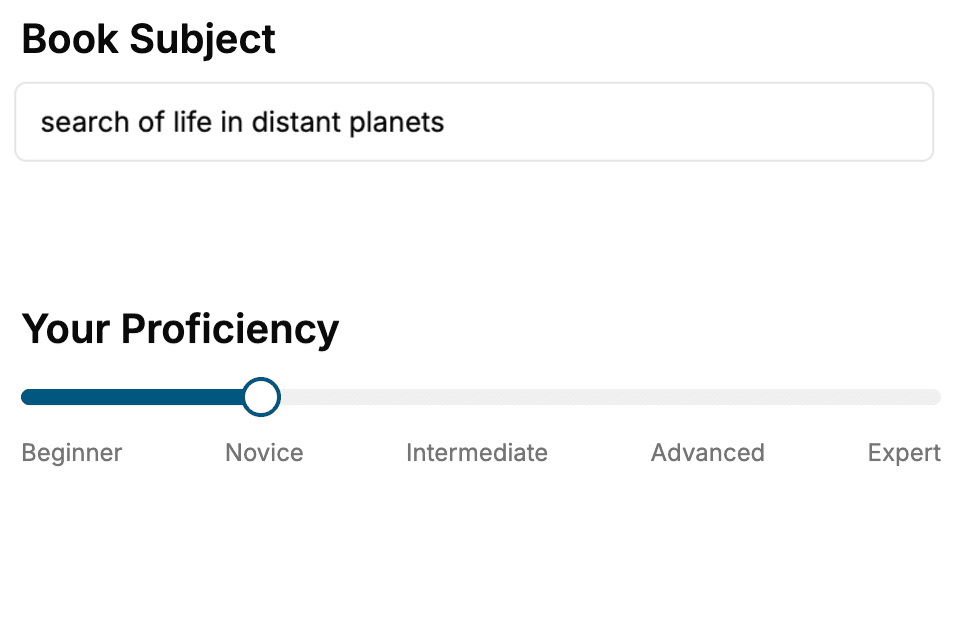
Select the focus of your Microsoft Excel book and share your background
- 2. Personalize your book
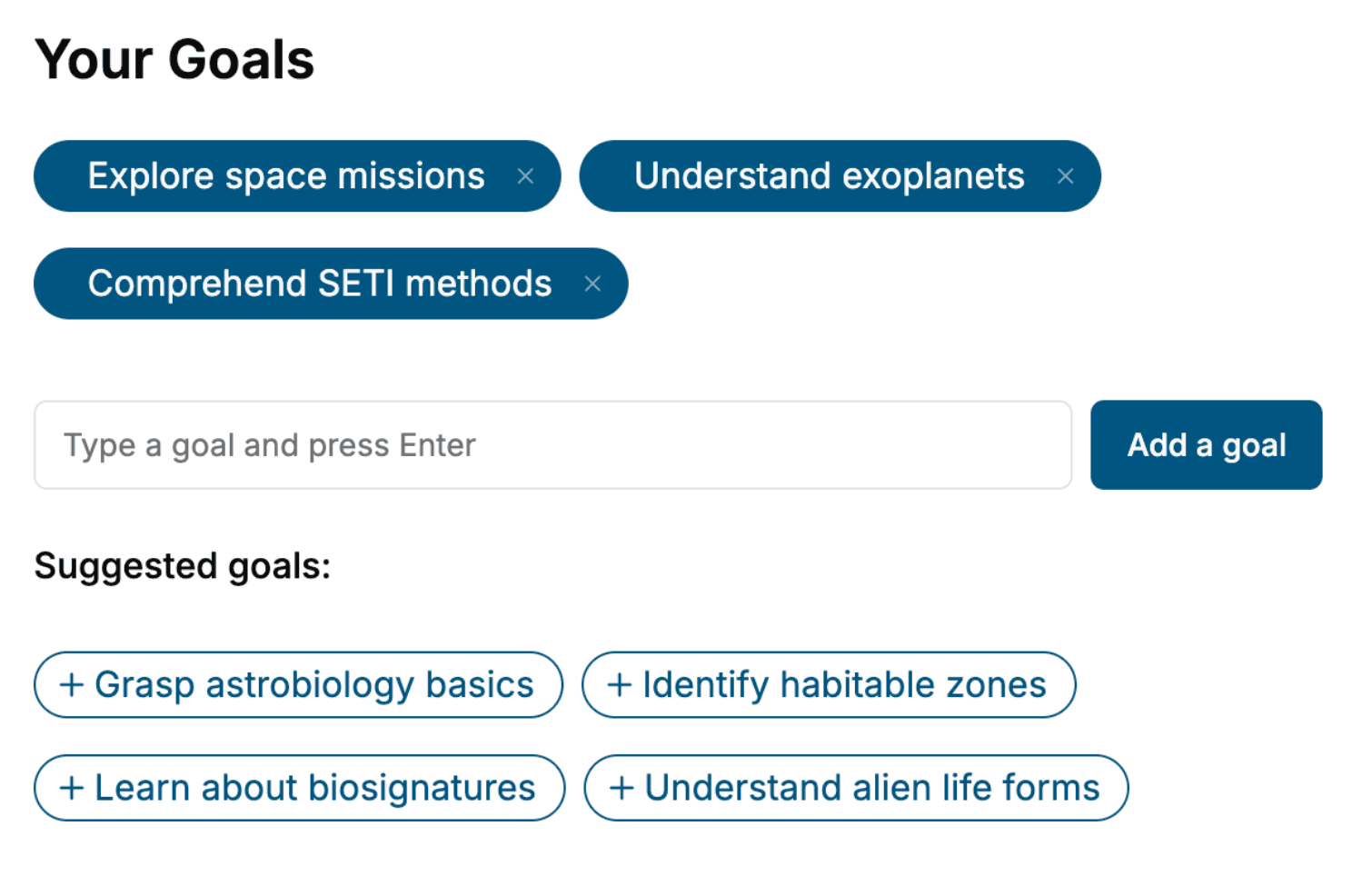
Specify your goals and choose sub-topics to include
- 3. Get your tailored book
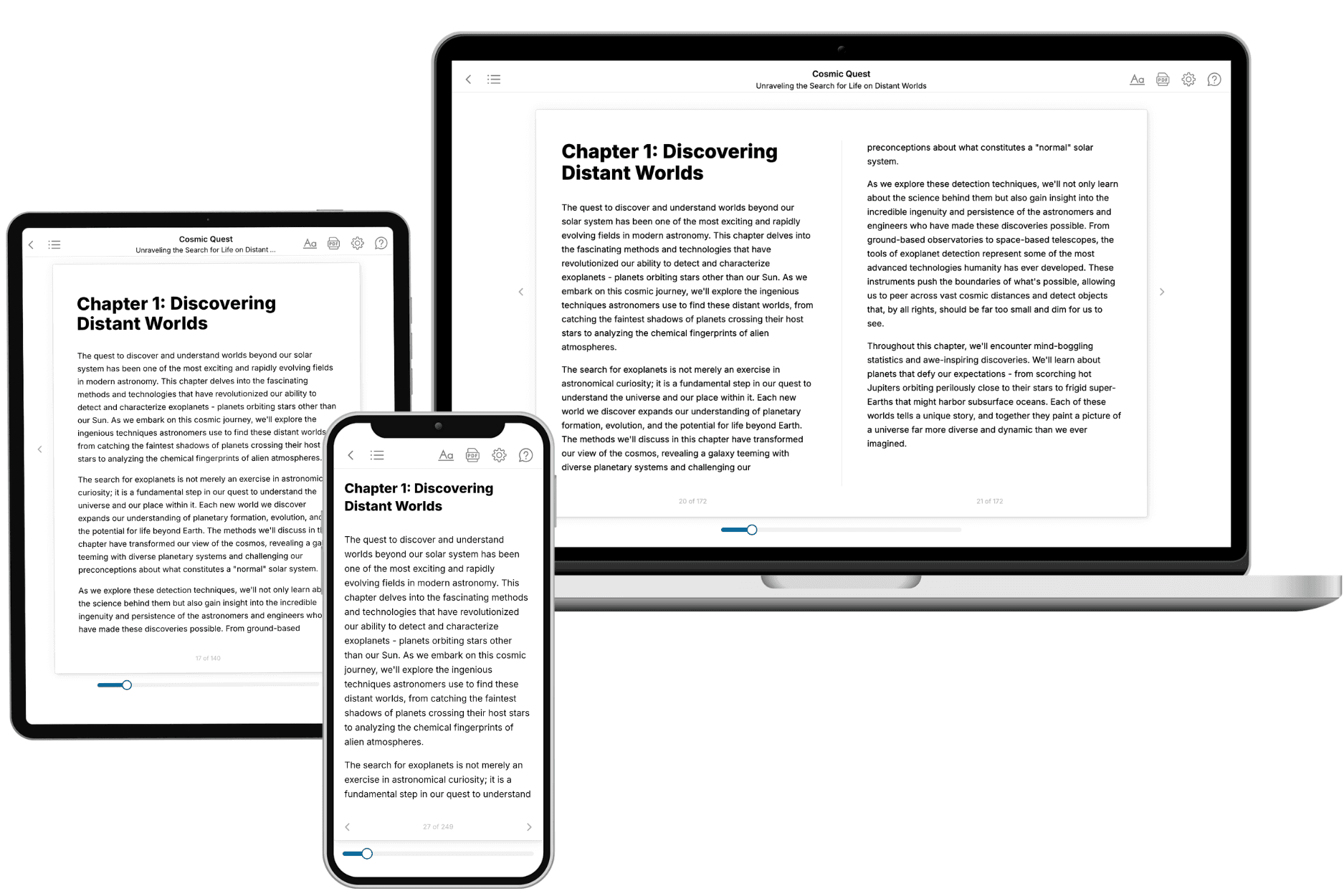
Your book is ready in 10 minutes. Read it online, download as EPUB or PDF, or send to Kindle.
Frequently asked questions
- What is TailoredRead?
TailoredRead creates complete, full-length nonfiction ebooks, written specifically for you. Tell us what you want to learn and why, and TailoredRead writes you a complete ebook on it, with charts, tables, and diagrams throughout. Read it online, on Kindle, or on any e-reader, or download it as a PDF or EPUB. Every book is written fresh the day you order it.
- How is the book tailored to me?
Before anything is written, you answer a few short questions about your goals, your background, and the topics you care about. Your book is then planned around your answers: written at your level, focused on your goals, and covering the topics you chose, instead of the one-size-fits-all book a store sells everyone.
- Will it read like generic AI content?
No. Your book isn't a chat transcript: it's planned chapter by chapter before a single word is written, told in a clear book voice, and explains ideas visually with charts, tables, and diagrams. After writing, every book goes through an editorial pass that polishes chapters so the book reads consistent from start to finish. Judge for yourself: browse thousands of sample books on our Explore Books page.
- How accurate is the content?
Our AI first checks whether your subject needs live research. Niche and fast-moving subjects are researched before writing, and the book plan and chapters are grounded in what it finds. After writing, every book goes through a quality pass that checks its facts and consistency, and researched books list their sources in a Notes section at the back.
- How long is the book?
You choose the length: Comprehensive (250-300 pages), Detailed (150-200 pages), Essential (70-100 pages), or Short (30-50 pages).
- Does the book include visuals?
Yes. Every book includes charts, tables, and diagrams: timelines, checklists, step-by-step guides, decision trees, comparison tables, matrices, and bar charts. A typical book includes dozens of these visual elements.
- Can I read it on Kindle? What formats can I download?
Yes. Every book can be read in our online reader or downloaded as a PDF or EPUB. The EPUB can be opened with Kindle, Apple Books, Kobo, and any e-reader. The Commercial and Author licenses also include an editable Word (DOCX) and Markdown download.
- How much does it cost?
About the price of a regular ebook. The exact price depends on your book's length and complexity, from $2 for the shortest books to $35 for the most comprehensive, and it's shown when you review your book, before you commit to anything. Each book is a one-time purchase, yours to keep, no subscription. Licenses that let you share, teach, or publish your book range from $35.99 to $49.99.
- Can I preview the book before purchasing?
Before you pay, you'll see what your book will cover: the title, a detailed description, the estimated length, and the complete chapter-by-chapter table of contents, so you know what you're getting before you decide. The full text itself is written after you purchase.
- How long does it take to create a book?
About 10 minutes. You can start reading the opening chapters while the rest is still being written.