Master Excel Power Query
Transform, Clean, and Analyze Data Like a Professional
Stop wasting hours manually cleaning and organizing data in Excel.
222 pages11 chaptersApr 17, 2026Microsoft Excel
About this book
This practical guide shows you how to harness Power Query's automation capabilities to transform raw data into actionable insights in minutes, not days. You'll start with the fundamentals—navigating the Query Editor and understanding how Power Query connects to your data sources—then progress through essential transformation techniques like filtering, merging, and pivoting. As your confidence grows, you'll explore advanced features including custom functions, error handling, and performance optimization. Each chapter includes real-world scenarios that demonstrate how to solve actual business problems: consolidating data from multiple files, standardizing inconsistent formats, and building reusable queries that adapt to changing data. By the end, you'll have the skills to design professional-grade data workflows that integrate seamlessly with Excel tables, Power Pivot, and Power BI. Whether you're managing sales reports, financial data, or operational metrics, Power Query becomes your competitive advantage—freeing you from tedious manual work so you can focus on analysis and decision-making.
Table of contents
- IntroductionWhy Power Query Matters in Modern Data Work, What You'll Learn in This Book, How to Use This Book Effectively, Prerequisites and SetupRead below
- Chapter 1: Getting Started with Power QueryWhat Is Power Query and Why You Need It, Installing and Enabling Power Query, Creating Your First Query
- Chapter 2: Navigating the Query EditorUnderstanding the Query Editor Interface, Exploring the Ribbon and Essential Tools, Working with Applied Steps and Query History
- Chapter 3: Connecting to Data SourcesConnecting to Excel Files and CSV Data, Accessing Data from Databases and SQL Servers, Importing Data from Web Services and APIs
- Chapter 4: Essential Data Transformation TechniquesFiltering and Sorting Data Effectively, Removing Duplicates and Handling Missing Values, Splitting, Merging, and Renaming Columns
- Chapter 5: Combining and Reshaping DataMerging Queries: Inner, Outer, and Cross Joins, Appending Queries to Consolidate Multiple Tables, Pivoting and Unpivoting Data for Analysis
- Chapter 6: Working with the M LanguageM Language Fundamentals and Syntax, Using Functions and Writing Expressions, Editing Queries in the Formula Bar
- Chapter 7: Advanced Transformation ScenariosImplementing Conditional Logic and Custom Columns, Grouping Data and Creating Aggregations, Handling Dates, Times, and Text Formatting
- Chapter 8: Building Reusable Solutions with FunctionsCreating Custom Functions for Repeated Tasks, Building Parameterized Queries for Flexibility, Implementing Error Handling and Data Validation
- Chapter 9: Optimizing Performance and Scaling SolutionsDiagnosing and Improving Query Performance, Handling Large Datasets Efficiently, Automating Refreshes and Scheduling Updates
- Chapter 10: Integrating Power Query with Excel and Power BIConnecting Power Query to Power Pivot Models, Leveraging Power Query in Power BI Workflows, Establishing Data Governance and Documentation Practices
- Chapter 11: Real-World Case Studies and SolutionsConsolidating Data from Multiple Sources, Standardizing Inconsistent Data Formats, Building Automated Reporting Pipelines
- ConclusionYour Path to Power Query Mastery, Next Steps and Continuous Learning
- Appendix: Quick Reference GuideCommon M Functions and Syntax, Troubleshooting Common Issues, Additional Resources and Learning Materials
Introduction
Picture this: it's Monday morning, and you have a stack of sales reports from five different regional offices, each formatted slightly differently, each saved as a separate CSV file. Your job is to combine them, clean up the inconsistencies, remove the duplicates, and produce a single summary table before the 10 a.m. meeting. You open Excel, start copying and pasting, and two hours later you're still untangling mismatched column headers and hunting down stray blank rows. Sound familiar? This kind of manual data wrangling is one of the most common time drains in modern office work, and it happens every single week for millions of Excel users around the world.
Power Query is the tool that changes that story entirely. Built directly into Excel and Power BI, Power Query is a data transformation engine that lets you connect to virtually any data source, clean and reshape the data using a visual interface, and then reload the finished result into your spreadsheet with a single click. Better yet, every step you take is recorded and saved. The next Monday morning, when those five regional files arrive again, you just drop them in the same folder and hit Refresh. The entire process runs automatically in seconds. No copying, no pasting, no hunting for rogue blank rows.
This book is a practical, hands-on guide to mastering Power Query from the ground up. Whether you've never opened the Query Editor before or you've dabbled with it but never felt fully confident, this guide will take you from the basics of connecting to a data source all the way through to building reusable, enterprise-grade data workflows. Each chapter builds on the last, and every concept is grounded in real-world scenarios that reflect the kinds of data challenges you actually face at work. By the time you finish, Power Query won't just be a feature you know about. It will be a core part of how you work with data every day.
The chapters ahead cover everything from navigating the Query Editor interface and writing your first transformation steps, to mastering the M language, building custom functions, optimizing performance for large datasets, and integrating your queries with Power Pivot and Power BI. Along the way, you'll find concrete examples, step-by-step walkthroughs, and practical tips drawn from common business scenarios. The goal isn't just to teach you features. It's to help you think like a Power Query practitioner, so you can solve new problems confidently even when the data doesn't cooperate.
Why Power Query Matters in Modern Data Work
Data is everywhere in modern organizations, but raw data is rarely ready to use. It arrives from multiple systems, in multiple formats, with inconsistent naming conventions, missing values, and structural quirks that make direct analysis impossible. Before any meaningful insight can be drawn, someone has to clean and organize that data. Historically, that someone has been an Excel user armed with nothing but formulas, manual copy-paste routines, and a lot of patience. The process is slow, error-prone, and has to be repeated from scratch every time the data updates.
Power Query was designed specifically to solve this problem. Microsoft introduced it as an Excel add-in in 2013 and then built it natively into Excel 2016 and all later versions.[1] Since then, it has become one of the most powerful and underused features in the entire Microsoft 365 ecosystem. The core idea is simple: instead of transforming data manually each time, you define a series of transformation steps once, and Power Query applies them automatically every time the data refreshes.
The practical impact of this shift is significant. Consider a finance team that spends three hours every month reconciling data exported from an accounting system with data pulled from a CRM. With Power Query, that reconciliation process can be built once as a set of queries, tested thoroughly, and then run in minutes each month with a single refresh. Research from McKinsey Global Institute suggests that data collection and processing tasks consume roughly 20 percent of a knowledge worker's time.[2] Power Query directly attacks that inefficiency.
Beyond time savings, Power Query also dramatically reduces errors. Manual data manipulation is inherently risky. A misplaced paste, an overlooked filter, or a formula that doesn't extend to the last row can silently corrupt an analysis. Because Power Query steps are explicit, recorded, and repeatable, the transformation logic is transparent and auditable. You can review every step, share the query with a colleague, and trust that the output will be consistent every single time.
Power Query also scales in ways that manual processes simply cannot. When your dataset grows from 10,000 rows to 500,000 rows, a manual workflow breaks down. Power Query handles large volumes of data efficiently, and its integration with Power BI means the same skills you build in Excel translate directly to enterprise-level reporting environments. Learning Power Query isn't just about solving today's data problem. It's an investment in a skill set that grows with your career.
Perhaps most importantly, Power Query democratizes data work. You don't need to be a database administrator or a software developer to build powerful data pipelines. The visual Query Editor makes most transformations accessible through point-and-click menus, while the underlying M language gives advanced users the flexibility to handle virtually any scenario. This combination of accessibility and depth is what makes Power Query genuinely transformative for intermediate Excel users who are ready to level up.
Real-world example: A retail analyst receives weekly inventory exports from three warehouse systems, each in a different CSV format. Before Power Query, reconciling these files took four hours every Friday. After building a set of Power Query transformations, the same process takes under five minutes. The analyst now spends Friday afternoons on actual analysis instead of data preparation.
What You'll Learn in This Book
This book is organized as a progressive learning journey. Each chapter introduces new concepts and builds directly on what came before, so by the time you reach the advanced topics, you'll have a solid foundation to support them. Here's a clear picture of what each part of the book covers and what you'll be able to do after working through it.
Chapters 1 and 2 lay the groundwork. You'll learn exactly what Power Query is, how it fits into the Excel ecosystem, and how to enable it in your version of Excel. You'll create your first query from a real data source and then spend time getting comfortable with the Query Editor interface, including the ribbon tools, the formula bar, and the Applied Steps pane. Understanding the interface deeply is essential because it's where you'll spend most of your time as a Power Query practitioner.
Chapter 3 covers data source connections, which are the foundation of every Power Query solution. You'll learn how to connect to Excel files, CSV files, databases, SQL Server, and even web services and APIs. Knowing how to pull data from diverse sources is what makes Power Query so versatile in real business environments where data rarely lives in just one place.
Chapters 4 and 5 focus on the transformation techniques you'll use most often. These include:
- Filtering rows and sorting data to isolate what you need
- Removing duplicates and handling missing or null values
- Splitting, merging, and renaming columns to standardize structure
- Merging queries using different join types (inner, outer, cross)
- Appending multiple tables to consolidate data from many sources
- Pivoting and unpivoting data to reshape it for analysis
Chapter 6 introduces the M language, the formula language that powers everything Power Query does behind the scenes. You don't need to become a programmer to use Power Query effectively, but understanding M fundamentals gives you the ability to write custom expressions, troubleshoot unexpected behavior, and go beyond what the visual interface alone can offer. This chapter demystifies M in plain language with practical examples.
Chapters 7 and 8 move into advanced territory. You'll implement conditional logic to create custom columns based on business rules, group and aggregate data to produce summary tables, handle dates and text formatting with precision, and build reusable custom functions that you can apply across multiple queries. You'll also learn how to build parameterized queries that adapt dynamically to changing inputs, and how to implement error handling so your queries don't break when the data is messy.
Chapter 9 tackles performance and scale. As your queries grow more complex and your datasets grow larger, performance becomes a real concern. This chapter shows you how to diagnose slow queries, apply best practices for handling large datasets, and set up automated refresh schedules so your data stays current without manual intervention.
Chapter 10 connects Power Query to the broader Microsoft data ecosystem. You'll see how Power Query feeds data into Power Pivot data models, how the same skills transfer to Power BI, and how to establish documentation and governance practices that keep your queries maintainable as they grow in complexity.
Chapter 11 brings everything together through three detailed real-world case studies: consolidating data from multiple sources, standardizing inconsistent data formats, and building an automated reporting pipeline. These case studies show how the individual techniques from earlier chapters combine into complete, production-ready solutions.
How to Use This Book Effectively
This book is designed to be worked through, not just read. The concepts build on each other in a deliberate sequence, and the best way to absorb them is to follow along in Excel as you go. Open the Query Editor, try the steps described, make mistakes, and experiment. Passive reading will give you familiarity with the concepts, but active practice is what builds genuine skill and confidence.
If you're completely new to Power Query, start at Chapter 1 and work forward in order. Each chapter assumes you've understood the previous one, so skipping ahead can leave gaps that make later material harder to follow. If you already have some Power Query experience and you're looking to fill specific gaps, the chapter summaries above should help you identify where to focus. The book is structured so that individual chapters are also useful as standalone references once you've read through the whole thing.
Throughout the book, you'll encounter several recurring elements designed to make the learning more practical and efficient:
- Step-by-step walkthroughs: Detailed instructions for completing specific tasks in the Query Editor, written so you can follow along in real time.
- Real-world examples: Scenarios drawn from common business contexts like sales reporting, financial reconciliation, and operational data management.
- Common mistakes to avoid: Callouts that highlight the errors most beginners make and explain how to sidestep them.
- M language snippets: Code examples that show the underlying formula for each transformation, helping you connect the visual interface to the language beneath it.
- Quick reference tips: Short, practical notes that capture key shortcuts, best practices, or things worth remembering.
One of the most effective learning strategies for Power Query is to apply each new technique to your own real data as soon as possible. After reading a chapter, think about a data challenge you face regularly at work and try to solve it using the techniques just covered. This kind of applied practice accelerates learning far more than working through abstract exercises alone. The concepts stick better when they're solving a problem you actually care about.
Don't be discouraged when things don't work on the first try. Power Query has a learning curve, and errors are a normal part of the process. When a query produces unexpected results, the Applied Steps pane is your best debugging tool. Click back through the steps one by one to find exactly where the output diverges from what you expected. This diagnostic habit is something experienced Power Query users rely on constantly, and developing it early will save you a lot of frustration.
Finally, treat the Appendix as a living reference. It contains a quick-reference guide to common M functions, a troubleshooting section for the most frequent errors, and a list of additional learning resources. Once you've worked through the main chapters, the Appendix becomes the place you turn when you need a quick reminder of syntax or a starting point for solving a new problem.
Tip: Keep a dedicated Excel workbook as your Power Query practice file. As you work through each chapter, add new queries to this workbook and label them clearly. By the end of the book, you'll have a personal reference library of working queries that you can adapt for real projects.
Prerequisites and Setup
This book is written for intermediate Excel users. That means you should already be comfortable with the basics: creating and formatting spreadsheets, writing common formulas like VLOOKUP, IF, and SUMIF, working with Excel tables, and navigating the ribbon. You don't need any programming experience, and you don't need to know anything about databases or SQL. Power Query's visual interface handles most tasks without requiring any code, and the M language chapters are written to be accessible to non-programmers.
What version of Excel do you need? Power Query is built natively into Excel 2016, Excel 2019, Excel 2021, and all versions of Microsoft 365 (formerly Office 365). If you're using Excel 2013, Power Query is available as a free add-in from Microsoft's website, though the interface is slightly different from later versions. Excel 2010 also supports a limited version of the add-in. If you're on Excel 2007 or earlier, Power Query is not available, and upgrading to a current version is strongly recommended before working through this book.
To check which version of Excel you have, go to File > Account > About Excel. The version number will be displayed there. If you're using Microsoft 365, your Excel is updated automatically and will always have the latest Power Query features. This matters because Microsoft regularly adds new connectors and transformation options to Power Query, and some features described in later chapters may not be available in older versions.
Setting up your environment: Before diving into Chapter 1, take a few minutes to confirm that Power Query is accessible in your Excel installation. In Excel 2016 and later, you'll find it under the Data tab in the ribbon, in the Get & Transform Data group. The key buttons to look for are:
- Get Data: The main entry point for connecting to data sources
- From Text/CSV: A quick connector for flat files
- From Table/Range: Loads data from an existing Excel table into the Query Editor
- Queries & Connections: Opens the side panel showing all queries in the current workbook
If you're using Excel 2013 and need to install the add-in, navigate to File > Options > Add-Ins, select COM Add-ins from the Manage dropdown, and click Go. If Power Query appears in the list, check the box and click OK. If it doesn't appear, you'll need to download it from the Microsoft Download Center by searching for "Power Query for Excel 2013." After installation, a dedicated Power Query tab will appear in the ribbon.
A note on Power BI Desktop: Several chapters in this book, particularly Chapter 10, reference Power BI. Power BI Desktop is a free application available from Microsoft's website, and its Power Query editor is nearly identical to the one in Excel. If you have Power BI Desktop installed, you can follow along with those sections directly. If not, the Excel-based examples will still cover all the core concepts. Installing Power BI Desktop is optional but recommended if you work in an organization that uses Power BI for reporting.
Sample data: The examples throughout this book use realistic but fictional datasets representing common business scenarios: sales transactions, employee records, inventory data, and financial summaries. You can create simple versions of these datasets yourself using the column structures described in each chapter, or you can work with your own real data from the start. Using your own data often makes the learning more engaging because you're solving problems that actually matter to you. Just be mindful of any data privacy or confidentiality requirements in your organization when working with real business data in a practice environment.
With your Excel version confirmed and the Data tab visible in your ribbon, you're ready to begin. Chapter 1 starts from the very beginning, walking you through what Power Query is, how it fits into Excel's architecture, and how to create your first query from a real data source. The learning curve is real but manageable, and every hour you invest in building these skills will pay back many times over in time saved and errors avoided. Let's get started.
This is the end of the free sample. The full book has 11 chapters.
Want this book written for you?
Tell us your goals and background, and get your own version of this book, tailored by AI to you.


Benefits of AI-tailored books
- Read one book, not ten:
- all the Microsoft Excel knowledge you need, gathered into a single book.
- Save days of learning:
- tell us your goals, choose your topics, and the whole book is built around them.
- Learn effortlessly:
- Microsoft Excel book written for your specific background and expertise.
- Understand at a glance:
- includes charts, tables, timelines, checklists, decision trees, and more.
- Stay current:
- written the day you order it, not years ago.
- Trust what you read:
- every book is checked for accuracy, with real research when your subject needs it.
Create your unique book in 3 steps
- 1. Select your focus
Select the focus of your Microsoft Excel book and share your background
- 2. Personalize your book
Specify your goals and choose sub-topics to include
- 3. Get your tailored book
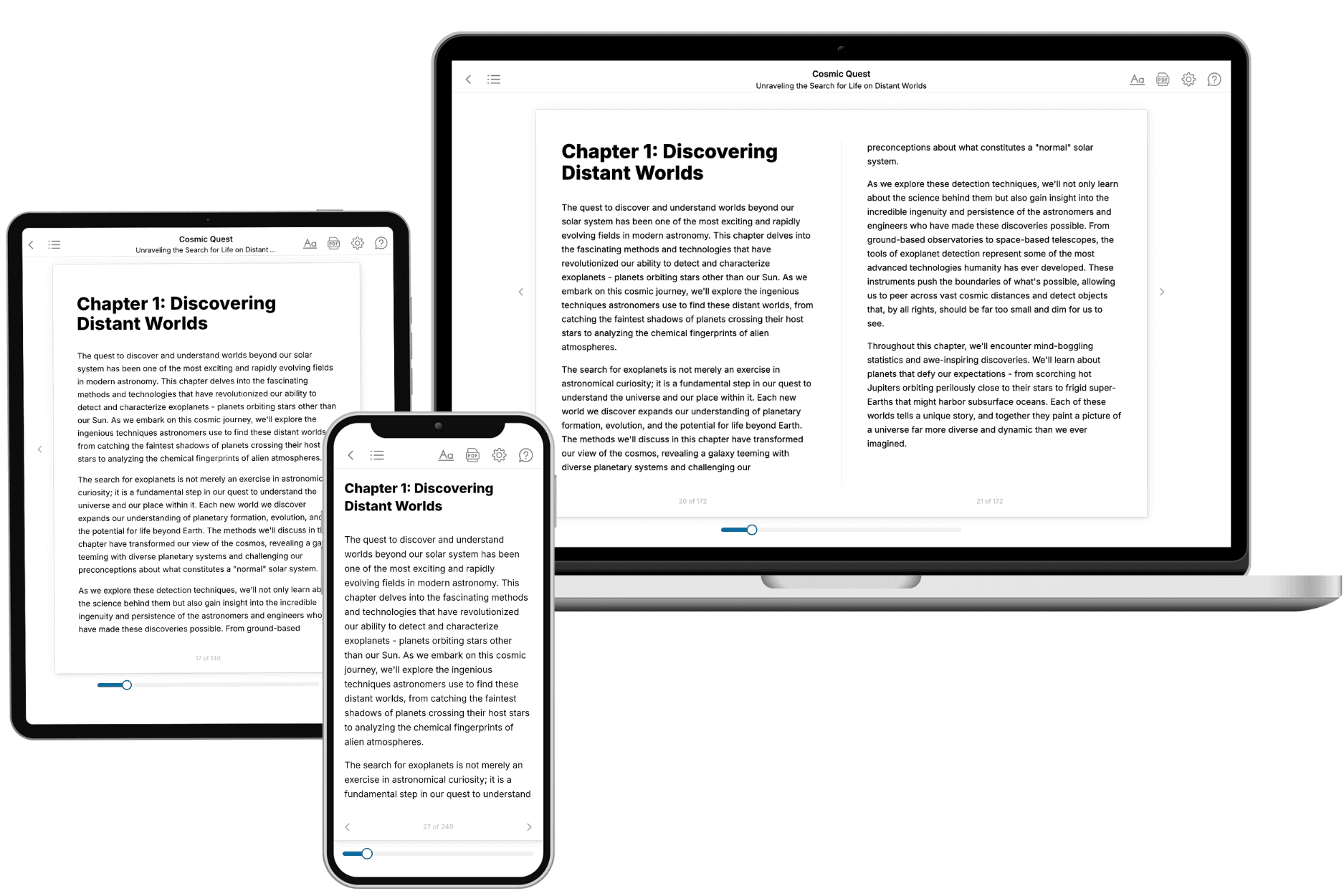
Your book is ready in 10 minutes. Read it online, download as EPUB or PDF, or send to Kindle.
Frequently asked questions
- What is TailoredRead?
TailoredRead creates complete, full-length nonfiction ebooks, written specifically for you. Tell us what you want to learn and why, and TailoredRead writes you a complete ebook on it, with charts, tables, and diagrams throughout. Read it online, on Kindle, or on any e-reader, or download it as a PDF or EPUB. Every book is written fresh the day you order it.
- How is the book tailored to me?
Before anything is written, you answer a few short questions about your goals, your background, and the topics you care about. Your book is then planned around your answers: written at your level, focused on your goals, and covering the topics you chose, instead of the one-size-fits-all book a store sells everyone.
- Will it read like generic AI content?
No. Your book isn't a chat transcript: it's planned chapter by chapter before a single word is written, told in a clear book voice, and explains ideas visually with charts, tables, and diagrams. After writing, every book goes through an editorial pass that polishes chapters so the book reads consistent from start to finish. Judge for yourself: browse thousands of sample books on our Explore Books page.
- How accurate is the content?
Our AI first checks whether your subject needs live research. Niche and fast-moving subjects are researched before writing, and the book plan and chapters are grounded in what it finds. After writing, every book goes through a quality pass that checks its facts and consistency, and researched books list their sources in a Notes section at the back.
- How long is the book?
You choose the length: Comprehensive (250-300 pages), Detailed (150-200 pages), Essential (70-100 pages), or Short (30-50 pages).
- Does the book include visuals?
Yes. Every book includes charts, tables, and diagrams: timelines, checklists, step-by-step guides, decision trees, comparison tables, matrices, and bar charts. A typical book includes dozens of these visual elements.
- Can I read it on Kindle? What formats can I download?
Yes. Every book can be read in our online reader or downloaded as a PDF or EPUB. The EPUB can be opened with Kindle, Apple Books, Kobo, and any e-reader. The Commercial and Author licenses also include an editable Word (DOCX) and Markdown download.
- How much does it cost?
About the price of a regular ebook. The exact price depends on your book's length and complexity, from $2 for the shortest books to $35 for the most comprehensive, and it's shown when you review your book, before you commit to anything. Each book is a one-time purchase, yours to keep, no subscription. Licenses that let you share, teach, or publish your book range from $35.99 to $49.99.
- Can I preview the book before purchasing?
Before you pay, you'll see what your book will cover: the title, a detailed description, the estimated length, and the complete chapter-by-chapter table of contents, so you know what you're getting before you decide. The full text itself is written after you purchase.
- How long does it take to create a book?
About 10 minutes. You can start reading the opening chapters while the rest is still being written.