Mastering Bash on macOS
A Practical Guide to Shell Scripting on Yosemite and Beyond
Most macOS users assume that Bash scripting is either too complex for practical use or identical to Linux scripting.
222 pages12 chaptersOct 23, 2025Bash
About this book
Both assumptions cost you time and limit what you can accomplish with your Mac. The reality is that macOS Yosemite's Unix foundation offers powerful automation capabilities, but its BSD heritage and proprietary frameworks create a unique scripting environment that generic Linux tutorials don't address. This book cuts through the confusion with practical, macOS-specific guidance. You'll discover how to write scripts that actually work on your Mac, avoiding the pitfalls that come from blindly following Linux examples. From automating repetitive tasks to managing system operations, you'll learn the patterns and practices that separate fragile scripts from reliable tools. Whether you're streamlining your workflow, managing multiple Macs, or building custom utilities, you'll gain the skills to make Bash work for you. With clear explanations, real-world examples, and macOS-specific insights, you'll move beyond basic commands to create scripts that solve your actual problems.
Table of contents
- IntroductionWhy Bash Scripting Matters on macOS, How macOS Differs from Linux, What You'll Learn and How to Use This BookRead below
- Chapter 1: Understanding the macOS Terminal EnvironmentTerminal.app and Alternative Terminal Emulators, Configuring Your Bash Environment, Understanding PATH and Environment Variables, Navigating the macOS Filesystem Structure
- Chapter 2: Script Fundamentals and Best PracticesWriting and Executing Your First Script, Shebangs, Permissions, and Execution Methods, Organizing Scripts for Readability, Comments and Self-Documenting Code
- Chapter 3: Variables and Data HandlingDeclaring and Using Variables, Quoting Rules and Parameter Expansion, Working with Arrays, Special Variables and Command-Line Arguments
- Chapter 4: Control Structures and LogicIf Statements and Test Conditions, Case Statements for Multiple Conditions, For, While, and Until Loops, Exit Codes and Error Handling
- Chapter 5: Functions and Modular DesignCreating and Calling Functions, Function Parameters and Return Values, Variable Scope and Local Variables, Building Reusable Script Libraries
- Chapter 6: Text Processing and Pattern MatchingSearching with grep and Regular Expressions, Stream Editing with sed, Text Processing with awk, macOS-Specific Text Utilities
- Chapter 7: File and Directory OperationsTesting File Properties and Existence, Creating, Moving, and Deleting Files, Finding Files with find and mdfind, Managing Permissions and Ownership
- Chapter 8: macOS System IntegrationReading and Writing System Preferences, Integrating with AppleScript, Gathering System Information, Triggering Notifications and Alerts
- Chapter 9: Process and Job ManagementMonitoring and Managing Processes, Background Jobs and Job Control, Pipes, Redirection, and Command Chaining
- Chapter 10: Automation and SchedulingUnderstanding launchd on macOS, Creating Launch Agents and Daemons, Scheduling Recurring Tasks, Common Automation Patterns
- Chapter 11: Error Handling and DebuggingDefensive Scripting Techniques, Debugging with set Options and Tracing, Validating User Input and Arguments, Logging and Error Reporting
- Chapter 12: Advanced Scripting TechniquesCommand Substitution and Process Substitution, Here Documents and Here Strings, Trap and Signal Handling, Optimizing Script Performance
- ConclusionContinuing Your Bash Journey, Additional Resources and Tools
Introduction
Your Mac is more powerful than you realize. Beneath the polished interface and elegant design lies a complete Unix environment capable of automating virtually any task you perform regularly. Yet most macOS users never tap into this potential, either because they assume shell scripting is too technical or because they've tried following Linux tutorials that don't quite work on their Mac. The truth is that Bash scripting on macOS offers unique opportunities that generic Unix guides simply can't address, and learning to harness these capabilities will fundamentally change how you interact with your computer.
This book exists because macOS occupies a distinctive position in the computing landscape. It combines a BSD-based Unix foundation with proprietary Apple frameworks, creating an environment where standard Unix tools coexist with macOS-specific utilities like defaults, mdfind, and osascript. When you understand how to leverage both worlds, you can write scripts that accomplish tasks impossible on pure Linux systems. You can automate application preferences, integrate with the Spotlight search system, bridge to AppleScript for controlling GUI applications, and schedule tasks through launchd rather than traditional cron jobs.
The approach in this book prioritizes practical application over theoretical completeness. Every concept connects to real-world scenarios you'll encounter when automating tasks on your Mac. You won't find exhaustive documentation of every Bash feature or academic discussions of shell history. Instead, you'll discover how to solve actual problems: processing files in bulk, managing system configurations, building custom utilities, and creating reliable automation that runs without your intervention. The examples throughout reflect genuine use cases, from simple one-off scripts to more sophisticated tools that handle edge cases and errors gracefully.
If you've used the Terminal occasionally and understand basic commands like cd, ls, and cp, you're ready for this material. You don't need programming experience, though it helps. You don't need to memorize syntax, because you'll build understanding through practice and repetition. What you do need is curiosity about what's possible and willingness to experiment. The skills you develop here will serve you whether you're managing a single Mac or administering dozens, whether you're streamlining personal workflows or building tools for others.
The structure of this book follows a deliberate progression from foundational concepts to advanced techniques. Early chapters establish the macOS-specific context and core scripting patterns you'll use constantly. Middle chapters explore the building blocks of effective scripts: variables, control structures, functions, and text processing. Later chapters address system integration, automation, and the debugging strategies that separate fragile scripts from robust tools. Throughout, the focus remains on writing clear, maintainable code that you'll understand when you revisit it months later. Clever one-liners have their place, but sustainable automation requires scripts that others can read and modify.
Why Bash Scripting Matters on macOS
Automation transforms how you work with your Mac. Tasks that consume minutes or hours when performed manually become instantaneous when scripted. Consider the common scenario of preparing images for web publication: resizing dozens of photos, converting formats, and organizing them into directories. Manually, this might take thirty minutes. A well-written Bash script completes the entire process in seconds, and you can reuse that script indefinitely. The time investment in learning scripting pays dividends every time you encounter repetitive work, and those situations arise more frequently than most people recognize.
The macOS environment makes scripting particularly valuable because it bridges graphical and command-line interfaces. You can write scripts that manipulate files and then trigger desktop notifications when complete. You can automate preference changes across applications without clicking through settings panels. You can schedule maintenance tasks that run while you sleep, ensuring your system stays optimized without manual intervention. This integration between Unix utilities and macOS frameworks creates automation possibilities that neither pure Linux systems nor Windows environments can match as elegantly.
Bash specifically offers advantages that make it the right choice for macOS automation. It's already installed on every Mac running Yosemite or later, requiring no additional setup or installation. Scripts you write in Bash will run on any Unix-like system with minimal or no modification, providing portability that proprietary solutions can't match. The language itself, while sometimes quirky, provides direct access to the full range of Unix utilities and system commands. When you need to process text, manipulate files, or orchestrate multiple programs, Bash excels at gluing these operations together efficiently.
The learning curve for Bash is gentler than many assume. You already know some Bash if you've used Terminal commands—every command you type interactively is valid Bash code. Scripting simply means saving those commands in a file and adding logic to handle different situations. You don't need to master every feature before writing useful scripts. A basic understanding of variables, conditionals, and loops enables you to automate substantial portions of your workflow. Advanced techniques come naturally as your needs grow more sophisticated.
Real-world applications of Bash scripting on macOS span numerous domains. System administrators use scripts to configure new machines consistently, deploy software updates, and monitor system health. Developers automate build processes, manage development environments, and process log files. Creative professionals batch-process media files, organize project assets, and backup work automatically. Even casual users benefit from scripts that clean up downloads folders, organize photos by date, or backup important documents to external drives. The common thread is repetition—any task you perform more than a few times becomes a candidate for automation.
Consider a concrete example: managing your Downloads folder. Most users accumulate hundreds of files in Downloads, making it difficult to find anything. A simple Bash script can automatically organize these files by type, moving images to one folder, documents to another, and archives to a third. It can delete files older than thirty days or move them to an archive location. Run this script weekly through launchd, and your Downloads folder stays organized without conscious effort. This represents a typical automation opportunity—not complex enough to justify a full application, but too tedious to do manually with any consistency.
The alternative to learning Bash scripting is either performing tasks manually or relying on third-party automation tools. Manual work doesn't scale and consumes time better spent on creative or analytical tasks. Third-party tools often work well for specific use cases but come with costs: purchase prices, learning curves for proprietary interfaces, dependence on continued vendor support, and limitations when your needs don't match the tool's design. Bash scripting gives you complete control and flexibility. When you understand the fundamentals, you can solve problems as they arise rather than hoping someone has built a tool for your specific situation.
The skills you develop through Bash scripting transfer broadly. Understanding how to automate tasks programmatically changes how you approach problems. You begin recognizing patterns and opportunities for automation in daily work. The logical thinking required for scripting—breaking complex tasks into discrete steps, anticipating edge cases, handling errors gracefully—applies to any technical domain. Even if you eventually move to other scripting languages like Python or Ruby, the foundational concepts remain consistent. Bash often serves as a gateway to broader programming skills precisely because it connects so directly to practical system tasks.
Scripting also provides deeper understanding of how your Mac actually works. When you write scripts that manipulate files, manage processes, or configure system settings, you develop mental models of the underlying system. This knowledge makes you more effective at troubleshooting problems, optimizing performance, and making informed decisions about system configuration. The Terminal stops being a mysterious black box and becomes a powerful interface for direct system interaction. This understanding proves valuable even when you're not actively writing scripts, because it informs how you use your Mac in general.
How macOS Differs from Linux
The most significant difference between macOS and Linux lies in their Unix heritage. macOS descends from BSD Unix, while most Linux distributions follow System V conventions. This distinction manifests in subtle but important ways throughout the system. Command-line utilities often support different options or behave differently with the same flags. For example, the sed command on macOS requires different syntax for in-place file editing than GNU sed on Linux. The date command uses different format specifiers. These differences aren't arbitrary—they reflect decades of parallel Unix evolution—but they mean you can't blindly copy Linux scripts and expect them to work on your Mac.
File system structure represents another area of divergence. While both systems follow Unix conventions with directories like /usr, /bin, and /etc, macOS adds its own hierarchy. The /Applications directory stores GUI applications as bundles rather than traditional Unix executables. The /Library and ~/Library directories contain application support files, preferences, and caches in a structure unique to macOS. System Integrity Protection restricts access to certain directories even for administrative users. Understanding this hybrid structure is essential for writing scripts that interact with the file system correctly and safely.
macOS provides utilities that simply don't exist on Linux systems. The defaults command reads and writes application preferences stored in property list files, enabling scripts to configure applications programmatically. The mdfind command queries the Spotlight index, offering search capabilities far more powerful than traditional find for locating files by content or metadata. The osascript command executes AppleScript or JavaScript for Automation, allowing shell scripts to control GUI applications that lack command-line interfaces. These tools represent genuine advantages for macOS scripting, enabling automation that would be difficult or impossible on pure Linux systems.
Package management differs fundamentally between macOS and Linux. Linux distributions include comprehensive package managers like apt, yum, or pacman that handle software installation, updates, and dependencies. macOS lacks a built-in equivalent, though third-party solutions like Homebrew have become de facto standards. This affects scripting because you can't assume specific utilities are installed. A script that works perfectly on your Mac might fail on another if it depends on Homebrew packages that aren't present. Defensive scripting on macOS requires checking for required utilities and either installing them programmatically or failing gracefully with helpful error messages.
The process management and scheduling systems diverge significantly. Linux systems traditionally use init systems like systemd or older SysV init, along with cron for scheduled tasks. macOS uses launchd for both system initialization and task scheduling. Launchd offers more sophisticated scheduling options than cron, including the ability to trigger tasks based on file system changes, network state, or system events. However, it requires XML property list configuration files rather than simple crontab entries. Scripts that need to run automatically must integrate with launchd rather than assuming cron availability, requiring different approaches to automation setup.
Security models present another distinction. macOS implements System Integrity Protection (SIP), which restricts access to system directories and processes even for root users. Gatekeeper controls which applications can run based on code signing and notarization. Privacy protections require explicit user permission for scripts to access certain directories like Documents, Desktop, or Downloads. These security features protect users but complicate scripting. A script that worked perfectly on older macOS versions might fail on newer systems due to permission restrictions. Understanding these security boundaries and working within them is essential for creating scripts that function reliably across different macOS versions.
The shell environment itself differs in subtle ways. While Bash is available on both systems, macOS shipped with Bash 3.2 for many years due to licensing considerations, while Linux distributions typically include much newer versions. Starting with macOS Catalina, Apple changed the default shell to zsh, though Bash remains available. Scripts must account for these variations, either by specifying exact shell requirements in the shebang line or by avoiding features that differ between versions. Environment variables, default PATH settings, and shell configuration files follow macOS conventions that don't always match Linux expectations.
Networking utilities and system information commands often differ between platforms. The ifconfig command, while present on both systems, shows different output formats. Linux systems typically use /proc and /sys filesystems for system information, while macOS provides commands like system_profiler and sysctl for similar purposes. Network configuration, firewall management, and service control all use different tools and approaches. Scripts that gather system information or configure networking must use macOS-specific commands rather than assuming Linux utilities will be available or behave identically.
Understanding these differences doesn't mean avoiding Linux resources entirely. Much of the fundamental Bash syntax and many core utilities work identically across platforms. Concepts like variables, loops, functions, and pipes transfer directly. The key is recognizing when platform-specific considerations matter and testing scripts on actual macOS systems rather than assuming Linux examples will work unchanged. This book addresses these macOS-specific aspects explicitly, providing examples and guidance that account for the unique characteristics of the platform. You'll learn not just how to write Bash scripts, but how to write Bash scripts that work reliably on your Mac.
What You'll Learn and How to Use This Book
This book follows a structured progression designed to build your skills systematically. The first chapters establish foundational knowledge: understanding the Terminal environment, configuring Bash properly, and writing your first simple scripts. You'll learn the mechanics of creating executable scripts, the importance of proper file permissions, and the conventions that make scripts maintainable. These early chapters move quickly through basics to reach practical scripting as soon as possible, because you learn most effectively by writing actual code rather than reading abstract explanations.
The middle chapters explore the core language features that enable sophisticated automation. You'll master variables and understand the quoting rules that prevent common errors. Control structures like conditionals and loops will become second nature, allowing you to write scripts that make decisions and process multiple items efficiently. Functions will help you organize code into reusable components. Text processing with tools like grep, sed, and awk will enable you to extract and transform data from files and command output. Each concept builds on previous material, creating a comprehensive understanding of Bash scripting capabilities.
Later chapters address macOS-specific integration and advanced techniques. You'll discover how to interact with system preferences, integrate with AppleScript, and leverage macOS-specific utilities. Process management, automation through launchd, and proper error handling will transform your scripts from simple command sequences into robust tools. Advanced topics like signal handling, process substitution, and performance optimization will round out your skill set. By the end, you'll have the knowledge to tackle complex automation challenges and the judgment to choose appropriate solutions for different situations.
The examples throughout this book reflect real-world scenarios rather than contrived demonstrations. When you see a script that processes files, it addresses actual use cases like organizing downloads or batch-renaming photos. When you learn about error handling, the examples show how to handle genuine failure modes like missing files or insufficient permissions. This practical focus means you can often adapt example scripts directly to your own needs with minimal modification. Even when your specific situation differs, the patterns and techniques transfer readily to new contexts.
Each chapter includes specific, actionable code that you can type and run on your Mac. The book assumes you're following along actively, experimenting with examples and modifying them to see how changes affect behavior. This hands-on approach accelerates learning because you develop muscle memory for common patterns and build intuition about how Bash behaves. Don't just read the code examples—type them, run them, break them intentionally to see what happens, and fix them. This experimentation builds confidence and understanding that passive reading cannot provide.
The code examples follow consistent conventions to enhance readability and maintainability:
- Descriptive variable names that indicate purpose rather than cryptic abbreviations
- Comments that explain why code does something, not just what it does
- Consistent indentation that makes structure visually apparent
- Error checking that handles failure cases explicitly rather than assuming success
- Quoting practices that prevent word splitting and globbing issues
You don't need to read this book sequentially, though doing so provides the most comprehensive understanding. If you have specific needs, you can jump to relevant chapters after reading the foundational material in the first few chapters. The chapter on text processing stands alone if you need to extract data from log files. The macOS integration chapter addresses system preference manipulation and AppleScript bridging without requiring deep knowledge of advanced Bash features. The book's structure supports both linear reading and targeted reference use, depending on your learning style and immediate needs.
Testing your scripts is crucial, and the book emphasizes this throughout. Every script you write should run on your actual Mac, not just in theory. Start with simple test cases using sample data before running scripts on important files. Use Bash's debugging features to trace execution and identify problems. Validate input and check for error conditions explicitly. The debugging chapter provides systematic approaches to troubleshooting, but the mindset of defensive programming appears throughout the book. Scripts that handle edge cases and fail gracefully are worth the extra effort because they work reliably when you need them.
The book acknowledges that Bash isn't always the right tool. Some tasks are better suited to other languages like Python or Ruby, which offer more sophisticated data structures and extensive libraries. Some automation is better handled by dedicated tools or GUI applications. Part of mastering Bash scripting is recognizing its strengths and limitations. Bash excels at orchestrating other programs, processing text, and performing system administration tasks. It's less suitable for complex data processing, numerical computation, or building user interfaces. Understanding these boundaries helps you choose appropriate tools for different situations.
As you progress through the book, you'll develop a personal library of script patterns and utilities. Save useful scripts in a dedicated directory and add that directory to your PATH. Build functions for common operations and source them from a shared library file. Document your scripts so you remember how to use them later. This accumulation of reusable code accelerates future automation because you're not starting from scratch each time. The investment in creating well-structured, documented scripts pays ongoing dividends as your library grows.
The ultimate goal is not just teaching you Bash syntax, but changing how you think about interacting with your Mac. When you encounter repetitive tasks, you'll automatically consider whether scripting could automate them. When you face complex problems, you'll break them into scriptable steps. When you configure your system, you'll document the process in executable scripts rather than written notes. This shift in mindset—from manual execution to automated processes—represents the real value of mastering Bash scripting. The specific scripts you write matter less than the problem-solving approach you develop.
Begin with realistic expectations about the learning process. You won't master everything immediately, and that's normal. Some concepts will click instantly while others require practice and repetition. You'll write scripts that don't work as expected, and debugging them will teach you more than scripts that work perfectly the first time. Embrace this iterative process. Every error message is an opportunity to understand Bash more deeply. Every script you write, even simple ones, builds skills that transfer to more complex automation. The journey from basic commands to sophisticated scripting happens gradually through consistent practice and experimentation.
This is the end of the free sample. The full book has 12 chapters.
Want this book written for you?
Tell us your goals and background, and get your own version of this book, tailored by AI to you.


Benefits of AI-tailored books
- Read one book, not ten:
- all the Bash knowledge you need, gathered into a single book.
- Save days of learning:
- tell us your goals, choose your topics, and the whole book is built around them.
- Learn effortlessly:
- Bash book written for your specific background and expertise.
- Understand at a glance:
- includes charts, tables, timelines, checklists, decision trees, and more.
- Stay current:
- written the day you order it, not years ago.
- Trust what you read:
- every book is checked for accuracy, with real research when your subject needs it.
Create your unique book in 3 steps
- 1. Select your focus
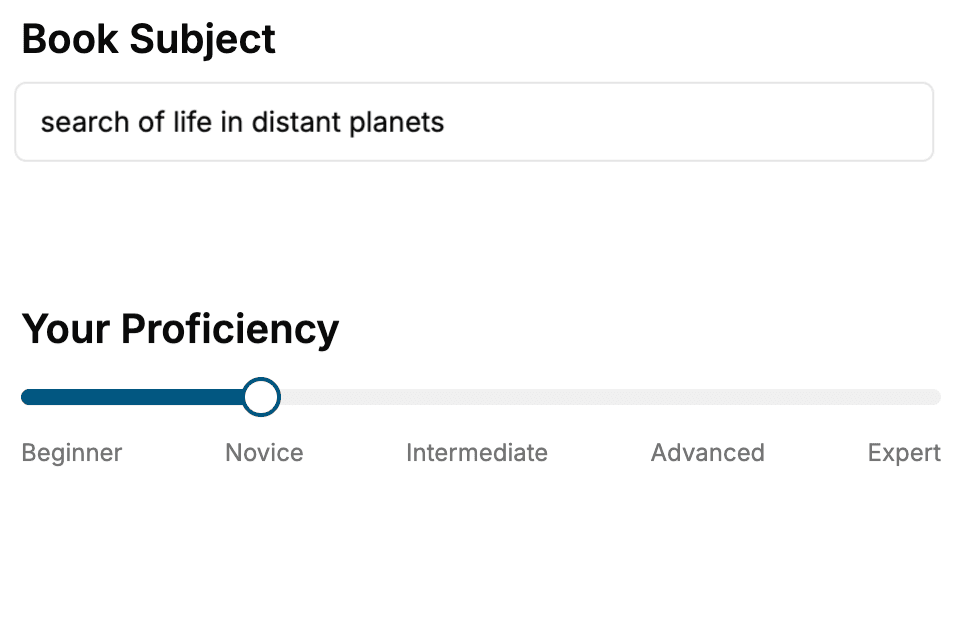
Select the focus of your Bash book and share your background
- 2. Personalize your book
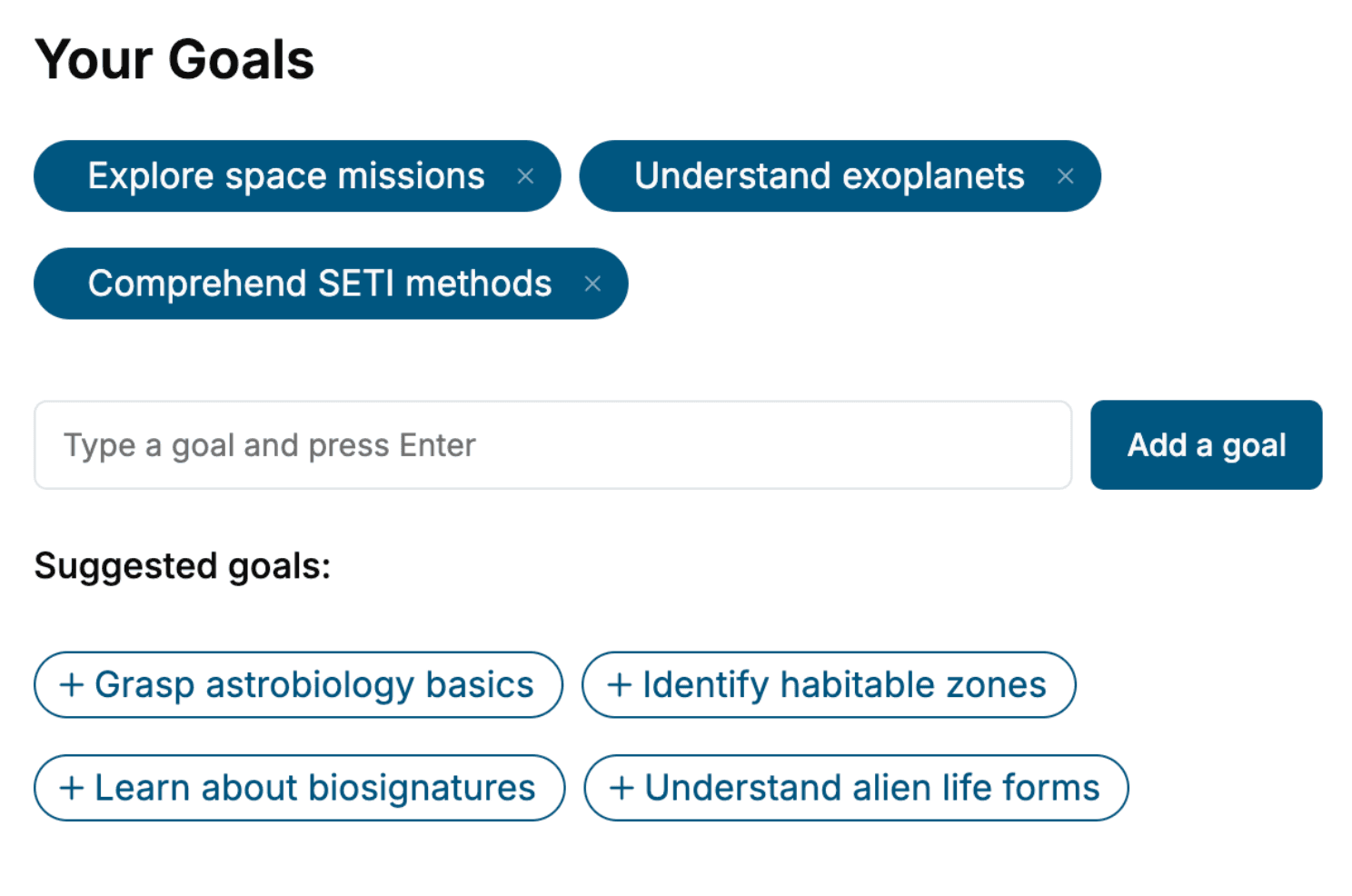
Specify your goals and choose sub-topics to include
- 3. Get your tailored book
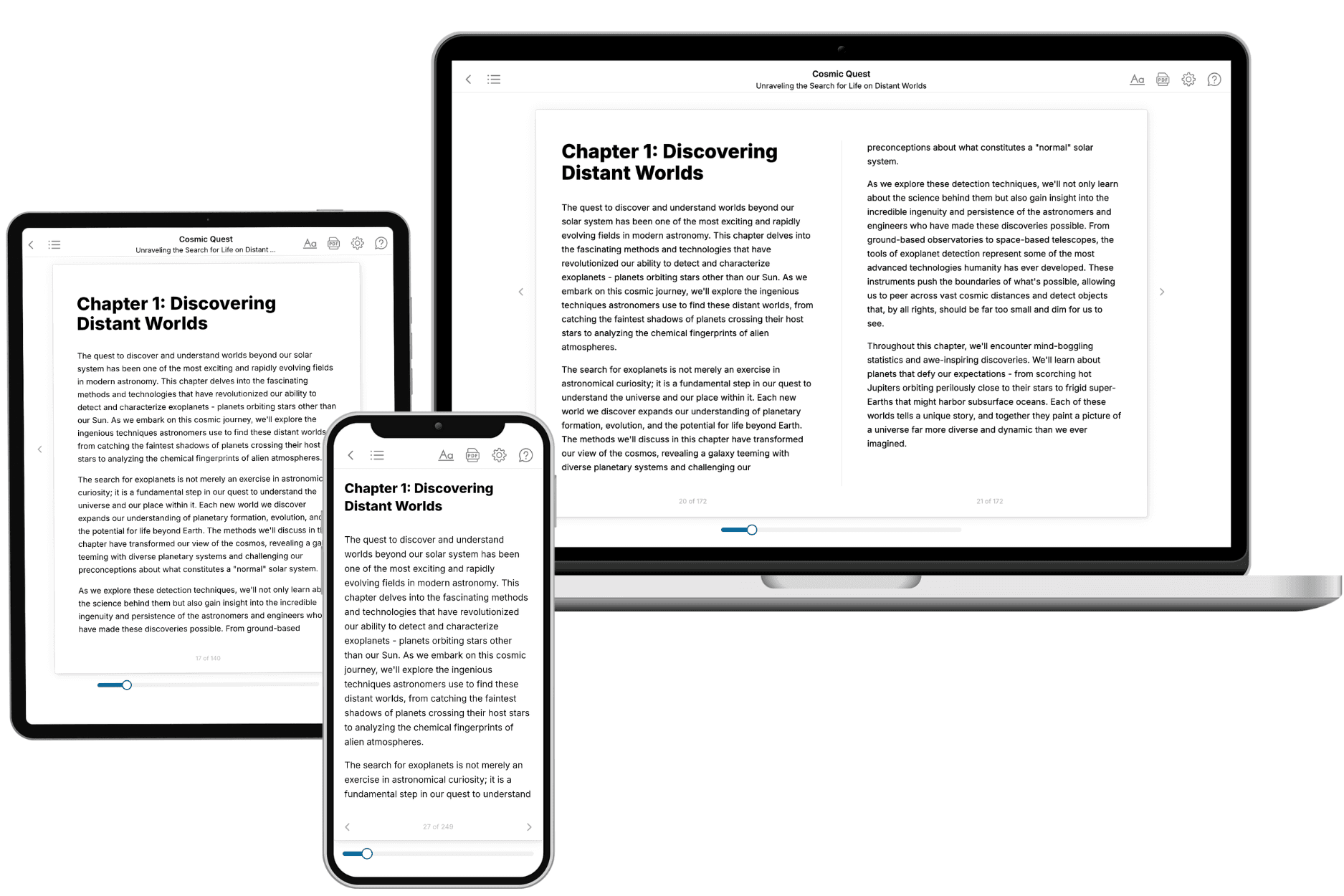
Your book is ready in 10 minutes. Read it online, download as EPUB or PDF, or send to Kindle.
Frequently asked questions
- What is TailoredRead?
TailoredRead creates complete, full-length nonfiction ebooks, written specifically for you. Tell us what you want to learn and why, and TailoredRead writes you a complete ebook on it, with charts, tables, and diagrams throughout. Read it online, on Kindle, or on any e-reader, or download it as a PDF or EPUB. Every book is written fresh the day you order it.
- How is the book tailored to me?
Before anything is written, you answer a few short questions about your goals, your background, and the topics you care about. Your book is then planned around your answers: written at your level, focused on your goals, and covering the topics you chose, instead of the one-size-fits-all book a store sells everyone.
- Will it read like generic AI content?
No. Your book isn't a chat transcript: it's planned chapter by chapter before a single word is written, told in a clear book voice, and explains ideas visually with charts, tables, and diagrams. After writing, every book goes through an editorial pass that polishes chapters so the book reads consistent from start to finish. Judge for yourself: browse thousands of sample books on our Explore Books page.
- How accurate is the content?
Our AI first checks whether your subject needs live research. Niche and fast-moving subjects are researched before writing, and the book plan and chapters are grounded in what it finds. After writing, every book goes through a quality pass that checks its facts and consistency, and researched books list their sources in a Notes section at the back.
- How long is the book?
You choose the length: Comprehensive (250-300 pages), Detailed (150-200 pages), Essential (70-100 pages), or Short (30-50 pages).
- Does the book include visuals?
Yes. Every book includes charts, tables, and diagrams: timelines, checklists, step-by-step guides, decision trees, comparison tables, matrices, and bar charts. A typical book includes dozens of these visual elements.
- Can I read it on Kindle? What formats can I download?
Yes. Every book can be read in our online reader or downloaded as a PDF or EPUB. The EPUB can be opened with Kindle, Apple Books, Kobo, and any e-reader. The Commercial and Author licenses also include an editable Word (DOCX) and Markdown download.
- How much does it cost?
About the price of a regular ebook. The exact price depends on your book's length and complexity, from $2 for the shortest books to $35 for the most comprehensive, and it's shown when you review your book, before you commit to anything. Each book is a one-time purchase, yours to keep, no subscription. Licenses that let you share, teach, or publish your book range from $35.99 to $49.99.
- Can I preview the book before purchasing?
Before you pay, you'll see what your book will cover: the title, a detailed description, the estimated length, and the complete chapter-by-chapter table of contents, so you know what you're getting before you decide. The full text itself is written after you purchase.
- How long does it take to create a book?
About 10 minutes. You can start reading the opening chapters while the rest is still being written.