Mastering Firefox Developer Tools
Debug, Optimize, and Build Better Web Applications with Professional-Grade Tools
Are you spending hours hunting down bugs that could be solved in minutes with the right tools?
222 pages11 chaptersJul 1, 2026Web Development
About this book
Firefox Developer Tools is one of the most powerful debugging and optimization platforms available, yet many developers only scratch the surface of what it can do. This comprehensive guide takes you beyond basic inspection to master every feature that professional developers rely on daily. You'll learn how to use the Inspector to dissect complex layouts, leverage the Debugger to trace elusive bugs, profile performance bottlenecks, monitor network activity, and test accessibility compliance. Whether you're troubleshooting a stubborn CSS issue, optimizing a slow application, or ensuring your site works across devices, this book provides practical techniques and real-world examples that immediately improve your development workflow. By the end, you'll have the confidence and expertise to tackle any web development challenge with Firefox's professional-grade tools at your command.
Table of contents
- IntroductionWhy Firefox Developer Tools Matter, What You'll Learn in This Book, How to Use This Guide, Prerequisites and SetupRead below
- Chapter 1: Getting Started with Firefox Developer ToolsOpening and Navigating Developer Tools, Understanding the Interface Layout, Customizing Your Workspace
- Chapter 2: The Inspector: Examining HTML and CSSSelecting and Inspecting Elements, Navigating the HTML Tree, Understanding the CSS Rules Panel, Live Editing HTML and CSS
- Chapter 3: Advanced Inspector TechniquesMastering the Box Model and Layout Debugging, Inspecting Pseudo-Classes and Pseudo-Elements, Analyzing Computed Styles and Inheritance, Testing Responsive Design with Device Emulation
- Chapter 4: The Console: JavaScript Execution and LoggingConsole Fundamentals and Logging Methods, Executing JavaScript in the Console, Identifying and Debugging Runtime Errors, Advanced Console Techniques and Utilities
- Chapter 5: The Debugger: Stepping Through CodeSetting and Managing Breakpoints, Stepping Through Code Execution, Using Watch Expressions and Variable Inspection, Understanding the Call Stack
- Chapter 6: Advanced Debugging StrategiesConditional Breakpoints and Logpoints, Working with Source Maps for Minified Code, Debugging Asynchronous Code and Promises, DOM Breakpoints and Event Listeners
- Chapter 7: Performance Profiling and OptimizationUsing the Performance Tab to Record Sessions, Analyzing Rendering and JavaScript Metrics, Identifying Performance Bottlenecks, Optimization Strategies Based on Profiling Data
- Chapter 8: Network Monitoring and AnalysisUnderstanding the Network Tab, Analyzing Individual Requests and Responses, Extracting Performance Insights from Network Data, Testing with Network Throttling
- Chapter 9: Storage Tools: Cookies, Cache, and DataInspecting and Managing Cookies, Working with Local Storage and Session Storage, Exploring IndexedDB and Cache Storage, Debugging State Management Issues
- Chapter 10: Accessibility Inspection and TestingUsing the Accessibility Inspector, Testing WCAG Compliance and Standards, Testing Keyboard Navigation and Screen Readers, Building Accessible Applications
- Chapter 11: Real-World Debugging WorkflowsCommon Frontend Debugging Scenarios, Debugging API Integration Issues, Performance Optimization Case Studies
- ConclusionYour Path to Developer Tools Mastery, Continuing Your Learning Journey
- Appendix: Quick Reference and ResourcesEssential Keyboard Shortcuts, Further Learning Resources
Introduction
Every developer has been there. You're staring at a broken layout, a JavaScript error that only appears in production, or a page that loads painfully slowly for users on mobile connections. You refresh the browser, tweak a line of code, refresh again, and repeat the cycle for what feels like hours. The frustrating part isn't the bug itself. It's the feeling that you're working blind, guessing at causes instead of seeing them directly. That's exactly the problem that Firefox Developer Tools was built to solve.
Firefox Developer Tools is a complete, professional-grade debugging and optimization platform built directly into the Firefox browser. It's free, it's powerful, and it's available right now without installing anything extra. Yet most developers use only a fraction of what it offers. They open the Console to check for errors, maybe poke around the Inspector to adjust a CSS value, and then close the panel and move on. The deeper capabilities, the ones that can cut debugging time from hours to minutes, go largely untouched.
This book exists to change that. Whether you're tracking down a race condition in asynchronous JavaScript, figuring out why a flexbox layout breaks on certain screen sizes, or trying to understand why your application takes four seconds to become interactive, Firefox Developer Tools has a specific, targeted feature designed to help you. The goal of this guide is to take you from casual user to confident practitioner, someone who reaches for the right tool instinctively and knows exactly how to read what it shows.
The techniques covered here are practical and immediately applicable. Each chapter focuses on a specific set of tools, explains how they work, and walks through real scenarios where those tools make a measurable difference. By the time you finish, you'll have a fundamentally different relationship with your browser's developer tools. Instead of a panel you open when something breaks, it becomes a workspace you use throughout the entire development process.
Why Firefox Developer Tools Matter
Firefox has a long history of pushing web development forward. It was the browser that first popularized developer tools through the Firebug extension, which launched in 2006 and fundamentally changed how developers interacted with web pages.[1] When Firebug's capabilities were eventually absorbed into Firefox's native tooling, the team didn't just replicate what existed. They built something more capable, more integrated, and more aligned with modern web development needs.
Today, Firefox Developer Tools stands alongside Chrome DevTools as one of the two most capable browser-based debugging environments available. In several areas, Firefox actually leads. The CSS Grid inspector, for example, is widely regarded as the most visual and intuitive grid debugging tool in any browser. The Accessibility Inspector provides detailed ARIA tree inspection that helps developers catch compliance issues before they reach users. The JavaScript Debugger offers source map support and async call stack tracing that rivals dedicated IDE debuggers.
One of the most important things to understand about Firefox Developer Tools is that it's not a simplified version of a "real" debugging tool. It is a real debugging tool. Professional engineers at companies like Mozilla, Google, and major web agencies use browser developer tools as their primary debugging environment for frontend work. The idea that you need a separate, paid product to do serious debugging is simply outdated.
There's also a practical argument for investing time in Firefox specifically. Firefox's rendering engine, Gecko, handles certain CSS behaviors differently from Chrome's Blink engine. Testing your application in Firefox and using its tools to inspect behavior catches cross-browser compatibility issues that you'd otherwise only discover when a user reports a bug. Building Firefox Developer Tools into your regular workflow means you're testing in two environments simultaneously, which leads to more robust, compatible code.
The performance profiling tools in Firefox deserve special mention. The Performance panel records detailed flame graphs of JavaScript execution, paint events, and layout recalculations. The Network panel shows waterfall charts of every resource your page loads, with timing breakdowns that reveal exactly where delays occur. These aren't simplified overviews. They're the same kinds of detailed metrics that performance engineers use to optimize large-scale web applications.
Finally, Firefox Developer Tools is actively developed and regularly updated. Mozilla's engineering team responds to developer feedback, adds new features based on emerging web standards, and maintains detailed documentation through MDN Web Docs. When you invest time in learning these tools, you're learning a platform that will continue to grow with the web itself.
What You'll Learn in This Book
This book covers Firefox Developer Tools comprehensively, moving from foundational concepts to advanced techniques across every major panel and feature. The structure is deliberate. Each chapter builds on the previous one, so concepts introduced early reappear in more complex contexts later. By the end, you won't just know individual features in isolation. You'll understand how they work together as a unified debugging and optimization workflow.
Here's a clear picture of what each major section covers:
- Getting Started: How to open, navigate, and customize the DevTools interface so it fits your working style from day one.
- The Inspector: How to examine and modify HTML and CSS in real time, navigate complex DOM trees, and use the box model visualizer to debug layout issues.
- Advanced Inspector Techniques: How to inspect pseudo-classes and pseudo-elements, analyze computed styles, and test responsive designs using device emulation.
- The Console: How to use logging methods effectively, execute JavaScript directly in the browser context, and diagnose runtime errors with precision.
- The Debugger: How to set breakpoints, step through code execution line by line, inspect variable values, and read the call stack to understand program flow.
- Advanced Debugging: How to use conditional breakpoints, work with source maps for minified code, debug asynchronous operations, and intercept DOM mutations.
- Performance Profiling: How to record performance sessions, read flame graphs, identify rendering bottlenecks, and apply targeted optimizations.
- Network Monitoring: How to analyze HTTP requests and responses, read waterfall charts, and test your application under simulated slow network conditions.
- Storage Tools: How to inspect and manage cookies, local storage, session storage, and IndexedDB to debug state management issues.
- Accessibility Testing: How to use the Accessibility Inspector to find WCAG compliance issues, test keyboard navigation, and build more inclusive applications.
- Real-World Workflows: How to combine multiple tools to solve common, complex debugging scenarios that reflect actual development challenges.
Throughout the book, the focus stays on practical application. Every concept is illustrated with concrete examples drawn from realistic development scenarios. You'll see what a specific tool looks like when it reveals a real problem, and you'll learn exactly what steps to take in response. Theory is kept to the minimum needed to understand why a tool works the way it does.
By the end of this book, you'll be able to diagnose a broken layout in under two minutes using the Inspector and box model tools. You'll be able to set a conditional breakpoint that only triggers when a specific variable reaches an unexpected value. You'll know how to read a network waterfall chart and immediately identify which resource is causing a performance bottleneck. These are concrete, measurable skills that directly improve the speed and quality of your work.
One thing this book won't do is treat you as a beginner who needs everything explained from scratch. It assumes you already write HTML, CSS, and JavaScript with reasonable confidence. The goal is to deepen your existing skills, not to introduce you to web development itself. If you've been building web applications for a year or more and want to work faster and smarter, this book is written for you.
The final chapter on real-world workflows is particularly worth highlighting. It brings together techniques from across the book and applies them to complete debugging scenarios, the kind you actually encounter on the job. Seeing how the Inspector, Console, Debugger, and Network panel work together to solve a single complex problem is often where the real learning clicks into place.
How to Use This Guide
This book is designed to be read sequentially on a first pass. The chapters build on each other in a logical order, and concepts introduced in early chapters are referenced and extended in later ones. If you skip directly to the Performance chapter without reading the Console and Debugger chapters first, you'll miss context that makes the later material easier to understand and apply.
That said, once you've read through the book once, it works equally well as a reference. Each chapter is self-contained enough that you can return to a specific section when you need a refresher on, say, how to configure source maps or how to read the Accessibility tree. The chapter structure and subheadings are designed to make it easy to find what you need quickly.
The most effective way to use this guide is to read with Firefox open in front of you. Every technique described here is something you can try immediately on any web page. When a chapter explains how to set a DOM breakpoint, open a page, try it, and observe what happens. Active practice during reading accelerates learning dramatically compared to reading passively and trying to apply concepts later from memory.
A practical suggestion: keep a simple test project open alongside this book. A basic HTML page with some CSS and JavaScript gives you a safe environment to experiment with every technique without worrying about breaking anything important. Many developers find that a personal sandbox project, something they built themselves and understand completely, is the ideal learning environment for developer tools.
Each chapter ends with the skills and techniques you should now be able to apply. Use these as a self-check. If something doesn't feel solid, re-read the relevant section and practice the specific technique again before moving on. Developer tools mastery is a hands-on skill. Reading about it helps, but the real learning happens when your hands are on the keyboard and you're watching the tools respond to your actions in real time.
Some chapters include specific scenarios with step-by-step instructions. Follow these exactly the first time through, even if the steps seem obvious. The value isn't just in knowing what to click. It's in building the muscle memory and mental model that lets you apply the same approach to unfamiliar problems later. Developers who skip the step-by-step examples often find themselves stuck when they encounter a variation of the same problem in a real project.
Code examples and screenshots in this book reflect Firefox version 120 and later. The core features covered here have been stable for several major versions, so if you're running a recent release of Firefox, everything should match what you see on screen. Mozilla updates Firefox every four weeks, and while the interface occasionally changes in minor ways, the fundamental tools and their locations remain consistent across versions.
Prerequisites and Setup
Before diving into the chapters, it's worth being clear about what background knowledge this book assumes and what you need to have installed and configured. Getting the setup right from the start means you can focus entirely on learning the tools rather than troubleshooting your environment.
What you should already know:
- HTML: You should be comfortable reading and writing HTML markup, understanding the DOM structure, and knowing how elements nest and relate to each other.
- CSS: You should understand selectors, the cascade, specificity, and common layout techniques including flexbox and CSS Grid at a basic level.
- JavaScript: You should be able to read and write JavaScript with confidence, including understanding functions, objects, arrays, and basic asynchronous patterns like callbacks and Promises.
- General web development concepts: You should have a working understanding of how HTTP requests work, what a web server does, and how browsers render pages at a high level.
You don't need to be an expert in any of these areas. But if JavaScript Promises or CSS specificity are concepts you've never encountered, it's worth spending some time with those fundamentals before working through the later chapters of this book. The debugging techniques covered here will make much more sense when you have a solid foundation in the code you're debugging.
What you need to install and set up:
- Firefox: Download and install the latest stable release of Firefox from firefox.com. The Developer Edition of Firefox is also an excellent choice. It includes experimental features and is configured with slightly more permissive settings that are useful for development work.[2]
- A code editor: Any modern code editor works. Visual Studio Code is the most widely used option and has excellent integration with browser developer tools through extensions, but Sublime Text, WebStorm, or any other editor you're comfortable with is perfectly fine.
- A local development server: Some features of Firefox Developer Tools, particularly those related to service workers, certain storage APIs, and HTTPS-specific behavior, require pages to be served over HTTP rather than opened directly as files. A simple local server like the VS Code Live Server extension, Python's built-in HTTP server, or Node.js with a package like
http-servercovers this need.
To verify that your Firefox installation is ready, open Firefox and press F12. The Developer Tools panel should open at the bottom or side of the browser window. If you see a panel with tabs labeled Inspector, Console, Debugger, and others, you're ready to go. If the panel doesn't open, check that you're running a standard Firefox installation and that no browser extensions are interfering with the keyboard shortcut.
One optional but highly recommended step is to create a Firefox profile specifically for development. A separate profile lets you install development-focused extensions, configure settings that would be annoying in everyday browsing, and keep your development environment clean and consistent. To create a new profile, type about:profiles in the Firefox address bar and follow the prompts to create and launch a new profile. This takes about two minutes and can save you from situations where a personal extension or cached data interferes with your debugging work.
It's also worth knowing about the Firefox Developer Tools settings panel before you start. Click the gear icon inside the DevTools panel to access settings. From there, you can enable additional panels that aren't shown by default, change the theme between light and dark, and configure advanced options like enabling browser chrome debugging. Take a few minutes to explore these settings now. Knowing they exist means you won't be confused later when a chapter references a feature that isn't visible in your default setup.
With Firefox installed, a code editor ready, and a basic understanding of HTML, CSS, and JavaScript in place, you have everything you need to get the most out of this book. The first chapter starts with the fundamentals of navigating the DevTools interface, so even if you've opened the panel before, it's worth reading through to make sure you're not missing any of the navigation and customization options that will make your work faster and more comfortable throughout the rest of the book.
Notes
Introduction
- 1. Mozilla Developer Network, "The History of Firefox DevTools," MDN Web Docs Blog, 2021
- 2. Mozilla. 'Firefox Developer Edition.' Mozilla.org
This is the end of the free sample. The full book has 11 chapters.
Want this book written for you?
Tell us your goals and background, and get your own version of this book, tailored by AI to you.






Benefits of AI-tailored books
- Read one book, not ten:
- all the Web Development knowledge you need, gathered into a single book.
- Save days of learning:
- tell us your goals, choose your topics, and the whole book is built around them.
- Learn effortlessly:
- Web Development book written for your specific background and expertise.
- Understand at a glance:
- includes charts, tables, timelines, checklists, decision trees, and more.
- Stay current:
- written the day you order it, not years ago.
- Trust what you read:
- every book is checked for accuracy, with real research when your subject needs it.
Create your unique book in 3 steps
- 1. Select your focus
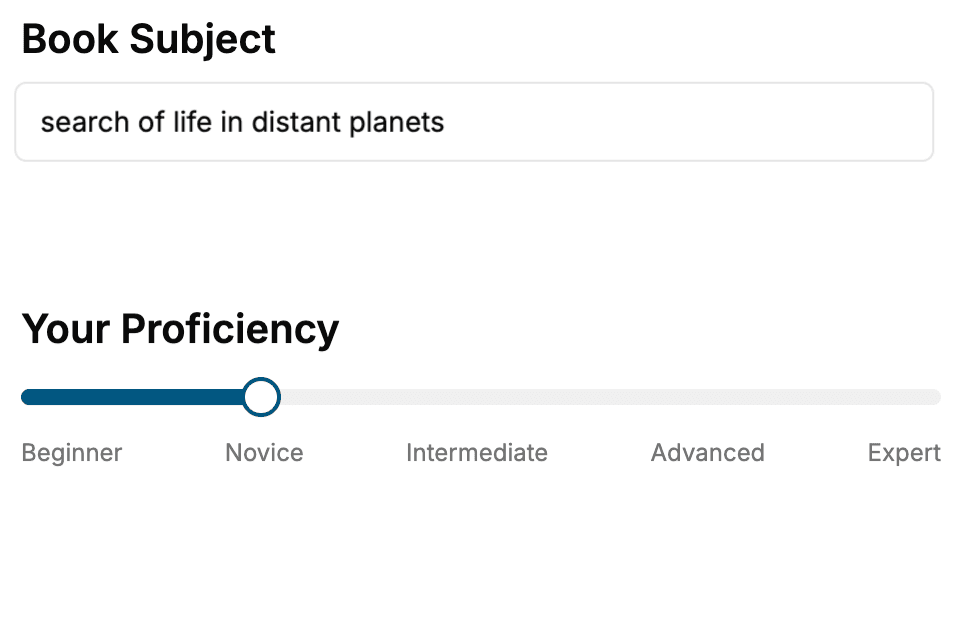
Select the focus of your Web Development book and share your background
- 2. Personalize your book
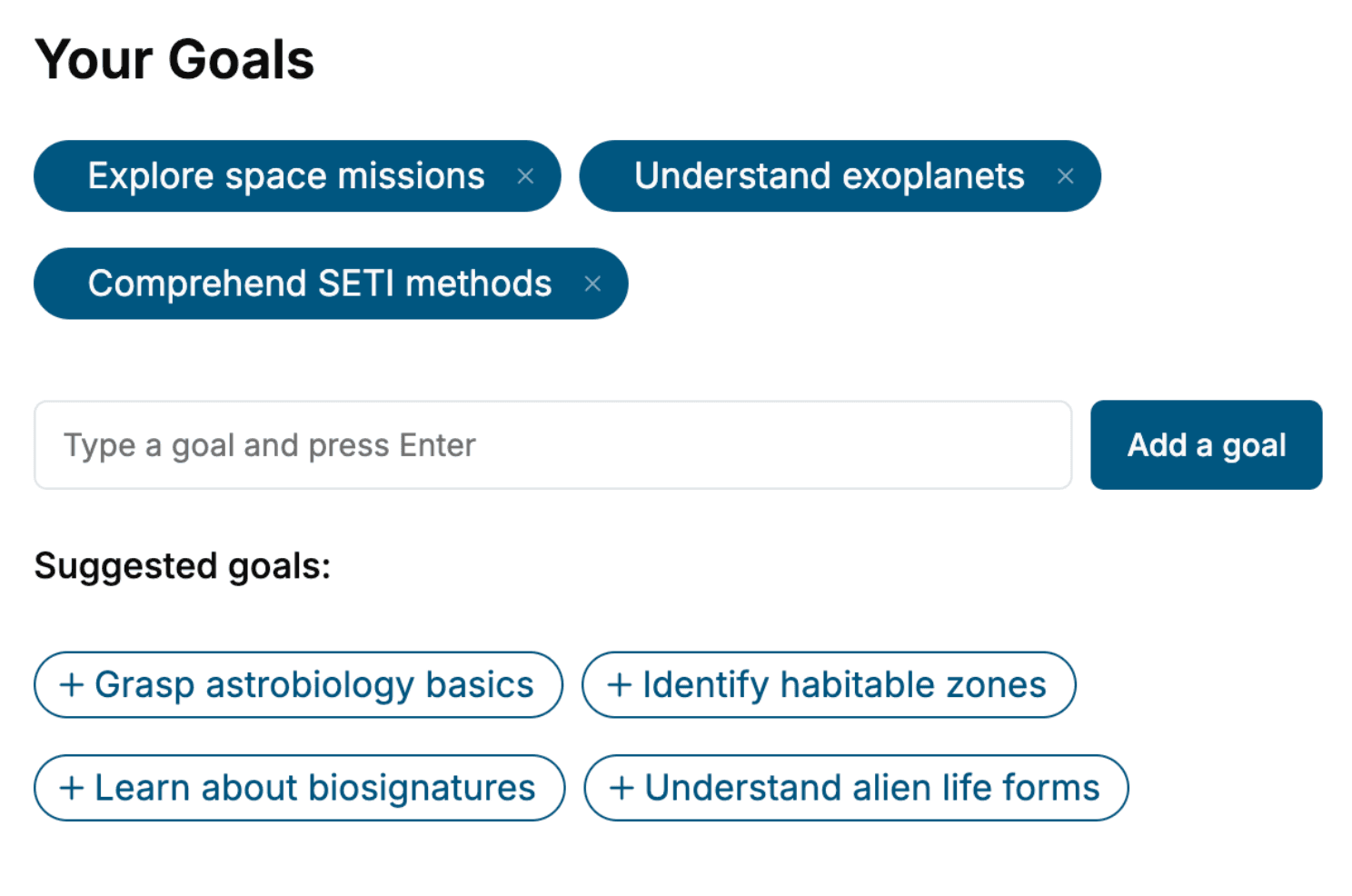
Specify your goals and choose sub-topics to include
- 3. Get your tailored book
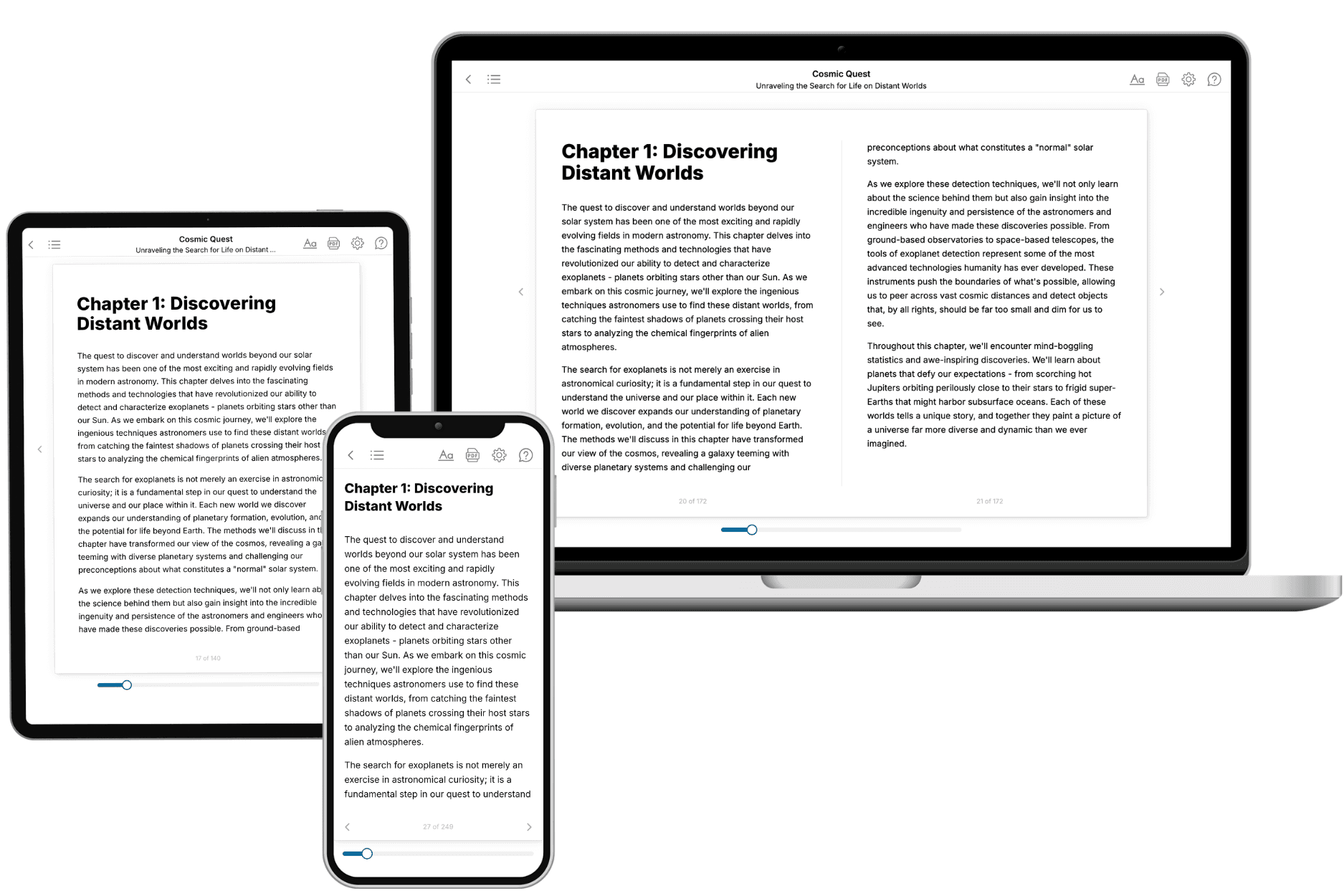
Your book is ready in 10 minutes. Read it online, download as EPUB or PDF, or send to Kindle.
Frequently asked questions
- What is TailoredRead?
TailoredRead creates complete, full-length nonfiction ebooks, written specifically for you. Tell us what you want to learn and why, and TailoredRead writes you a complete ebook on it, with charts, tables, and diagrams throughout. Read it online, on Kindle, or on any e-reader, or download it as a PDF or EPUB. Every book is written fresh the day you order it.
- How is the book tailored to me?
Before anything is written, you answer a few short questions about your goals, your background, and the topics you care about. Your book is then planned around your answers: written at your level, focused on your goals, and covering the topics you chose, instead of the one-size-fits-all book a store sells everyone.
- Will it read like generic AI content?
No. Your book isn't a chat transcript: it's planned chapter by chapter before a single word is written, told in a clear book voice, and explains ideas visually with charts, tables, and diagrams. After writing, every book goes through an editorial pass that polishes chapters so the book reads consistent from start to finish. Judge for yourself: browse thousands of sample books on our Explore Books page.
- How accurate is the content?
Our AI first checks whether your subject needs live research. Niche and fast-moving subjects are researched before writing, and the book plan and chapters are grounded in what it finds. After writing, every book goes through a quality pass that checks its facts and consistency, and researched books list their sources in a Notes section at the back.
- How long is the book?
You choose the length: Comprehensive (250-300 pages), Detailed (150-200 pages), Essential (70-100 pages), or Short (30-50 pages).
- Does the book include visuals?
Yes. Every book includes charts, tables, and diagrams: timelines, checklists, step-by-step guides, decision trees, comparison tables, matrices, and bar charts. A typical book includes dozens of these visual elements.
- Can I read it on Kindle? What formats can I download?
Yes. Every book can be read in our online reader or downloaded as a PDF or EPUB. The EPUB can be opened with Kindle, Apple Books, Kobo, and any e-reader. The Commercial and Author licenses also include an editable Word (DOCX) and Markdown download.
- How much does it cost?
About the price of a regular ebook. The exact price depends on your book's length and complexity, from $2 for the shortest books to $35 for the most comprehensive, and it's shown when you review your book, before you commit to anything. Each book is a one-time purchase, yours to keep, no subscription. Licenses that let you share, teach, or publish your book range from $35.99 to $49.99.
- Can I preview the book before purchasing?
Before you pay, you'll see what your book will cover: the title, a detailed description, the estimated length, and the complete chapter-by-chapter table of contents, so you know what you're getting before you decide. The full text itself is written after you purchase.
- How long does it take to create a book?
About 10 minutes. You can start reading the opening chapters while the rest is still being written.