PowerPoint Mastery
Advanced Techniques for Stunning Presentations
Create presentations that captivate and persuade your audience.
300 pages15 chaptersFeb 27, 2025Presentation
About this book
PowerPoint Mastery: Advanced Techniques for Stunning Presentations is your comprehensive guide to elevating your PowerPoint skills from good to exceptional. You'll discover how to streamline your workflow, design visually striking slides, and deliver presentations that leave a lasting impression. From little-known shortcuts to advanced design principles, this book covers everything you need to stand out in the boardroom, classroom, or conference hall. Packed with practical tips, creative ideas, and expert insights, PowerPoint Mastery will help you harness the full potential of this powerful software. Whether you're pitching to clients, presenting research, or delivering a keynote speech, you'll find the tools and techniques to create presentations that not only inform but also inspire and engage your audience.
Table of contents
- IntroductionThe Power of PowerPoint in Modern Communication, What You'll Learn from This Book, Developing a PowerPoint Mastery Mindset, Getting Started: Setting Up Your PowerPoint EnvironmentRead below
- Chapter 1: PowerPoint Basics RefresherNavigating the PowerPoint Interface, Understanding and Utilizing Slide Masters, Working with Themes and Templates, Advanced Text Formatting Techniques
- Chapter 2: Streamlining Your PowerPoint WorkflowEssential Keyboard Shortcuts, Customizing the Quick Access Toolbar, Creating and Managing Reusable Content, Automating Tasks with Macros
- Chapter 3: Design Principles for Impactful SlidesColor Theory and Palette Selection, Typography Basics for Presentations, Mastering Slide Layout and Composition, Creating Visual Hierarchy
- Chapter 4: Working with Graphics and VisualsAdvanced Image Editing Techniques, Creating and Manipulating Vector Graphics, Designing Compelling Infographics, Effective Use of Icons and Symbols
- Chapter 5: Mastering Charts and GraphsChoosing the Right Chart Type, Data Visualization Best Practices, Creating Custom Charts and Graphs, Building Interactive Charts
- Chapter 6: Animations and TransitionsPrinciples of Effective Animations, Creating Custom Animation Paths, Advanced Transition Techniques, Mastering Timing and Triggers
- Chapter 7: Integrating Multimedia ElementsEmbedding and Editing Videos, Adding and Synchronizing Audio Narration, Incorporating Screen Recordings, Optimizing Multimedia for Performance
- Chapter 8: Creating Interactive PresentationsUsing Hyperlinks and Actions, Designing Custom Navigation Systems, Building Interactive Quizzes and Surveys, Maximizing Presenter View
- Chapter 9: Data Integration and ManagementLinking and Embedding Excel Data, Connecting to External Data Sources, Automating Data Refresh, Integrating Power BI Visualizations
- Chapter 10: Collaboration and SharingLeveraging Cloud-Based Collaboration, Managing Version Control, Streamlining the Review Process, Secure Sharing and Permissions
- Chapter 11: Customizing PowerPointCustomizing the Ribbon, Exploring Useful Add-ins, Introduction to VBA for PowerPoint, Creating Custom Templates and Themes
- Chapter 12: Advanced PowerPoint TechniquesMastering the Morph Transition, Working with 3D Models, Ensuring Presentation Accessibility, Utilizing Language and Translation Tools
- Chapter 13: Troubleshooting and Problem-SolvingResolving Common PowerPoint Issues, File Recovery and Backup Strategies, Ensuring Cross-Platform Compatibility, Optimizing Presentation Performance
- Chapter 14: Presentation Delivery TechniquesUsing PowerPoint's Rehearsal Tools, Mastering Remote Presentations, Leveraging Dual Monitors, Techniques for Audience Engagement
- Chapter 15: Future Trends in Presentation TechnologyEmerging AI Features in PowerPoint, Augmented and Virtual Reality in Presentations, The Rise of Data-Driven Presentations, Strategies for Staying Current with PowerPoint
- Conclusion
- Glossary of PowerPoint Terms
- Additional Resources and Further Learning
Introduction
In today's fast-paced business world, the ability to create and deliver compelling presentations is a crucial skill that can set you apart from your peers. Whether you're pitching a new idea to clients, presenting quarterly results to stakeholders, or sharing insights with colleagues, your ability to communicate effectively through visual aids can make or break your message. This is where Microsoft PowerPoint comes into play – a powerful tool that, when mastered, can elevate your presentations from mundane to magnificent.
PowerPoint has long been the go-to software for creating presentations, but many users barely scratch the surface of its capabilities. You might be familiar with the basics – adding text, inserting images, and applying simple transitions. However, there's a vast world of advanced features and techniques waiting to be explored. By delving deeper into PowerPoint's extensive toolkit, you can transform your presentations into dynamic, engaging, and visually stunning experiences that captivate your audience and effectively convey your message.
This book, "PowerPoint Mastery: Advanced Techniques for Stunning Presentations," is designed to take your PowerPoint skills to the next level. Whether you're a business professional, educator, or anyone who regularly creates presentations, this comprehensive guide will equip you with the knowledge and techniques to create presentations that not only inform but also inspire and engage your audience. From streamlining your workflow with time-saving shortcuts to mastering advanced design principles, from creating custom animations to integrating multimedia elements seamlessly – this book covers it all.
As we embark on this journey to PowerPoint mastery, remember that becoming proficient with any tool takes time and practice. The techniques and strategies outlined in this book are the result of years of experience and best practices from presentation experts worldwide. By applying these concepts to your own work, you'll not only enhance your PowerPoint skills but also develop a deeper understanding of effective visual communication.
So, are you ready to transform your presentations and take your PowerPoint skills to new heights? Let's dive in and explore the world of advanced PowerPoint techniques that will set your presentations apart and leave a lasting impression on your audience.
The Power of PowerPoint in Modern Communication
In an era where information is abundant and attention spans are short, the ability to communicate ideas effectively is more crucial than ever. Microsoft PowerPoint has emerged as a cornerstone of modern communication, bridging the gap between complex information and visual storytelling. Its versatility and widespread adoption have made it an indispensable tool across various industries and sectors, from corporate boardrooms to academic lecture halls.
The power of PowerPoint lies in its ability to transform abstract concepts into tangible visuals. A well-crafted PowerPoint presentation can simplify complex data, illustrate intricate processes, and bring ideas to life in ways that words alone cannot achieve. This visual reinforcement not only aids in understanding but also significantly enhances retention. Studies have shown that people remember only 10% of what they hear, but 65% of what they see and hear[1]. By leveraging PowerPoint's visual capabilities, you can ensure that your message not only reaches your audience but also resonates long after your presentation ends.
Moreover, PowerPoint serves as a powerful storytelling medium. In the business world, storytelling has become a critical skill for leaders and innovators. A compelling narrative can inspire action, drive change, and foster connections. PowerPoint provides the canvas on which these stories can be painted, allowing you to weave together text, images, charts, and multimedia elements to create a cohesive and engaging narrative arc. Whether you're presenting a business proposal, sharing research findings, or delivering a keynote speech, PowerPoint enables you to craft a story that captures attention and drives your point home.
The collaborative features of PowerPoint have also revolutionized the way teams work together on presentations. With cloud-based sharing and real-time editing capabilities, multiple team members can contribute to a presentation simultaneously, regardless of their physical location. This not only streamlines the creation process but also ensures that diverse perspectives and expertise are incorporated into the final product. In today's globalized work environment, where remote teams and cross-functional collaboration are increasingly common, PowerPoint's collaborative features are more valuable than ever.
Furthermore, PowerPoint's integration with other Microsoft Office tools and third-party applications extends its functionality far beyond simple slide creation. You can seamlessly incorporate data from Excel spreadsheets, embed videos from various sources, and even integrate interactive elements from specialized software. This interoperability makes PowerPoint a central hub for bringing together various types of content and data, allowing you to create comprehensive and dynamic presentations that draw from multiple sources.
In the realm of education and training, PowerPoint has become an essential tool for knowledge transfer. Educators use it to create engaging lesson plans, while trainers in corporate settings rely on it to deliver effective workshops and seminars. The ability to combine text, images, animations, and multimedia in a structured format makes PowerPoint an ideal platform for breaking down complex topics into digestible chunks, catering to various learning styles.
As we move further into the digital age, the role of PowerPoint continues to evolve. With the rise of remote work and virtual presentations, PowerPoint has adapted to include features that enhance online delivery, such as live captions, virtual laser pointers, and integration with video conferencing platforms. These advancements ensure that PowerPoint remains relevant and powerful in an increasingly digital communication landscape.
However, with great power comes great responsibility. The ubiquity of PowerPoint has led to a phenomenon known as "Death by PowerPoint" – presentations that are overloaded with text, cluttered with unnecessary graphics, or simply boring. This underscores the importance of not just using PowerPoint, but using it well. Mastering PowerPoint means understanding not just the technical aspects of the software, but also the principles of effective visual communication and presentation design.
By harnessing the full potential of PowerPoint, you can create presentations that are not just informative, but transformative. You can turn data into insights, concepts into visuals, and ideas into action. In a world where the ability to communicate effectively can make the difference between success and failure, PowerPoint mastery is not just a technical skill – it's a strategic advantage.
As we delve deeper into the advanced techniques and strategies in this book, keep in mind the immense power that PowerPoint places at your fingertips. With each new skill you acquire, you're not just learning how to use software; you're enhancing your ability to communicate, influence, and inspire. The journey to PowerPoint mastery is a journey towards becoming a more effective communicator and a more impactful presenter in whatever field you operate.
What You'll Learn from This Book
"PowerPoint Mastery: Advanced Techniques for Stunning Presentations" is designed to be your comprehensive guide to elevating your PowerPoint skills from proficient to exceptional. This book is not just about learning features; it's about understanding how to leverage those features to create presentations that are both visually striking and effectively communicate your message. Throughout the chapters, you'll embark on a journey that will transform the way you approach presentation creation and delivery.
First and foremost, you'll dive deep into the world of advanced PowerPoint functionality. While many users are familiar with basic operations, this book will introduce you to a plethora of advanced features that can dramatically enhance your presentations. You'll learn how to create custom animations that bring your slides to life, how to use advanced charting techniques to present data in compelling ways, and how to leverage PowerPoint's lesser-known tools to create unique and impactful visual elements. These technical skills will form the foundation of your PowerPoint mastery, allowing you to execute complex ideas with ease and precision.
Beyond the technical aspects, you'll gain a thorough understanding of design principles as they apply to presentations. Good design is not just about making things look pretty; it's about enhancing communication and ensuring that your message is clear and impactful. You'll learn about color theory and how to choose palettes that evoke the right emotions and enhance readability. Typography will be explored in depth, teaching you how to select and pair fonts that complement your content and brand. You'll also delve into layout principles, understanding how to arrange elements on your slides to create visual hierarchy and guide your audience's attention effectively.
Efficiency is a key theme throughout the book. You'll discover numerous shortcuts, tricks, and best practices that will streamline your workflow and save you countless hours in the long run. From customizing your Quick Access Toolbar to creating reusable content libraries, you'll learn how to optimize your PowerPoint environment for maximum productivity. These efficiency gains will allow you to focus more on content and creativity, rather than getting bogged down in technical details.
Data visualization is an increasingly important skill in our information-rich world, and this book dedicates significant attention to this topic. You'll learn how to choose the right chart types for different kinds of data, how to design infographics that simplify complex information, and how to create custom data visualizations that go beyond PowerPoint's built-in options. These skills will enable you to present data in ways that are not only accurate but also engaging and easy to understand.
Multimedia integration is another crucial area covered in this book. In today's digital age, presentations often need to go beyond static slides. You'll learn how to seamlessly incorporate various media types into your presentations, including video, audio, and even 3D models. You'll also explore techniques for creating interactive elements within your presentations, allowing for a more engaging and dynamic experience for your audience.
Collaboration is an essential aspect of modern work environments, and PowerPoint offers robust tools for team-based presentation creation. This book will guide you through the process of effectively collaborating on presentations, including version control, commenting systems, and simultaneous editing. You'll learn best practices for managing large, complex presentations with multiple contributors, ensuring that the final product is cohesive and polished.
As presentations increasingly move into the digital realm, this book also covers advanced techniques for creating and delivering presentations in various formats and platforms. You'll learn how to optimize your presentations for online delivery, how to create self-running presentations, and how to adapt your content for different screen sizes and devices. These skills will ensure that your presentations are effective whether you're delivering them in person, online, or asynchronously.
Throughout the book, you'll find practical examples and case studies that illustrate how these advanced techniques can be applied in real-world scenarios. These examples will span various industries and presentation types, from business pitches to academic lectures, giving you a broad perspective on how to adapt these skills to your specific needs.
Importantly, this book doesn't just teach you how to use PowerPoint; it teaches you how to think about presentations strategically. You'll learn how to approach presentation creation from a storytelling perspective, how to tailor your content and design to specific audiences, and how to use your presentations as effective tools for persuasion and decision-making.
By the end of this book, you'll have a comprehensive toolkit of advanced PowerPoint skills, a deep understanding of presentation design principles, and the strategic knowledge to create presentations that truly stand out. Whether you're looking to advance your career, improve your communication skills, or simply create more engaging and effective presentations, "PowerPoint Mastery" will provide you with the knowledge and techniques to achieve your goals.
Remember, mastery is an ongoing journey. As you work through this book, don't just read – practice, experiment, and apply these techniques to your own presentations. The more you engage with these advanced concepts, the more natural they'll become, and the more your presentations will evolve and improve. Get ready to take your PowerPoint skills to the next level and unlock the full potential of this powerful communication tool.
Developing a PowerPoint Mastery Mindset
Mastering PowerPoint is not just about learning a set of technical skills; it's about adopting a mindset that approaches presentation creation as a craft to be honed and perfected. This PowerPoint Mastery Mindset is the foundation upon which all the advanced techniques and strategies in this book are built. It's about seeing beyond the software and understanding the art and science of effective visual communication.
At its core, the PowerPoint Mastery Mindset is about continuous improvement and attention to detail. It's the understanding that every element on your slide, from the placement of a shape to the choice of a transition, has the potential to enhance or detract from your message. This mindset encourages you to critically evaluate every aspect of your presentation, always asking, "How can this be improved?" or "Is this the most effective way to communicate this idea?" It's about never settling for "good enough" but always striving for excellence.
One key aspect of this mindset is viewing PowerPoint as a creative tool rather than just a functional one. Many users see PowerPoint as a mere vessel for content, but those with a mastery mindset understand that the software itself is a medium for creative expression. They approach each presentation as a blank canvas, an opportunity to create something unique and impactful. This creative perspective allows you to break free from standard templates and conventional layouts, encouraging you to experiment with new design ideas and innovative ways of presenting information.
Another crucial element of the PowerPoint Mastery Mindset is empathy for your audience. Every decision you make in your presentation should be guided by how it will be perceived and understood by your viewers. This audience-centric approach influences everything from the language you use to the complexity of your visuals. It means constantly asking yourself questions like: "Is this clear to someone who's not familiar with the topic?" "Will this visual aid enhance understanding or cause confusion?" "How can I maintain engagement throughout the presentation?" By putting yourself in your audience's shoes, you create presentations that are not just visually appealing but also effective in communicating your message.
The mastery mindset also involves a commitment to efficiency and organization. As you delve deeper into PowerPoint's advanced features, you'll discover numerous ways to streamline your workflow. Embracing these efficiency techniques is not just about saving time; it's about freeing up mental space to focus on content and creativity. This might involve creating custom templates, building a library of reusable elements, or setting up your PowerPoint environment in a way that supports your unique workflow. The goal is to reduce the cognitive load of routine tasks so you can channel more energy into the creative and strategic aspects of presentation design.
A critical component of the PowerPoint Mastery Mindset is the willingness to learn and adapt continuously. PowerPoint, like all software, is constantly evolving. New features are added, design trends change, and best practices evolve. Those with a mastery mindset view this not as a challenge but as an opportunity. They stay curious, always eager to explore new functionalities and experiment with emerging presentation techniques. This might involve following PowerPoint blogs, participating in online communities, or regularly challenging yourself to incorporate new elements into your presentations.
The mastery mindset also encompasses a holistic view of presentations. It recognizes that a great presentation is more than just a series of well-designed slides; it's a comprehensive communication experience. This means considering factors beyond PowerPoint itself, such as your verbal delivery, body language, the physical or virtual environment in which you're presenting, and how your presentation fits into the broader context of your communication goals. It's about seeing your PowerPoint slides as one part of a larger narrative and ensuring all elements work in harmony to convey your message effectively.
Another aspect of this mindset is the balance between consistency and creativity. While creativity is essential, consistency in design elements, color schemes, and formatting is what gives your presentation a professional, cohesive look. The mastery mindset involves developing an eye for this balance – knowing when to adhere to established design principles and when to break the rules for impact. It's about creating a visual language for your presentation that is both coherent and engaging.
Embracing failure as a learning opportunity is also a key part of the PowerPoint Mastery Mindset. Not every design choice or animation will work as intended, and that's okay. Those with a mastery mindset view these missteps not as failures but as valuable feedback. They analyze what didn't work and why, using these insights to refine their skills and make better choices in future presentations. This resilience and willingness to learn from mistakes is what separates true PowerPoint masters from casual users.
Finally, the PowerPoint Mastery Mindset involves recognizing the power of storytelling in presentations. It's about understanding that your slides are not just containers for information but vehicles for narrative. This storytelling approach influences how you structure your presentation, transition between ideas, and use visual elements to support your narrative arc. It's about creating an emotional connection with your audience, making your content memorable and impactful.
As you progress through this book and explore advanced PowerPoint techniques, keep this mastery mindset at the forefront. Remember that true mastery goes beyond knowing which buttons to click; it's about developing a nuanced understanding of how to use PowerPoint as a powerful communication tool. Embrace the challenge of continuous improvement, stay curious and open to new ideas, and always strive to create presentations that not only look stunning but also effectively convey your message and engage your audience.
By cultivating this PowerPoint Mastery Mindset, you're not just improving your technical skills; you're transforming the way you approach communication and visual storytelling. This mindset will serve you well beyond PowerPoint, enhancing your overall ability to convey ideas and influence others in any medium. As you embark on this journey of mastery, remember that every presentation is an opportunity to refine your craft and push the boundaries of what's possible with PowerPoint.
Getting Started: Setting Up Your PowerPoint Environment
Before diving into advanced techniques, it's crucial to set up your PowerPoint environment for optimal efficiency and creativity. A well-organized workspace can significantly enhance your productivity and make the process of creating stunning presentations more enjoyable. This section will guide you through the essential steps to customize your PowerPoint environment, ensuring you have the right foundation for mastery.
First and foremost, familiarize yourself with the latest version of PowerPoint. Microsoft regularly updates the software, adding new features and improving existing ones. Ensure that you're using the most recent version available to you, as this book will reference features that may not be present in older versions. If you're using Office 365, you'll benefit from automatic updates, but it's still worth checking that you have the latest build installed. To do this, open PowerPoint, go to File > Account, and look under the Product Information section. Here, you'll see your version number and can check for updates[2].
Once you're up to date, take some time to customize the Quick Access Toolbar (QAT). This customizable toolbar appears above or below the ribbon and provides one-click access to your most frequently used commands. To modify the QAT, click on the small arrow next to it and select "More Commands." From here, you can add commands that you use often but aren't readily accessible in the ribbon. Some useful commands to consider adding include:
- Format Painter: Quickly copy formatting from one object to another
- Selection Pane: Manage and organize objects on your slides
- Align: Quickly align multiple objects
- Group: Combine multiple objects into a single unit
- Distribute Horizontally/Vertically: Evenly space objects
Next, consider customizing the ribbon itself. While the default ribbon layout works for many users, you might find it beneficial to create a custom tab with all your frequently used commands in one place. To do this, right-click on the ribbon and select "Customize the Ribbon." You can create a new tab, add groups within that tab, and populate it with commands that suit your specific needs. This personalized tab can become your go-to workspace for efficient slide creation and editing.
Color themes play a crucial role in PowerPoint design, and setting up a custom color palette can streamline your design process. To create a custom theme, go to View > Slide Master, then click on "Colors" in the "Background" group. Select "Customize Colors" at the bottom of the dropdown. Here, you can define your own color scheme, which will then be available across all Office applications. Consider creating multiple color themes for different types of presentations or to align with your organization's branding guidelines.
Font management is another critical aspect of setting up your PowerPoint environment. While PowerPoint comes with a variety of built-in fonts, you may want to expand your typography options. Install any custom fonts you frequently use, ensuring they're available on your system. Remember, if you're sharing presentations with others or presenting on different computers, it's important to either embed these fonts in your PowerPoint file or stick to widely available fonts to avoid compatibility issues.
Creating and organizing a library of assets can significantly enhance your efficiency. Set up folders on your computer or in cloud storage for:
- Templates: Both official templates for your organization and personal templates you've created
- Images: Stock photos, icons, and other visual elements you frequently use
- Charts and Graphs: Reusable chart templates and data visualizations
- Slide Layouts: Custom slide layouts you've designed for specific purposes
Consider setting up AutoRecover and backup options to protect your work. Go to File > Options > Save, and ensure that the AutoRecover feature is enabled. You can adjust how frequently PowerPoint saves your work automatically. It's also wise to set up a cloud-based backup solution, such as OneDrive, to ensure your presentations are safe and accessible from multiple devices.
If you frequently collaborate on presentations, take some time to set up your sharing and collaboration settings. Go to File > Options > General, and under "Personalize your copy of Microsoft Office," enter your user name and initials. This ensures that your comments and edits are properly attributed when working on shared presentations. Familiarize yourself with PowerPoint's collaboration features, such as simultaneous editing and commenting, to streamline team-based projects.
For those who use PowerPoint across multiple devices, consider syncing your custom dictionary. This ensures that any specialized terms or proper nouns you've added to your dictionary are available regardless of which device you're using. To do this, go to File > Options > Proofing, click on "Custom Dictionaries," and then select the option to roam your main dictionary.
Lastly, take some time to explore PowerPoint's accessibility checker. This tool, found under Review > Check Accessibility, helps ensure your presentations are inclusive and can be understood by individuals with disabilities. Familiarize yourself with this feature and consider making it a regular part of your presentation creation process.
By taking the time to set up your PowerPoint environment thoughtfully, you're laying the groundwork for efficient and effective presentation creation. This customized setup will allow you to focus more on content and creativity, rather than getting bogged down in repetitive tasks or searching for frequently used features. As you progress through this book and learn advanced techniques, you may find yourself further refining this setup. Remember, your PowerPoint environment should evolve with your skills and needs, always supporting your journey towards presentation mastery.
This is the end of the free sample. The full book has 15 chapters.
Want this book written for you?
Tell us your goals and background, and get your own version of this book, tailored by AI to you.


Benefits of AI-tailored books
- Read one book, not ten:
- all the Presentation knowledge you need, gathered into a single book.
- Save days of learning:
- tell us your goals, choose your topics, and the whole book is built around them.
- Learn effortlessly:
- Presentation book written for your specific background and expertise.
- Understand at a glance:
- includes charts, tables, timelines, checklists, decision trees, and more.
- Stay current:
- written the day you order it, not years ago.
- Trust what you read:
- every book is checked for accuracy, with real research when your subject needs it.
Create your unique book in 3 steps
- 1. Select your focus
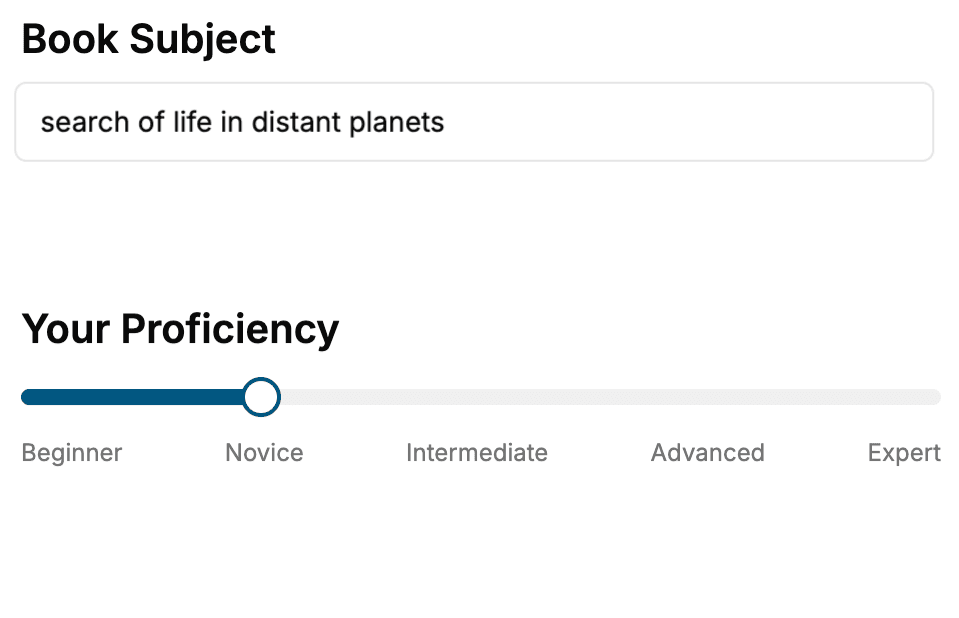
Select the focus of your Presentation book and share your background
- 2. Personalize your book
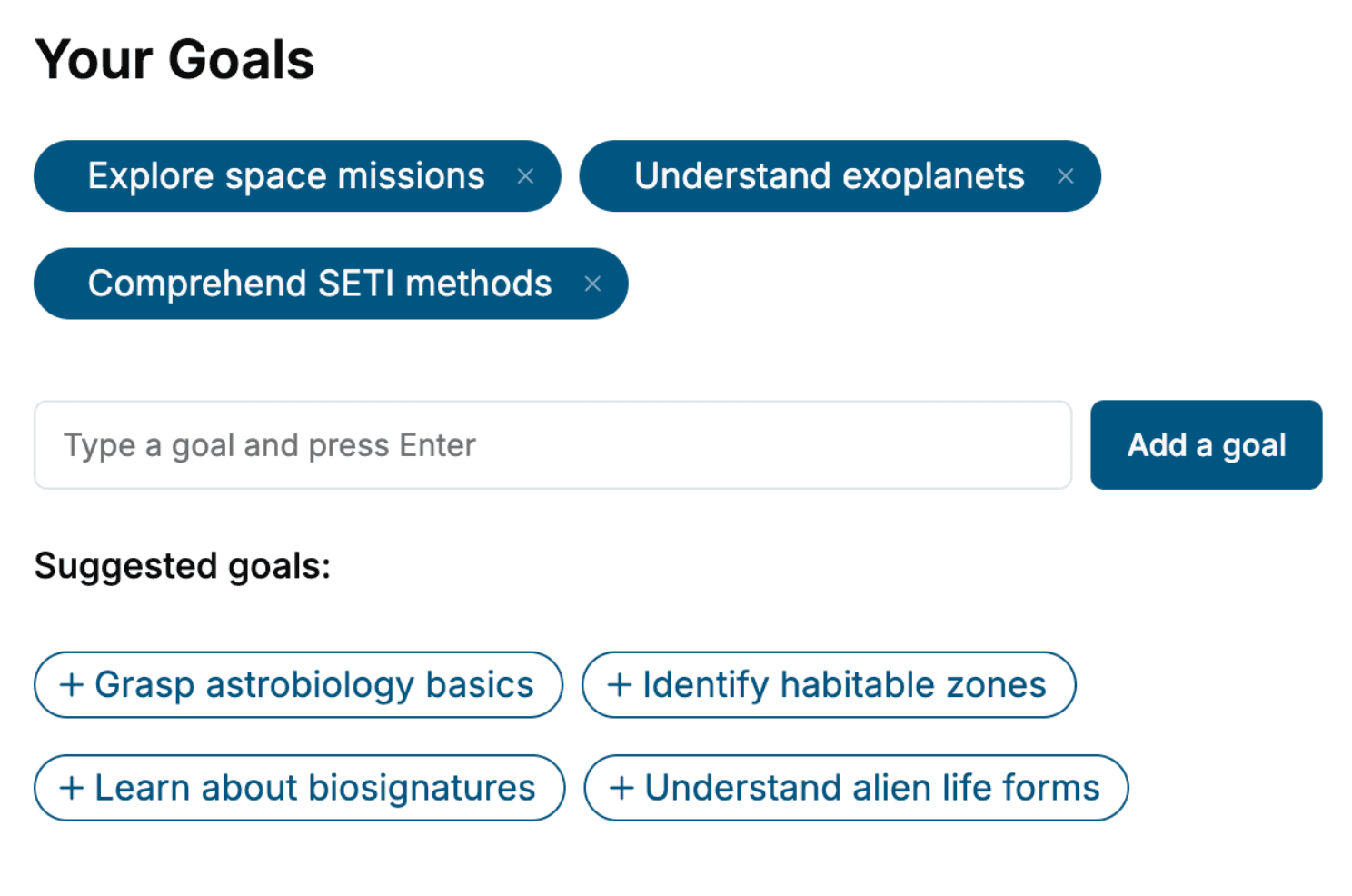
Specify your goals and choose sub-topics to include
- 3. Get your tailored book
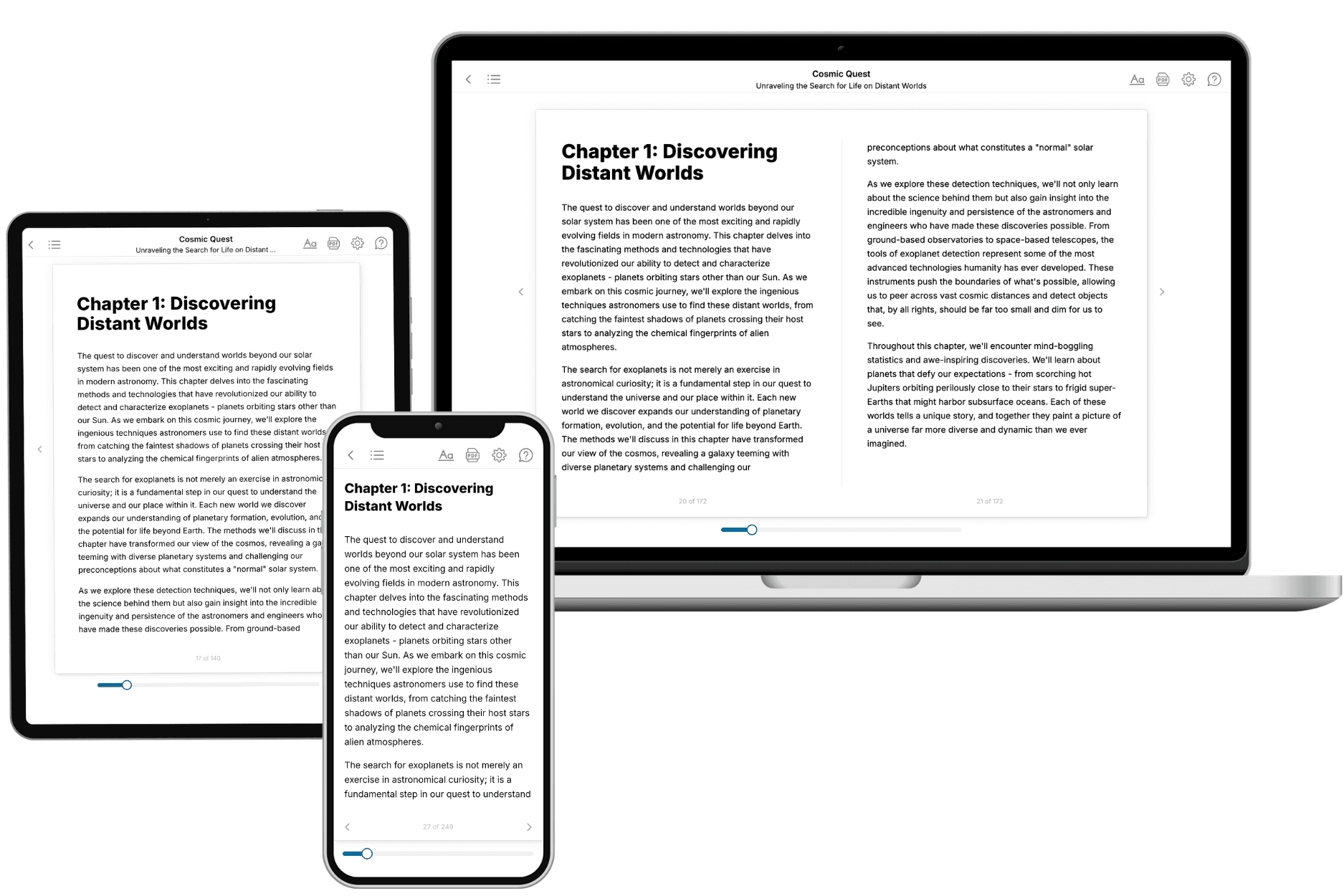
Your book is ready in 10 minutes. Read it online, download as EPUB or PDF, or send to Kindle.
Frequently asked questions
- What is TailoredRead?
TailoredRead creates complete, full-length nonfiction ebooks, written specifically for you. Tell us what you want to learn and why, and TailoredRead writes you a complete ebook on it, with charts, tables, and diagrams throughout. Read it online, on Kindle, or on any e-reader, or download it as a PDF or EPUB. Every book is written fresh the day you order it.
- How is the book tailored to me?
Before anything is written, you answer a few short questions about your goals, your background, and the topics you care about. Your book is then planned around your answers: written at your level, focused on your goals, and covering the topics you chose, instead of the one-size-fits-all book a store sells everyone.
- Will it read like generic AI content?
No. Your book isn't a chat transcript: it's planned chapter by chapter before a single word is written, told in a clear book voice, and explains ideas visually with charts, tables, and diagrams. After writing, every book goes through an editorial pass that polishes chapters so the book reads consistent from start to finish. Judge for yourself: browse thousands of sample books on our Explore Books page.
- How accurate is the content?
Our AI first checks whether your subject needs live research. Niche and fast-moving subjects are researched before writing, and the book plan and chapters are grounded in what it finds. After writing, every book goes through a quality pass that checks its facts and consistency, and researched books list their sources in a Notes section at the back.
- How long is the book?
You choose the length: Comprehensive (250-300 pages), Detailed (150-200 pages), Essential (70-100 pages), or Short (30-50 pages).
- Does the book include visuals?
Yes. Every book includes charts, tables, and diagrams: timelines, checklists, step-by-step guides, decision trees, comparison tables, matrices, and bar charts. A typical book includes dozens of these visual elements.
- Can I read it on Kindle? What formats can I download?
Yes. Every book can be read in our online reader or downloaded as a PDF or EPUB. The EPUB can be opened with Kindle, Apple Books, Kobo, and any e-reader. The Commercial and Author licenses also include an editable Word (DOCX) and Markdown download.
- How much does it cost?
About the price of a regular ebook. The exact price depends on your book's length and complexity, from $2 for the shortest books to $35 for the most comprehensive, and it's shown when you review your book, before you commit to anything. Each book is a one-time purchase, yours to keep, no subscription. Licenses that let you share, teach, or publish your book range from $35.99 to $49.99.
- Can I preview the book before purchasing?
Before you pay, you'll see what your book will cover: the title, a detailed description, the estimated length, and the complete chapter-by-chapter table of contents, so you know what you're getting before you decide. The full text itself is written after you purchase.
- How long does it take to create a book?
About 10 minutes. You can start reading the opening chapters while the rest is still being written.