Python Scripting for macOS Yosemite
Automate Your Mac with Practical Python Scripts
Many macOS users struggle with repetitive tasks that consume hours each week—file organization, system maintenance, application control, and data processing.
176 pages8 chaptersApr 2, 2026Python
About this book
You might think you need to learn complex shell scripting or AppleScript, but Python offers a more accessible and powerful alternative. This book teaches you how to harness Python's capabilities specifically for macOS Yosemite automation. You'll move beyond basic Python syntax to master practical scripting techniques: controlling system commands, managing files and directories, integrating with native applications, and scheduling automated workflows. Each chapter builds on real-world scenarios you'll encounter—backing up files, monitoring system health, batch processing documents, and automating repetitive workflows. By the end, you'll have the confidence and skills to write production-ready scripts that save you time every single day.
Table of contents
- IntroductionWhy Python for macOS Automation, What You'll Learn in This Book, How to Use This BookRead below
- Chapter 1: Python Fundamentals for macOSPython Versions on macOS Yosemite, Setting Up Your Development Environment, Writing and Running Your First Script
- Chapter 2: Understanding macOS System ArchitecturemacOS File System Structure, File Permissions and Ownership, System Processes and Services
- Chapter 3: Working with the Subprocess ModuleExecuting System Commands from Python, Capturing and Processing Command Output, Error Handling with Subprocess
- Chapter 4: File and Directory OperationsNavigating and Listing Directories, Creating and Modifying Files, Batch File Operations and Automation
- Chapter 5: Controlling macOS Applications with AppleScriptAppleScript Basics for Python Developers, Calling AppleScript from Python, Automating Native macOS Applications
- Chapter 6: Building Robust Scripts with Error HandlingException Handling and Try-Except Blocks, Logging and Debugging Your Scripts, Testing Your Scripts Before Deployment
- Chapter 7: Scheduling Scripts with launchdWhy launchd is Better Than Cron on macOS, Creating and Configuring Plist Files, Managing and Monitoring Scheduled Tasks
- Chapter 8: Real-World Automation ProjectsAutomated Backup and File Synchronization, System Health Monitoring and Alerts, Batch Document Processing and Conversion
- ConclusionNext Steps in Your Python Scripting Journey
- Appendix: Quick Reference GuideCommon macOS Commands for Scripting, Essential Python Modules for macOS, Troubleshooting Common Issues
Introduction
Every Mac user has a list of tasks they do over and over again. Maybe you spend twenty minutes every Monday morning sorting downloaded files into folders. Maybe you run the same sequence of commands to clean up disk space, or you manually rename hundreds of photos after a trip. These tasks are not complicated, but they are relentless. They eat up time that could go toward work that actually matters. The good news is that almost every one of these repetitive tasks can be automated, and Python is one of the best tools available for doing exactly that on macOS.
macOS Yosemite sits at an interesting crossroads. It brought a polished, modern interface to the Mac while keeping the powerful Unix foundation that makes scripting so effective. Underneath the clean desktop, you have access to a full command-line environment, a robust file system, and deep integration with native applications. Python fits naturally into this environment. It ships with macOS, it reads like plain English, and it connects easily to the system tools and applications you already use every day.
This book is built around a simple idea: the best way to learn automation is to solve real problems. Each chapter focuses on a specific capability, from controlling system commands to scheduling scripts to run automatically, and every concept is grounded in practical examples you can adapt immediately. You do not need to be an expert programmer to follow along. If you understand Python basics like variables, loops, functions, and conditionals, you have everything you need to start writing scripts that genuinely save you time.
Before diving into the chapters, it helps to understand what this book covers, why Python is the right choice for macOS automation, and how to get the most out of the material. The next few sections answer those questions directly so you can move into the technical content with a clear picture of where you are headed.
Why Python for macOS Automation
macOS offers several ways to automate tasks. You can write shell scripts in Bash, use AppleScript to control applications, or reach for Automator to build visual workflows. Each of these tools has its place, but each also has real limitations. Bash scripts become hard to read and maintain once they grow beyond a few lines. AppleScript has a syntax that feels unlike any other language, which makes it difficult to learn if you are coming from a programming background. Automator is convenient for simple tasks but quickly hits a ceiling when you need logic, error handling, or anything beyond basic drag-and-drop actions.
Python avoids most of these limitations. Its syntax is clean and readable, which means scripts are easier to write, easier to debug, and easier to hand off to someone else. A Python script that automates a file organization task reads almost like a description of what it does, rather than a cryptic sequence of symbols. This readability is not just a cosmetic benefit. It directly reduces the time you spend figuring out what a script does when you come back to it six months later.
Python also has a massive standard library. Modules like os, shutil, subprocess, pathlib, and logging cover the vast majority of what you need for system automation without installing anything extra. Need to walk through a directory tree and find files older than thirty days? The standard library handles it. Need to run a Terminal command and capture its output? One import and a few lines of code. This breadth means you spend less time searching for tools and more time solving problems.
Consider a concrete comparison. Suppose you want to find all PDF files in your Downloads folder and move them to a dedicated folder, creating that folder if it does not exist. In Bash, this requires careful quoting, conditional checks, and commands that behave differently depending on whether files exist. In Python, the same task takes about ten lines of readable code using os and shutil. The Python version is also easier to extend. Want to add logging, skip files modified in the last hour, or send a notification when the task completes? Each addition is straightforward in Python and increasingly awkward in Bash.
Python also integrates well with AppleScript, which is important on macOS. Rather than choosing between Python and AppleScript, you can use both together. Python handles the logic, data processing, and file operations. AppleScript handles the parts that require talking to native Mac applications like Mail, Calendar, or Finder. The subprocess module makes it easy to call AppleScript from Python, giving you the best of both worlds without having to commit entirely to either.
There is also a practical advantage worth mentioning: Python is already installed on macOS Yosemite. You do not need to install a new runtime or configure a complex environment just to run your first script. Open Terminal, type python, and you are ready. This low barrier to entry means you can go from reading a chapter to running a working script in minutes, not hours.
Finally, Python skills transfer. Everything you learn writing macOS automation scripts applies directly to web development, data analysis, server administration, and dozens of other domains. Learning Bash deeply is valuable, but its applications are narrower. Learning Python for macOS automation means you are building a skill set that grows with you well beyond the Mac desktop.
What You'll Learn in This Book
This book moves through eight chapters, each focused on a specific layer of macOS automation. The progression is deliberate. Early chapters build the foundation you need to understand later ones. By the time you reach the real-world projects in Chapter 8, every technique used will have been introduced and practiced in an earlier context.
Here is a clear picture of what each part of the book covers:
- Chapter 1: Python Fundamentals for macOS covers the Python versions available on Yosemite, how to set up a clean development environment, and how to write and run your first script from the Terminal. Even if you have written Python before, this chapter ensures your environment is configured correctly for the rest of the book.
- Chapter 2: Understanding macOS System Architecture explains the file system layout, how permissions and ownership work, and how system processes and services are organized. This knowledge is essential before you start writing scripts that touch system files or run background tasks.
- Chapter 3: Working with the Subprocess Module teaches you how to run Terminal commands from Python, capture their output, and handle errors. The
subprocessmodule is one of the most powerful tools in your automation toolkit, and this chapter covers it thoroughly. - Chapter 4: File and Directory Operations dives into navigating directories, creating and modifying files, and performing batch operations across large sets of files. This is where many of the most immediately useful automation scripts live.
- Chapter 5: Controlling macOS Applications with AppleScript introduces AppleScript concepts for Python developers and shows you how to call AppleScript from Python to control native applications like Mail, Safari, and Finder.
- Chapter 6: Building Robust Scripts with Error Handling covers exception handling, logging, and testing. Scripts that run unattended need to handle unexpected situations gracefully, and this chapter shows you how to build that reliability in from the start.
- Chapter 7: Scheduling Scripts with launchd explains how to use macOS's native scheduling system to run your scripts automatically. You will learn why
launchdis more appropriate thancronon macOS and how to create and manage scheduled tasks using plist files. - Chapter 8: Real-World Automation Projects brings everything together in three complete projects: an automated backup and file synchronization system, a system health monitor with alerts, and a batch document processing pipeline.
Beyond the technical skills, this book aims to build a particular way of thinking about repetitive work. The goal is not just to teach you specific scripts but to help you recognize automation opportunities in your own workflow and have the confidence to act on them. Every example in the book was chosen because it represents a category of problem you are likely to encounter, not just a one-off curiosity.
By the end of Chapter 8, you will have written scripts that perform real, useful work. You will understand how to connect Python to the macOS system at multiple levels, from low-level file operations to high-level application control. You will know how to make scripts reliable enough to run without supervision and how to schedule them so they run exactly when you need them.
A few specific skills deserve special mention because they come up repeatedly throughout the book. Error handling is woven into every chapter, not saved for a single section. Logging is introduced early and used consistently so you develop the habit of building visibility into your scripts from the start. Testing is treated as a practical necessity, not an academic exercise, with concrete approaches you can apply to scripts of any size.
The measure of a good automation script is not just whether it works when everything goes right. It is whether it handles the unexpected gracefully, tells you what happened, and leaves your system in a predictable state. That standard runs through every chapter of this book.
The appendix at the end of the book serves as a quick reference. It collects the most commonly used macOS Terminal commands for scripting, a summary of the essential Python modules covered in the book, and a troubleshooting guide for the issues most likely to come up as you work through the examples. Keep it handy as you work through the chapters.
How to Use This Book
This book is designed to be read in order, at least for the first pass. Each chapter builds on concepts introduced in earlier ones. Chapter 3's coverage of subprocess assumes you understand the file system concepts from Chapter 2. Chapter 7's scheduling examples assume you have working scripts from earlier chapters to schedule. Reading out of order is possible, but you may find yourself flipping back frequently to fill in gaps.
That said, once you have read through the book once, it works well as a reference. The chapter structure is consistent, and the index and appendix are designed to help you find specific techniques quickly. If you need to remember how to capture output from a subprocess call, or how to set up a plist file for a scheduled task, you should be able to find the relevant section in a few seconds.
Every code example in the book is meant to be typed out and run, not just read. There is a significant difference between understanding code on the page and understanding it through your fingers. When you type an example, you notice details you would skim over when reading. You encounter error messages that teach you something. You are tempted to modify the example to see what happens, which is exactly the right instinct. Treat every code block as an invitation to experiment.
Here are some practical suggestions for getting the most out of each chapter:
- Set up a dedicated practice folder. Create a folder like
~/python-scriptswhere you save all your work from the book. This keeps your experiments organized and gives you a growing library of scripts to reference later. - Run every example before modifying it. Confirm that the original example works as described before you start changing it. This way, if something breaks, you know the change you made is the cause.
- Read error messages carefully. Python error messages are informative. They tell you the file, the line number, and the type of error. Developing the habit of reading them fully, rather than just noticing that something went wrong, will save you enormous amounts of debugging time.
- Keep a notes file. As you work through the book, write down the techniques and patterns that seem most useful for your own workflow. This personal reference will be more valuable than any generic cheat sheet because it reflects the problems you actually care about solving.
- Attempt the variations. Many examples include suggestions for how to extend or modify the script. These are not optional extras. They are where a significant portion of the learning happens. Even a small modification forces you to understand the code more deeply than passive reading ever could.
The code examples in this book are written for macOS Yosemite specifically. Some examples use system paths, commands, or behaviors that are specific to Yosemite or the broader macOS environment. If you are running a different version of macOS, most examples will still work, but you may encounter minor differences in command output or file locations. The book notes these cases where they are likely to matter.
You will need a few things set up before you start Chapter 1. You need a Mac running macOS Yosemite (10.10) with Terminal access. You need a basic familiarity with the Terminal, specifically how to navigate directories with cd, list files with ls, and run a command. You need a text editor for writing Python scripts. Any plain text editor works, but a code editor with syntax highlighting makes the experience significantly better. Options like TextWrangler (free), Sublime Text, or Atom are all good choices that work well on Yosemite.[1]
One important note about the scope of this book: it focuses on practical automation for personal and administrative use on a single Mac. It does not cover network automation, web scraping, or deploying scripts to remote servers. Those are valuable topics, but they are outside the scope of what this book sets out to do. The focus here is tight and intentional: making your Mac work harder for you through well-written, reliable Python scripts.
If you hit a point where something is not working and you cannot figure out why, the troubleshooting section in the appendix is a good first stop. It covers the most common issues people encounter when working through the examples, including permission errors, path problems, and Python version conflicts. Most problems have straightforward solutions once you know what to look for.
The goal of this book is not to make you a Python expert in the abstract sense. It is to make you someone who can sit down, identify a repetitive task on their Mac, and write a script that handles it reliably. That is a concrete, achievable outcome, and every chapter is designed with that outcome in mind. The chapters ahead are practical, specific, and grounded in real work. Let's get started.
Notes
Introduction
- 1. TextWrangler by Bare Bones Software was a widely used free text editor for macOS before being succeeded by BBEdit. Sublime Text and Atom were both popular cross-platform code editors available during the Yosemite era.
This is the end of the free sample. The full book has 8 chapters.
Want this book written for you?
Tell us your goals and background, and get your own version of this book, tailored by AI to you.


Benefits of AI-tailored books
- Read one book, not ten:
- all the Python knowledge you need, gathered into a single book.
- Save days of learning:
- tell us your goals, choose your topics, and the whole book is built around them.
- Learn effortlessly:
- Python book written for your specific background and expertise.
- Understand at a glance:
- includes charts, tables, timelines, checklists, decision trees, and more.
- Stay current:
- written the day you order it, not years ago.
- Trust what you read:
- every book is checked for accuracy, with real research when your subject needs it.
Create your unique book in 3 steps
- 1. Select your focus
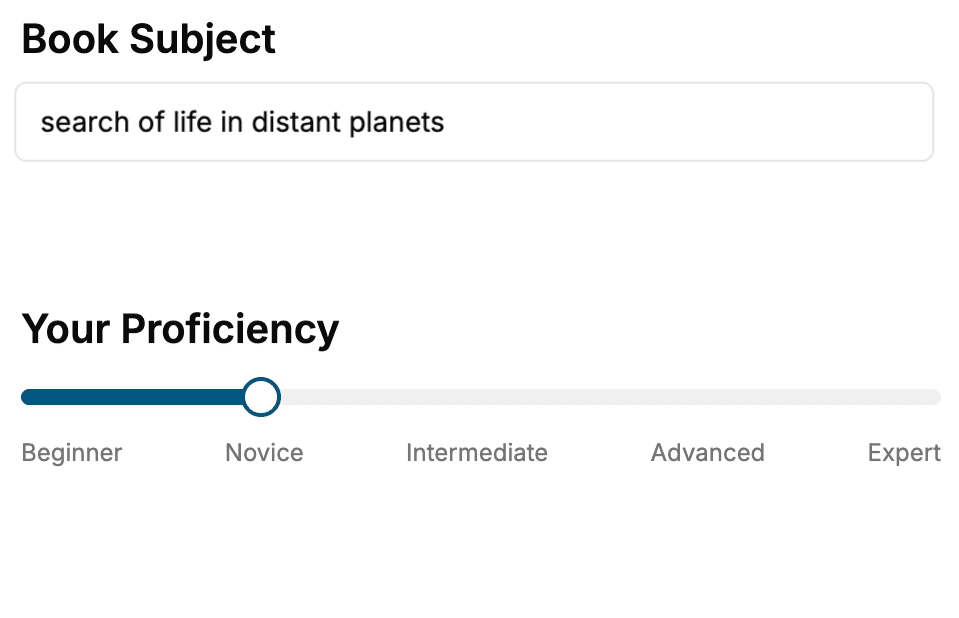
Select the focus of your Python book and share your background
- 2. Personalize your book
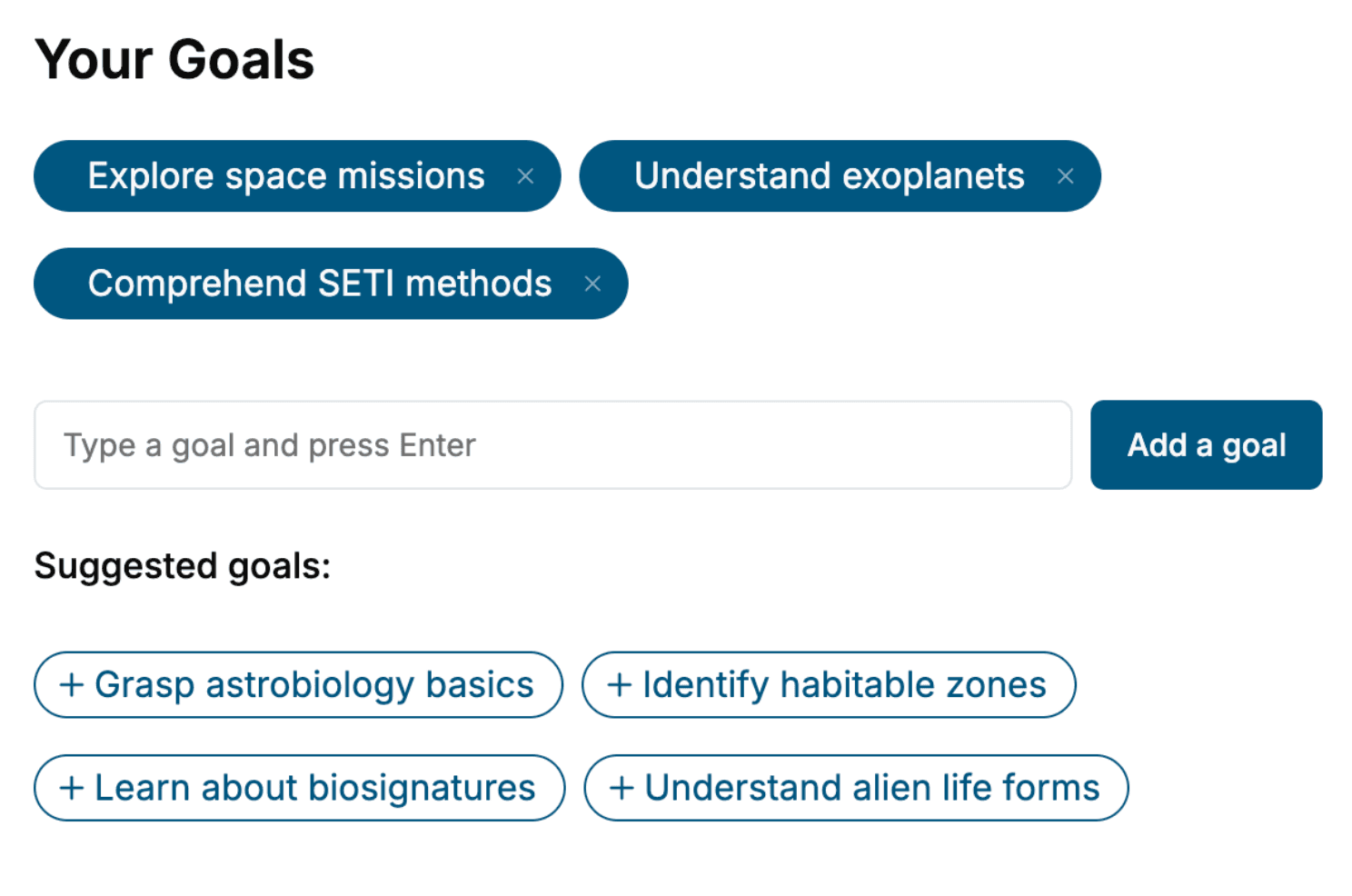
Specify your goals and choose sub-topics to include
- 3. Get your tailored book
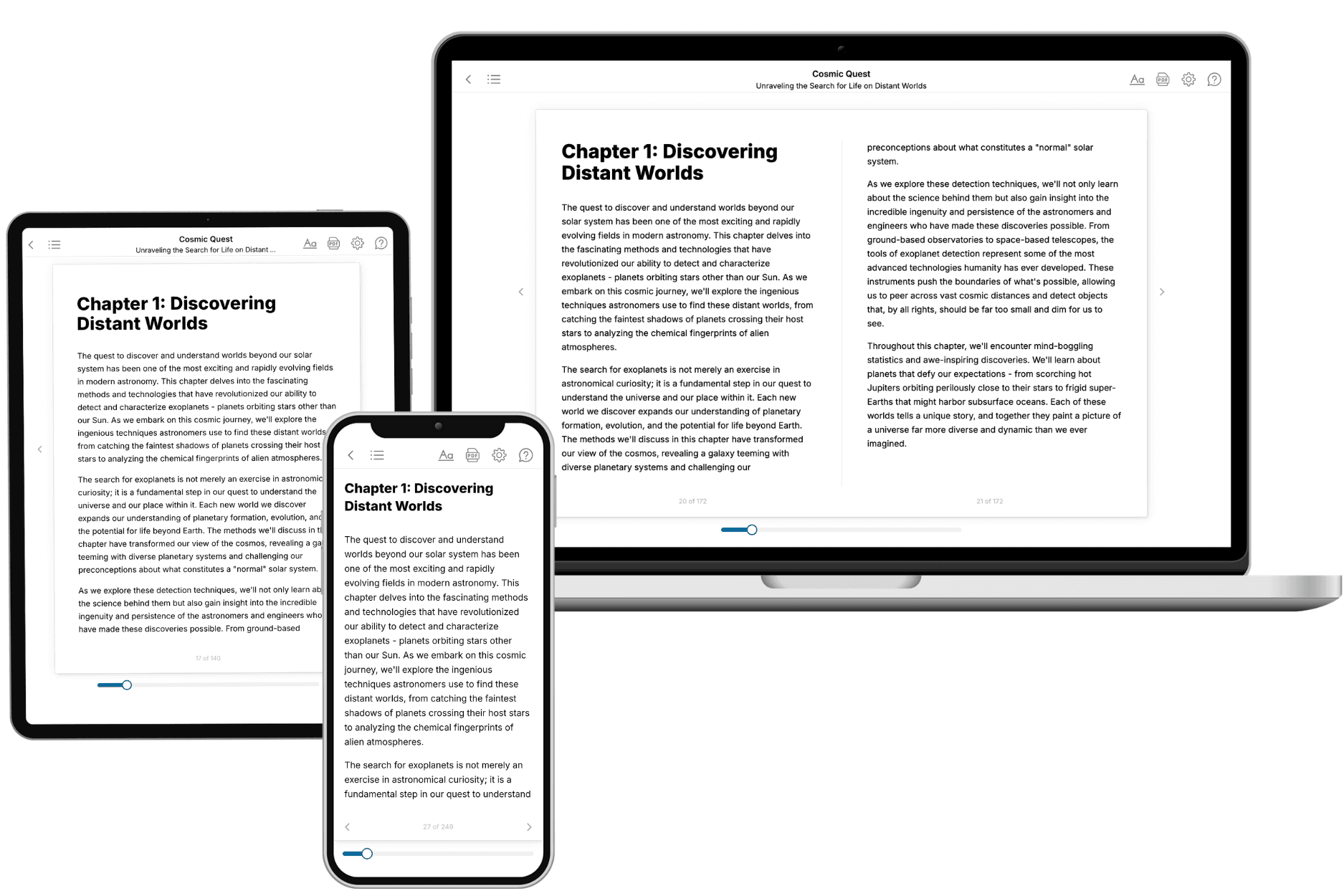
Your book is ready in 10 minutes. Read it online, download as EPUB or PDF, or send to Kindle.
Frequently asked questions
- What is TailoredRead?
TailoredRead creates complete, full-length nonfiction ebooks, written specifically for you. Tell us what you want to learn and why, and TailoredRead writes you a complete ebook on it, with charts, tables, and diagrams throughout. Read it online, on Kindle, or on any e-reader, or download it as a PDF or EPUB. Every book is written fresh the day you order it.
- How is the book tailored to me?
Before anything is written, you answer a few short questions about your goals, your background, and the topics you care about. Your book is then planned around your answers: written at your level, focused on your goals, and covering the topics you chose, instead of the one-size-fits-all book a store sells everyone.
- Will it read like generic AI content?
No. Your book isn't a chat transcript: it's planned chapter by chapter before a single word is written, told in a clear book voice, and explains ideas visually with charts, tables, and diagrams. After writing, every book goes through an editorial pass that polishes chapters so the book reads consistent from start to finish. Judge for yourself: browse thousands of sample books on our Explore Books page.
- How accurate is the content?
Our AI first checks whether your subject needs live research. Niche and fast-moving subjects are researched before writing, and the book plan and chapters are grounded in what it finds. After writing, every book goes through a quality pass that checks its facts and consistency, and researched books list their sources in a Notes section at the back.
- How long is the book?
You choose the length: Comprehensive (250-300 pages), Detailed (150-200 pages), Essential (70-100 pages), or Short (30-50 pages).
- Does the book include visuals?
Yes. Every book includes charts, tables, and diagrams: timelines, checklists, step-by-step guides, decision trees, comparison tables, matrices, and bar charts. A typical book includes dozens of these visual elements.
- Can I read it on Kindle? What formats can I download?
Yes. Every book can be read in our online reader or downloaded as a PDF or EPUB. The EPUB can be opened with Kindle, Apple Books, Kobo, and any e-reader. The Commercial and Author licenses also include an editable Word (DOCX) and Markdown download.
- How much does it cost?
About the price of a regular ebook. The exact price depends on your book's length and complexity, from $2 for the shortest books to $35 for the most comprehensive, and it's shown when you review your book, before you commit to anything. Each book is a one-time purchase, yours to keep, no subscription. Licenses that let you share, teach, or publish your book range from $35.99 to $49.99.
- Can I preview the book before purchasing?
Before you pay, you'll see what your book will cover: the title, a detailed description, the estimated length, and the complete chapter-by-chapter table of contents, so you know what you're getting before you decide. The full text itself is written after you purchase.
- How long does it take to create a book?
About 10 minutes. You can start reading the opening chapters while the rest is still being written.