Remote Desktop Mastery
The Complete Guide to Connecting, Troubleshooting, and Optimizing Remote Access for PC Repair and Support
Imagine being able to fix a friend's computer problem from your couch, or providing technical support to multiple clients without traveling to their locations.
207 pages9 chaptersAug 3, 2026Remote Desktop
About this book
Remote desktop connectivity makes this possible, but only when you understand how to set it up correctly and troubleshoot when things go wrong. This comprehensive guide walks you through everything you need to know about remote desktop technology for personal computer repair and support. You'll learn how to configure remote access on Windows systems, understand the different protocols and tools available, optimize performance for various network conditions, and implement security measures that protect both your system and those you're supporting. Whether you're a tech enthusiast helping friends and family, an aspiring IT support professional, or someone managing multiple computers, this book provides the practical knowledge and step-by-step guidance you need to master remote desktop connectivity and become more effective at computer repair and technical support.
Table of contents
- IntroductionWhy Remote Desktop Connectivity Matters, What You'll Learn in This Book, How to Use This Guide, Prerequisites and AssumptionsRead below
- Chapter 1: Understanding Remote Desktop FundamentalsWhat Is Remote Desktop Technology?, How Remote Desktop Connections Work, Common Use Cases for Remote Access, Benefits and Limitations of Remote Desktop
- Chapter 2: Remote Desktop Protocols and ToolsRemote Desktop Protocol (RDP) for Windows, VNC and Cross-Platform Solutions, Third-Party Remote Desktop Tools, Choosing the Right Tool for Your Needs
- Chapter 3: Setting Up Remote Desktop on WindowsEnabling Remote Desktop on Windows Systems, Configuring User Accounts and Permissions, Network Configuration and Port Settings, Testing Your Initial Setup
- Chapter 4: Network and Connectivity EssentialsFirewall Configuration and Port Forwarding, Router Setup for Remote Access, IP Addressing and DNS Considerations, Using VPN with Remote Desktop
- Chapter 5: Security Best PracticesStrong Authentication and Password Management, Encryption and Secure Connections, Access Controls and User Permissions, Monitoring and Logging Remote Sessions
- Chapter 6: Performance OptimizationBandwidth Management and Compression, Display Settings and Resolution Optimization, Optimizing for Different Connection Speeds, System Resource Allocation and Monitoring
- Chapter 7: Troubleshooting Common Connectivity IssuesDiagnosing Connection Failures, Resolving Authentication and Login Issues, Network and Firewall Troubleshooting, Addressing Performance and Lag Problems
- Chapter 8: Advanced Troubleshooting and DiagnosticsReading and Interpreting System Logs, Network Diagnostic Tools and Commands, Driver and Hardware Compatibility Problems, Advanced Solutions and Workarounds
- Chapter 9: Remote Desktop for Computer Repair ScenariosEstablishing Repair Workflows with Remote Access, Software Troubleshooting and Installation, Hardware Diagnostics and Testing, Communicating with Clients During Remote Sessions
- ConclusionKey Takeaways and Next Steps, Continuing Your Learning Journey
- Glossary of Terms
- Further Reading and Resources
Introduction
A technician sitting at a desk in Chicago can open a file explorer on a computer in Phoenix, drag a corrupted driver to the trash, install a replacement, and reboot the machine, all without leaving the chair. That is not a futuristic scenario. It happens thousands of times a day across help desks, home offices, and repair shops. Remote desktop technology has quietly become one of the most practical skills in the modern IT toolkit, yet many people who could benefit from it most have never moved past the basics.
The gap between knowing that remote access exists and actually using it well is surprisingly wide. Setting up a connection sounds simple until the firewall blocks the port, the router refuses to forward traffic, or the authentication screen throws an error that makes no immediate sense. Those friction points discourage a lot of people who would otherwise find remote desktop work straightforward. The goal of this book is to close that gap with clear explanations, concrete steps, and honest troubleshooting guidance that reflects what actually goes wrong in real situations.
Remote desktop connectivity sits at the intersection of networking, operating system configuration, security, and user communication. None of those areas requires a computer science degree to understand, but each one rewards careful attention. Whether you are helping a family member recover a document from a crashed application, supporting a small business client across town, or managing several machines in a home lab, the same core principles apply. Get the fundamentals right, and the advanced techniques follow naturally.
This guide covers the full arc from foundational concepts to real repair workflows. Along the way, you will encounter specific configuration steps, protocol comparisons, security recommendations, and troubleshooting frameworks built around the kinds of problems that actually appear in practice. The chapters are designed to build on each other, but each one also stands on its own if you need to jump to a specific topic quickly.
Why Remote Desktop Connectivity Matters
Before remote desktop tools became widely available, fixing someone else's computer almost always meant being in the same room as the machine. A technician would drive to a client's home, sit down at the keyboard, and work through the problem in person. That model still exists, but it carries real costs: travel time, scheduling friction, and the simple fact that some problems are easier to reproduce when the user is present but the technician is not hovering over their shoulder.
Remote desktop connectivity changes that equation. A support session that once required a 45-minute drive can start within seconds of a phone call. The technician sees exactly what the user sees, can take control of the mouse and keyboard, and can work through a diagnostic process without the user needing to describe what is on the screen. For straightforward software problems, malware removal, driver updates, and configuration changes, remote access is often faster and more effective than an in-person visit.
The practical value extends well beyond professional repair scenarios. Consider a few common situations where remote desktop access makes a real difference:
- A parent calls because their laptop is showing a strange error message and they cannot figure out how to proceed. Instead of talking them through a dozen steps over the phone, you connect remotely and resolve it in minutes.
- A small business owner needs a software application installed on three workstations before the next morning. Remote access lets you handle all three from one location without visiting the office.
- You manage your own home server or secondary machine and want to access files or run maintenance tasks without physically switching computers.
- A client's machine is behaving differently than it did during your last visit, and you need to observe the problem as it happens rather than relying on a description.
The technology also matters from a business perspective. Remote support reduces overhead for independent technicians and IT departments alike. Fewer truck rolls, faster resolution times, and the ability to serve clients in a wider geographic area all contribute to a more efficient operation. For freelance repair professionals, remote access can meaningfully expand the number of clients they can serve without adding hours to the workday.
Security is the other side of this coin. Remote desktop access, when configured carelessly, creates a real attack surface. Exposed Remote Desktop Protocol ports are among the most frequently scanned targets on the public internet, and weak credentials on a remote desktop host can lead to unauthorized access, ransomware deployment, or data theft.[1] Understanding why remote desktop matters means understanding both its power and its risks. This book treats security not as an afterthought but as a thread woven through every configuration decision.
Remote desktop connectivity also reflects a broader shift in how technical support works. Cloud services, distributed teams, and the normalization of remote work have made the ability to access and manage computers from a distance a baseline expectation rather than a specialty skill. Building fluency with these tools now positions you well for the direction that IT support is already moving.
The bottom line is straightforward: remote desktop skills save time, expand your reach, and make you more effective at solving problems. The investment in learning them properly pays off quickly, often within the first few sessions where you avoid a trip that would have taken an hour each way.
What You'll Learn in This Book
This book is organized around the natural progression of someone building real competence with remote desktop technology. It starts with the conceptual foundation, moves through configuration and security, covers performance tuning, and finishes with practical repair workflows. Each chapter addresses a distinct layer of the subject, and together they form a complete picture.
The opening chapter establishes how remote desktop technology actually works at a functional level. Understanding the client-server model that underlies every remote session, and knowing what happens between the moment you click "Connect" and the moment the remote desktop appears on your screen, makes every subsequent topic easier to follow. Concepts like screen capture, input forwarding, and data compression are explained in plain terms before any specific tool or protocol is introduced.
From there, the book examines the major protocols and tool families available today. Remote Desktop Protocol, Virtual Network Computing, and the leading third-party remote desktop tools each have distinct strengths, limitations, and appropriate use cases. The chapter on protocols and tools gives you a clear framework for choosing the right solution rather than defaulting to whatever you happen to have installed.
Configuration is covered in depth across two chapters. The first walks through enabling and configuring remote access on Windows systems, including user account setup and permission management. The second addresses the network layer: firewall rules, port forwarding, static IP addresses, dynamic DNS, and Virtual Private Network integration. These are the areas where most setup problems originate, and the chapters treat them with the detail they deserve.
Security gets its own dedicated chapter because it deserves that focus. Topics include:
- Multi-factor authentication and why it matters even for home setups
- Network Level Authentication and how it reduces exposure before a session is established
- Transport Layer Security and encryption settings that protect data in transit
- Access controls, user permission scoping, and session logging for accountability
Performance optimization addresses a problem that frustrates many remote desktop users: sessions that feel sluggish, choppy, or unresponsive. The chapter on performance covers bandwidth compression, color depth settings, display resolution choices, and how to tune a session for different connection speeds. The difference between a well-optimized session and a poorly configured one can be dramatic, even on the same network connection.
Two chapters are dedicated to troubleshooting because that is where remote desktop work gets genuinely difficult. The first covers the most common failure categories: connection failures, authentication errors, firewall blocks, and lag. The second goes deeper into advanced diagnostics using the Windows Event Log, network diagnostic commands, and driver compatibility analysis. Both chapters use a structured triage approach rather than a random list of things to try.
The final chapter brings everything together in the context of real remote repair workflows. It covers how to structure a support session from intake to resolution, how to perform software troubleshooting and installation remotely, how to run hardware diagnostics through a remote connection, and how to communicate clearly with clients during a session. This is where the technical skills meet the practical reality of helping someone fix their computer.
By the end of this book, you will have a complete, working knowledge of remote desktop connectivity for PC repair and support. Not just the theory, but the specific steps, the common failure points, and the judgment to adapt when a situation does not match the textbook scenario.
How to Use This Guide
This book is designed to work two ways: as a cover-to-cover learning path and as a reference you return to when a specific problem comes up. The chapters follow a logical sequence, so reading straight through gives you the most complete understanding. But if you already have a working remote desktop setup and need help with a specific issue, jumping directly to the troubleshooting chapters or the security chapter is entirely reasonable.
If you are new to remote desktop technology, the recommended path is to read the first two chapters before touching any configuration. Understanding what the technology does and how the major protocols differ will save you from making setup decisions that are hard to undo later. Many people run into problems because they started configuring before they understood what they were configuring.
For readers who already have some experience with remote desktop tools, a practical approach is to skim the foundational chapters for anything unfamiliar, then read the configuration and security chapters carefully. Even experienced users often discover gaps in their security setup or network configuration when they work through those sections systematically. The troubleshooting chapters are worth reading in full regardless of experience level, because the structured triage approach they describe is useful even when you think you already know how to troubleshoot.
Throughout the book, you will find several recurring elements designed to make the content more immediately useful:
- Step-by-step procedures for configuration tasks, written to be followed directly at the keyboard
- Concrete examples drawn from realistic support scenarios, not abstract hypotheticals
- Troubleshooting frameworks that give you a logical sequence to follow when something goes wrong
- Security checkpoints that flag decisions with meaningful security implications
- Cross-references to related topics in other chapters, so you can follow a thread without losing your place
The book focuses on Windows as the primary operating system for the remote desktop host, because Windows is the dominant platform in home and small business environments and because the built-in Remote Desktop Protocol implementation is the most widely used starting point. However, the chapters on protocols and tools, network configuration, security, and troubleshooting apply broadly to other platforms and tools as well.
One practical suggestion: have a computer available while you read. The configuration chapters in particular are much easier to absorb when you can follow along on an actual system. If you do not have a second machine to use as a test host, many of the concepts can be explored by connecting from one user account to another on the same machine, or by setting up a free virtual machine using software like VirtualBox or VMware Workstation Player. Hands-on practice accelerates understanding in a way that reading alone cannot match.
Finally, do not skip the security chapter even if security feels like a secondary concern right now. The chapter on hardening remote desktop access is not optional reading for anyone who plans to expose a remote desktop host to connections from outside their local network. The risks are real, the mitigations are straightforward, and the chapter is written to be practical rather than alarmist. Read it before you open any ports on your router.
Prerequisites and Assumptions
This book assumes a foundational level of comfort with Windows computers. You should be able to navigate the Settings app and Control Panel, understand the difference between an administrator account and a standard user account, and feel comfortable opening a command prompt and typing basic commands. If those tasks feel unfamiliar, spending an hour or two with a Windows basics tutorial before starting this book will make the content much easier to follow.
Networking knowledge at a basic level is also assumed. You should have a general sense of what an IP address is, know the difference between a local network and the internet, and understand that a router connects your home or office network to your internet service provider. You do not need to know how to configure a router from scratch before reading this book, because the chapter on network configuration covers that in detail. But familiarity with the basic concepts will help you follow the explanations more easily.
Here is a quick checklist of the assumed starting knowledge:
- Comfortable navigating Windows 10 or Windows 11 settings and system menus
- Understands the concept of user accounts and administrator privileges
- Can open and use a command prompt or PowerShell window
- Knows what an IP address is and can find the IP address of a Windows machine
- Understands that a router sits between a local network and the internet
- Has access to at least one Windows computer for hands-on practice
The book does not assume any prior experience with remote desktop tools specifically. If you have never set up a remote desktop connection before, the chapters are written to guide you through the process from the beginning. If you have used tools like TeamViewer or Windows Remote Desktop before but never dug into the underlying configuration, you will find that the book fills in the gaps that self-taught experience tends to leave.
No programming knowledge is required. A small number of command-line instructions appear in the troubleshooting and diagnostics chapters, and each one is explained in plain language before it is used. You do not need to understand how those commands work internally, only what they do and how to read their output. The book treats the command line as a practical tool, not a subject in itself.
One assumption worth stating explicitly: this book is written for people who are supporting or repairing computers with the knowledge and consent of the people who own or use those machines. Remote desktop technology, like any access tool, requires authorization from the person whose computer is being accessed. Every configuration and workflow described in this book operates on that assumption. Accessing a computer remotely without the owner's permission is unauthorized access regardless of the technical method used, and nothing in this book is intended to support or enable that.
If you meet the baseline described above, you have everything you need to get full value from this guide. The chapters ahead are written to be clear and direct, with enough detail to be genuinely useful and enough context to make the reasoning behind each recommendation understandable. Remote desktop mastery is a practical skill, and practical skills are built by doing. The best time to start is now.
Notes
Introduction
- 1. Sophos, "The State of Ransomware 2023," Sophos, 2023
This is the end of the free sample. The full book has 9 chapters.
Want this book written for you?
Tell us your goals and background, and get your own version of this book, tailored by AI to you.






Benefits of AI-tailored books
- Read one book, not ten:
- all the Remote Desktop knowledge you need, gathered into a single book.
- Save days of learning:
- tell us your goals, choose your topics, and the whole book is built around them.
- Learn effortlessly:
- Remote Desktop book written for your specific background and expertise.
- Understand at a glance:
- includes charts, tables, timelines, checklists, decision trees, and more.
- Stay current:
- written the day you order it, not years ago.
- Trust what you read:
- every book is checked for accuracy, with real research when your subject needs it.
Create your unique book in 3 steps
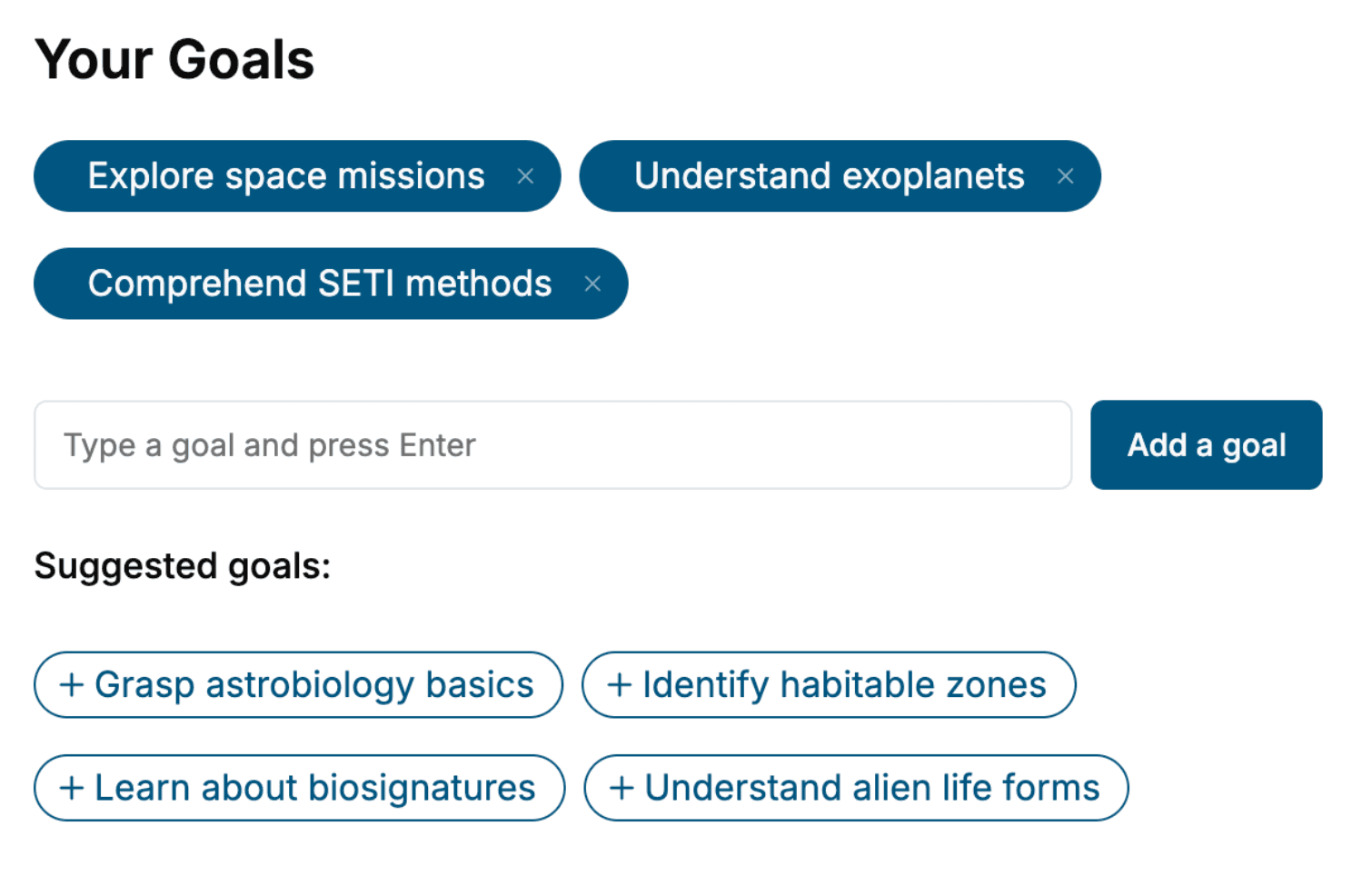
- 1. Select your focus
Select the focus of your Remote Desktop book and share your background
- 2. Personalize your book
Specify your goals and choose sub-topics to include
- 3. Get your tailored book
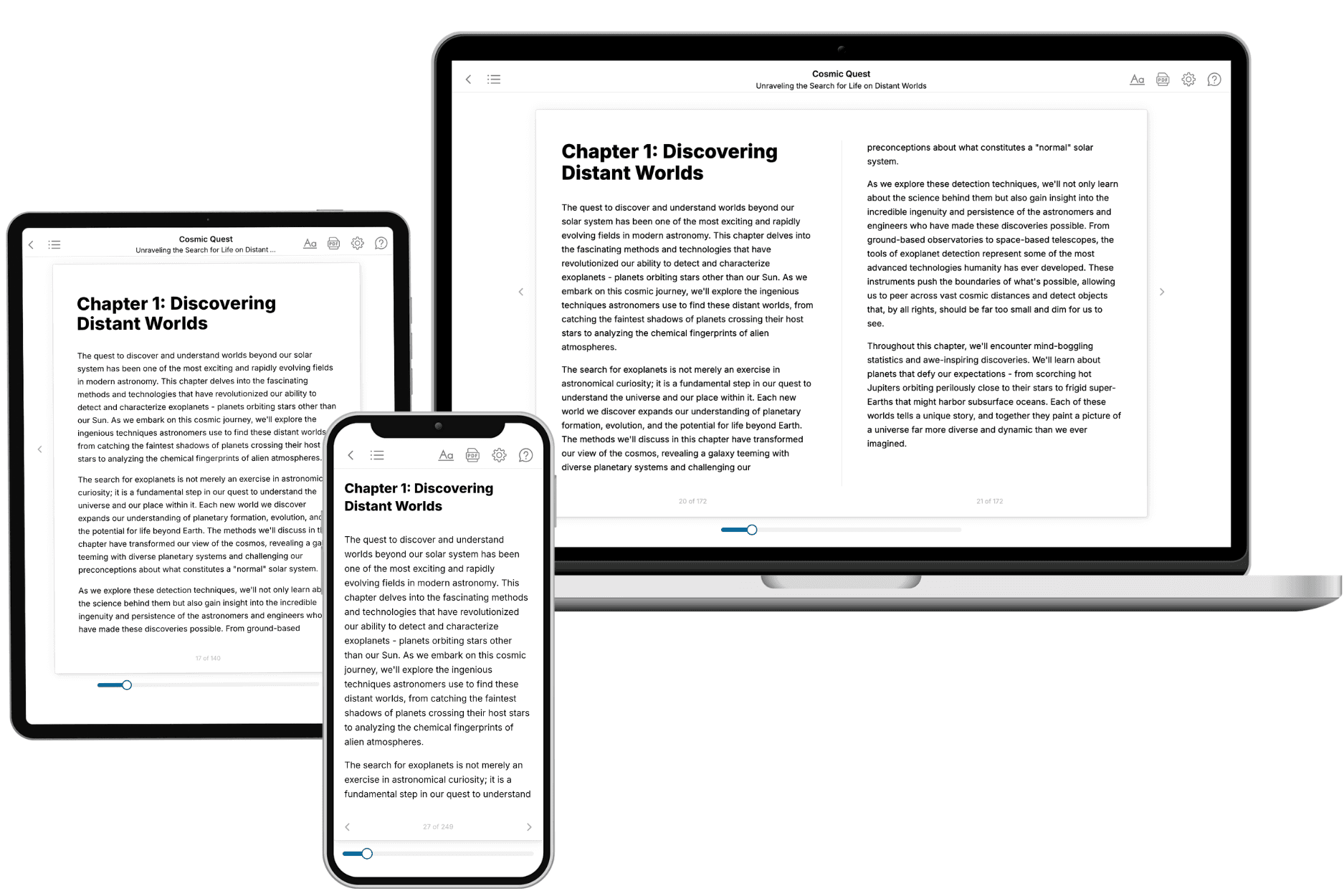
Your book is ready in 10 minutes. Read it online, download as EPUB or PDF, or send to Kindle.

Frequently asked questions
- What is TailoredRead?
TailoredRead creates complete, full-length nonfiction ebooks, written specifically for you. Tell us what you want to learn and why, and TailoredRead writes you a complete ebook on it, with charts, tables, and diagrams throughout. Read it online, on Kindle, or on any e-reader, or download it as a PDF or EPUB. Every book is written fresh the day you order it.
- How is the book tailored to me?
Before anything is written, you answer a few short questions about your goals, your background, and the topics you care about. Your book is then planned around your answers: written at your level, focused on your goals, and covering the topics you chose, instead of the one-size-fits-all book a store sells everyone.
- Will it read like generic AI content?
No. Your book isn't a chat transcript: it's planned chapter by chapter before a single word is written, told in a clear book voice, and explains ideas visually with charts, tables, and diagrams. After writing, every book goes through an editorial pass that polishes chapters so the book reads consistent from start to finish. Judge for yourself: browse thousands of sample books on our Explore Books page.
- How accurate is the content?
Our AI first checks whether your subject needs live research. Niche and fast-moving subjects are researched before writing, and the book plan and chapters are grounded in what it finds. After writing, every book goes through a quality pass that checks its facts and consistency, and researched books list their sources in a Notes section at the back.
- How long is the book?
You choose the length: Comprehensive (250-300 pages), Detailed (150-200 pages), Essential (70-100 pages), or Short (30-50 pages).
- Does the book include visuals?
Yes. Every book includes charts, tables, and diagrams: timelines, checklists, step-by-step guides, decision trees, comparison tables, matrices, and bar charts. A typical book includes dozens of these visual elements.
- Can I read it on Kindle? What formats can I download?
Yes. Every book can be read in our online reader or downloaded as a PDF or EPUB. The EPUB can be opened with Kindle, Apple Books, Kobo, and any e-reader. The Commercial and Author licenses also include an editable Word (DOCX) and Markdown download.
- How much does it cost?
About the price of a regular ebook. The exact price depends on your book's length and complexity, from $2 for the shortest books to $35 for the most comprehensive, and it's shown when you review your book, before you commit to anything. Each book is a one-time purchase, yours to keep, no subscription. Licenses that let you share, teach, or publish your book range from $35.99 to $49.99.
- Can I preview the book before purchasing?
Before you pay, you'll see what your book will cover: the title, a detailed description, the estimated length, and the complete chapter-by-chapter table of contents, so you know what you're getting before you decide. The full text itself is written after you purchase.
- How long does it take to create a book?
About 10 minutes. You can start reading the opening chapters while the rest is still being written.