Safari Web Developer Tools Mastery
Debug, Optimize, and Perfect Your Web Projects with Apple's Built-In Developer Suite
Discover how to harness the full power of Safari's Web Developer Tools to accelerate your development workflow and ship better web applications.
191 pages9 chaptersMar 27, 2026Web Development
About this book
This practical guide walks you through enabling and configuring the developer suite, then systematically explores each major tool—from the Inspector for HTML and CSS debugging to the Console for JavaScript execution and error tracking. You'll learn how to profile performance bottlenecks, monitor network activity, manage application storage, and test responsive designs across devices. Whether you're troubleshooting a stubborn CSS issue, optimizing a slow-loading page, or debugging complex JavaScript, you'll discover techniques that transform how you approach web development. By mastering these built-in tools, you'll reduce debugging time, catch issues earlier, and develop with greater confidence on the platform millions of users rely on.
Table of contents
- IntroductionWhy Safari Developer Tools Matter, What You'll Learn in This Book, How to Use This Guide, Prerequisites and SetupRead below
- Chapter 1: Getting Started with Safari Developer ToolsEnabling Developer Tools in Safari, Understanding the Developer Tools Interface, Customizing Your Developer Workspace
- Chapter 2: The Inspector: Examining HTML and CSSSelecting and Inspecting Elements, Editing HTML in Real-Time, Debugging CSS Styles and Cascades, Understanding the Box Model Inspector
- Chapter 3: The Console: JavaScript Debugging and ExecutionConsole Fundamentals and Logging, Tracking and Analyzing JavaScript Errors, Interactive Debugging in the Console, Advanced Console Methods and Techniques
- Chapter 4: Network Monitoring: Tracking Requests and PerformanceNavigating the Network Panel, Analyzing Individual Requests and Responses, Identifying Performance Bottlenecks, Using Network Data for Optimization
- Chapter 5: Performance Profiling: Optimizing Speed and ResponsivenessRecording and Analyzing Performance Profiles, Analyzing Rendering and Paint Performance, Finding JavaScript Execution Bottlenecks, Memory Usage and Leak Detection
- Chapter 6: Storage Tools: Managing Application DataInspecting and Managing Cookies, Working with Local Storage and Session Storage, Debugging IndexedDB and Web Storage, Testing Application State and Persistence
- Chapter 7: Responsive Design Mode: Testing Across DevicesSetting Up Responsive Design Mode, Simulating Different Devices and Orientations, Testing Touch Interactions and Gestures, Testing Viewport Sizes and Media Queries
- Chapter 8: Advanced JavaScript Debugging: Breakpoints and Step-ThroughSetting and Managing Breakpoints, Step-Through Execution and Call Stacks, Inspecting Variables and Expressions, Conditional Breakpoints and Watch Expressions
- Chapter 9: Real-World Debugging Workflows and Case StudiesDebugging CSS Layout and Responsive Issues, Troubleshooting API Integration and Data Loading, Performance Optimization Case Study, Cross-Device Testing and iOS Debugging
- Conclusion: Mastering Your Development WorkflowKey Takeaways and Best Practices, Next Steps in Your Development Journey
- Appendix: Quick Reference and ResourcesKeyboard Shortcuts and Tips, Common Issues and Troubleshooting, Further Learning Resources
Introduction
Every web developer has been there: a layout breaks on Safari but looks perfect in Chrome, a JavaScript error appears only on an iPhone, or a page loads slowly for users on Apple devices while performing fine everywhere else. These moments are frustrating, and they often happen because developers haven't fully explored the tools that Safari puts right at their fingertips. Safari's Web Developer Tools are a complete, professional-grade suite built directly into the browser, and most developers are only scratching the surface of what they can do.
Safari is not a secondary browser. It is the default browser on every iPhone, iPad, and Mac, which means it serves a massive share of web traffic worldwide. According to StatCounter, Safari consistently holds around 19–20% of global browser market share, and on mobile devices it regularly exceeds 25%.[1] If your web application doesn't work well in Safari, a significant portion of your users are having a poor experience. That's a problem worth solving, and Safari's developer tools are the right instrument for the job.
This book is a practical, hands-on guide to mastering those tools. It doesn't assume you've never opened a browser's developer panel before, but it does assume you want to go deeper than the basics. Whether you're a front-end developer trying to nail a responsive layout, a full-stack engineer debugging an API integration, or a designer who wants to understand why a CSS rule isn't applying correctly, this guide will give you the knowledge and techniques to work faster and with more confidence. Each chapter focuses on a specific part of the Safari developer suite, building your skills progressively from setup to advanced debugging workflows.
The goal here is simple: by the time you finish this book, Safari's developer tools should feel like a natural extension of how you work. You'll know where to look when something breaks, how to measure what's slowing a page down, and how to test your work across the full range of Apple devices without needing a room full of hardware. Let's get started.
Why Safari Developer Tools Matter
Many developers default to Chrome DevTools because it's familiar and well-documented. That's a reasonable choice for general development, but it creates a blind spot. Safari has its own rendering engine, WebKit, which handles CSS, JavaScript, and layout differently from Chrome's Blink engine in several important ways. A flexbox layout that renders perfectly in Chrome can collapse in Safari. A CSS property that works everywhere else might need a vendor prefix in WebKit. If you're only testing in Chrome, you're not seeing what a large portion of your users see.
Safari's developer tools are specifically designed to expose exactly these kinds of differences. The Inspector shows you how WebKit is interpreting your HTML and CSS, not how Blink or Gecko would. The Console reports JavaScript errors as Safari's engine encounters them. The Performance profiler measures rendering and scripting as they actually happen on Apple hardware. This specificity is a strength, not a limitation. When you debug in Safari, you're debugging the real experience for Safari users.
There's also the iOS factor. Safari on iPhone and iPad is the only browser engine allowed on those platforms. Every browser app on iOS, whether it's Chrome, Firefox, or Edge, is required by Apple to use WebKit under the hood.[2] This means that if something breaks on iOS, the fix will almost certainly involve understanding how WebKit handles it. Safari's developer tools, especially when connected to a real iOS device or simulator, give you direct visibility into that environment.
Beyond compatibility, Safari's tools offer capabilities that are genuinely excellent on their own terms. The Timelines panel provides detailed performance recording that breaks down scripting, rendering, and network activity in a clear visual format. The Responsive Design Mode lets you simulate dozens of device configurations. The Storage inspector gives you granular control over cookies, local storage, and IndexedDB. These aren't stripped-down versions of Chrome's tools. They're a complete suite with their own strengths.
Consider a practical example. Suppose you're building a single-page application and users on iPhones report that the app feels sluggish when navigating between views. In Chrome on a desktop, everything feels fast. By connecting an iPhone to your Mac and using Safari's remote debugging feature, you can record a performance profile of the actual navigation event on the actual device. The Timelines panel might reveal that a JavaScript animation is triggering excessive layout recalculations on the mobile GPU. That's a specific, actionable finding that you simply couldn't get from desktop Chrome testing alone.
The bottom line is that Safari developer tools matter because Safari users matter. Ignoring these tools means accepting a gap in your testing and debugging process. Mastering them means you can confidently ship web applications that work well for everyone, regardless of which browser or device they're using.
What You'll Learn in This Book
This book is organized to take you from initial setup through advanced debugging techniques in a logical, progressive sequence. Each chapter focuses on a specific tool or workflow within the Safari developer suite, with practical examples and step-by-step guidance throughout. Here's a clear picture of what each part of the book covers and what you'll be able to do after reading it.
Chapter 1: Getting Started covers the essential first step that many developers miss: properly enabling and configuring Safari's developer tools. The Developer menu is hidden by default, and there are several configuration options that significantly affect what you can see and do. This chapter also walks through the overall interface so you can orient yourself before diving into specific panels.
Chapter 2: The Inspector teaches you how to examine and modify HTML and CSS in real time. You'll learn how to select elements precisely, edit markup on the fly, trace CSS cascades to find conflicting rules, and use the box model visualizer to diagnose spacing and layout problems. These skills are foundational for any front-end debugging work.
Chapter 3: The Console goes deep on JavaScript debugging through the console interface. You'll learn the full range of logging methods, how to read and interpret error messages, how to execute JavaScript interactively to test ideas, and how to use advanced console techniques like grouping, timing, and table output to make your debugging sessions more efficient.
The following chapters build on that foundation with more specialized tools:
- Chapter 4 covers the Network panel for monitoring HTTP requests, analyzing response data, and identifying slow or failing resources.
- Chapter 5 explores performance profiling, including how to record and interpret timelines, find rendering bottlenecks, and detect memory leaks.
- Chapter 6 focuses on storage management, covering cookies, local storage, session storage, and IndexedDB inspection.
- Chapter 7 walks through Responsive Design Mode for testing layouts across different screen sizes and device configurations.
- Chapter 8 covers advanced JavaScript debugging with breakpoints, step-through execution, and variable inspection.
- Chapter 9 brings everything together with real-world case studies that show how to combine multiple tools to solve common development problems.
By the end of this book, you'll have a concrete set of skills that directly improve your day-to-day development work. You'll be able to diagnose CSS issues faster, track down JavaScript bugs more systematically, measure and improve page performance, and test your work across Apple devices with confidence. These aren't abstract concepts. Every technique in this book is something you can apply to a real project immediately.
One thing worth noting is that this book focuses specifically on Safari's tools rather than trying to compare them to Chrome DevTools at every turn. Where a comparison is genuinely useful for understanding a concept, it's included. But the goal is to help you become fluent in Safari's environment, not to constantly translate from another browser's terminology. If you already know Chrome DevTools well, you'll find many familiar concepts here, along with some Safari-specific features that have no direct equivalent elsewhere.
The case studies in Chapter 9 are particularly worth highlighting. They're designed to show how real debugging sessions actually unfold, including the false starts and iterative process of narrowing down a problem. Debugging is rarely a straight line from symptom to solution, and those examples reflect that reality while demonstrating how to use multiple tools together effectively.
How to Use This Guide
This book is designed to be read sequentially, especially if you're new to Safari's developer tools. The early chapters establish foundational knowledge that later chapters build on. If you skip straight to the performance profiling chapter without understanding the basic interface, some of the navigation instructions will be harder to follow. That said, once you've read through the book once, it works well as a reference you can return to when you need a refresher on a specific tool.
The most effective way to use this guide is to have Safari open alongside it. Every technique described in these pages is something you can try immediately on any web page. A good practice is to open a project you're currently working on, or even just a public website you're familiar with, and follow along with each example as you read. Hands-on practice is far more effective than passive reading when it comes to learning developer tools.
Throughout the book, you'll find several recurring elements designed to make the content more useful:
- Step-by-step instructions for specific tasks, formatted so you can follow along without losing your place.
- Concrete examples that show what a tool looks like in action with real HTML, CSS, or JavaScript scenarios.
- Practical tips that highlight shortcuts, lesser-known features, or common mistakes to avoid.
- Troubleshooting notes for situations where a tool behaves unexpectedly or a feature isn't visible.
If you're an experienced developer who already uses Safari's tools regularly, you might find it useful to skim the early chapters and focus on the sections that cover areas you haven't explored deeply. The chapters on performance profiling, advanced JavaScript debugging, and the real-world case studies are likely to offer the most new material for developers who already know the basics. The appendix also contains a keyboard shortcut reference that's useful regardless of your experience level.
It's also worth mentioning how the book handles version differences. Safari's developer tools are updated regularly alongside macOS and Safari releases. The content in this book is based on Safari 17 and later, running on macOS Sonoma and subsequent versions. If you're running an older version of Safari, most of the core functionality will still apply, but some specific menu locations or panel layouts may differ slightly. Where a feature was introduced in a specific Safari version, that's noted in the text.
Finally, don't feel like you need to memorize everything. The goal of this book isn't to turn you into a walking encyclopedia of Safari keyboard shortcuts. It's to help you build a mental model of what each tool does and when to reach for it. Once you have that mental model, the specific steps become easy to recall or look up. Focus on understanding the purpose and logic of each tool, and the details will follow naturally with practice.
The best developer tools are the ones you actually use. Reading about a feature is a starting point, but the real learning happens when you apply it to a problem you're genuinely trying to solve.
Prerequisites and Setup
This book assumes a solid intermediate level of web development experience. You don't need to be an expert, but you should be comfortable with the fundamentals before diving in. Specifically, the content will be most useful if you already have a working understanding of the following areas:
- HTML: You should understand document structure, semantic elements, attributes, and how the DOM (Document Object Model) represents an HTML page as a tree of nodes.
- CSS: You should be familiar with selectors, the cascade, specificity, the box model, and common layout techniques like flexbox and grid.
- JavaScript: You should be comfortable reading and writing basic JavaScript, including variables, functions, events, and asynchronous patterns like promises or async/await.
- HTTP basics: A general understanding of how browsers make requests and receive responses, including status codes and headers, will help with the network monitoring chapters.
If any of those areas feel shaky, it's worth spending some time reinforcing them before working through this book. The debugging techniques here are most valuable when you already understand what you're looking at. For example, the CSS debugging chapter assumes you know what specificity means. The network chapter assumes you know the difference between a GET and a POST request. The book explains how Safari's tools surface these concepts, but it doesn't teach the underlying web technologies from scratch.
On the hardware and software side, here's what you'll need to follow along with the examples in this book:
- A Mac running macOS Sonoma or later (macOS 14+). Safari's developer tools are only available on macOS. The core features work on earlier versions of macOS, but some panels and features referenced in this book require recent releases.
- Safari 17 or later. You can check your Safari version by opening Safari and going to Safari menu, then About Safari. Safari updates are delivered through macOS Software Update.
- Optional: An iPhone or iPad running iOS 17 or later for the remote debugging sections. A USB cable to connect the device to your Mac is also needed for those exercises.
- Optional: Xcode with iOS Simulator for device simulation without physical hardware. Xcode is a free download from the Mac App Store.
Before you start Chapter 1, take a moment to verify your Safari version and make sure your macOS is up to date. Go to the Apple menu, select System Settings, then click General and Software Update. Installing any pending updates now will ensure you have access to all the features discussed in this book and will prevent confusion if a menu or panel looks different from the screenshots and descriptions provided.
If you plan to do remote debugging with an iOS device, there's one additional setup step to complete in advance. On your iPhone or iPad, go to Settings, then Safari, then Advanced, and make sure the Web Inspector toggle is turned on. This setting enables Safari on iOS to communicate with the developer tools on your Mac. Without it, your device won't appear in Safari's Develop menu when connected via USB. It takes about ten seconds to enable, and it's easy to forget, so it's worth doing now rather than discovering the issue mid-chapter.
A note on browser extensions: some Safari extensions can interfere with developer tools behavior, particularly extensions that modify page content or intercept network requests. If you notice unexpected behavior while following along with examples in this book, try disabling your extensions temporarily. You can do this by going to Safari menu, then Settings, then Extensions, and unchecking any active extensions. This is a common troubleshooting step that resolves a surprising number of confusing situations when working with developer tools.
With your environment set up and your foundational knowledge in place, you're ready to start exploring Safari's developer suite in earnest. The next chapter begins with the essential first step: enabling the Developer menu and getting your workspace configured the way you want it. From there, each chapter adds new tools and techniques to your repertoire, building toward a complete and confident mastery of Safari's built-in development environment.
This is the end of the free sample. The full book has 9 chapters.
Want this book written for you?
Tell us your goals and background, and get your own version of this book, tailored by AI to you.


Benefits of AI-tailored books
- Read one book, not ten:
- all the Web Development knowledge you need, gathered into a single book.
- Save days of learning:
- tell us your goals, choose your topics, and the whole book is built around them.
- Learn effortlessly:
- Web Development book written for your specific background and expertise.
- Understand at a glance:
- includes charts, tables, timelines, checklists, decision trees, and more.
- Stay current:
- written the day you order it, not years ago.
- Trust what you read:
- every book is checked for accuracy, with real research when your subject needs it.
Create your unique book in 3 steps
- 1. Select your focus
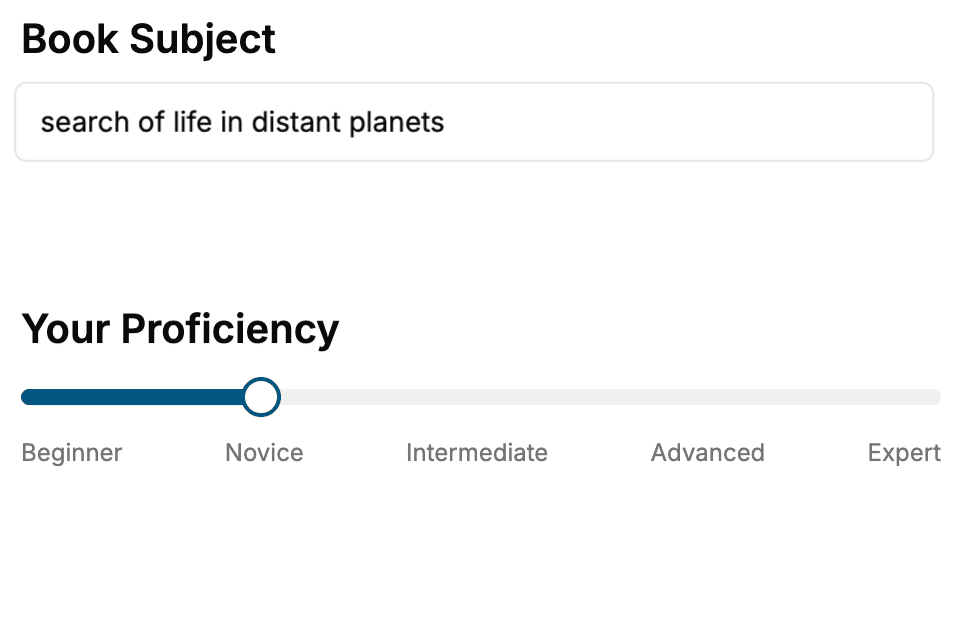
Select the focus of your Web Development book and share your background
- 2. Personalize your book
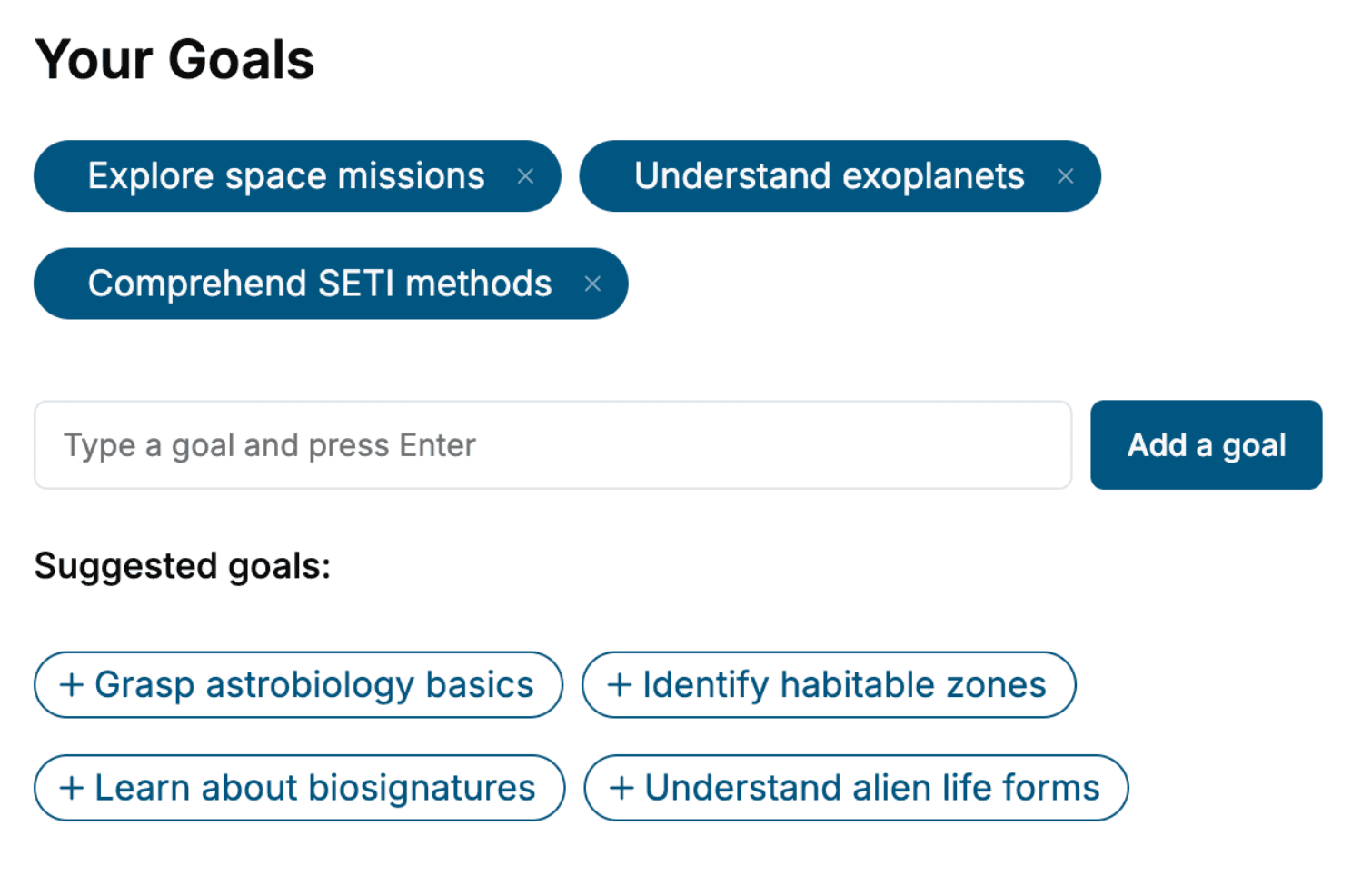
Specify your goals and choose sub-topics to include
- 3. Get your tailored book
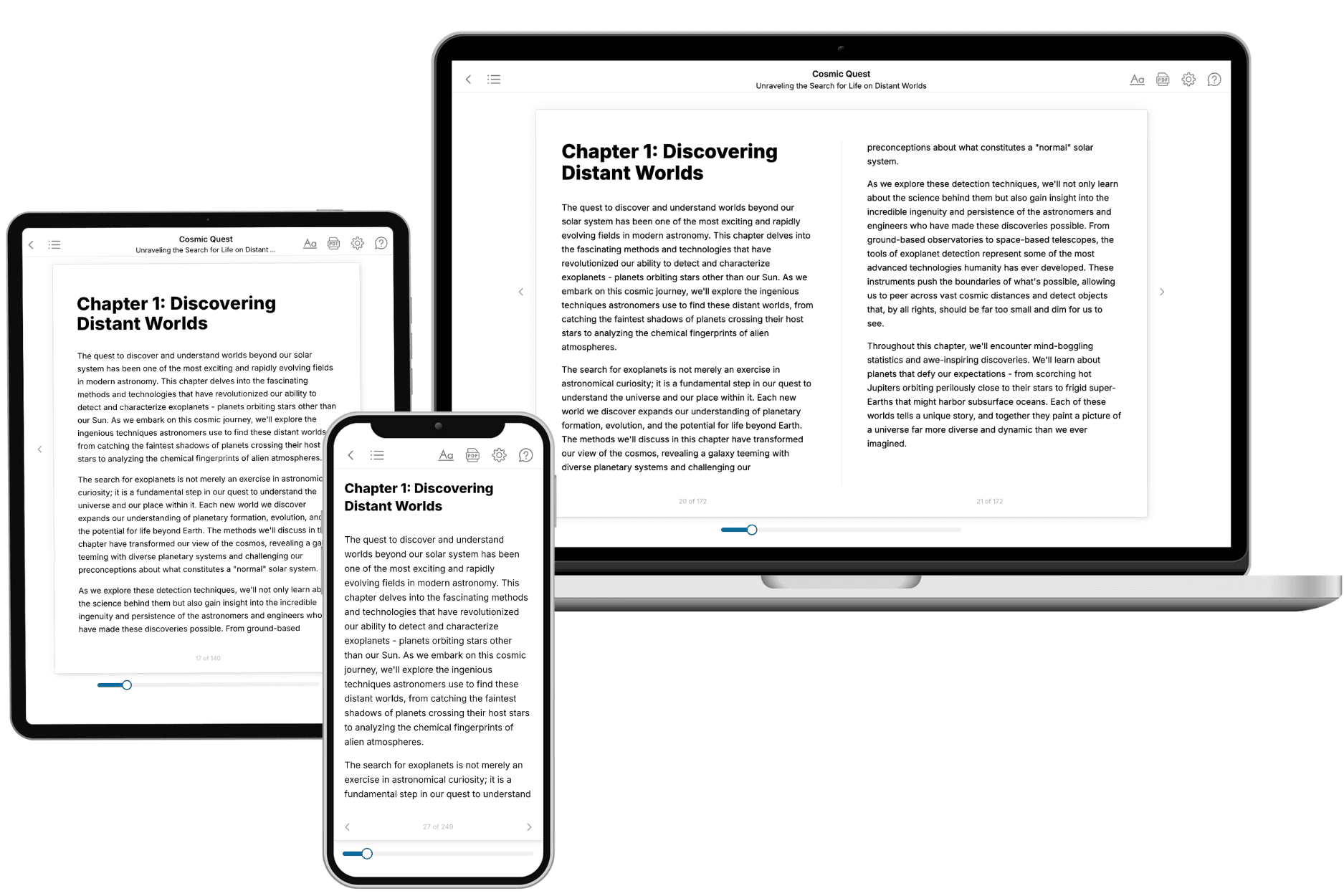
Your book is ready in 10 minutes. Read it online, download as EPUB or PDF, or send to Kindle.
Frequently asked questions
- What is TailoredRead?
TailoredRead creates complete, full-length nonfiction ebooks, written specifically for you. Tell us what you want to learn and why, and TailoredRead writes you a complete ebook on it, with charts, tables, and diagrams throughout. Read it online, on Kindle, or on any e-reader, or download it as a PDF or EPUB. Every book is written fresh the day you order it.
- How is the book tailored to me?
Before anything is written, you answer a few short questions about your goals, your background, and the topics you care about. Your book is then planned around your answers: written at your level, focused on your goals, and covering the topics you chose, instead of the one-size-fits-all book a store sells everyone.
- Will it read like generic AI content?
No. Your book isn't a chat transcript: it's planned chapter by chapter before a single word is written, told in a clear book voice, and explains ideas visually with charts, tables, and diagrams. After writing, every book goes through an editorial pass that polishes chapters so the book reads consistent from start to finish. Judge for yourself: browse thousands of sample books on our Explore Books page.
- How accurate is the content?
Our AI first checks whether your subject needs live research. Niche and fast-moving subjects are researched before writing, and the book plan and chapters are grounded in what it finds. After writing, every book goes through a quality pass that checks its facts and consistency, and researched books list their sources in a Notes section at the back.
- How long is the book?
You choose the length: Comprehensive (250-300 pages), Detailed (150-200 pages), Essential (70-100 pages), or Short (30-50 pages).
- Does the book include visuals?
Yes. Every book includes charts, tables, and diagrams: timelines, checklists, step-by-step guides, decision trees, comparison tables, matrices, and bar charts. A typical book includes dozens of these visual elements.
- Can I read it on Kindle? What formats can I download?
Yes. Every book can be read in our online reader or downloaded as a PDF or EPUB. The EPUB can be opened with Kindle, Apple Books, Kobo, and any e-reader. The Commercial and Author licenses also include an editable Word (DOCX) and Markdown download.
- How much does it cost?
About the price of a regular ebook. The exact price depends on your book's length and complexity, from $2 for the shortest books to $35 for the most comprehensive, and it's shown when you review your book, before you commit to anything. Each book is a one-time purchase, yours to keep, no subscription. Licenses that let you share, teach, or publish your book range from $35.99 to $49.99.
- Can I preview the book before purchasing?
Before you pay, you'll see what your book will cover: the title, a detailed description, the estimated length, and the complete chapter-by-chapter table of contents, so you know what you're getting before you decide. The full text itself is written after you purchase.
- How long does it take to create a book?
About 10 minutes. You can start reading the opening chapters while the rest is still being written.