Ubuntu XAMPP Mastery
Advanced Installation and Configuration Techniques for IT Professionals
Dive into the intricate world of XAMPP installation on Ubuntu with "Ubuntu XAMPP Mastery." This book is your ultimate companion for navigating the complexities of setting up and optimizing XAMPP on the Ubuntu operating system.
83 pages4 chaptersDec 29, 2024Web DevelopmentCreated by FCube
About this book
You'll start by exploring the fundamentals of XAMPP and Ubuntu, quickly progressing to advanced installation techniques that go beyond the basics. As you advance through the chapters, you'll uncover the power of customization, learning how to tailor XAMPP to your specific needs and environment. The book doesn't just stop at installation; it equips you with the skills to troubleshoot common issues, optimize performance, and implement best practices for maintaining a robust XAMPP setup. By the end of this journey, you'll have mastered the art of XAMPP installation on Ubuntu, enabling you to deploy and manage web development environments with confidence and efficiency. Whether you're looking to streamline your workflow or enhance your server management skills, this book is your key to becoming a true Ubuntu XAMPP virtuoso.
Table of contents
- Chapter 1: XAMPP and Ubuntu FundamentalsXAMPP Overview and Components, Understanding the Ubuntu Environment, Preparing Your System for XAMPP InstallationRead below
- Chapter 2: Advanced XAMPP Installation TechniquesCommand-Line Installation Methods, Creating and Using Custom Installation Scripts, Automating the Installation Process
- Chapter 3: Configuration and OptimizationPerformance Tuning for High-Traffic Environments, Security Hardening Techniques, Integrating XAMPP with Ubuntu Services
- Chapter 4: Troubleshooting and MaintenanceResolving Common XAMPP Issues on Ubuntu, Managing Updates and Upgrades
- Conclusion
Chapter 1: XAMPP and Ubuntu Fundamentals
As an experienced IT administrator, you're likely familiar with the basics of web server environments. However, the synergy between XAMPP and Ubuntu offers a powerful combination that can elevate your web development and deployment capabilities to new heights. This chapter will delve into the core concepts of XAMPP and Ubuntu, providing you with a solid foundation for the advanced techniques we'll explore in subsequent chapters. By understanding the intricacies of how these two technologies interact, you'll be better equipped to harness their full potential in your IT infrastructure.
XAMPP Overview and Components
XAMPP, an acronym for Cross-Platform (X), Apache (A), MariaDB (M), PHP (P), and Perl (P), is a free and open-source web server solution stack package. Developed by Apache Friends, XAMPP has become a go-to solution for web developers and system administrators who need a quick and reliable local web server environment. Its popularity stems from its ease of use and the comprehensive set of tools it provides out of the box. While you may be familiar with XAMPP's basic functionality, understanding its components in depth is crucial for advanced implementation and troubleshooting on Ubuntu systems.
At the core of XAMPP is the Apache HTTP Server, one of the most widely used web server software in the world. Apache's modular architecture allows for extensive customization and optimization, making it an ideal choice for both development and production environments. In the context of XAMPP on Ubuntu, Apache serves as the foundation upon which your web applications will run. Its configuration files, located in the /opt/lampp/etc/httpd.conf directory on a typical XAMPP installation, offer a wealth of options for fine-tuning performance and security.
MariaDB, a fork of MySQL, serves as the database management system in XAMPP. It provides robust data storage and retrieval capabilities essential for dynamic web applications. When working with XAMPP on Ubuntu, you'll find that MariaDB's performance can be significantly enhanced by leveraging Ubuntu's advanced memory management and I/O scheduling features. The MariaDB configuration file, typically found at /opt/lampp/etc/my.cnf, allows for extensive customization to optimize database operations for your specific use case.
PHP, the widely-used server-side scripting language, is another critical component of XAMPP. In the Ubuntu environment, PHP's performance can be further improved by utilizing opcache and just-in-time (JIT) compilation features. The PHP configuration file, php.ini, located in /opt/lampp/etc/, offers a plethora of settings that can be tailored to your application's needs. Understanding how to fine-tune these settings in the context of Ubuntu's resource management can lead to significant performance gains.
Perl, while less commonly used in modern web development, is still included in XAMPP for legacy support and specific use cases. On Ubuntu, Perl can be particularly useful for system administration tasks and automation scripts. The integration of Perl with Ubuntu's shell environment provides powerful capabilities for managing your XAMPP installation and surrounding infrastructure.
In addition to these core components, XAMPP includes several other tools that enhance its functionality. phpMyAdmin, for instance, provides a web-based interface for managing your MariaDB databases. When working with XAMPP on Ubuntu, you can leverage Ubuntu's advanced networking capabilities to secure access to phpMyAdmin, ensuring that your database management interface is protected from unauthorized access.
FileZilla Server, another component of XAMPP, allows for FTP access to your web server. In the Ubuntu environment, you can integrate FileZilla Server with Ubuntu's user management system to provide secure, role-based access to your web files. This integration can be particularly useful in multi-user development environments or when managing multiple client projects on a single server.
Mercury Mail Transport System, while less commonly used in Linux environments due to the prevalence of alternatives like Postfix, is included in XAMPP for completeness. On Ubuntu, you may find it more beneficial to integrate XAMPP with the native mail transport agents, leveraging Ubuntu's robust mail handling capabilities.
Tomcat, an application server that supports Java Servlets and JavaServer Pages, is also part of the XAMPP package. When deploying XAMPP on Ubuntu, you can take advantage of Ubuntu's Java runtime optimizations to enhance Tomcat's performance. This can be particularly beneficial for enterprise applications that rely on Java technologies.
Understanding these components and their interactions within the Ubuntu environment is crucial for advanced XAMPP implementations. As you progress through this book, you'll learn how to leverage Ubuntu's features to enhance each of these components, creating a web server environment that is not only powerful but also finely tuned to your specific requirements.
Understanding the Ubuntu Environment
Ubuntu, a popular Linux distribution based on Debian, provides a robust and flexible environment for hosting XAMPP. As an IT professional, you're likely aware of Ubuntu's strengths, but understanding how these features specifically benefit XAMPP deployment can significantly enhance your server management capabilities. Ubuntu's architecture, package management system, and security features all play crucial roles in creating an optimal environment for XAMPP.
At the heart of Ubuntu is its kernel, which is based on the Linux kernel but often includes additional patches and features. This kernel provides the foundation for all system operations, including process management, memory allocation, and device drivers. When running XAMPP on Ubuntu, the kernel's efficiency in managing system resources directly impacts the performance of your web server and database operations. For instance, Ubuntu's implementation of the Completely Fair Scheduler (CFS) ensures that CPU time is distributed fairly among processes, which is particularly beneficial when running multiple components of XAMPP simultaneously.
Ubuntu's file system hierarchy follows the Filesystem Hierarchy Standard (FHS), which provides a consistent directory structure across Linux distributions. When installing XAMPP on Ubuntu, understanding this structure is crucial for proper integration and management. By default, XAMPP installs its components in the /opt/lampp directory, which aligns with the FHS guidelines for optional software packages. This location allows for easy management and separation from system files, reducing the risk of conflicts with other software installations.
The Advanced Package Tool (APT) is Ubuntu's package management system, which simplifies the process of installing, updating, and removing software. While XAMPP is typically installed as a self-contained package, understanding APT is crucial for managing dependencies and additional software that may enhance your XAMPP setup. For example, you might use APT to install additional PHP extensions or development tools that integrate with your XAMPP environment. The command sudo apt install php-gd, for instance, would install the GD library for PHP, enabling advanced image processing capabilities in your web applications.
Ubuntu's security model is another critical aspect to consider when deploying XAMPP. The system's built-in firewall, UFW (Uncomplicated Firewall), provides a straightforward way to manage incoming and outgoing traffic. When setting up XAMPP, you'll need to configure UFW to allow traffic on the appropriate ports, typically 80 for HTTP and 443 for HTTPS. Additionally, Ubuntu's implementation of AppArmor, a Mandatory Access Control (MAC) system, can be leveraged to create fine-grained security profiles for XAMPP components, further enhancing your server's security posture.
The systemd init system, used by Ubuntu for service management, offers powerful tools for controlling XAMPP components. While XAMPP provides its own control script, integrating with systemd can provide more robust service management and easier integration with Ubuntu's boot process. Creating systemd service files for XAMPP components allows for automatic startup, dependency management, and more granular control over service behavior.
Ubuntu's networking stack is highly configurable and performant, which is crucial for web server environments. The Netplan framework, introduced in recent Ubuntu versions, provides a simplified way to configure network interfaces. When setting up XAMPP, you may need to configure network interfaces to bind services to specific IP addresses or set up virtual hosts. Understanding Netplan's YAML-based configuration can streamline this process and allow for more advanced networking setups.
The Linux Container (LXC) technology, which Ubuntu supports out of the box, offers interesting possibilities for XAMPP deployments. While XAMPP is often used as a single-server solution, LXC allows you to create lightweight, isolated environments for different components or even separate development and production setups on the same physical machine. This can be particularly useful for testing configurations or isolating client projects.
Ubuntu's support for ZFS, an advanced file system and logical volume manager, can provide significant benefits for XAMPP deployments. ZFS offers features like data integrity checking, snapshots, and efficient compression, which can enhance the reliability and performance of your XAMPP installation. For instance, using ZFS for your XAMPP data directories can provide easy rollback capabilities in case of configuration errors or data corruption.
The Snap package management system, while not directly related to traditional XAMPP installations, is worth considering for its potential to simplify software deployment and updates. While XAMPP is not currently available as a Snap package, understanding this technology can be beneficial for managing other tools in your development environment or exploring alternative deployment methods in the future.
By thoroughly understanding these aspects of the Ubuntu environment, you'll be better equipped to optimize your XAMPP installation, troubleshoot issues, and leverage advanced features to enhance your web server setup. As we progress through the book, we'll explore how to utilize these Ubuntu-specific features to create a robust, secure, and high-performance XAMPP environment tailored to your specific needs.
Preparing Your System for XAMPP Installation
Before diving into the installation of XAMPP on your Ubuntu system, it's crucial to properly prepare your environment. This preparation phase ensures that your system is optimized for XAMPP and that you have all the necessary prerequisites in place. As an experienced IT administrator, you'll appreciate the importance of this step in preventing potential issues down the line and setting the stage for a smooth installation and operation of XAMPP.
The first step in preparing your Ubuntu system for XAMPP is to ensure that it's up to date with the latest security patches and software versions. This not only provides a stable foundation for XAMPP but also ensures that you have the latest features and bug fixes from Ubuntu. To update your system, open a terminal and run the following commands:
sudo apt update
sudo apt upgradeNext, you'll want to check and potentially adjust your system's firewall settings. Ubuntu uses UFW (Uncomplicated Firewall) by default, which provides a user-friendly way to manage iptables. XAMPP requires certain ports to be open for its various services to function correctly. To check the status of UFW, use the command:
sudo ufw statussudo ufw allow 80/tcp
sudo ufw allow 443/tcpAnother important aspect of system preparation is ensuring that you have all the necessary dependencies installed. While XAMPP is designed to be self-contained, having certain libraries and tools available on your system can enhance its functionality and make troubleshooting easier. Some useful packages to install include:
build-essential: Provides essential compilation toolslibssl-dev: OpenSSL development fileslibxml2-dev: XML development fileslibcurl4-openssl-dev: cURL development files
sudo apt install build-essential libssl-dev libxml2-dev libcurl4-openssl-devDisk space is another crucial factor to consider when preparing for XAMPP installation. While XAMPP itself doesn't require a large amount of space, the websites and databases you'll be hosting can quickly consume storage. It's a good practice to check your available disk space and plan accordingly. You can check your disk usage with the command:
df -hSELinux (Security-Enhanced Linux) is not enabled by default on Ubuntu, but if you've manually enabled it, you'll need to configure it to allow XAMPP to function properly. SELinux can interfere with XAMPP's ability to write to certain directories or execute scripts. While disabling SELinux is an option, it's generally better to create appropriate SELinux policies for XAMPP. This involves creating custom SELinux modules that allow XAMPP to perform its necessary operations while still maintaining overall system security.
If you plan to use XAMPP in a production environment, it's crucial to consider setting up a separate user account for running XAMPP services. This practice, known as the principle of least privilege, enhances security by limiting the potential damage if one of the XAMPP services is compromised. To create a new user for XAMPP, you can use the following command:
sudo adduser --system --group --home /opt/lampp xamppLastly, it's important to consider your system's performance settings. Ubuntu's default settings are generally suitable for most use cases, but for a high-performance web server, you might want to adjust some kernel parameters. For example, you can increase the maximum number of open file descriptors by editing the /etc/sysctl.conf file and adding the following lines:
fs.file-max = 65535
net.ipv4.tcp_max_syn_backlog = 4096
net.core.somaxconn = 1024By thoroughly preparing your Ubuntu system following these steps, you're setting the stage for a successful XAMPP installation and optimal performance. This preparation phase addresses potential issues before they arise, ensuring that your XAMPP environment will be stable, secure, and ready to handle your web hosting needs. As we move forward in this book, we'll build upon this foundation, exploring advanced installation techniques and configurations that leverage the full potential of XAMPP on your Ubuntu system.
This is the end of the free sample. The full book has 4 chapters.
Want this book written for you?
Tell us your goals and background, and get your own version of this book, tailored by AI to you.






Benefits of AI-tailored books
- Read one book, not ten:
- all the Web Development knowledge you need, gathered into a single book.
- Save days of learning:
- tell us your goals, choose your topics, and the whole book is built around them.
- Learn effortlessly:
- Web Development book written for your specific background and expertise.
- Understand at a glance:
- includes charts, tables, timelines, checklists, decision trees, and more.
- Stay current:
- written the day you order it, not years ago.
- Trust what you read:
- every book is checked for accuracy, with real research when your subject needs it.
Create your unique book in 3 steps
- 1. Select your focus
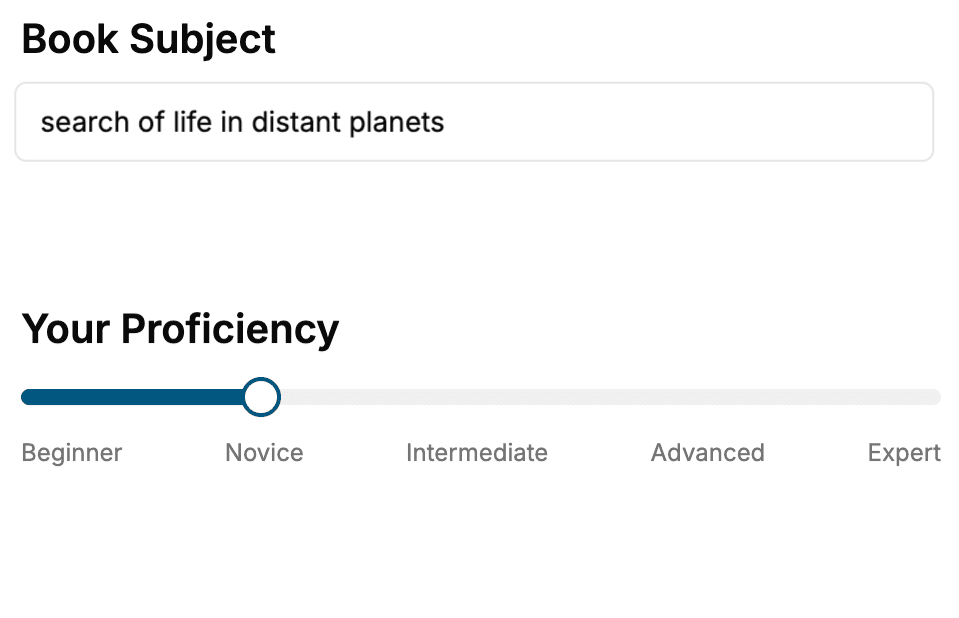
Select the focus of your Web Development book and share your background
- 2. Personalize your book
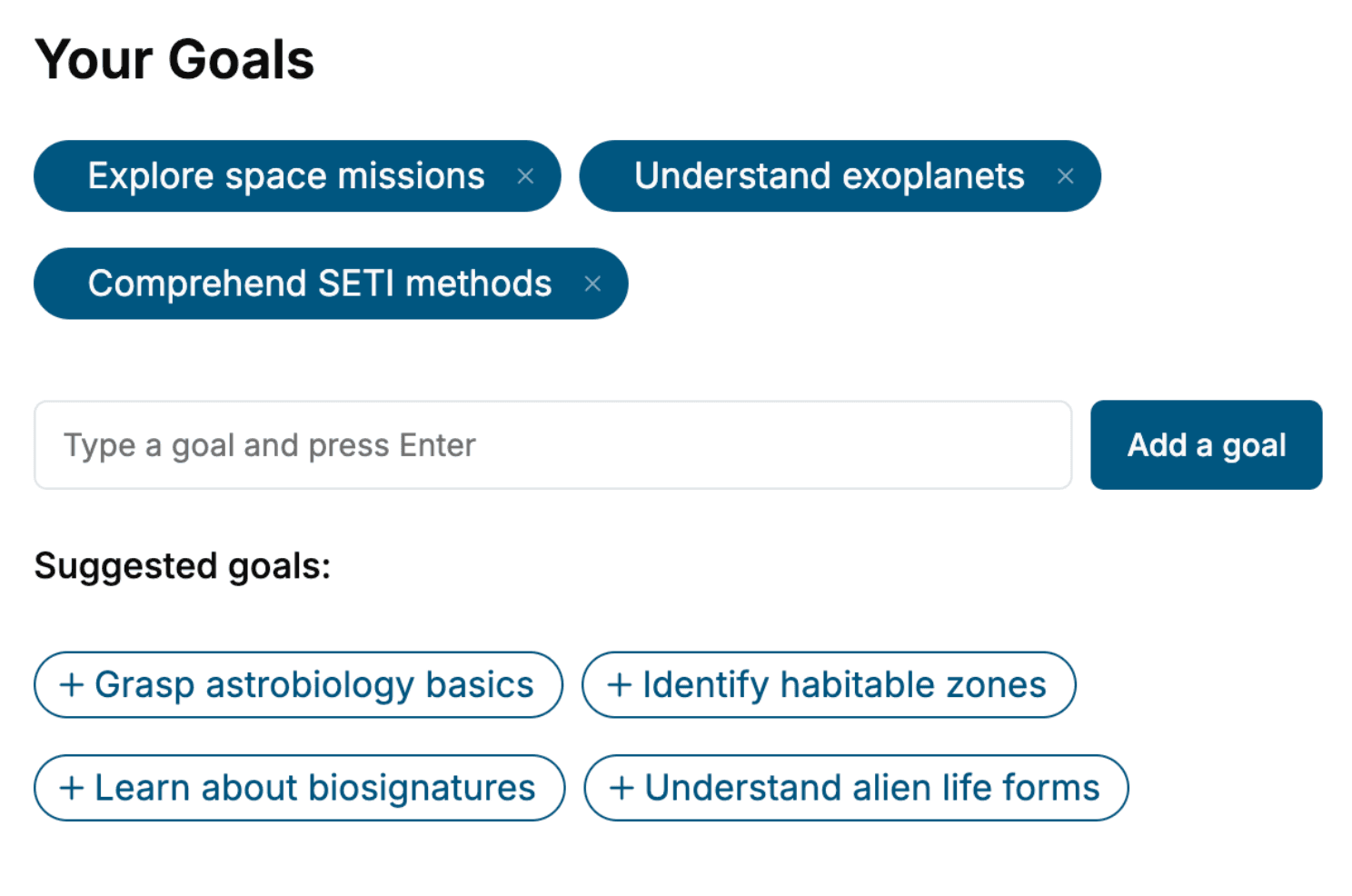
Specify your goals and choose sub-topics to include
- 3. Get your tailored book
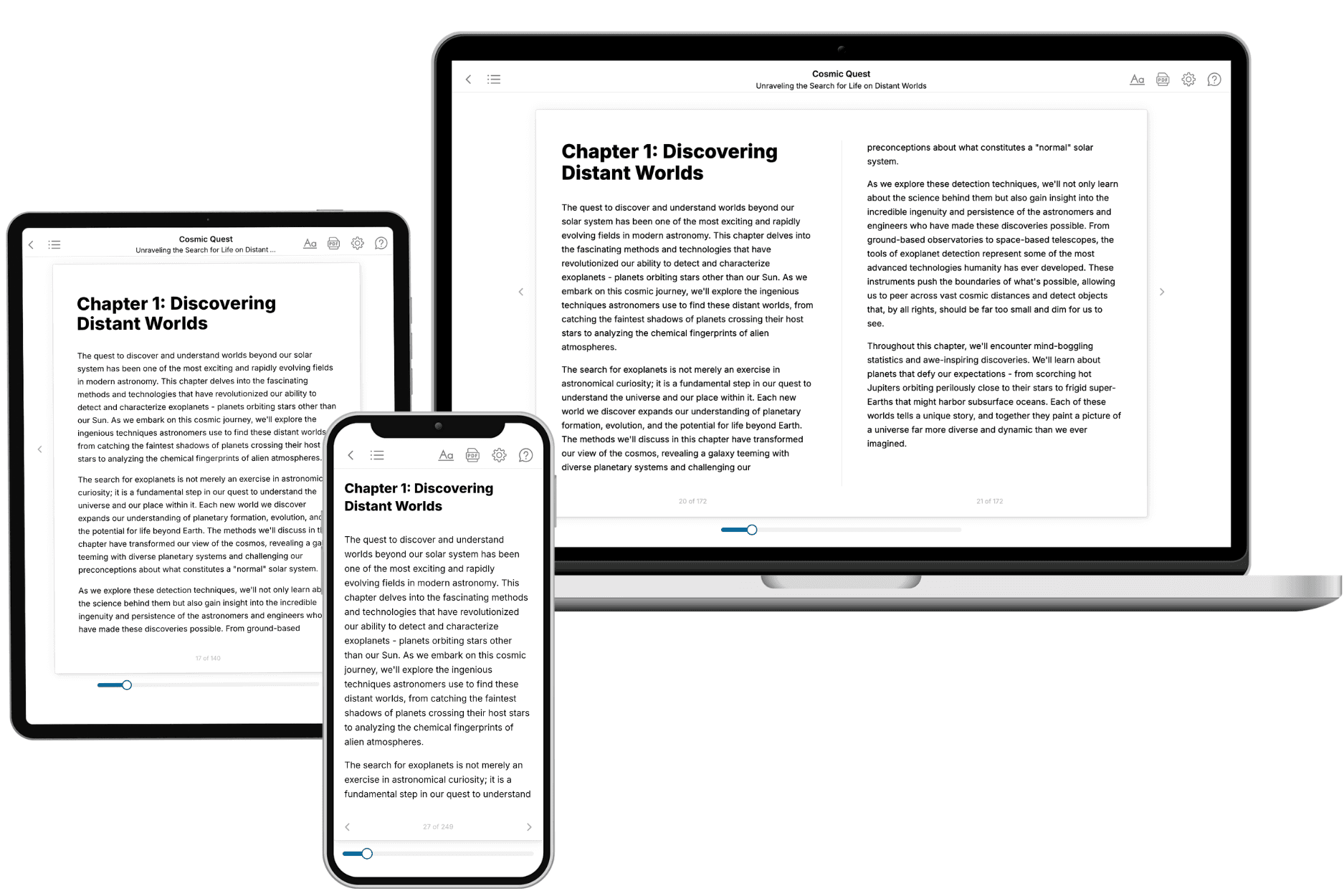
Your book is ready in 10 minutes. Read it online, download as EPUB or PDF, or send to Kindle.
Frequently asked questions
- What is TailoredRead?
TailoredRead creates complete, full-length nonfiction ebooks, written specifically for you. Tell us what you want to learn and why, and TailoredRead writes you a complete ebook on it, with charts, tables, and diagrams throughout. Read it online, on Kindle, or on any e-reader, or download it as a PDF or EPUB. Every book is written fresh the day you order it.
- How is the book tailored to me?
Before anything is written, you answer a few short questions about your goals, your background, and the topics you care about. Your book is then planned around your answers: written at your level, focused on your goals, and covering the topics you chose, instead of the one-size-fits-all book a store sells everyone.
- Will it read like generic AI content?
No. Your book isn't a chat transcript: it's planned chapter by chapter before a single word is written, told in a clear book voice, and explains ideas visually with charts, tables, and diagrams. After writing, every book goes through an editorial pass that polishes chapters so the book reads consistent from start to finish. Judge for yourself: browse thousands of sample books on our Explore Books page.
- How accurate is the content?
Our AI first checks whether your subject needs live research. Niche and fast-moving subjects are researched before writing, and the book plan and chapters are grounded in what it finds. After writing, every book goes through a quality pass that checks its facts and consistency, and researched books list their sources in a Notes section at the back.
- How long is the book?
You choose the length: Comprehensive (250-300 pages), Detailed (150-200 pages), Essential (70-100 pages), or Short (30-50 pages).
- Does the book include visuals?
Yes. Every book includes charts, tables, and diagrams: timelines, checklists, step-by-step guides, decision trees, comparison tables, matrices, and bar charts. A typical book includes dozens of these visual elements.
- Can I read it on Kindle? What formats can I download?
Yes. Every book can be read in our online reader or downloaded as a PDF or EPUB. The EPUB can be opened with Kindle, Apple Books, Kobo, and any e-reader. The Commercial and Author licenses also include an editable Word (DOCX) and Markdown download.
- How much does it cost?
About the price of a regular ebook. The exact price depends on your book's length and complexity, from $2 for the shortest books to $35 for the most comprehensive, and it's shown when you review your book, before you commit to anything. Each book is a one-time purchase, yours to keep, no subscription. Licenses that let you share, teach, or publish your book range from $35.99 to $49.99.
- Can I preview the book before purchasing?
Before you pay, you'll see what your book will cover: the title, a detailed description, the estimated length, and the complete chapter-by-chapter table of contents, so you know what you're getting before you decide. The full text itself is written after you purchase.
- How long does it take to create a book?
About 10 minutes. You can start reading the opening chapters while the rest is still being written.