Windows 10 Troubleshooting Essentials
Master Diagnostics, Performance Optimization, and DevOps Integration for Reliable Systems
Many IT professionals struggle with Windows 10 issues that seem to appear randomly and resist quick fixes.
222 pages11 chaptersJun 10, 2026Windows 10
About this book
You spend hours troubleshooting only to discover the problem was something simple you overlooked. This book cuts through the confusion by teaching you a proven diagnostic methodology that works for any Windows 10 problem. You'll learn how to use built-in tools like Event Viewer, Performance Monitor, and Task Manager to pinpoint root causes instead of guessing. Whether you're managing individual systems or deploying across DevOps infrastructure, you'll discover practical techniques for resolving connectivity issues, performance bottlenecks, driver conflicts, and service failures. This guide covers real-world scenarios you'll encounter, from mysterious blue screens to sluggish performance, with step-by-step solutions you can implement immediately. You'll also learn how to integrate Windows 10 troubleshooting into your DevOps practices, automate diagnostics, and prevent issues before they impact your systems.
Table of contents
- IntroductionWhy Windows 10 Troubleshooting Matters, The Systematic Approach to Problem-Solving, How to Use This BookRead below
- Chapter 1: Fundamentals of Windows 10 DiagnosticsBuilding Your Diagnostic Methodology, Essential Built-In Tools Overview, Gathering System Information Effectively
- Chapter 2: Event Viewer and Log AnalysisNavigating Event Viewer Like a Pro, Interpreting Error Codes and Event IDs, Filtering and Searching Logs Efficiently
- Chapter 3: Performance Monitoring and OptimizationPerformance Monitor Basics and Setup, Identifying CPU, Memory, and Disk Bottlenecks, Task Manager Advanced Techniques
- Chapter 4: Network Connectivity TroubleshootingNetwork Diagnostics Tools and Commands, DNS and IP Configuration Issues, Network Driver and Adapter Problems
- Chapter 5: Driver Management and Hardware IssuesDevice Manager Essentials, Driver Installation, Updates, and Rollback, Hardware Compatibility and Conflict Resolution
- Chapter 6: Service and Startup ConfigurationServices Management and Startup Modes, Startup Programs and Boot Time Optimization, Service Dependency Analysis and Troubleshooting
- Chapter 7: Registry and Group Policy TroubleshootingRegistry Fundamentals and Safe Editing, Group Policy Configuration and Conflicts, Backup and Recovery Strategies
- Chapter 8: Security, Updates, and Defender IssuesWindows Defender Troubleshooting and Conflicts, Windows Update Problems and Resolution, User Account Control and Permission Issues
- Chapter 9: DevOps Integration and AutomationMonitoring and Alerting for Windows 10 Systems, PowerShell Automation for Diagnostics, Infrastructure as Code Practices for Windows
- Chapter 10: Common Issues and Real-World SolutionsBlue Screen Errors: Diagnosis and Resolution, Application Crashes and Compatibility Problems, Slow Performance and System Freezing
- Chapter 11: Preventive Maintenance and Best PracticesEstablishing Maintenance Schedules, Disk Cleanup and Storage Optimization, Documentation and Knowledge Management
- ConclusionMastering Windows 10 Troubleshooting, Continuous Learning and Staying Current
- Appendix: Quick Reference GuideEssential Commands and Tools Reference, Troubleshooting Decision Flowcharts, Additional Resources and Learning Materials
Introduction
Every IT professional has been there. A user calls in with a vague complaint: "My computer is slow" or "The internet isn't working." You remote in, poke around for a few minutes, try a restart, and hope for the best. Sometimes that works. More often, you end up spending two hours chasing symptoms instead of causes, only to discover the real problem was something straightforward that you walked right past. That cycle of guessing, fixing the wrong thing, and starting over is one of the most frustrating and costly patterns in IT work.
Windows 10 is a mature, capable operating system, but it is also deeply complex. It manages hundreds of services, thousands of registry keys, multiple layers of security policy, and an enormous variety of hardware configurations. When something goes wrong, the number of possible causes can feel overwhelming. Without a clear method for narrowing down the problem, even experienced professionals can waste significant time. A 2022 survey by Spiceworks found that unplanned downtime costs small and mid-sized businesses an average of $10,000 per hour, and a large portion of that downtime traces back to delayed or incorrect diagnosis.[1] The cost of poor troubleshooting is real, and it compounds quickly in production environments.
This book exists to change that pattern. It is built around a single core idea: effective troubleshooting is a skill you can learn, practice, and systematize. It is not about memorizing every possible error code or knowing every obscure registry key. It is about developing a reliable mental framework, knowing which tools to reach for first, and understanding how Windows 10 components interact so you can trace problems to their source. Whether you are managing a handful of workstations or supporting a large DevOps pipeline with Windows 10 endpoints, the principles here apply directly to your work.
The chapters ahead cover the full spectrum of Windows 10 troubleshooting, from reading Event Viewer logs and interpreting performance data to resolving driver conflicts, fixing update failures, and automating diagnostics with PowerShell. Each chapter is grounded in real-world scenarios that reflect the kinds of problems you actually encounter on the job. You will find specific commands, step-by-step processes, and practical examples throughout, not just theory. By the time you finish, you will have a toolkit and a methodology that makes you faster, more confident, and more effective at solving Windows 10 problems.
Why Windows 10 Troubleshooting Matters
Windows 10 remains the dominant desktop operating system in enterprise environments. As of early 2024, it still accounts for more than 65% of Windows installations worldwide, despite the availability of Windows 11.[2] That means the vast majority of IT support work, endpoint management, and DevOps tooling still runs on Windows 10. Understanding how to troubleshoot it effectively is not optional for IT professionals. It is a core competency that directly affects how well you do your job.
The stakes are higher than they used to be. Modern organizations depend on their endpoints in ways that were not true a decade ago. Remote work has made individual workstations critical infrastructure. A developer whose machine is crashing or whose VPN keeps dropping is not just inconvenienced. They are blocked from contributing to a sprint, a deployment, or a customer-facing fix. When you can resolve that problem in 20 minutes instead of two hours, the impact on the business is tangible and immediate.
Troubleshooting also matters because it prevents problems from recurring. There is a significant difference between fixing a symptom and fixing a root cause. If a user's machine keeps running out of disk space and you just delete some files each time, the problem will come back. If you identify that a logging service is writing gigabytes of debug output to a temp folder because of a misconfigured application, you can fix it permanently. That distinction, between reactive symptom management and genuine root-cause resolution, is what separates good IT support from great IT support.
For DevOps practitioners specifically, Windows 10 troubleshooting intersects with broader infrastructure reliability goals. When Windows endpoints are part of a CI/CD pipeline, a build agent that crashes or a test runner that hangs can block deployments for an entire team. Integrating diagnostic practices into your monitoring and automation workflows means you catch these issues before they escalate. The later chapters of this book address exactly that integration, showing you how to bring Windows 10 troubleshooting into the same systematic, automated approach you apply to your servers and cloud infrastructure.
There is also a professional development angle worth acknowledging. IT environments are constantly changing. New hardware, new software, new security policies, and new Windows updates all introduce new failure modes. The professionals who thrive are not the ones who have memorized the most fixes. They are the ones who have internalized a diagnostic process that works on unfamiliar problems. Building that process is what this book is designed to help you do.
A real-world example: A mid-sized logistics company experienced intermittent network drops on about 30% of their Windows 10 workstations after a routine Windows Update deployment. The initial response was to roll back the update on affected machines, which temporarily resolved the issue. However, the problem returned after the next update cycle. A proper root-cause investigation revealed that the update had changed a power management setting for network adapters, causing them to enter a low-power state during periods of low activity. A single Group Policy change fixed all 200 affected machines permanently. The difference between the first response and the second was a systematic approach to finding the actual cause.
Understanding why troubleshooting matters also means understanding what it costs when it goes wrong. Misdiagnosis leads to wasted time, unnecessary hardware replacements, and user frustration that erodes trust in IT. A study by IDC found that the average knowledge worker loses 5.3 hours per week due to IT-related productivity issues, and a significant portion of that loss comes from problems that take too long to resolve.[3] Faster, more accurate troubleshooting directly reduces that number.
Finally, good troubleshooting builds organizational knowledge. When you document what you found, how you found it, and how you fixed it, you create a resource that helps your entire team. The next time a similar problem appears, someone can find the answer in minutes instead of hours. That compounding effect on team efficiency is one of the most underrated benefits of investing in troubleshooting skills. The last chapter of this book covers documentation practices specifically because of how much value they add over time.
The Systematic Approach to Problem-Solving
The single biggest improvement most IT professionals can make to their troubleshooting is adopting a consistent, structured process. Without a process, troubleshooting becomes reactive and random. You try the things that worked last time, then the things you read about online, then you restart the machine and hope. With a process, every problem becomes a series of answerable questions that progressively narrow down the cause. The process does not guarantee a fast answer, but it guarantees that you are always moving toward one.
The core diagnostic loop used throughout this book follows five stages. These stages are not rigid steps that must be followed in lockstep, but they represent a logical flow that prevents the most common troubleshooting mistakes.
- Define the problem clearly. What exactly is happening? When did it start? What changed recently? Who is affected?
- Gather information. Use Event Viewer, Task Manager, Performance Monitor, and other tools to collect data before making any changes.
- Form a hypothesis. Based on the data, identify the most likely cause. Prioritize hypotheses by likelihood and ease of testing.
- Test and verify. Make one change at a time and observe the result. Avoid changing multiple things simultaneously.
- Document and prevent. Record what you found and how you fixed it. Identify whether a process or configuration change can prevent recurrence.
The most common mistake in troubleshooting is skipping stage two and jumping straight to stage four. When a user says their machine is slow, the instinct is to immediately start disabling startup programs or running disk cleanup. Those actions might help, but they might also be completely irrelevant. If the real cause is a failing hard drive or a runaway background process, you have wasted time and potentially made the situation harder to diagnose by changing things before you understood them.
Gathering information first sounds obvious, but it requires discipline, especially under pressure. When a production system is down and people are waiting, the urge to do something immediately is strong. The systematic approach asks you to spend five minutes collecting data before you act. That investment almost always pays off. A quick look at Event Viewer might show you a critical error that points directly to the cause. A glance at Task Manager might reveal a process consuming 95% of CPU. Those five minutes of observation can save an hour of guessing.
Forming a hypothesis is where experience and knowledge matter most. The more you understand about how Windows 10 works, the better your hypotheses will be. That is why this book spends significant time on the underlying mechanics of Windows components, not just the steps to fix specific problems. When you understand why a service depends on another service, or why a driver update can cause a network adapter to behave differently, you can form better hypotheses faster. Knowledge of the system turns data into insight.
Testing one change at a time is a discipline that many experienced professionals struggle with. When you have three possible causes, it is tempting to address all three at once to save time. The problem is that if the issue resolves, you do not know which change fixed it. If the issue gets worse, you do not know which change caused the regression. Single-variable testing is slower in the short term but faster overall because it produces clear, actionable information at each step.
What good hypothesis formation looks like: A user reports that their machine freezes for 10-15 seconds every few minutes. Before touching anything, you open Task Manager and notice that disk activity spikes to 100% during each freeze. You check Event Viewer and find repeated warnings from the Windows Search indexing service. Your hypothesis: the indexing service is causing excessive disk I/O, possibly because it is indexing a large new folder or because the disk is slow. You test by temporarily disabling the indexing service. The freezes stop. You then investigate whether the disk is healthy using
chkdskand S.M.A.R.T. data, and find early signs of disk failure. The real fix is replacing the disk, not just disabling indexing. The systematic approach got you to the root cause.
Documentation is the stage most often skipped, especially when the fix was quick and the pressure to move on is high. But documentation is what transforms individual troubleshooting events into organizational knowledge. A well-written incident note that describes the symptoms, the diagnostic steps, the root cause, and the fix can save hours of work the next time a similar problem appears. It also helps you identify patterns across multiple incidents, which is how you spot systemic issues before they become widespread.
The systematic approach also has a psychological benefit. Troubleshooting can be stressful, especially when the problem is urgent and the cause is not obvious. Having a process to follow gives you a clear next action at every point. Instead of feeling stuck, you are always in the middle of a defined step. That structure reduces anxiety and helps you think more clearly, which in turn makes you more effective. The process is not just a technical tool. It is also a way of managing the cognitive load of complex problem-solving.
Throughout this book, the systematic approach is applied to every category of problem. Whether you are diagnosing a blue screen, a network failure, a service crash, or a performance issue, the same five-stage loop applies. The tools and specific techniques change depending on the problem type, but the underlying logic stays the same. By the time you have worked through all the chapters, the process will feel natural, and you will apply it automatically even in high-pressure situations.
How to Use This Book
This book is designed for intermediate IT professionals and DevOps practitioners who already have a working knowledge of Windows 10. It assumes you know how to navigate the operating system, use basic administrative tools, and understand fundamental concepts like file systems, user accounts, and network configuration. If you are completely new to Windows administration, you may want to spend some time with introductory material before diving in here. If you have been working with Windows 10 for a year or more, you are in the right place.
The chapters are organized to build on each other, but they are also designed to stand alone as references. If you are reading this book cover to cover for the first time, the recommended path is to start with Chapters 1 through 3, which establish the diagnostic methodology and core tools. Those chapters form the foundation that everything else builds on. After that, you can follow the chapters in order or jump to the topics most relevant to your current work.
If you are using this book as a reference during active troubleshooting, the structure supports that too. Each chapter focuses on a specific problem domain, so you can go directly to the relevant section when you are dealing with a network issue, a driver problem, or a service failure. The appendix at the back of the book provides a quick-reference guide with essential commands, decision flowcharts, and resource links that you can use without reading the full chapter.
Here is a quick map of what each part of the book covers, so you can navigate efficiently:
- Chapters 1-3 (Foundation): Diagnostic methodology, built-in tools, Event Viewer, and Performance Monitor. Start here if you want to build a strong base.
- Chapters 4-6 (Common Problem Areas): Network connectivity, driver management, and service configuration. These cover the most frequent categories of Windows 10 issues.
- Chapters 7-8 (Advanced Configuration): Registry editing, Group Policy, security features, and Windows Update. These topics require more care and are covered with appropriate safety guidance.
- Chapter 9 (DevOps Integration): PowerShell automation, monitoring, and infrastructure-as-code practices for Windows 10. Especially relevant if you manage endpoints at scale.
- Chapters 10-11 (Real-World Application): Common issues with step-by-step solutions, and preventive maintenance practices. Useful as both learning material and on-the-job reference.
Throughout the book, you will find several recurring elements designed to make the content more practical and easier to apply. Command examples are formatted as inline code or code blocks so you can copy them directly. Scenario examples appear in blockquotes and walk through real-world situations that illustrate the concepts being discussed. Warnings and cautions are called out clearly before any steps that carry risk, such as registry edits or service modifications. Pay attention to those warnings. They exist because the mistakes they describe are common and sometimes difficult to reverse.
The book also includes footnotes with source citations throughout. These are not just for academic credibility. They point you toward additional resources, official documentation, and research that can deepen your understanding of specific topics. When you encounter a footnote on a topic you want to explore further, the citation gives you a starting point for that exploration.
One practical suggestion for getting the most out of this book: read each chapter with a Windows 10 machine nearby. Many of the concepts become much clearer when you can open the tool being described and follow along. Event Viewer, Performance Monitor, and Device Manager all have nuances that are easier to understand when you are looking at them directly. If you manage multiple machines, even better. Some of the diagnostic techniques are most instructive when you can compare a healthy system to a problematic one.
For DevOps practitioners, Chapter 9 is worth reading early, even if you plan to work through the book in order. It provides context for how the individual troubleshooting techniques in earlier chapters connect to broader automation and monitoring strategies. Understanding that context can change how you approach the earlier material, helping you see not just how to fix a problem manually but how to detect and respond to it automatically at scale.
Finally, treat this book as a starting point rather than a complete reference. Windows 10 is a living system that receives regular updates, and some specific behaviors or tool interfaces may change over time. The diagnostic principles and methodologies covered here are durable and will remain relevant regardless of which version of Windows 10 you are running. The specific commands and settings are accurate as of the time of writing, but always verify against current Microsoft documentation when working in a production environment. The official Microsoft Docs site at docs.microsoft.com is an excellent companion resource that stays current with each Windows update.
The goal of this book is not to make you dependent on a reference guide. It is to help you internalize a way of thinking about Windows 10 problems so that you can handle situations you have never seen before. Every new problem you encounter will have unique details, but the underlying diagnostic process stays the same. Build the process, learn the tools, understand the system, and you will be equipped to handle whatever Windows 10 throws at you.
This is the end of the free sample. The full book has 11 chapters.
Want this book written for you?
Tell us your goals and background, and get your own version of this book, tailored by AI to you.






Benefits of AI-tailored books
- Read one book, not ten:
- all the Windows 10 knowledge you need, gathered into a single book.
- Save days of learning:
- tell us your goals, choose your topics, and the whole book is built around them.
- Learn effortlessly:
- Windows 10 book written for your specific background and expertise.
- Understand at a glance:
- includes charts, tables, timelines, checklists, decision trees, and more.
- Stay current:
- written the day you order it, not years ago.
- Trust what you read:
- every book is checked for accuracy, with real research when your subject needs it.
Create your unique book in 3 steps
- 1. Select your focus
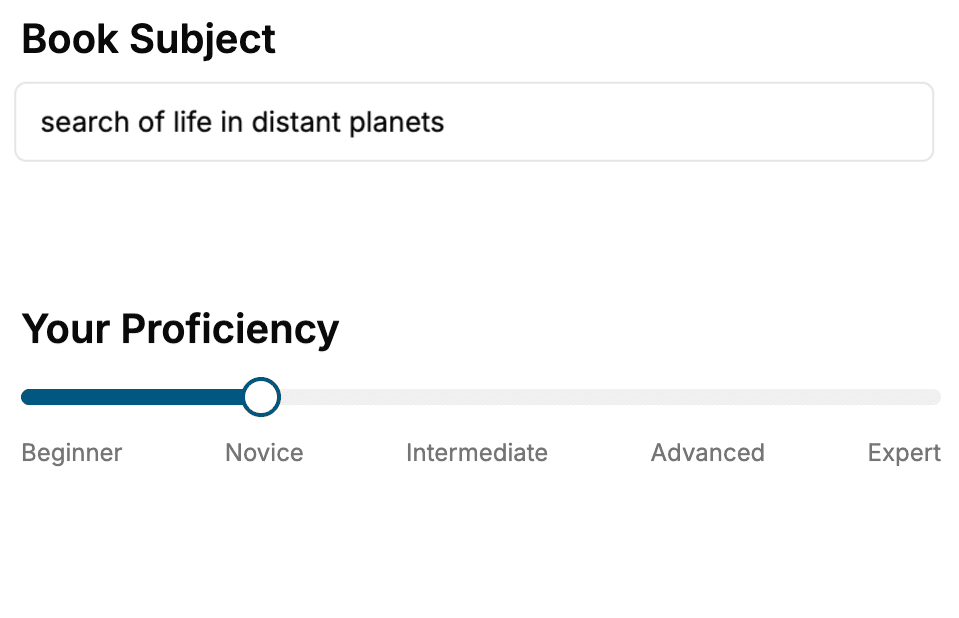
Select the focus of your Windows 10 book and share your background
- 2. Personalize your book
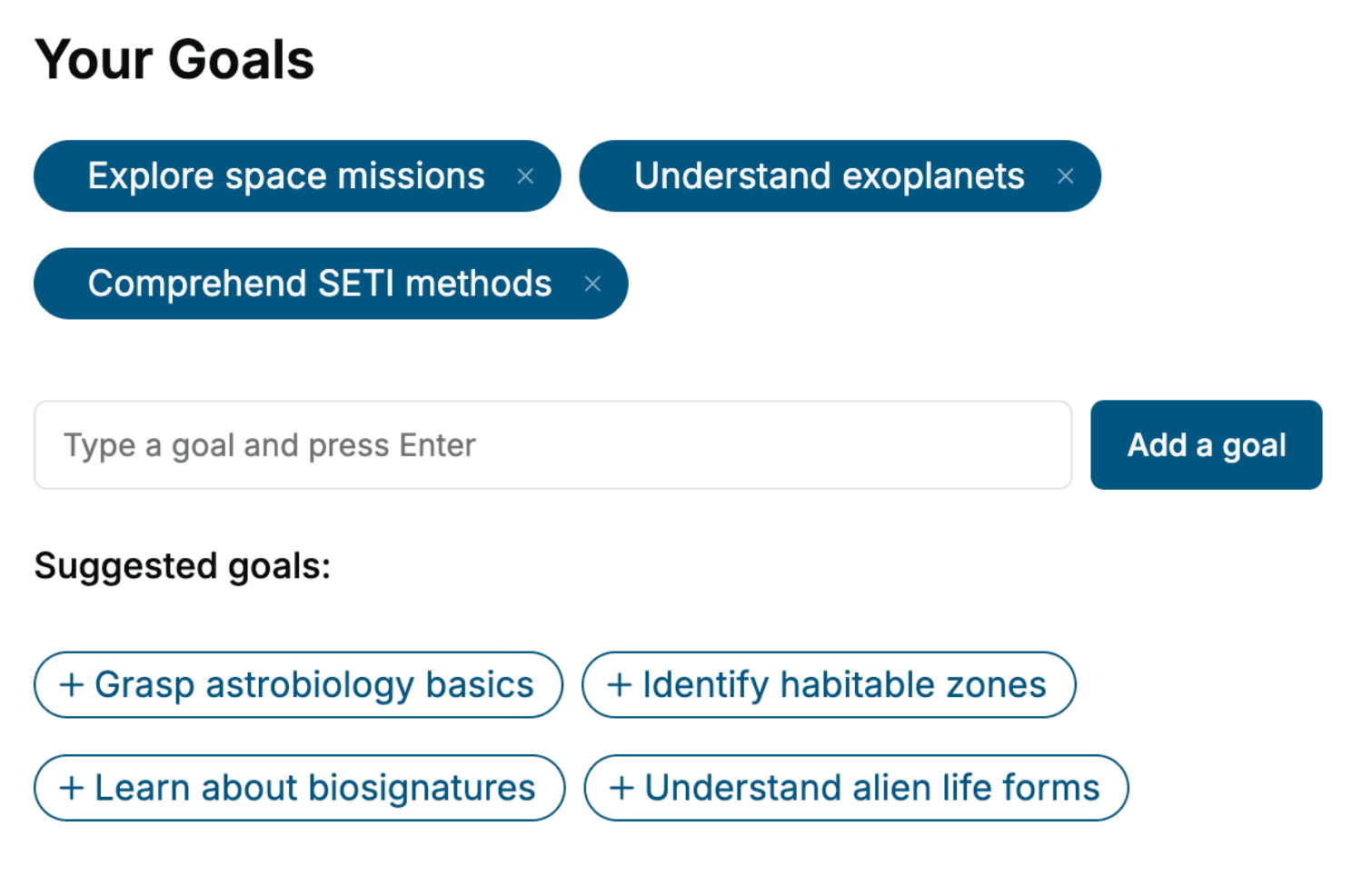
Specify your goals and choose sub-topics to include
- 3. Get your tailored book
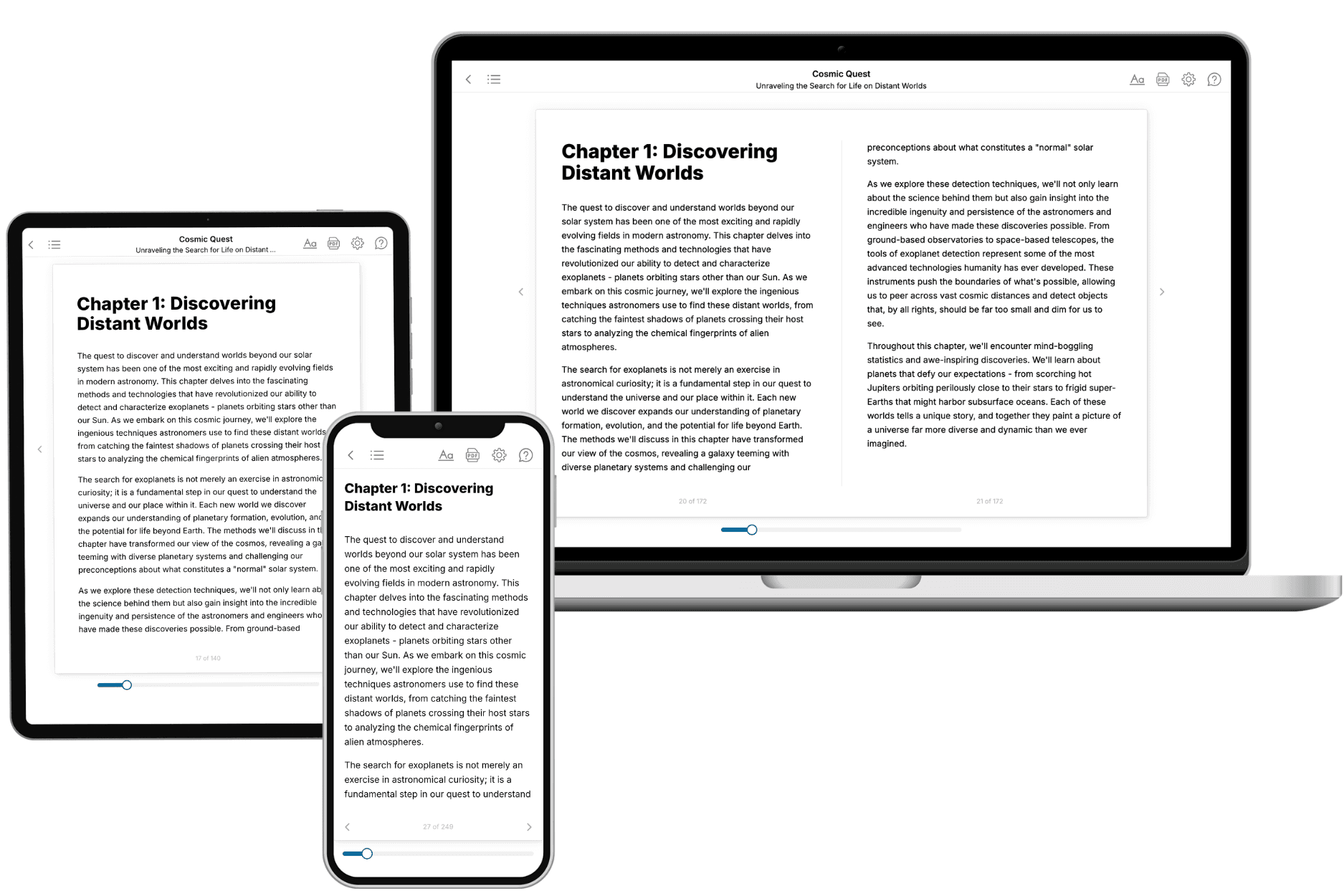
Your book is ready in 10 minutes. Read it online, download as EPUB or PDF, or send to Kindle.
Frequently asked questions
- What is TailoredRead?
TailoredRead creates complete, full-length nonfiction ebooks, written specifically for you. Tell us what you want to learn and why, and TailoredRead writes you a complete ebook on it, with charts, tables, and diagrams throughout. Read it online, on Kindle, or on any e-reader, or download it as a PDF or EPUB. Every book is written fresh the day you order it.
- How is the book tailored to me?
Before anything is written, you answer a few short questions about your goals, your background, and the topics you care about. Your book is then planned around your answers: written at your level, focused on your goals, and covering the topics you chose, instead of the one-size-fits-all book a store sells everyone.
- Will it read like generic AI content?
No. Your book isn't a chat transcript: it's planned chapter by chapter before a single word is written, told in a clear book voice, and explains ideas visually with charts, tables, and diagrams. After writing, every book goes through an editorial pass that polishes chapters so the book reads consistent from start to finish. Judge for yourself: browse thousands of sample books on our Explore Books page.
- How accurate is the content?
Our AI first checks whether your subject needs live research. Niche and fast-moving subjects are researched before writing, and the book plan and chapters are grounded in what it finds. After writing, every book goes through a quality pass that checks its facts and consistency, and researched books list their sources in a Notes section at the back.
- How long is the book?
You choose the length: Comprehensive (250-300 pages), Detailed (150-200 pages), Essential (70-100 pages), or Short (30-50 pages).
- Does the book include visuals?
Yes. Every book includes charts, tables, and diagrams: timelines, checklists, step-by-step guides, decision trees, comparison tables, matrices, and bar charts. A typical book includes dozens of these visual elements.
- Can I read it on Kindle? What formats can I download?
Yes. Every book can be read in our online reader or downloaded as a PDF or EPUB. The EPUB can be opened with Kindle, Apple Books, Kobo, and any e-reader. The Commercial and Author licenses also include an editable Word (DOCX) and Markdown download.
- How much does it cost?
About the price of a regular ebook. The exact price depends on your book's length and complexity, from $2 for the shortest books to $35 for the most comprehensive, and it's shown when you review your book, before you commit to anything. Each book is a one-time purchase, yours to keep, no subscription. Licenses that let you share, teach, or publish your book range from $35.99 to $49.99.
- Can I preview the book before purchasing?
Before you pay, you'll see what your book will cover: the title, a detailed description, the estimated length, and the complete chapter-by-chapter table of contents, so you know what you're getting before you decide. The full text itself is written after you purchase.
- How long does it take to create a book?
About 10 minutes. You can start reading the opening chapters while the rest is still being written.